When using an iPad, you might want to add an international keyboard for several reasons. Your job or university course might require you to write in a second language, for example. And in some cases, it could be because you’re traveling somewhere or simply want to learn a new language.
Adding an international keyboard to your iPad gives you the best of both worlds. You can keep the main language in your mother tongue, making it easier to navigate. But at the same time, you have the ability to easily type in another language – without autocorrect making things more difficult.
This guide will show you how to add an international keyboard to your iPad. You’ll also learn how to switch to this keyboard when needed.
Which Languages Can You Add as an International Keyboard on Your iPad?
Apple lets you add several languages as keyboards on your iPad. Within each of these, you can also add multiple variations. With English, for example, you can add US, Australian, Canadian, and Indian styles of English – plus several others. Similarly, with German, you can include keyboards for the Austrian and Swiss versions.
Some of the other languages that you can add as an international keyboard on your iPad include Arabic, Chinese, Korean, Vietnamese, and Italian. You can also find less frequently-spoken languages, such as Welsh, Slovenian, and Latvian.
How to Add an International Keyboard to Your iPad
Adding an international keyboard to your iPad is very straightforward. Follow these steps:
1. Open the Settings app on your iPad.
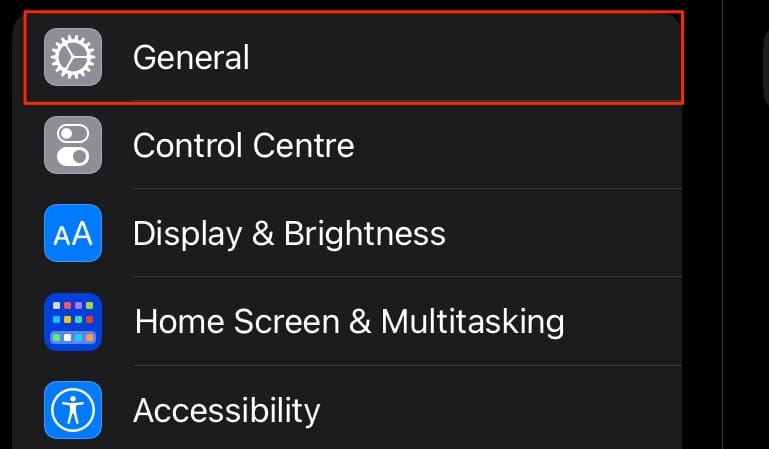
2. In the left-hand toolbar, go to General.
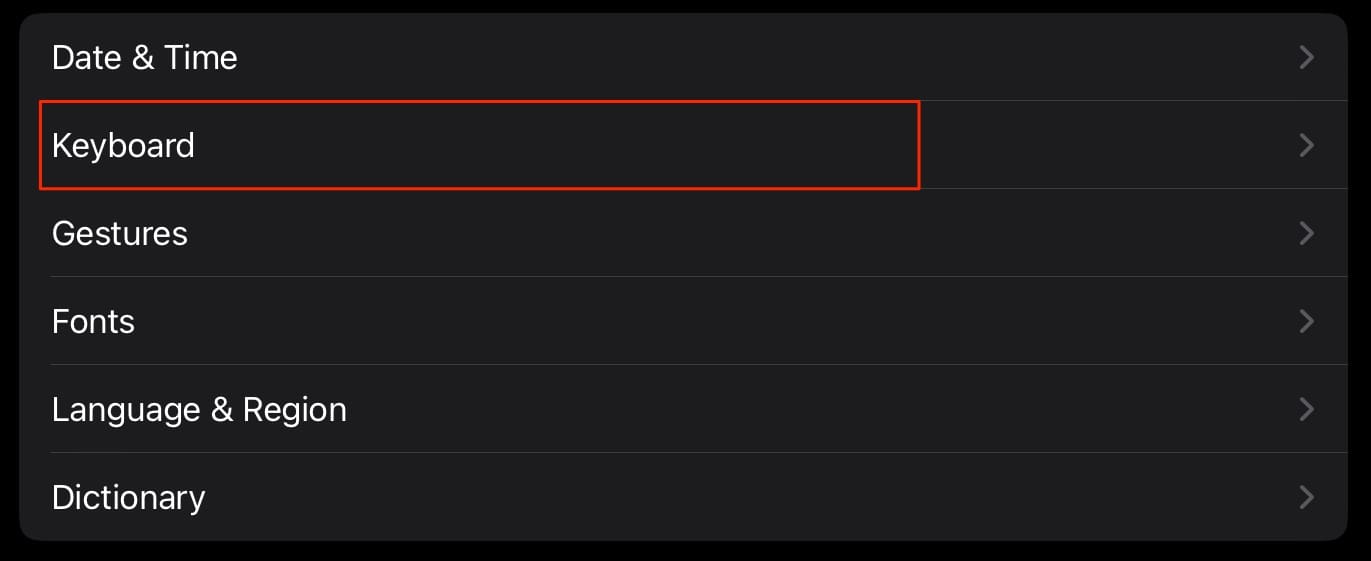
3. Select Keyboard when the next page appears.
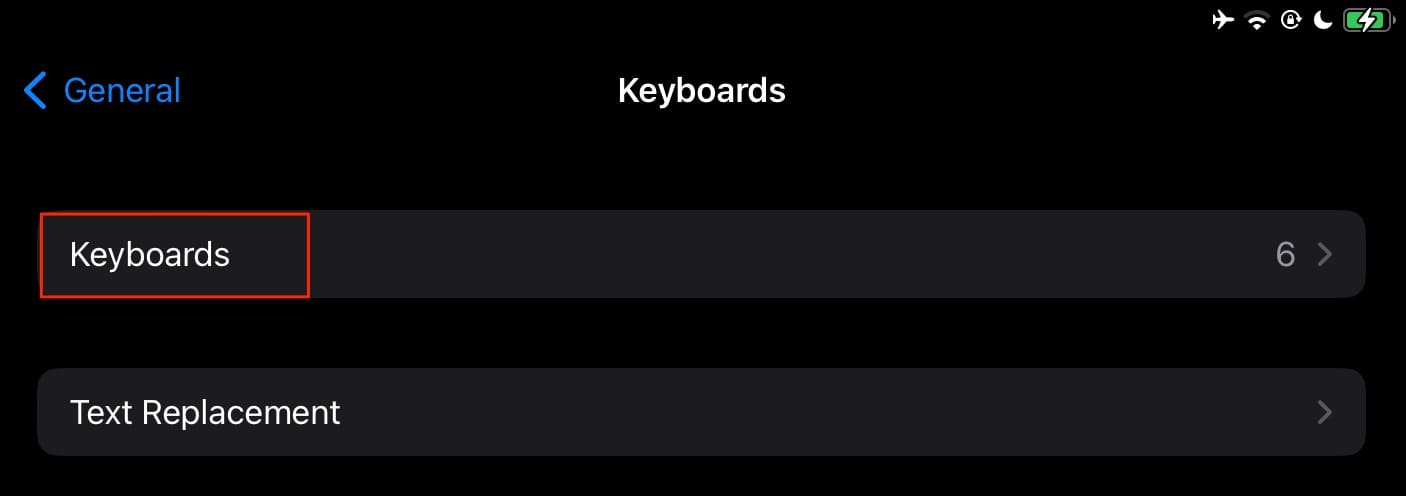
4. At the top, you’ll see a tab titled Keyboards; click on this.
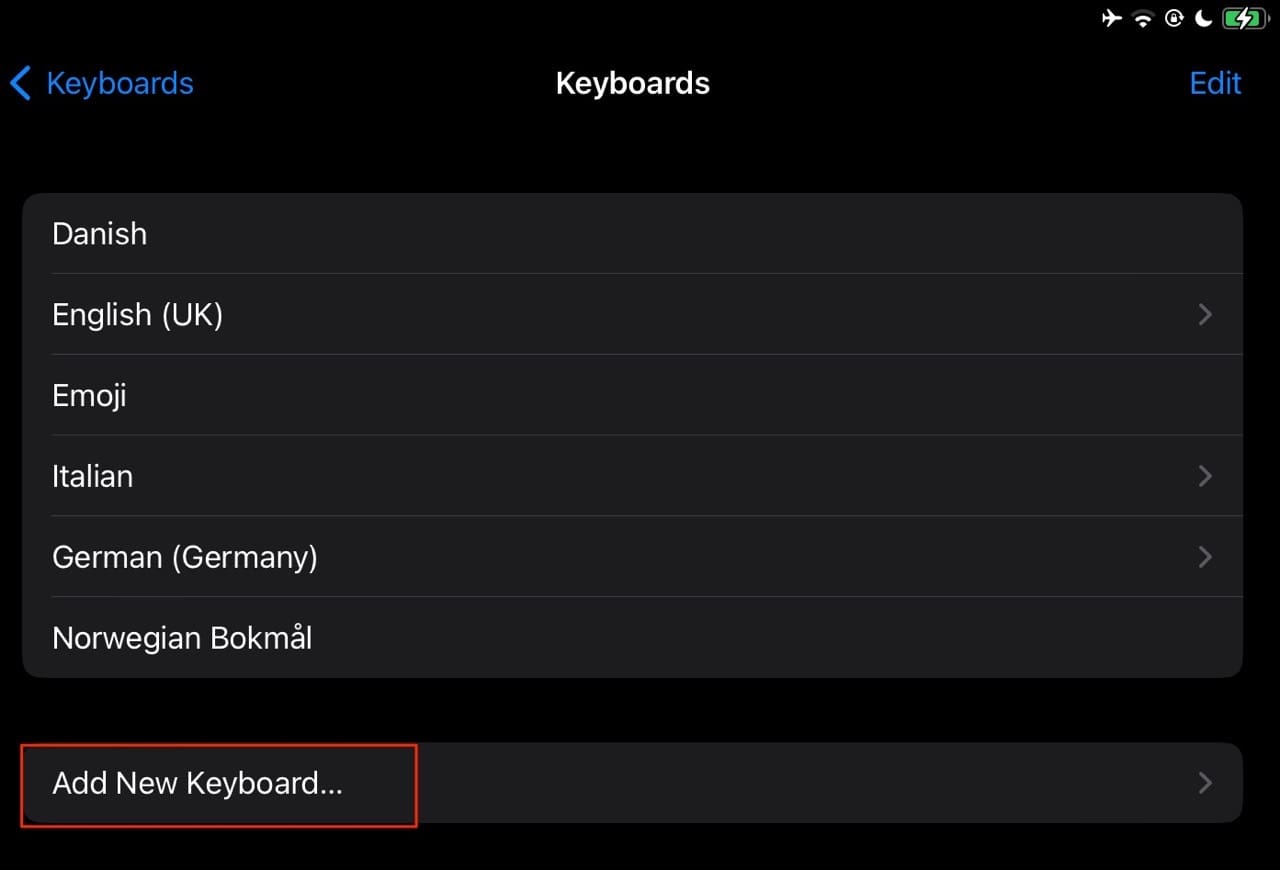
5. Select Add New Keyboard at the bottom of your screen.
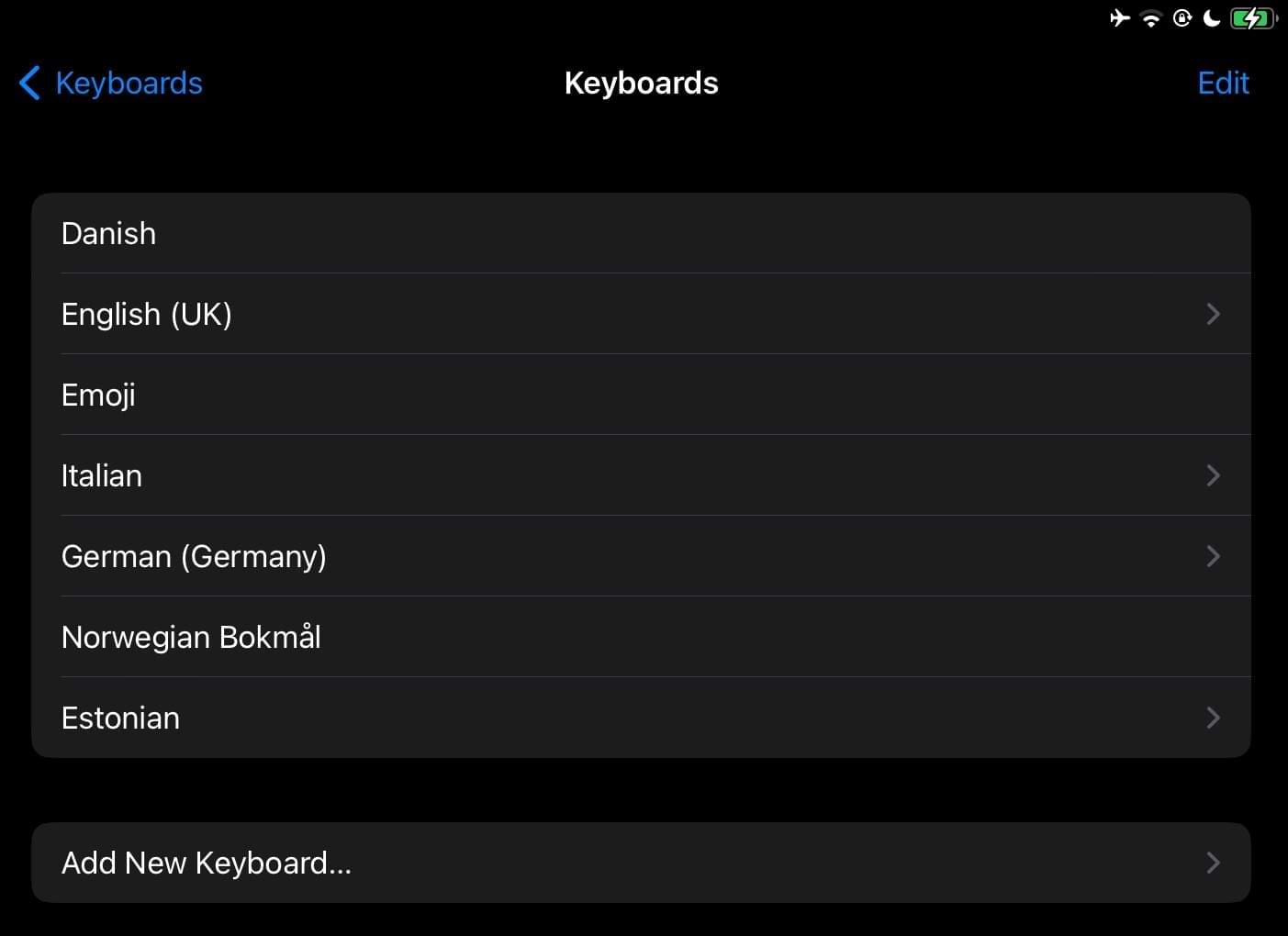
6. Select the new keyboard that you’d like to add to your iPad. In this case, we’ll pick Estonian.
Once you’ve added your new keyboard, you’ll see it at the bottom of the list on the Keyboards page.
How to Switch the Language on Your iPad Keyboard
After adding your new language keyboard, you can follow these steps to begin using it.
1. Open an app and go to its typing section.
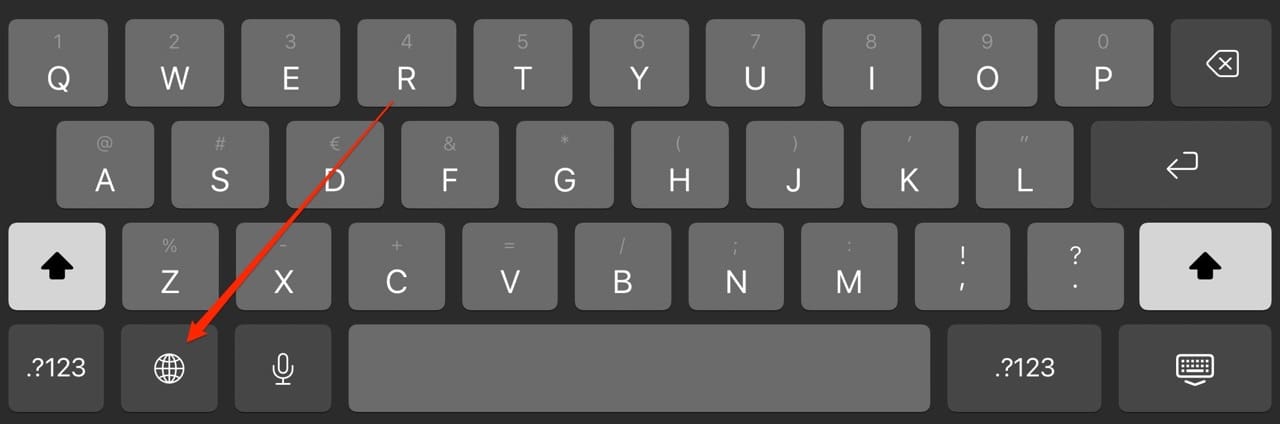
2. On your keyboard, you’ll see a globe icon. Tap on this until it changes to your newly-added international keyboard.
Adding an International Keyboard to Your iPad: It’s as Easy as That
In an increasingly globalized world, you’ll likely have to interact with numerous languages in your lifetime. If you either want or need to explore one (or many) of these further, you can start by adding an international keyboard to your iPad. After doing that, you can easily type in different languages and switch between them whenever you feel that doing so is necessary.
Now that you’ve read this guide, you have all the information you need to add an international keyboard to your iPad. You can also add more than one; feel free to repeat these steps whenever doing so is necessary.
Danny has been a professional writer since graduating from university in 2016, but he’s been writing online for over a decade. He has been intrigued by Apple products ever since getting an iPod Shuffle in 2008 and particularly enjoys writing about iPhones and iPads. Danny prides himself on making complex topics easy to understand. In his spare time, he’s a keen photographer.
On my new iPad there are no options to add a new keyboard and there
Are no international keyboards to choose from!!! Intact onred keyboards
There are NO option at all?
hope we can add more input methods online, or we can set our own input method besides the optional input.e,g, there are more kinds of input method rather than the optional in all languages.
Unable to tap on Keyboard option to select the Emoi option for it is not included under International Keyboard options. How will I be able to get this?












I want to purchase, if I can, the cartoon character keyboard on my iPad Air. Is this just impossible? I can’t seem to figure out how to do it.
On my new iPad there are no options to add a new keyboard and there
Are no international keyboards to choose from!!! Intact onred keyboards
There are NO option at all?
Emoji keyboard Requires iOS 5.0 or higher.
hope we can add more input methods online, or we can set our own input method besides the optional input.e,g, there are more kinds of input method rather than the optional in all languages.
Emoi option not available
Unable to tap on Keyboard option to select the Emoi option for it is not included under International Keyboard options. How will I be able to get this?