It’s a really good idea to transfer your photos from your iPhone to your computer at some point. Either to free up space on your phone or to have a backup. We get a lot of emails asking about the best ways to transfer Photos from iPhone to PC, so we wanted to provide you with a handful of good tips.
Transferring photos periodically is good practice so you never lose those memories just in case your phone gets lost, stolen, or bricks. Your photos also consume a lot of space over time so keeping them on your hard drive instead of your phone is a smart choice.
Backing up your iPhone and iDevices is critical to maintaining its health and keeping it in tip-top shape. For an in-depth look at backing up, check out this article.
Importing photos is easy! It takes just a few short steps.
So without further ado, let’s import your photos to your computer.
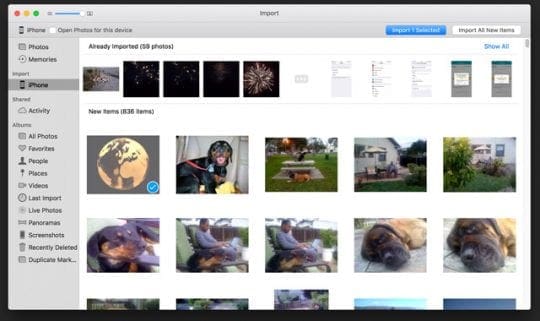
By far, the easiest way to transfer photos to your Windows computer is to connect your iPhone with a USB cable. To windows, your iPhone is like a digital camera or flash drive. Once you connect, you may need to unlock the iPhone to grant access to the photos. Usually, you will get a prompt confirming if you trust the connected computer to have access. Click Yes to grant access and proceed.
Use Your iPhone like any external media drive
Connect the iPhone with USB cable
The Pop-up should appear on your computer screen
Click on View Content
You will see your photos in the folders
In case the Pop-up does not appear, head to My Computer/This PC, and you will see your iPhone under Portable Devices label
Now you can select all the photos you want to transfer and copy them into any folder on your PC. This is the simplest and fastest way to transfer pictures from your iPhone
Import Photos Using iCloud
Use iCloud to import photos to your PC! You need an iCloud account for that. First, enable iCloud on your iPhone so all the photos from your gallery are synced with your iCloud account.
Check that you have ample space on iCloud to sync all the photos from your device(s). To find out about your iCloud storage, go to Settings > Apple ID Profile > iCloud > Manage Storage. iCloud storage is increased by purchasing a plan from Apple.
To sync photos from your iCloud to your PC, download iCloud for Windows first
Open iCloud for Windows on your PC
Click on Options right next to Photos
Select iCloud Photo Library and then click Done
Click Apply to apply the new settings
Turn on iCloud Photo Library on your iPhone
Now all the pictures in your iCloud sync with your iCloud Photo Library on your Computer!
With My Photo Stream, all your new photos sync with all your other Apple devices in addition to your PC. For an in-depth look at backing up photos via iCloud, check out our comprehensive article.
Download from Your iCloud’s Website
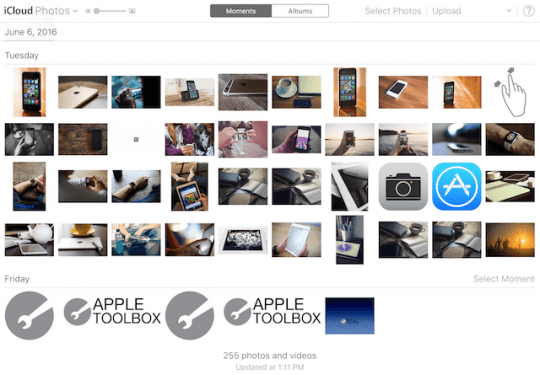
Another option is to visit the iCloud website and download photos directly from your browser!
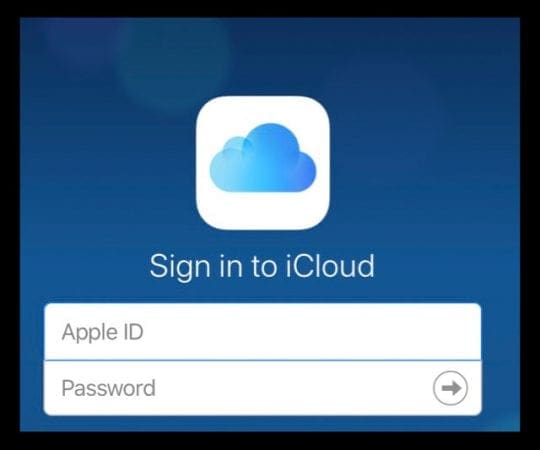
Go to iCloud via any browser
Sign in with your Apple ID
Provide a verification code if using two-step authentication
Tap the Photos App icon
Select the photos you want to download to your PC
Tap on the download icon
Choose your compression settings–either original or most compatible (we recommend this setting)
Tap Download
Select your destination, where you want your photos to download onto your computer
Import Photos Using iTunes
Importing photos from your iPhone using iTunes is easy. This is the best way to transfer photos when copying your entire photo library to your computer.
iTunes automatically syncs photos from your iPhone with your other iDevices and your PC. So every time you connect your iDevice with iTunes, photos sync. There are options to create folders and subfolders, and you choose a particular folder or subfolder to sync.
Connect your iPhone with your PC and open iTunes
Click on your iPhone icon and click Photos under Settings
Check Sync Photos
Here, you spot a drop-down where you select any folder
Select the desired folder
Click apply and your photos from that folder start syncing
Make sure you have the latest version of the iTunes. iTunes also allows you to transfer pictures from your PC to iPhone.
Import Photos Using Other Software
There are many third-party applications that transfer your pictures from your phone to your PC. For example, AnyTrans and Syncios make the import process easy, just in case you do not have an iCloud account or want to use iTunes. Most of these third-party applications are free.
Summary
Transferring your photos to your computer is simple! And it’s good practice to free up storage and backup all of your precious memories.
You manually copy your photos by connecting your iPhone to your PC with a USB cable. iCloud is an excellent option because it syncs photos with all your iDevices including your PC. Ideally, connect your iPhone using the original Lightning cable that accompanied it. If you do not have that, use a good quality Lightning cable to make the transfer.
Thank you very much for your sharing! It seems to be useful for me. I also prefer the last method to import photos from iPhone to computer with a third-party tool, as I think it would save much of my time.
Yes, I too prefer 3rd party software for just about everything with devices uploading to my PC.
Maybe just because I don’t appreciate not having a choice in which software I can use.
Nothing upsets me more than being forced to use a particular software program exclusively in order to be able to store my media onto my hard drive.
I have used an iPhone for many years now and thought seriously about switching to another because of the difficulties I have had trying to get a drive letter to open so that I can transfer my photos and videos from it.
I came into this page to figure out what others I can use other than iTunes.
I don’t like using Itunes for transfer photos and videos. It is software designed for music and in my opinion not all that user-friendly for other types of media.
All I want to do is drag and drop the media stored on my phone into my photos and video folder on my computer hard drive.
It shouldn’t be such a problem to automatically get a drive letter instantly when plugging in an iPhone you paid almost a thousand dollars for into your PC’s USB port!
Who’s to blame, Apple or Micro? It doesn’t matter it still makes me mad!
Nice work! All methods could work out but I still prefer to the last one. I think the third-party app works better than the others, for example, I am using AirMore, which is a web-based program, so I just need to download the app on my mobile device, and then go to its Web to establish the connection. Then I can import photos with one-click.












Thank you very much for your sharing! It seems to be useful for me. I also prefer the last method to import photos from iPhone to computer with a third-party tool, as I think it would save much of my time.
Yes, I too prefer 3rd party software for just about everything with devices uploading to my PC.
Maybe just because I don’t appreciate not having a choice in which software I can use.
Nothing upsets me more than being forced to use a particular software program exclusively in order to be able to store my media onto my hard drive.
I have used an iPhone for many years now and thought seriously about switching to another because of the difficulties I have had trying to get a drive letter to open so that I can transfer my photos and videos from it.
I came into this page to figure out what others I can use other than iTunes.
I don’t like using Itunes for transfer photos and videos. It is software designed for music and in my opinion not all that user-friendly for other types of media.
All I want to do is drag and drop the media stored on my phone into my photos and video folder on my computer hard drive.
It shouldn’t be such a problem to automatically get a drive letter instantly when plugging in an iPhone you paid almost a thousand dollars for into your PC’s USB port!
Who’s to blame, Apple or Micro? It doesn’t matter it still makes me mad!
Nice work! All methods could work out but I still prefer to the last one. I think the third-party app works better than the others, for example, I am using AirMore, which is a web-based program, so I just need to download the app on my mobile device, and then go to its Web to establish the connection. Then I can import photos with one-click.