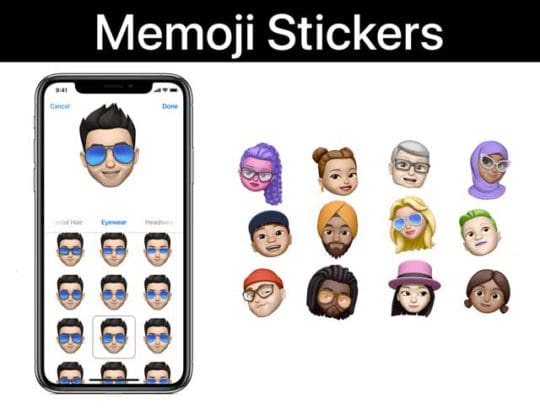
Memojis have become a cornerstone of the iPhone and iPad messaging experience, and you have plenty of options when it comes to customizing them in iOS 17. Besides making the character look like you, there’s also the option to pick from a variety of animals.
Chances are, you’ve already made a Memoji in the past. However, you can also go back in and change things up if your look has changed since last year.
Here are the steps you need to take to customize your Memoji:
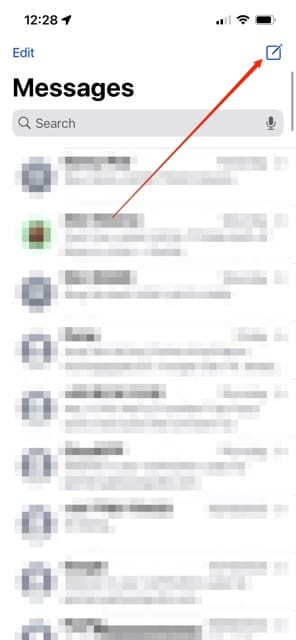
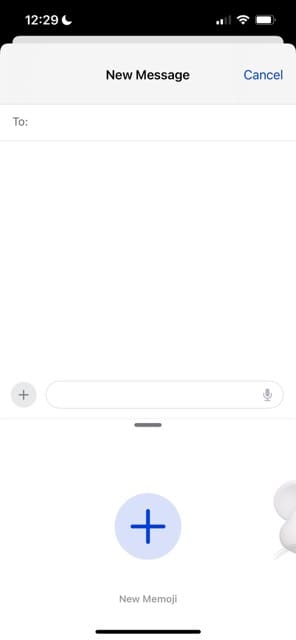
Open the Messages app on your iPhone or iPad.
Tap the New Message icon in the top right-hand corner of the screen.
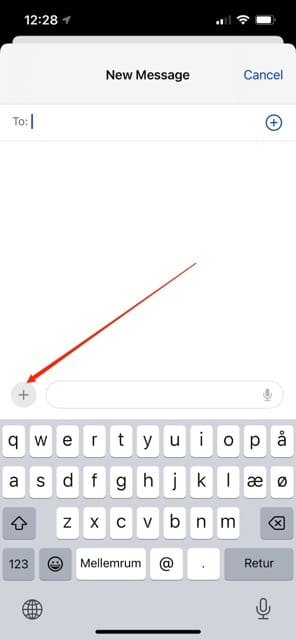
Select the + icon in the bottom left-hand corner of your window.
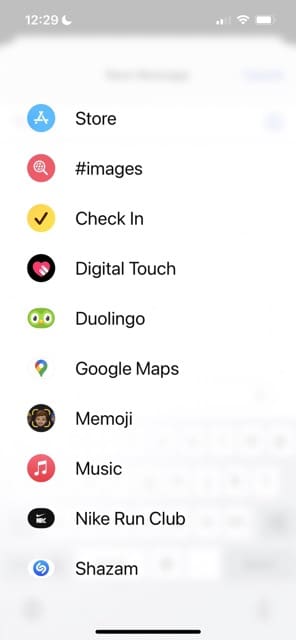
Choose Memoji from the dropdown menu. You might need to tap More if you don’t see this.
If you want to create a new Memoji, choose New Memoji.
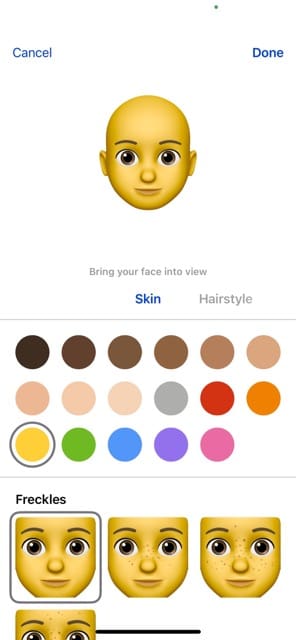
On the first panel, you will find the following options:
Skin Tone
Freckles
Cheeks
Beauty Spot
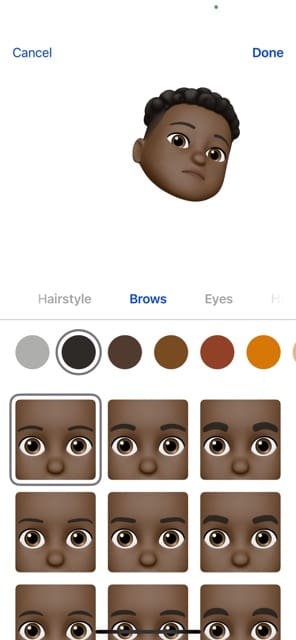
As you continue to slide through the options, you will select your hairstyle, brows, eyes, head shape and age, nose, mouth, and so much more.
How Do I Edit My Memoji?
If you were worried that you would have to stick with the same Memoji and have to create a new one whenever you wanted to make a change, fear not. You have plenty of options when it comes to customizing your Memoji.
Follow these steps in order to edit your Memoji:
Open the Messages app on your iPhone or iPad.
Tap the New Message icon in the top right-hand corner of the screen.
Select + and choose Memoji.
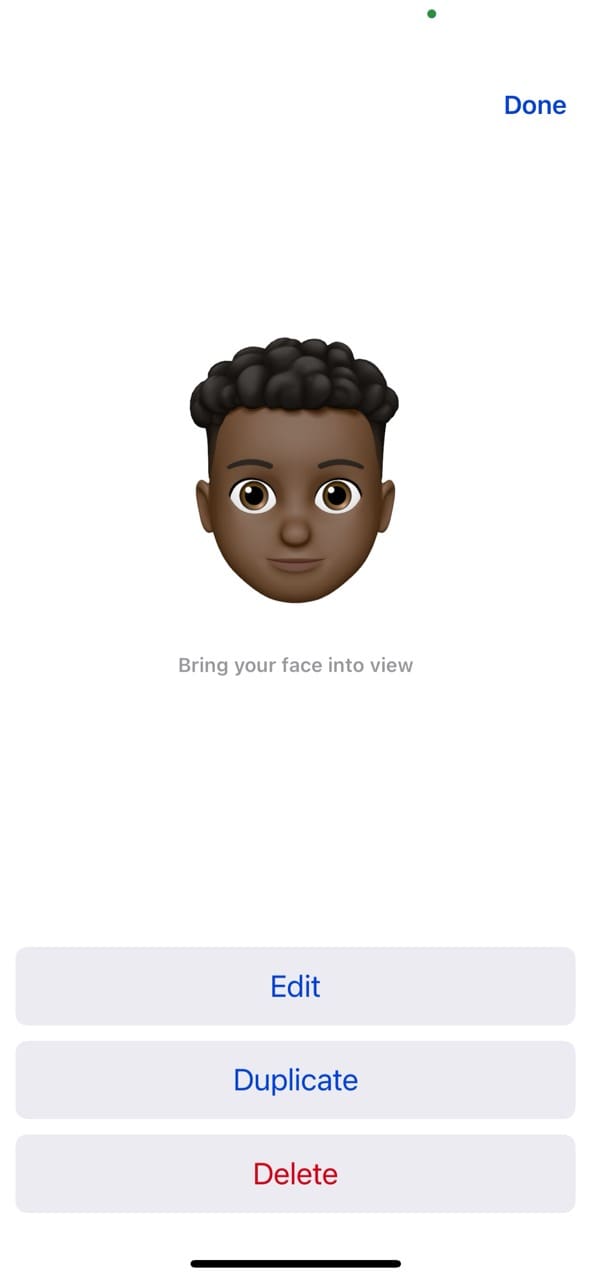
After you hit those three dots, your Memoji will appear, and you will have the following options:
Edit
Duplicate
Delete
Simply tap “Edit” and you will be able to go through the different aspects in order to customize everything and anything.
When you are done, tap the “Done” button in the top right-hand corner and all of the changes will be saved.
Note that you cannot customize the pre-made Memojis on your iPhone or iPad.
How to Send a Memoji Sticker in iOS 17
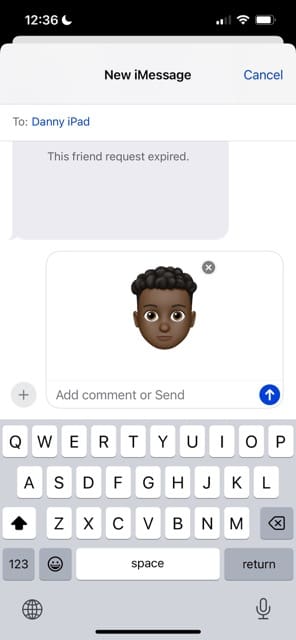
If you have already created and edited your Memoji but now want to send off some stickers, it’s easy. All you have to do is make sure that you are in the correct message and tap + > Memoji.
Then, you’ll want to make sure that your newly-created Memoji is selected. Perhaps the best part of this is the fact that even your friends that own an Android phone will be able to see them. That means you can flex a little bit more and show off just how awesome these are.
How to Hide Memojis in iOS 17
If you don’t want to use Memojis in your conversations, you can turn them off via your Settings app. Keep in mind that the following steps will also disable stickers.
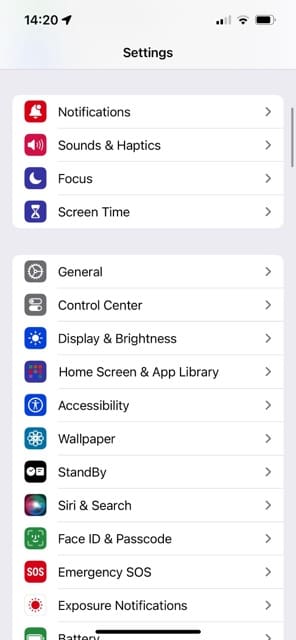
Go to Settings > General.
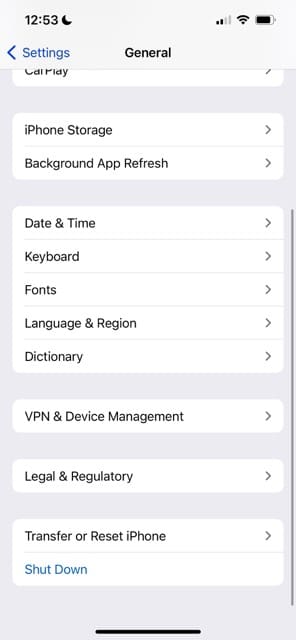
Select Keyboards.
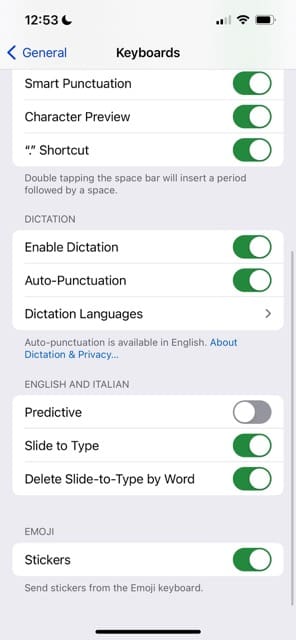
Scroll down to the bottom of the next page. You’ll see a section titled Emoji. Here, you should toggle Stickers off.
Use This Guide to Customize Memojis in iOS 17
You can now customize Memojis in numerous ways, and they’re a great way to have fun with your friends, family members, and soon.
A great aspect of this is that there are no additional apps that need to be downloaded. Apple has built all of this directly into iOS, and you have all the options you need from the convenience of your fingertips.
If you run into any issues throughout the process, please let us know in the comments and we’ll be sure to help you through them. In the meantime, show off your Memoji and have some fun with it!
Danny has been a professional writer since graduating from university in 2016, but he’s been writing online for over a decade. He has been intrigued by Apple products ever since getting an iPod Shuffle in 2008 and particularly enjoys writing about iPhones and iPads. Danny prides himself on making complex topics easy to understand. In his spare time, he’s a keen photographer.
I successfully created my personal Memoji and sent a few out successfully But when I played them back, on my phone, they didn’t work properly. Only my voice, but not the image. What happened?
Hi,
it says i have animoji, and memoji in my emoji keyboard so i enabled it in settings but when i go to imessage it shows i don’t have it… also i got ios 13.4 update on my ipad so it should work
You mentioned that there is not currently a way to edit memoji outfits yet. Would it be possible to create outfits and accessories separately and have them as an add on in the apple store? Perhaps branded etc? If so I’d love to talk to someone about how to do that and or find out some more information on more extensive customization.
So I’ve edited my Memoji and it looks great, but whenever i text newer contacts it asks if i want to share my Memoji and it’s just the same old one I initially made. How do i update the Memoji that is shard with others?
Open Settings > Messages and choose Share Name and Photo. Tap Edit underneath your current Memoji and choose the new one from the suggestions or Animoji section.
Hi there
Thank you for valuable content! I have set up my new Memoji, but the silly thing only sends as a pic, and not a sticker. You know, like Bitmoji displays?
On a white background. I have a fairly new Apple iPhone XR, and I’ve recently updated to iOS 13.1 something, my Whatsapp was also recently updated, so now I have NO idea what on earth is this thing’s problem.
Please, could you help me?
Thank you so much for your time!
Regards
Mari-Lize
At this time, memoji stickers do not appear the same way as those Bitmoji.
To add memoji stickers, open your keyboard and tap either the memoji icon fro the app drawer or tap the emoji icon key (smiley face) on the keyboard, then select the memoji sticker that you want to send.
Not stupid at all! Apple just didn’t make it that easy. You can create a Memoji sticker on any device using iOS 13/iPadOS, but you need an iPhone X or later, or an iPad Pro 11-inch or 12.9-inch (3rd generation) to create and use an animated Memoji.
Open Messages
Tap compose a new message
Tap the animoji icon (looks like a Monkey) or the Memoji stickers icon (looks like three heads)–if you don’t see either icon, scroll right to the More button and look under More Apps
Swipe right and tap the Plus sign (+) or the three-dots button (…)to create a New Memoji
Customize your memoji
Tap Done
Sadly I am unable to either delete or edit the appearance of my Animoji on my IPhone 7. The three dots allow me to manage it (meaning I can change its poses), but I can’t alter its appearance or delete it to start over. I’m stuck with what I’d originally created.
Your iPhone should allow this. Take a look at your Message app settings and make sure you are signed into iMessage with your Apple ID and that Send as SMS and MMS Messaging are both toggled on.
I created my personal emoji. I want to use that very emoji, not the stickers (thumb up, star eyes, etc.) How do I use just that original emoji, unadorned.
Thank you.
I have made my Memoji, but the Memoji stickers icon doesn’t show in the menu bar. It shows the animoji icon, but not the stickers either. I don’t know if I’m doing anything wrong, but i have followed all the steps. Can you help me with this?
My memojis are shown as a picture, not as an emoji. Whenever I send a memoji the recipient becomes a picture of my sticker that is saved in my and their photo gallery! Please help!









I love memoji’s but I think they are obnoxiously too big can they be made smaller?
I’d like to make my Memoji smaller and attach it to a message, not just send a big Memoji by itself. Is it possible to do that?
wowwwwwwwwww can I make one bitmoji
I successfully created my personal Memoji and sent a few out successfully But when I played them back, on my phone, they didn’t work properly. Only my voice, but not the image. What happened?
Hi,
it says i have animoji, and memoji in my emoji keyboard so i enabled it in settings but when i go to imessage it shows i don’t have it… also i got ios 13.4 update on my ipad so it should work
I find the Memoji a bit to large, is there a way to make it a bit smaller?
Hi Janet,
Try using Memoji stickers–they are smaller than animated memoji.
I edited my Memoji, but it didn’t change in my header on my phone or when I sent it to my friend’s. The stickers did change. Can you help me?
Hi Carol,
You probably just need to relink that updated Memoji to your Apple ID.
Ho to Settings > Message App > and tap Share Name and Photo. Then tap Edit under the current Memoji picture and choose the updated Memoji.
How can you make them smaller? They come out so much bigger than the other emoji.
Please add a short track skate to the emojis.
Thank you!
You mentioned that there is not currently a way to edit memoji outfits yet. Would it be possible to create outfits and accessories separately and have them as an add on in the apple store? Perhaps branded etc? If so I’d love to talk to someone about how to do that and or find out some more information on more extensive customization.
So I’ve edited my Memoji and it looks great, but whenever i text newer contacts it asks if i want to share my Memoji and it’s just the same old one I initially made. How do i update the Memoji that is shard with others?
Hi Cynthia,
Open Settings > Messages and choose Share Name and Photo. Tap Edit underneath your current Memoji and choose the new one from the suggestions or Animoji section.
Hi there
Thank you for valuable content! I have set up my new Memoji, but the silly thing only sends as a pic, and not a sticker. You know, like Bitmoji displays?
On a white background. I have a fairly new Apple iPhone XR, and I’ve recently updated to iOS 13.1 something, my Whatsapp was also recently updated, so now I have NO idea what on earth is this thing’s problem.
Please, could you help me?
Thank you so much for your time!
Regards
Mari-Lize
HI Marie-Lize,
At this time, memoji stickers do not appear the same way as those Bitmoji.
To add memoji stickers, open your keyboard and tap either the memoji icon fro the app drawer or tap the emoji icon key (smiley face) on the keyboard, then select the memoji sticker that you want to send.
Can’t find how to create Memoji on iphone7pkus despite following instructions so feeling stupid
Please help
Hi Judy,
Not stupid at all! Apple just didn’t make it that easy. You can create a Memoji sticker on any device using iOS 13/iPadOS, but you need an iPhone X or later, or an iPad Pro 11-inch or 12.9-inch (3rd generation) to create and use an animated Memoji.
Open Messages
Tap compose a new message
Tap the animoji icon (looks like a Monkey) or the Memoji stickers icon (looks like three heads)–if you don’t see either icon, scroll right to the More button and look under More Apps
Swipe right and tap the Plus sign (+) or the three-dots button (…)to create a New Memoji
Customize your memoji
Tap Done
Hope that helps
Sadly I am unable to either delete or edit the appearance of my Animoji on my IPhone 7. The three dots allow me to manage it (meaning I can change its poses), but I can’t alter its appearance or delete it to start over. I’m stuck with what I’d originally created.
Just edited mine.
You don’t tap the app store icon.
After selecting a contact to text tap the message box and then the memoji icon in the app drawer or tray below the text message entry box.
The 3 dots button appear to the left of all the memojis/animojis. Tap those dots and the edit Memoji screen appears.
Hi why won’t my phone let me send any pictures or Memoji via normal message or iMessage?
Hi Lyndsay,
Your iPhone should allow this. Take a look at your Message app settings and make sure you are signed into iMessage with your Apple ID and that Send as SMS and MMS Messaging are both toggled on.
That usually does the trick!
Liz
I created my personal emoji. I want to use that very emoji, not the stickers (thumb up, star eyes, etc.) How do I use just that original emoji, unadorned.
Thank you.
Hello, when selecting my settings I clicked to allow all contacts to view. How can I manage the settings to change it to more private? Thanks!
Megan,
I assume you mean the Share name and photo option that’s now available in the Messages app.
To change these settings, go to Settings > Messages > Share Name and Photo and change from Contacts Only to Always Ask.
I have made my Memoji, but the Memoji stickers icon doesn’t show in the menu bar. It shows the animoji icon, but not the stickers either. I don’t know if I’m doing anything wrong, but i have followed all the steps. Can you help me with this?
Thanks,
Carmen
HI Carmen,
After tapping the Memoji/Animoji icon in the Message app drawer, swipe all the way right on the animoji icons to reveal the memoji sticker options.
Hi Elizabeth:
Thanks for your reply. I’ve followed the steps you mentioned, but it’s not working. Is there anything else I can check or do?
Thanks,
Carmen
I don’t know how to change my memoji on the settings to where it shows the one i want.
Can I change my Memoji outfit? The one on the stickers looks like she’s on the prison yard lol
Hey Cas,
You nailed it! There aren’t any options right now to change the stickers outfit–but we expect that to change in a future update to iOS and iPadOS.
My memojis are shown as a picture, not as an emoji. Whenever I send a memoji the recipient becomes a picture of my sticker that is saved in my and their photo gallery! Please help!
Same issue! The Memojis go as images everywhere and not as a sticker.
My memoji’s are not transparent it goes as a images instead of sticker