Apple’s Family Sharing feature has become increasingly handy since its debut. With it, family members can share photos, videos, music, and even subscriptions to apps. You can also use shared iCloud storage among a group of family members.
But sometimes needs change, and you don’t need to use Family Sharing the same way. We’ll show you not just how to disable Family Sharing altogether, but also how to remove yourself or others from Family Sharing and what the consequences may be.
Disabling Family Sharing may have more consequences than you realize, so it’s good to take stock of what exactly you’ll be missing out on. As you might imagine, you’ll lose access to any shared iCloud Storage, music, videos, and app subscriptions, but that’s not all.
You’ll also stop being able to easily share and access locations with any members who were part of Family Sharing, and you won’t be able to access them in your Family Find My iPhone list. If you’re using an Apple Watch that uses Family Setup, you won’t be able to manage that watch any longer.
Finally, it’s important to note that any shared data that is on your iPhone when you disable Family Sharing isn’t automatically removed, even if you can’t access it any longer. This means you need to manually remove any apps or shared media to reclaim that storage space.
How to Disband a Family Group on iPhone
If you only want to remove yourself or a family member, you don’t need to disband your entire Family Group. That said, if you and a group of friends were using Family Sharing to share Apple Music, and now you’re ready to move on, it’s probably best to disband the entire group.
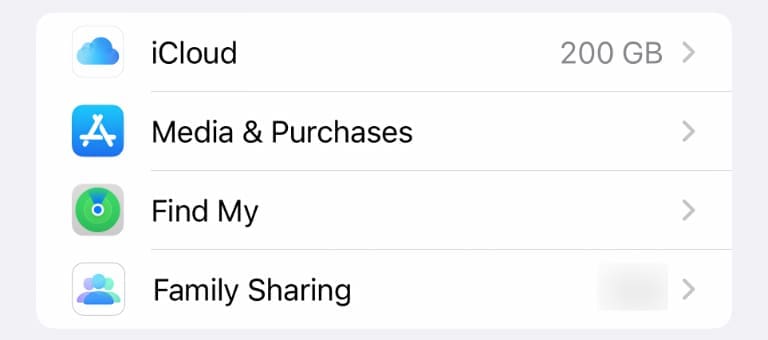
Open the Settings app, then tap on your name, then Family Sharing.
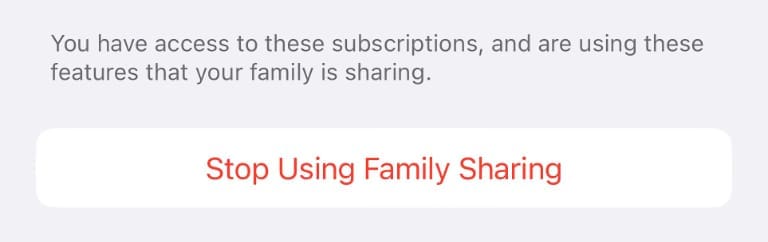
Tap your name once more, then tap Stop Using Family Sharing.
Now that the group is disbanded, there’s no way to retrieve it. If you want to share services again, you’ll have to set up Family Sharing from scratch. To help you out, check our guide to setting up and using Family Sharing.
How to Leave a Family Group on iPhone
If you don’t want to use Family Sharing any longer, but you have family members who do, you can simply leave the group.
In most cases, this is an easy process, but there are two exceptions: Children 13 years and younger cannot remove themselves from Family Sharing, and if you have Screen Time turned on for your account, the original organizer of the Family Group has to be the one to remove you.
The steps are the same as above. If you’re the organizer, the entire group will be disbanded, but if you’re simply a member, only you will be removed from the group.
How to Remove a Family Member on iPhone
Removing a family member is slightly different from disbanding an entire group. If the family member is age 13 or younger, you’ll need to transfer them to another family, rather than remove them from your group.
Open the Settings app, then tap your name. Now tap Family Sharing.
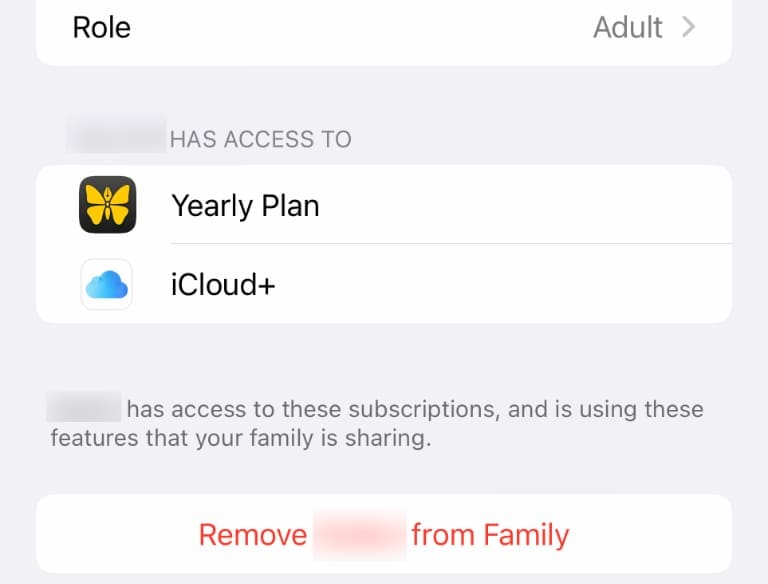
On this screen, search for the name of the family member you wish to remove from the group. That their name, then tap “Remove Person From Family” to remove them.
Kris Wouk is a writer, musician, and whatever it’s called when someone makes videos for the web. He’s an Apple nerd with a fondness for hi-res audio and home theater gear.












Write a Comment