When Apple introduced iOS 15 and iPadOS 15 at WWDC ’21, there were a lot of features announced designed for the iPhone and iPad. But Apple also shared quite a few new features that are now finally arriving for AirPods owners. These includes better Spatial Audio support across more apps, improvements when using AirPods and FaceTime, and much more.
But one feature is designed specifically for those who have hearing issues, and regularly use the AirPods Pro. There’s already a Transparency Mode available, allowing you to hear the world around you while still listening to music or podcast. With iOS 15, this is taken up a notch thanks to Conversation Boost. And if you’re an owner of the AirPods Pro and an iPhone running iOS 15, the update has finally arrived allowing to enable this feature.
Conversation Boost is a new feature for AirPods Pro owners using iOS 15, that was announced earlier this year. It’s more of an accessibility feature than anything else, as it aims to improve hearing for those that suffer from “mild” hearing issues. Conversation Boost uses the beam forming microphones in the AirPods Pro to boot the sound levels in conversations. It’s a bit different from the Transparency Mode that you may have been using, as that just lets in all of the sound around you.
How To Enable Conversation Boost on AirPods Pro
Before you can actually enable Conversation Boost on AirPods Pro, you’ll first need to make sure that your AirPods are updated to the latest firmware. With this release, this brings the AirPods Pro up to version number 4A400. You can check this by heading into the Settings app, opening the Bluetooth menu, and tapping the “I”next to the name of your AirPods Pro. Since Apple still makes it impossible to manually force an update to be pushed to your AirPods, here are the steps that you need to take in order to try and get the update to appear on your AirPods Pro:
Ensure that your AirPods are paired and connected to your iPhone.
Listen to music for up to one minute.
Place the AirPods Pro back into the charging case and charge them for at least 30 minutes.
This may take a few tries, but after the update arrives, you’ll then be able to enable Conversation Boost on AirPods Pro. The process requires you to go through and create a “custom audio setup”, which is something that is recommended if you do, in fact, have hearing problems. Nevertheless, here are the steps that you need to take in order to enable Conversation Boost on AirPods Pro.
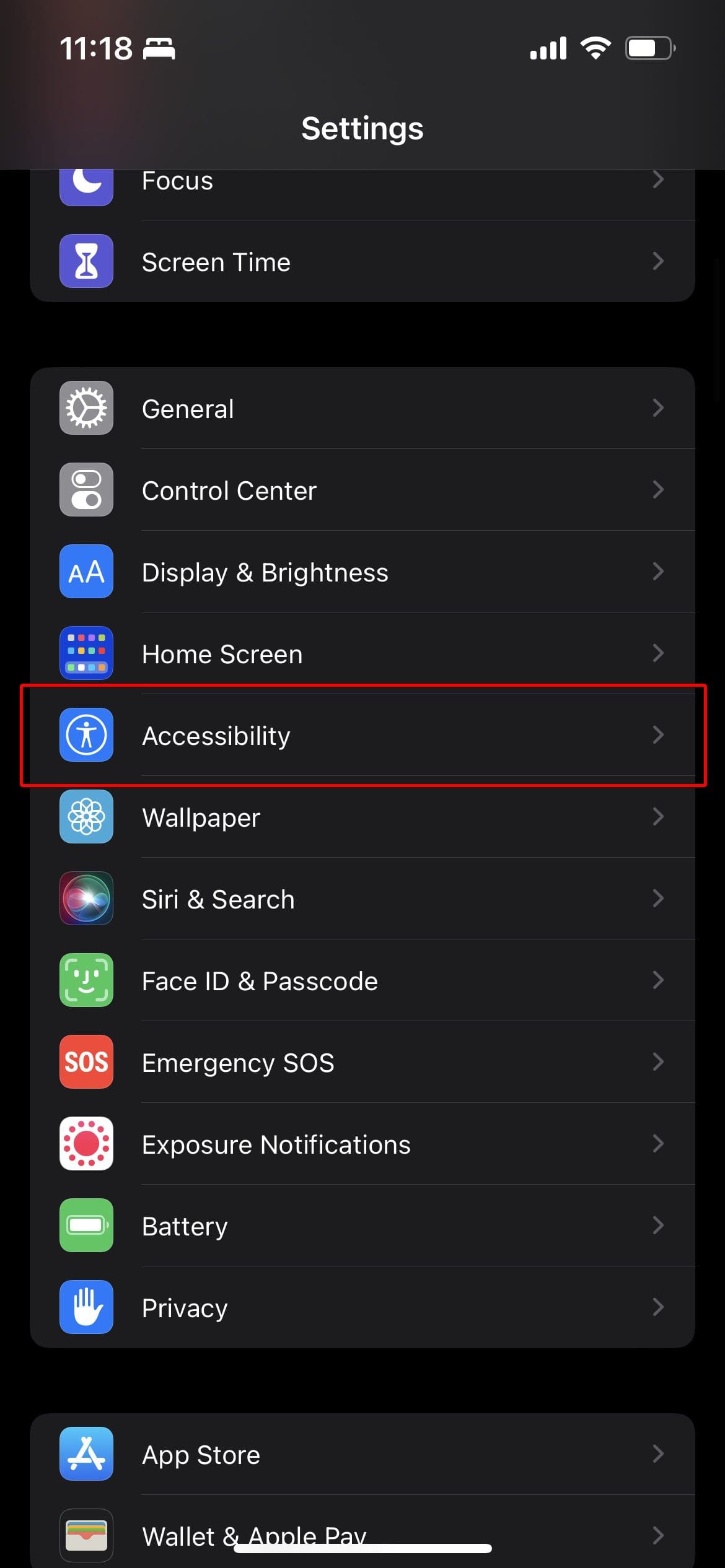
Open the Settings app on your iPhone.
Scroll down and tap Accessibility.
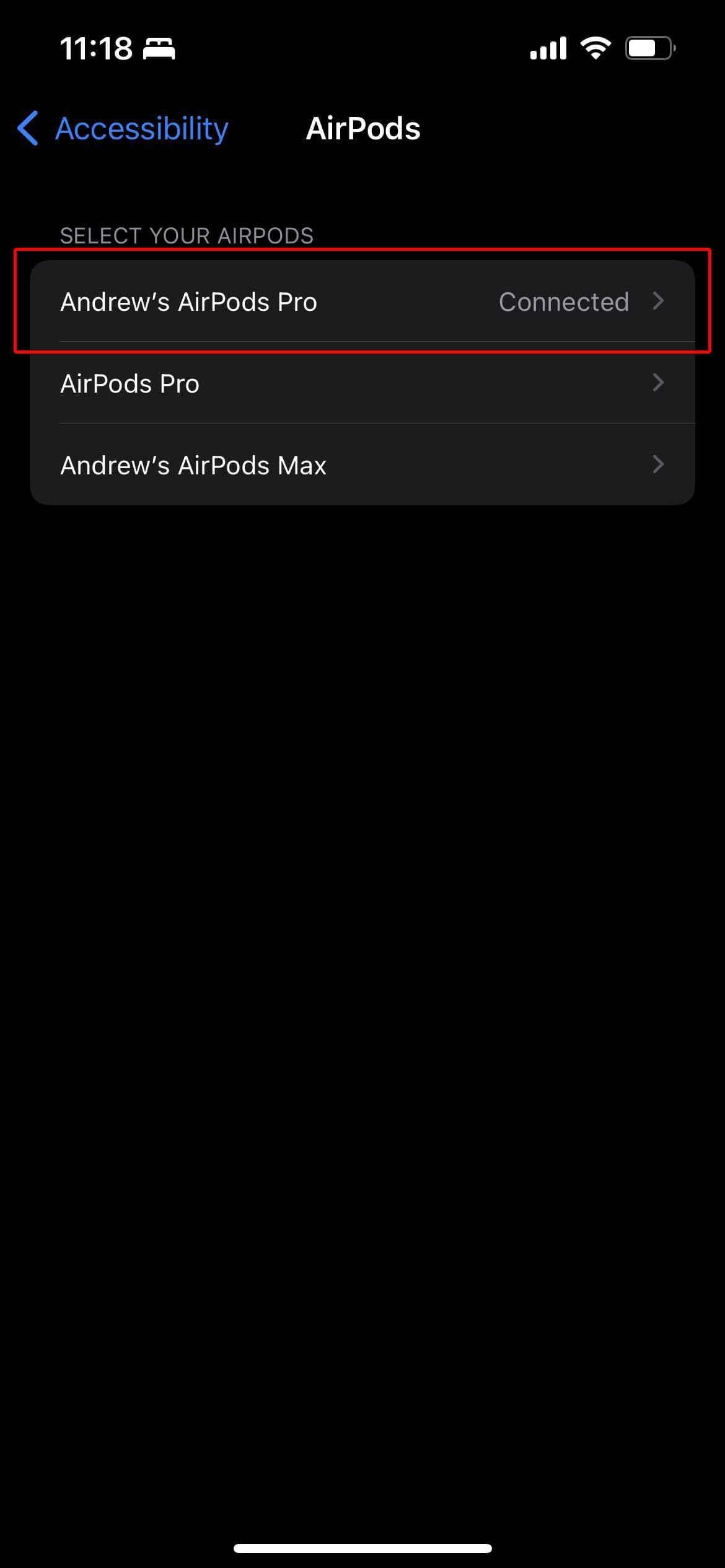
Scroll down and select AirPods under Physical and Motor.
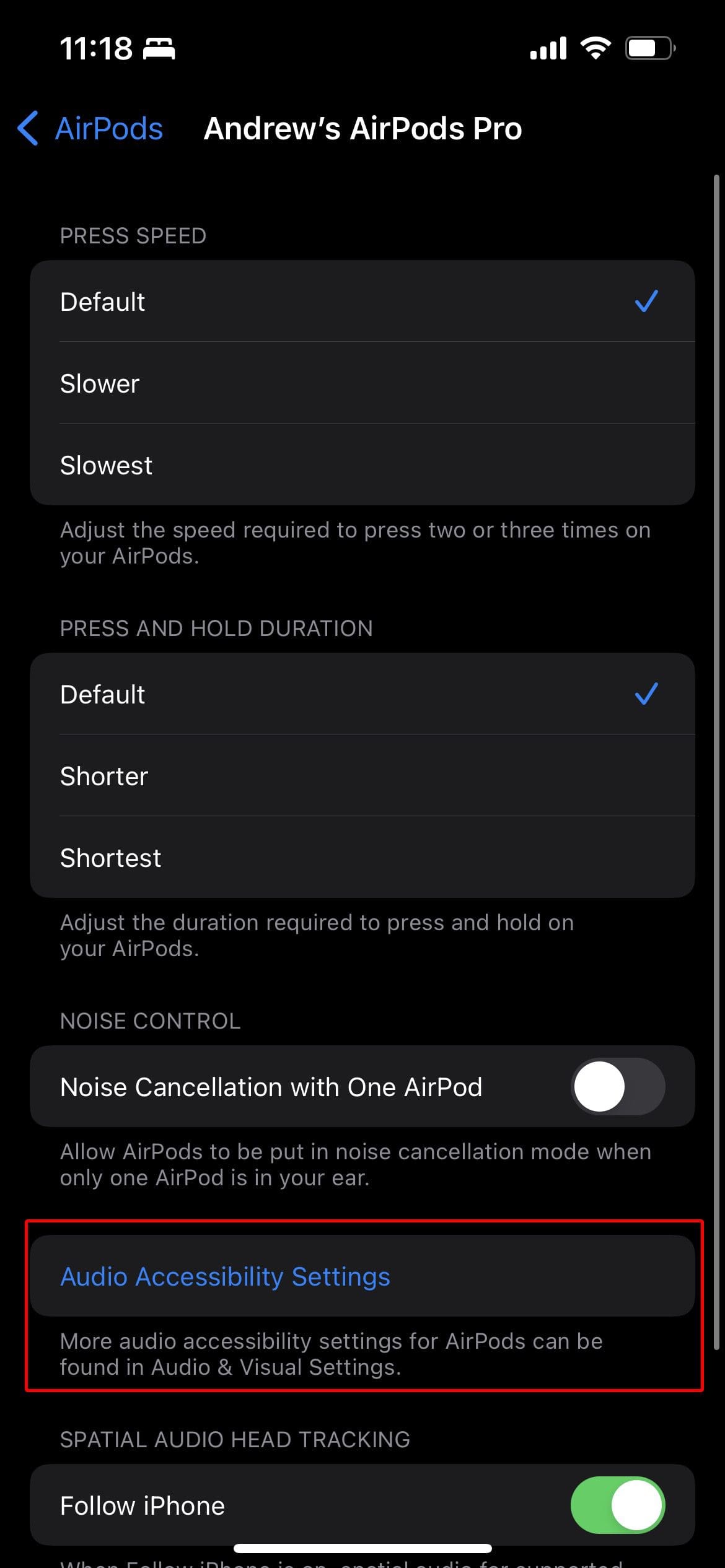
From the list, tap the name of your AirPods Pro.
At the bottom of the page, tap Audio Accessibility Settings.
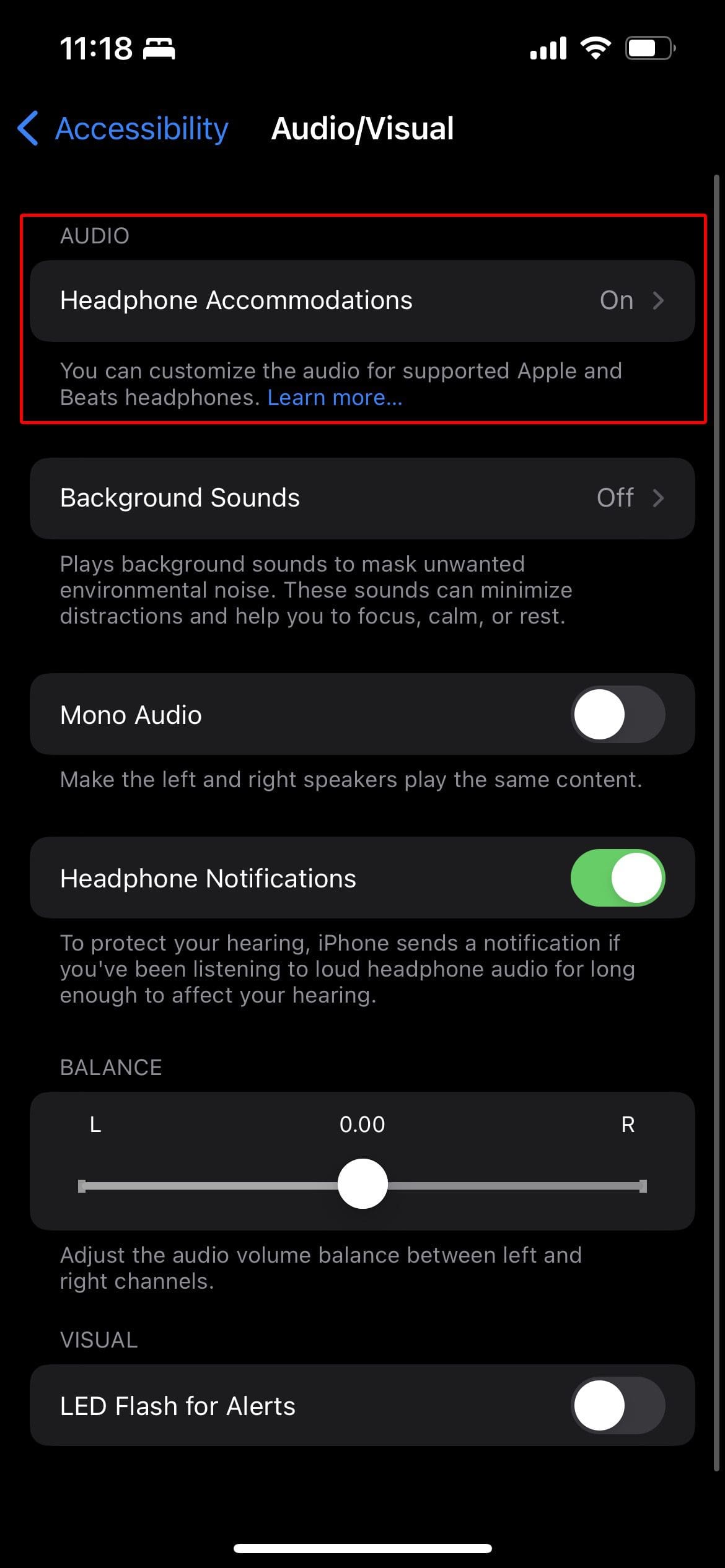
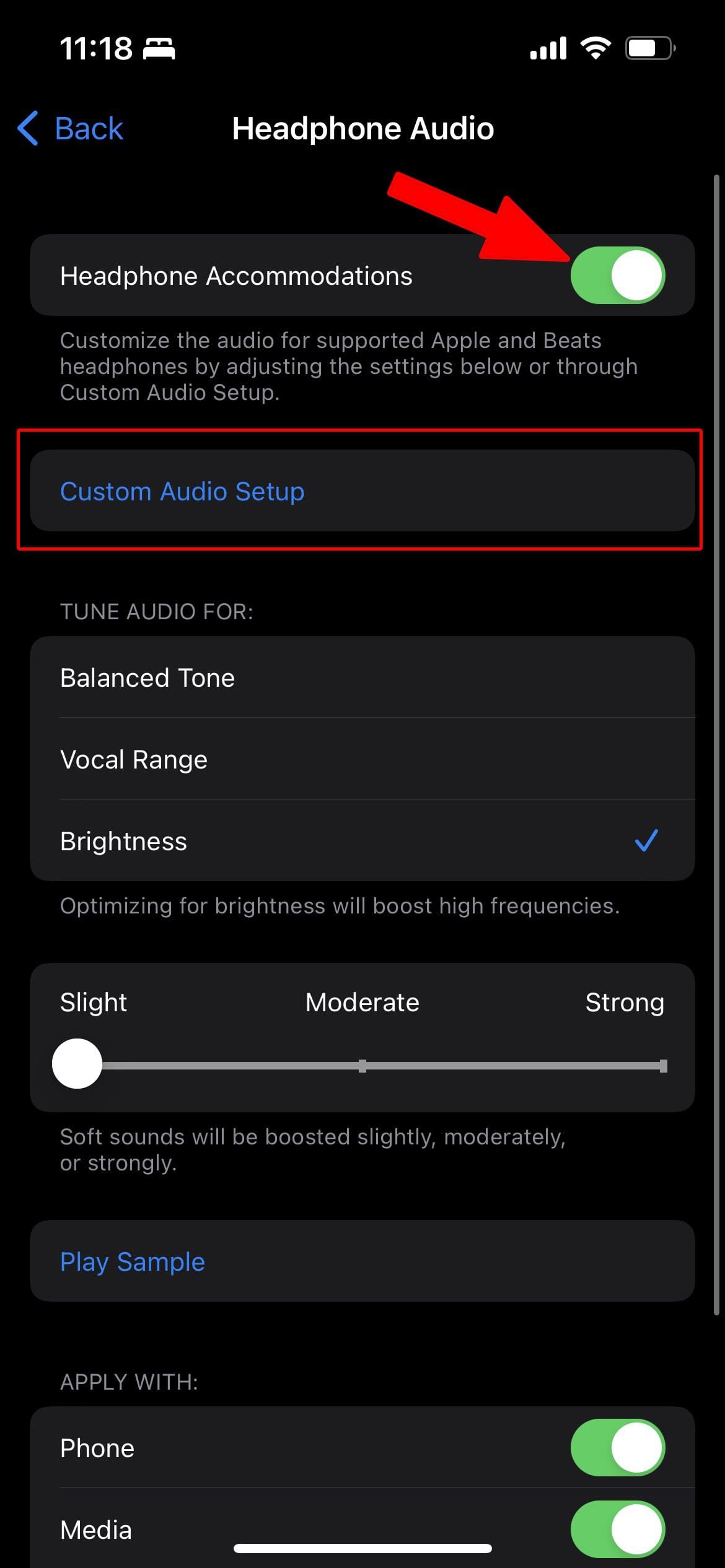
Select Headphone Accommodations at the top of the page.
Toggle Headphone Accommodations to the On position.
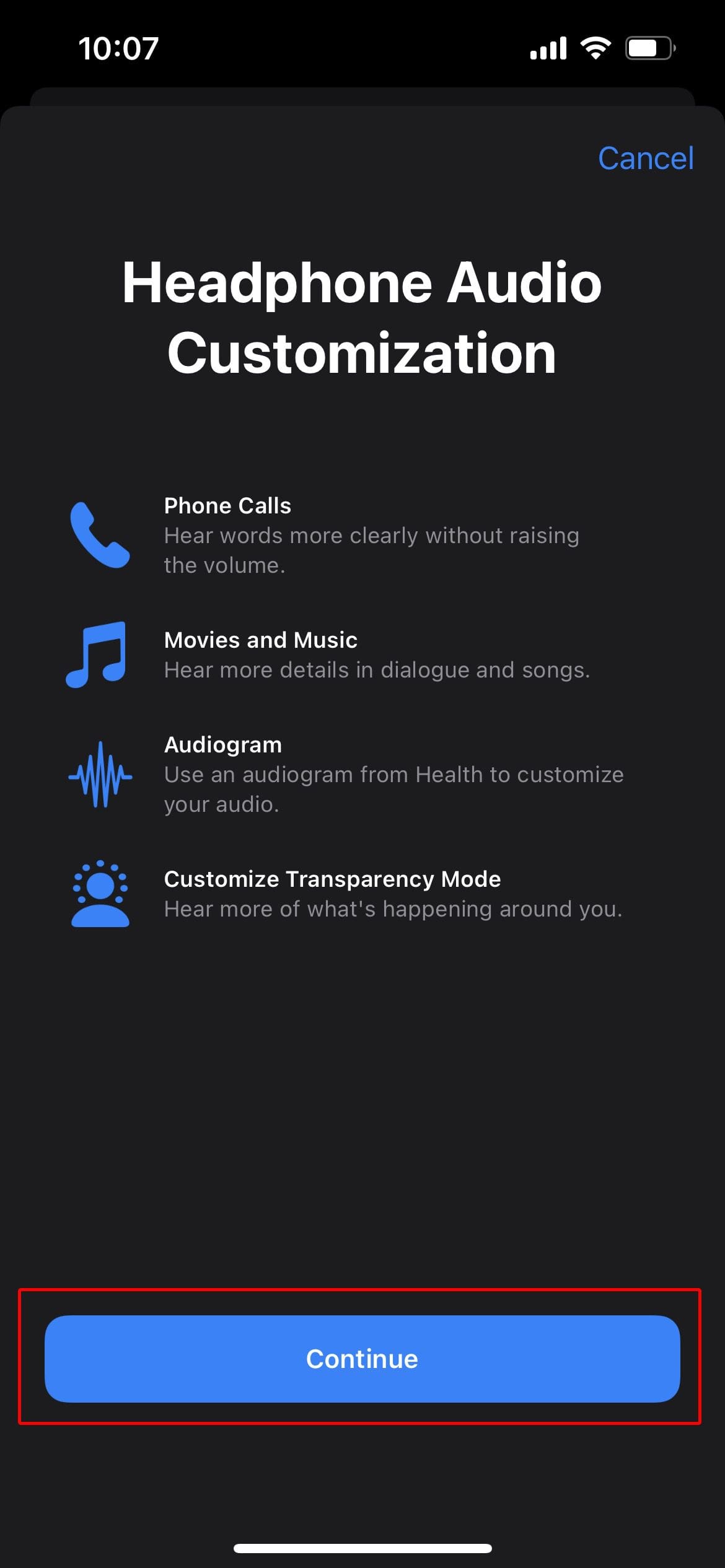
Tap the Custom Audio Setup button.
Follow the on-screen steps to customize audio playback on your AirPods.
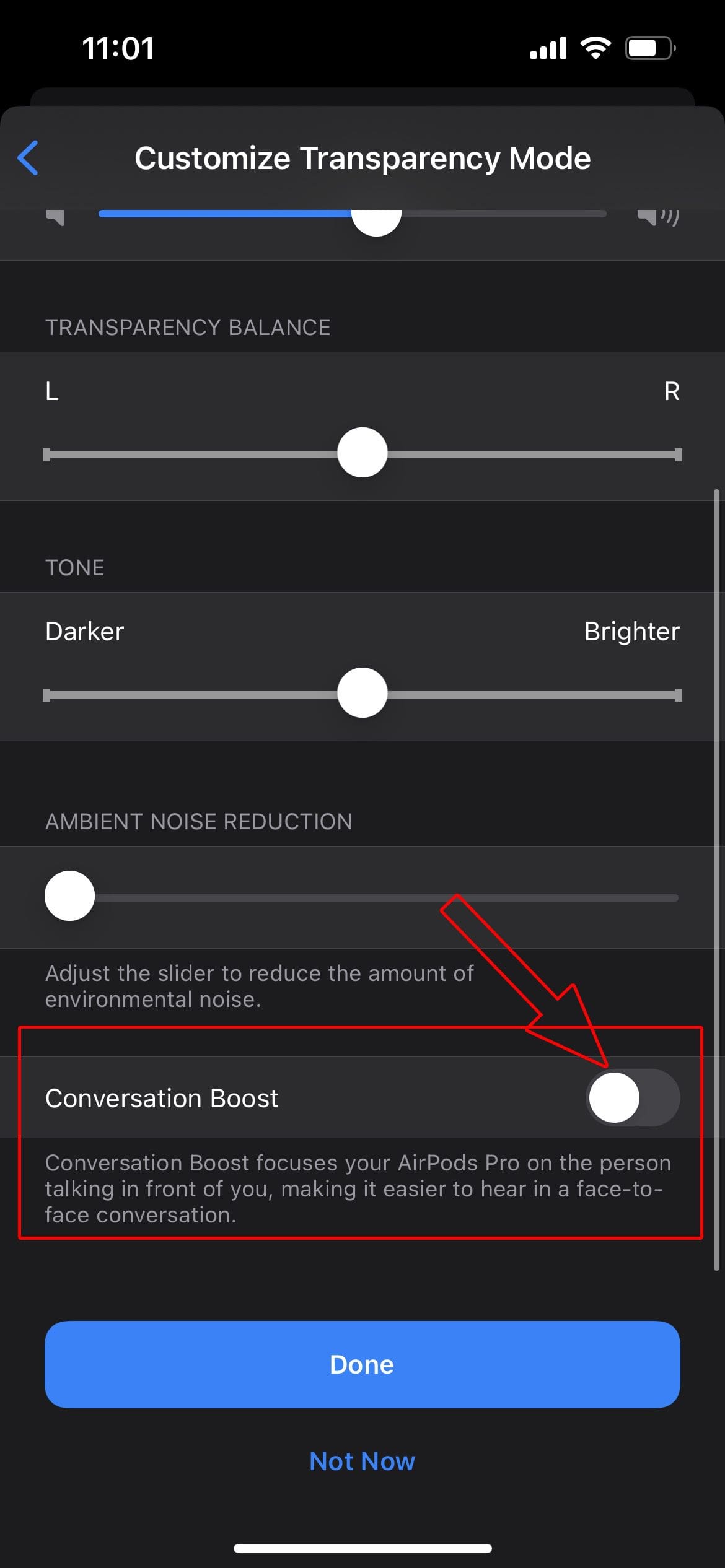
On the final page, named Customize Transparency Mode, scroll down.
Toggle Conversation Boost to the On position.
Tap the Done button.
After the process is completed, your AirPods Pro are automatically set with Transparency Mode enabled. This also means that Conversation Boost is also enabled, so you can just start using your AirPods Pro as you are used to. It’s also important to note that Noise Cancellation can still be used and enabled through Control Center.
Andrew Myrick is a freelance writer based on the East Coast of the US. He enjoys everything to do with technology, including tablets, smartphones, and everything in between. Perhaps his favorite past-time is having a never-ending supply of different keyboards and gaming handhelds that end up collecting more dust than the consoles that are being emulated.
















Write a Comment