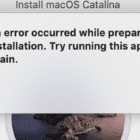
Photos app has seen many improvements over the past few releases. Some of the old issues from the days of iPhoto days till come back to haunt. One of these errors experienced by many users is the error message that says “Error Occurred While Repairing Permissions” and then the photo app quits.
This can be very annoying as the problem persists even when you try to start your Mac on Recovery mode and run your disk repair utility.
If you experience this issue, it can be easily resolved via a couple of steps:
Quit or Force quit the Photos app if it is still active on your Macbook
Press the Command + Option Keys together and then click on Photos to launch the app
The app will show a message requesting if it should start the Repair process. Go ahead and confirm by clicking Repair
Enter your administrator credentials when Prompted
The process takes some time depending upon how many photos you have stored in your machine.
Once the rebuild is complete, the photo app launches successfully and you can once again see all your photos.
If you repair a library that’s automatically updated with iCloud Photos, the entire contents of the library re-updates with iCloud after the repair process completes.
Didn’t Work? Try Your Mac’s Console App!
If the steps above failed to resolve your issue, You may want to dig in deeper to see what is causing the problem.
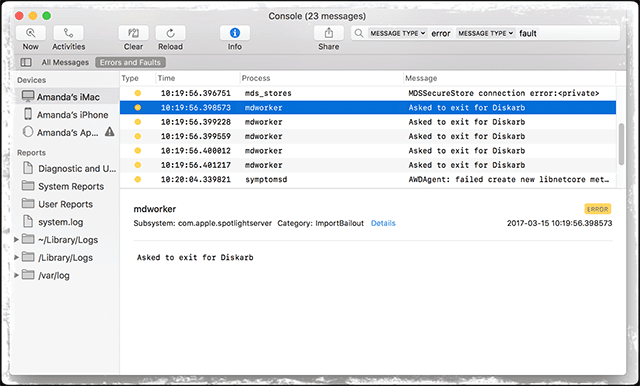
Open your Console on your Mac. Applications/Utilities/Console app.
Once you have the console session open where you can see the messages, go ahead and retry opening your Photos app.
Check the console messages for any errors or problems with the Photos app. Look to see if you can find additional clues.
Chances are that by forcing the repair process on the app will fix your issue and you will be able to launch the app without any hiccups.
Reader Tips
Try booting in Safe Mode by pressing the Shift Key while restarting or powering up–it solved my problems with the Photos App repairing its permissions
Check that the Photos main library allows you to Read & Write. Go to the photos library and command-click or right-click on and choose Get Info it to bring up the Information window. Scroll down to Sharing & Permissions and check that it’s listed as Read & Write under your username. If not, change those permissions to Read & Write
For older Mac OS X, repair your disk permissions: open Disk Utility (/Applications/Utilities) and select your hard drive and choose to repair permissions
This is what worked for me. Opened Terminal, went to the photos library and changed the owner to me via terminal commands–only try if you know what you are doing with Terminal!
Hold just the Option Key down (not command+option) the moment you try to open Photos. Then, use select Create New Library by creating a New Folder and naming it. Tap Go to complete
Obsessed with tech since the early arrival of A/UX on Apple, Sudz (SK) is responsible for the original editorial direction of AppleToolBox. He is based out of Los Angeles, CA.
Sudz specializes in covering all things macOS, having reviewed dozens of OS X and macOS developments over the years.
In a former life, Sudz worked helping Fortune 100 companies with their technology and business transformation aspirations.














Absolutely brilliant solution! Thank you so much!
Tried the first steps, didn’t work. Checked Console output, was complaining about the Photos Library in my Pictures directory.
Went into that directory and moved photos.db and photos.db-wal out of it (stored elsewhere).
Then relaunched Photos. This did the trick, it allowed me to rebuild the database without complaining about permissions.