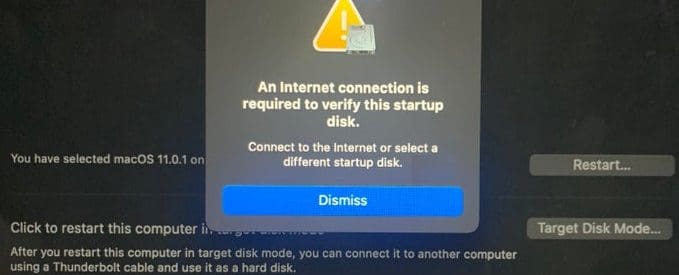
Your MacBook may occasionally throw an error message that says “An internet connection is required to verify this startup disk“. But nothing happens when you enter your Wi-Fi password and hit the Join button. After a couple of minutes, the Internet connection alert appears again on the screen. Sometimes, there’s no option to connect to Wi-Fi at all. Let’s explore what you can do to get rid of this problem.
Fix: Mac Requires an Internet Connection to Verify the Startup Disk
Use a Different Connection
Check if you can connect to a different network. If your Mac can’t connect to your wireless network, use a mobile hotspot and check if the error is gone. You can also use a USB-only hotspot.
Many users got rid of this problem by using a wired connection. Use an Ethernet cable and connect your router or modem to your MacBook. Depending on your MacBook model, you may need an Ethernet adapter to get the job done.
Disable Boot Security
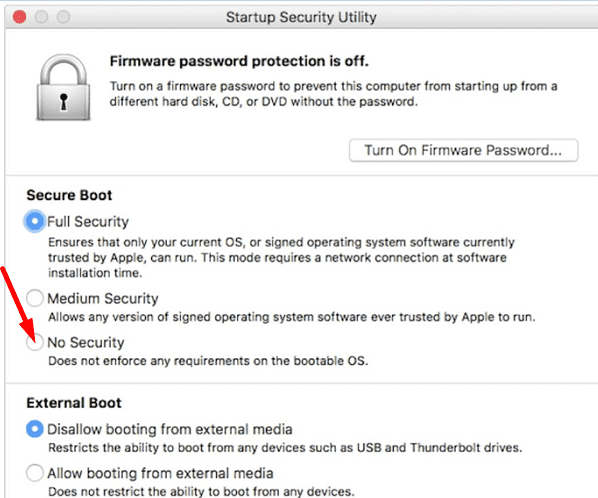
Other users solved this problem by turning off Boot Security.
Turn on your Mac, and then press and hold the Command and R keys as soon as the Apple logo appears on the screen.
Your laptop should now start up from macOS Recovery.
Select your admin account and enter your password.
Select Utilities, and go to Startup Security Utility.
Disable Boot Security and check the results.
If the issue persists, restart your Mac two or three times in a row and check if you notice any improvements.
Run Disk Utility
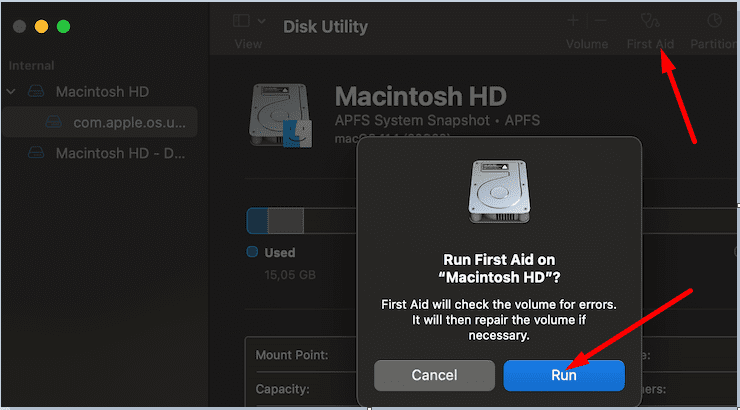
Severe disk errors can prevent your Mac from starting up completely and connecting to the Internet. Use Disk Utility to automatically repair disk errors on your Mac.
Go to Utilities, launch Disk Utility, and click on View.
Select Show all devices to list all the available disks and other storage devices.
Your startup disk is the first one on the list. Select the last volume of the disk and hit the First Aid button.
Wait until Disk Utility has finished checking the volume. Then use the First Aid option to scan and repair the remaining disk volumes, and then the disk itself.
Check if you can connect to the Internet.
Run Disk Utility in Recovery Mode
Alternatively, you can run Disk Utility in Recovery Mode. Use this option if your Mac doesn’t start up all the way.
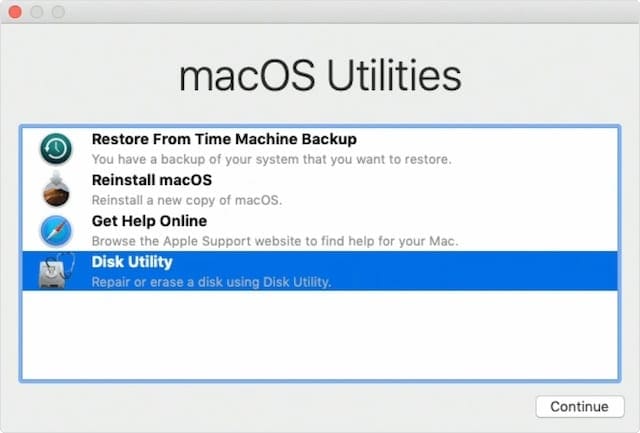
If you own a Mac with Apple silicon, turn on your machine and keep on pressing the Power button until the Startup options appear on the screen. Click on Options (the gear icon), hit Continue, and select Disk Utility from the macOS Utilities window.
If you own an Intel-powered Mac, turn on your laptop, then immediately press and hold the Command and R keys. Release them when the Apple logo appears on the screen. Then select the Disk Utility tool.
Reinstall the OS in Recovery Mode
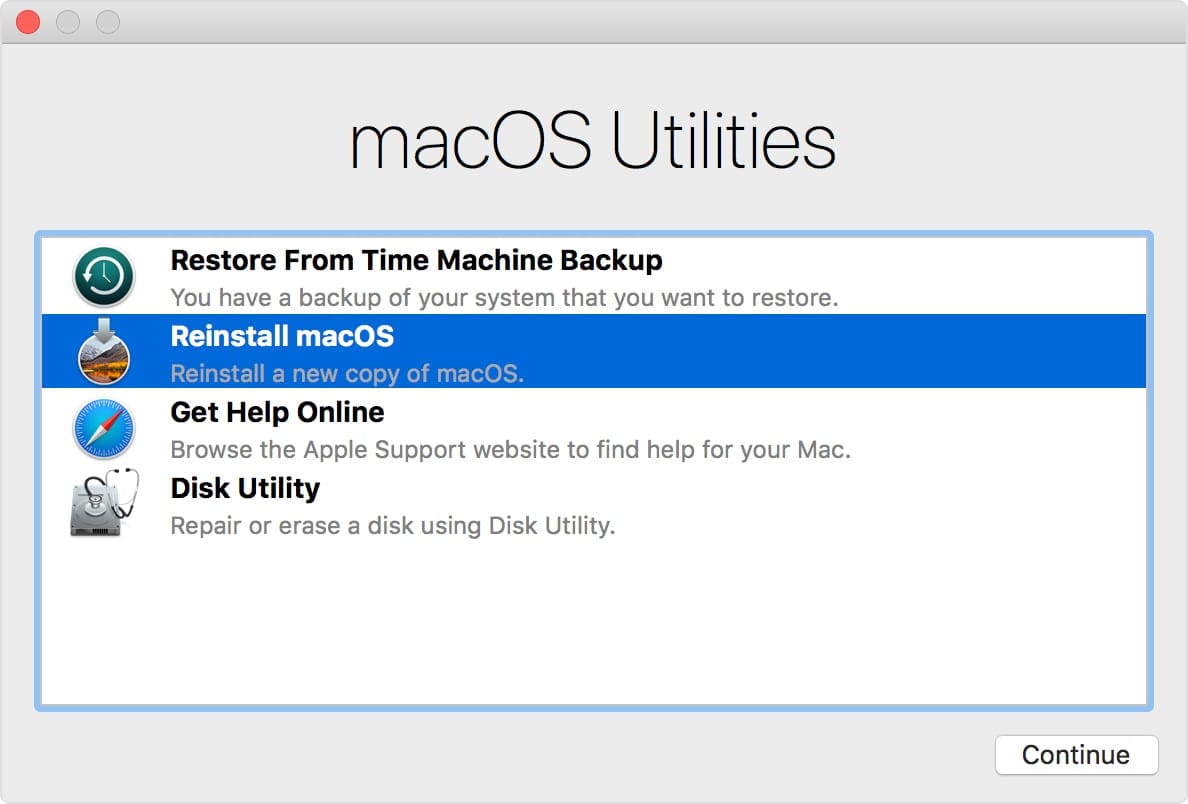
Many users fixed this error by reinstalling the OS in Recovery Mode. The downside is that the OS reinstall process may take over an hour to complete.
macOS Recovery Mode is a handy way to fix a wide range of problems with your Mac’s disk.
Conclusion
If your MacBook says that an Internet connection is required to verify the startup disk, switch to a mobile hotspot or use a wired connection. Alternatively, you can also disable Boot Security, and run Disk Utility to repair disk errors. Did you manage to fix this problem? Let us know in the comments below.
Madalina has been a Windows fan ever since she got her hands on her first Windows XP computer. She is interested in all things technology, especially emerging technologies — AI and DNA computing in particular.
Referring to near the beginning where says: “Sometimes, there’s no option to connect to Wi-Fi at all.”, I thought there was no option too, but finally found that you have to choose the greyed-out almost invisible Wi-Fi icon at the top right next to the battery icon. There it is. I took it for inaccessible (dark gray on black background?!) but fortunately it worked and I was able to verify my startup disk on wi-fi, didn’t have to resort to Ethernet-over-dongle.










Which domains are required whitelist to complete verification ?
I will not provide unfiltered internet to a laptop that comes factory installed with ads and analytics
Referring to near the beginning where says: “Sometimes, there’s no option to connect to Wi-Fi at all.”, I thought there was no option too, but finally found that you have to choose the greyed-out almost invisible Wi-Fi icon at the top right next to the battery icon. There it is. I took it for inaccessible (dark gray on black background?!) but fortunately it worked and I was able to verify my startup disk on wi-fi, didn’t have to resort to Ethernet-over-dongle.