• Skip to primary navigation
  • Skip to main content
  • Skip to primary sidebar
  • Skip to footer

AppleToolBox

Tools and Fixes for Mac, iPad, iPhone & iWatch

Search posts

  • About
  • Contact

CONNECT WITH US

CATEGORIES

  • iPhone
  • iPad
  • iPod
  • Apple Watch
  • Mac/MacBook
  • AirPods
  • Apple TV
  • News
  • Apple Services
  • HomePod
  • Reviews

SITE

  • Home
  • About Us
  • Contact
  • Advertise

Search posts

You are here: Home / Apple Services / Fix: Amazon Music Not Working With CarPlay

Fix: Amazon Music Not Working With CarPlay

By Madalina Dinita 0 comments Last updated December 29, 2022

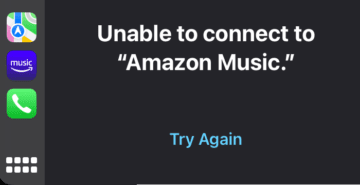
Amazon Music may sometimes refuse to connect to CarPlay. An error then pops on the screen saying that CarPlay is unable to connect to Amazon Music. If you plug your iPhone into your dash to activate CarPlay, the screen often goes completely blank. Let’s explore how you can fix this annoying problem.

Contents

  • Fix: Carplay Is Unable to Connect to Amazon Music
    • Disable Bluetooth and Wi-Fi
    • Start Playing the Playlist on Your Phone First
    • Update Your iPhone to the Latest iOS Version
    • Reinstall Amazon Music
    • Conclusion

Fix: Carplay Is Unable to Connect to Amazon Music

Disable Bluetooth and Wi-Fi

Before playing Amazon Music, disable Bluetooth and Wi-Fi. Wait for thirty seconds, and then start playing Amazon Music. You can then enable Bluetooth and WiFi. While this may not be the best solution, it should let you listen to your favorite songs.

Start Playing the Playlist on Your Phone First

Try starting a song or playlist on your iPhone and then plug it into the car while it’s playing. Many users confirmed this quick workaround did the trick for them. If you open the app while connected, you’ll need to disconnect and repeat the steps above.

Update Your iPhone to the Latest iOS Version

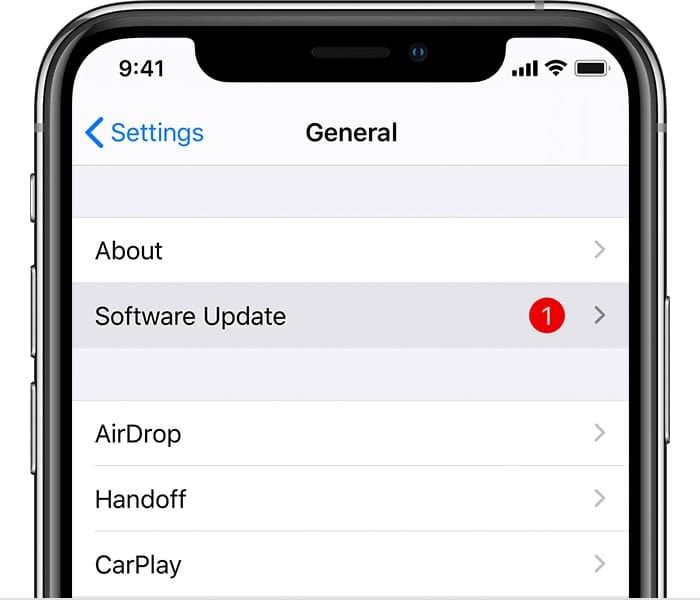
Make sure to update iOS to the latest version. Go to Settings, select General, and then tap Software Update.

Software Update iPhone XS Max on iOS 13
Make sure your device is running the latest software.

On the other hand, if this issue started occurring shortly after installing the latest iOS updates, maybe something on Apple’s end is broken. Check if you can use other third-party music apps such as Spotify, Sirius, and so on. Check if Apple Music works as intended. Maybe the code of the latest iOS release is bugged. Report the problem to Apple and wait until they roll out a hotfix.

Reinstall Amazon Music

If the issue persists, uninstall the Amazon Music app and restart your iPhone. Then install a fresh copy of the app and check if you can play your favorite songs. If the problem persists, you can go a different route and transfer your playlists from Amazon Music to Apple Music.

Conclusion

If CarPlay can’t connect to Amazon Music, start playing your playlist on your iPhone first. Additionally, disable Bluetooth and Wi-Fi before playing Amazon Music. Make sure to update your device to the latest iOS version. If the issue persists, reinstall Amazon Music and contact Apple Support.

Having to resort to all sorts of workarounds to play Amazon Music on CarPlay is really annoying. Apple’s products are supposed to just work. Have you ever experienced similar issues? Did you find other ways to fix the problem? Share your ideas in the comments below.

Related Posts:

  • CarPlay Interface on iOS
    CarPlay Not Working After iOS Update: How to Fix
  • 2023 Mac Studio lifestyle - 1
    macOS Could Not Be Installed, How-To Fix
  • Photo of someone using Apple Music on their smartphone
    How to Fix Apple Music Not Working on iPhone / iPad
  • two iphones standing up
    Best iPhone 14 Accessories
  • Carplay text messages in the car
    Best iPhone Accessories for the Car
  • pexels-rodnae-productions-7915313
    Trying Out the Best Apple Arcade Games for 2021
  • How to Fix iCloud Backup Error An Unknown Error Occurred in 7 Best Ways
    How to Fix iCloud Backup Error: An Unknown Error…
  • pexels-lisa-4629485
    The Best HomeKit Devices For 2021
  • pexels-anna-shvets-4226613
    The Best Apple Pencil Alternatives: Choosing Your Stylus
Madalina Dinita

Madalina has been a Windows fan ever since she got her hands on her first Windows XP computer. She is interested in all things technology, especially emerging technologies — AI and DNA computing in particular.
Reader Interactions

Write a Comment Cancel reply

Primary Sidebar

Recent Posts

  • What to Do When Windows 11 Won’t Detect Your iPad
  • Outlook Outage 2026: iPhone Fixes for Sign-In Chaos
  • Guide to Changing iMessage Backgrounds on iPhone and Mac
  • Has Apple Killed Vision Pro? (Insane Sales Flop Explained)
  • 5 Great Apps for Staying Organized on Your iPhone
  • What Are iPhone Antennas and Do You Need One?

Connect with us

Footer

ABOUT

  • About Us
  • Contact us
  • Advertise
  • Privacy
  • Terms of Use

GUIDES

  • iOS & iPadOS
  • Apple ID
  • iCloud
  • App Store
  • iTunes
  • FaceTime
  • iMessage
  • Siri
  • Books and iBooks
  • Game Center
  • AirPlay

CONNECT

  • Facebook
  • Twitter
  • FeedBurner
  • YouTube

© Copyright 2010-2024 Guiding Tech Media · All Rights Reserved

This site and its content are in no way affiliated or endorsed by Apple, Inc. · Reproduction without explicit permission is prohibited

Last Updated on December 29, 2022 by Mitch Bartlett