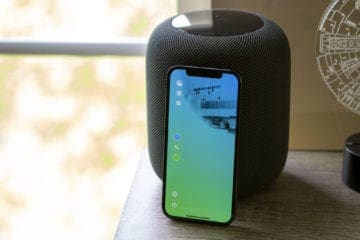
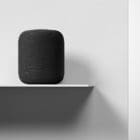
Smart home products are all the rage nowadays, even with the original Apple HomePod being removed from store shelves. Being able to control the lights, air conditioner, and even things like robot vacuums from your iPhone or iPad is incredible.
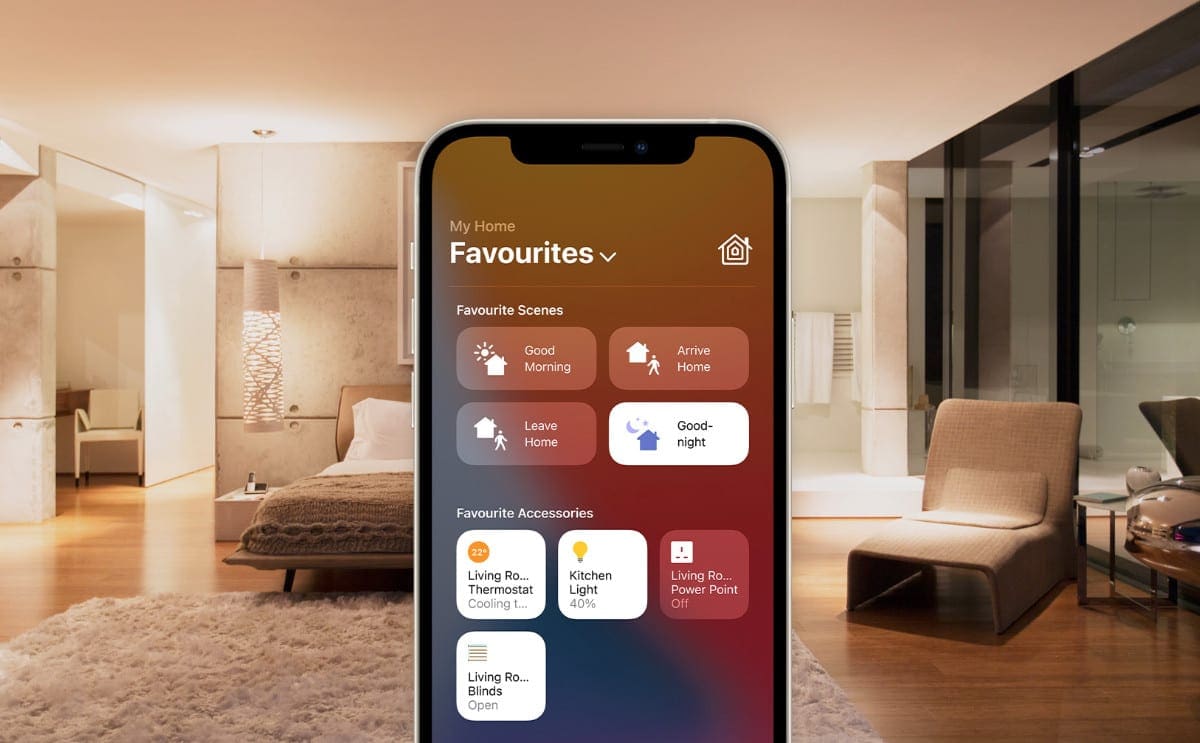
But instead of relying on a million different apps based on what smart home kits you are using, Apple simplifies the process. With the Apple Home app, you can access all of your smart home products from a single location.
Apple usually suggests a Goodnight scene to dim the lights and lower the temperature.
You really can’t maximize the usefulness and potential of the Home app until you’ve already added a few products to the mix. But after that’s been completed, you can go forward with customizing everything. From creating rooms and areas to assigning products to different rooms. Then, you can create Shortcuts to turn all of the lights in a specific room on or off at the same time.
Once everything has been set up and the rooms have been created, you are then able to control these from practically anywhere. It doesn’t matter if you’re using your Mac, or if you forgot to turn off the lights, you can just fire up the Home app and accomplish what you need to.
Apple has been consistently adding new functionality and features to HomeKit products. This includes the HomePod mini which introduced the Intercom system to send messages to different rooms in the home.
How To Change Wallpapers in the Home App
While browsing and perusing the Home app, even if just to turn on the lights in your office, you’ll notice something right off the bat. The wallpapers for each room and area that you create are pretty plain and rather boring. Apple offers limited customization options when it comes to changing these backgrounds.
But you can actually change the backgrounds if you want to keep things unique between the different rooms that you have set up. Here’s how you can do so:
Press the Home Icon in the top left corner.
Select the room that you wish to change from the dropdown menu.
Press the Home Icon again.
From the dropdown menu, select Room Settings.
Under Room Wallpaper, select either of the following
Take Photo…
Choose from Existing
The former will open the Camera app so you can snap a picture that will act as your new wallpaper. Meanwhile, the latter allows you to select any photos on your device, along with opting for one of the included gradient wallpapers.
Using HomePaper
The problem with selecting one of your existing photos as the wallpaper is that these can simply just be too busy. Unless you go down the route of creating your own wallpaper or adding a blurred filter atop the image, these won’t really be the best options for changing up the wallpapers.
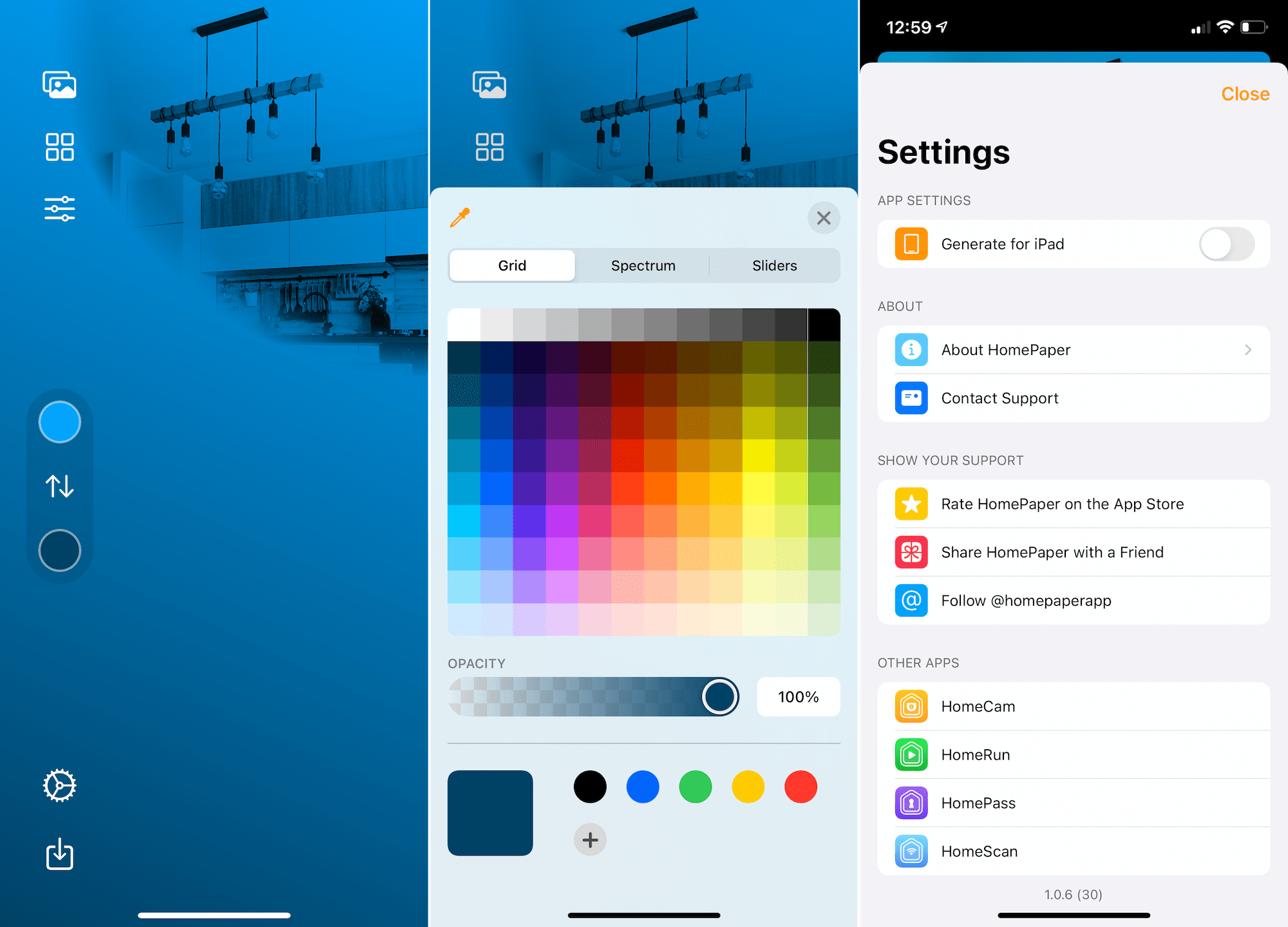
Enter HomePaper. This is a relatively new app that has made its way to the App Store and comes from Aaron Pearce. If you’ve perused the App Store for other HomeKit apps, you likely have come across some pretty well-reviewed options like HomeRun or HomePass. These are all from Pearce, and now with HomePaper, you can create customized wallpapers for the Home app.
With HomePaper, you can take those pictures of your office or living room, and then add custom gradients to the image. There is a slew of built-in gradients to choose from, along with selecting the gradients manually with the iOS color picker. After the image has been generated, you’ll be able to download the file and save it directly to your iPhone. The app also makes it possible for you to generate the same image for the iPad, so the wallpaper won’t appear out of whack if you want to load up the Home app from the larger iPad’s screen.
From there, all you’ll need to do is load up the Home app and follow the instructions above to add your new custom image as your wallpaper. HomePaper isn’t breaking the mold here, but it is making it extremely easy to add a bit of flair to a boring mix of stock wallpapers. Plus, you won’t have to worry about firing up something like Photoshop or another image editor just to create something unique.
If you want to try out HomePaper, the app is free to download, and only includes a single in-app purchase. For $0.99, you can unlock the ability to create unlimited wallpapers, without being concerned with any potential limitations if you have a lot of rooms.
Andrew Myrick is a freelance writer based on the East Coast of the US. He enjoys everything to do with technology, including tablets, smartphones, and everything in between. Perhaps his favorite past-time is having a never-ending supply of different keyboards and gaming handhelds that end up collecting more dust than the consoles that are being emulated.










Write a Comment