When using a Mac, you’ve got plenty of options for customizing how you use your device. One of the best things that Apple has done is to tie voice and typing more closely, meaning that you shouldn’t have too many issues getting your point across.
You can adjust your Mac dictation in numerous ways, but one of those is to change its language. And if you want to find out how to do that, you’re in the right place; that’s what we’ll discuss in this article.
Which Languages Can You Use for Your Mac Dictation?
When using Dictation on your Mac, you can choose from several languages. Multiple versions of English are available, including dialects from the UK, US, Singapore, India, and Australia.
You’ll also find different variations of French. While you can use the version of the language spoken in France, your Mac also has Dictation offerings for Swiss, Canadian, and Belgian French. Similarly, German has options for Germany, Austria, and Switzerland.
If you’re from a Spanish-speaking country, you’ll also find Mac Dictation useful. Macs are equipped with dialects for Spanish speakers in the US, along with Latin America and Spain. Moreover, you’ll find individual boxes for Colombia, Mexico, and Chile.
Some of the other languages included in Mac Dictation include:
Italian
Hungarian
Japanese
Korean
Thai
How to Change the Dictation Language on Your Mac
Now that you know some of the languages that you can add to your Mac Dictation, let’s look at how you can change the Dictation language on your device. Below are the instructions that you need to follow.
1. Open System Settings on your Mac.
2. Look for the Keyboard option in the left-hand toolbar. When you see it, select this tab.
3. In the next window, scroll down to the Dictation section. Here, you can toggle Dictation on.
Once you’ve turned Dictation on, follow these remaining steps:
1. Under Dictation, go to Language.
2. Expand the menu next to Language. Then, select Add Language.
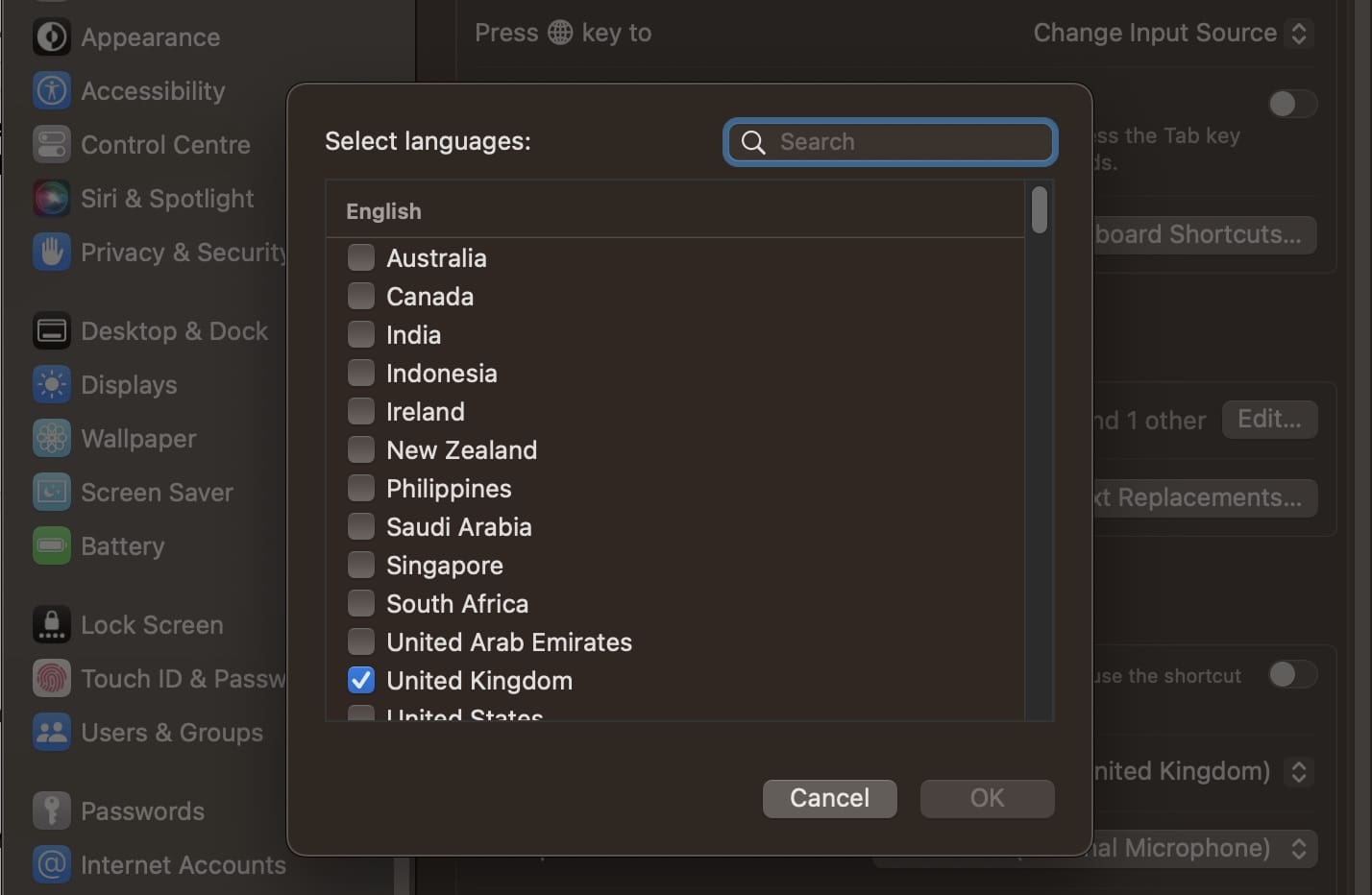
3. A list of languages will appear. Here, you can tick the boxes next to the languages you’d like to use for Dictation on your Mac.
4. Click on the OK button when you’ve chosen your languages.
How to Remove Dictation Languages on Your Mac
If you want to remove the other language you’ve previously used for Dictation, or you later decide that you’d like to get rid of the language that you’ve just added, you can easily do that by following these steps.
1. Go to System Settings > Keyboard > Dictation.
2. Expand the menu next to your Dictation language and select Customize.
3. Untick the box next to the language you’d like to remove and hit the OK button.
Changing Your Mac Dictation Language Is Easy
You might want to add Dictation on your Mac for several reasons. Sometimes, you might be working in a new language – and you could potentially find it easier to get your work done by adding Dictation. In other cases, you may wish to change to your mother tongue – or to a language that you’re learning.
Regardless of why you want to change the Dictation language on your Mac, doing so is pretty straightforward. You only need to perform a couple of steps, and when you’re in your System Settings, you’ve only got to tick the box next to your chosen language.
You can change your Dictation language as many times as you want. So, why not give it a try?
Danny has been a professional writer since graduating from university in 2016, but he’s been writing online for over a decade. He has been intrigued by Apple products ever since getting an iPod Shuffle in 2008 and particularly enjoys writing about iPhones and iPads. Danny prides himself on making complex topics easy to understand. In his spare time, he’s a keen photographer.













Very clear and helpful instructions. Thank you very much