Managing subscriptions on your iPhone is crucial to keep track of your monthly expenses and ensure you’re only paying for the services you need and use. With the proliferation of apps offering subscriptions for additional features, it’s easy to lose track of what you’ve signed up for. This guide will walk you through the steps to check your App Store subscriptions and how to use the Shortcuts app to streamline the process.
Regularly checking your App Store subscriptions helps you maintain control over your digital spending. It’s an essential part of digital housekeeping for several reasons:
Budget Management: Keep track of ongoing expenses.
Avoid Unwanted Renewals: Cancel subscriptions you no longer need before they renew.
Review Usage: Evaluate whether you’re getting value from your subscriptions.
Staying informed about your active subscriptions empowers you to make better financial decisions and ensures you’re only investing in services that offer you value.
How to Check Your App Store Subscriptions
Apple makes it relatively straightforward to view and manage your App Store subscriptions directly from your iPhone. Here’s how you can do it:
Accessing Subscriptions
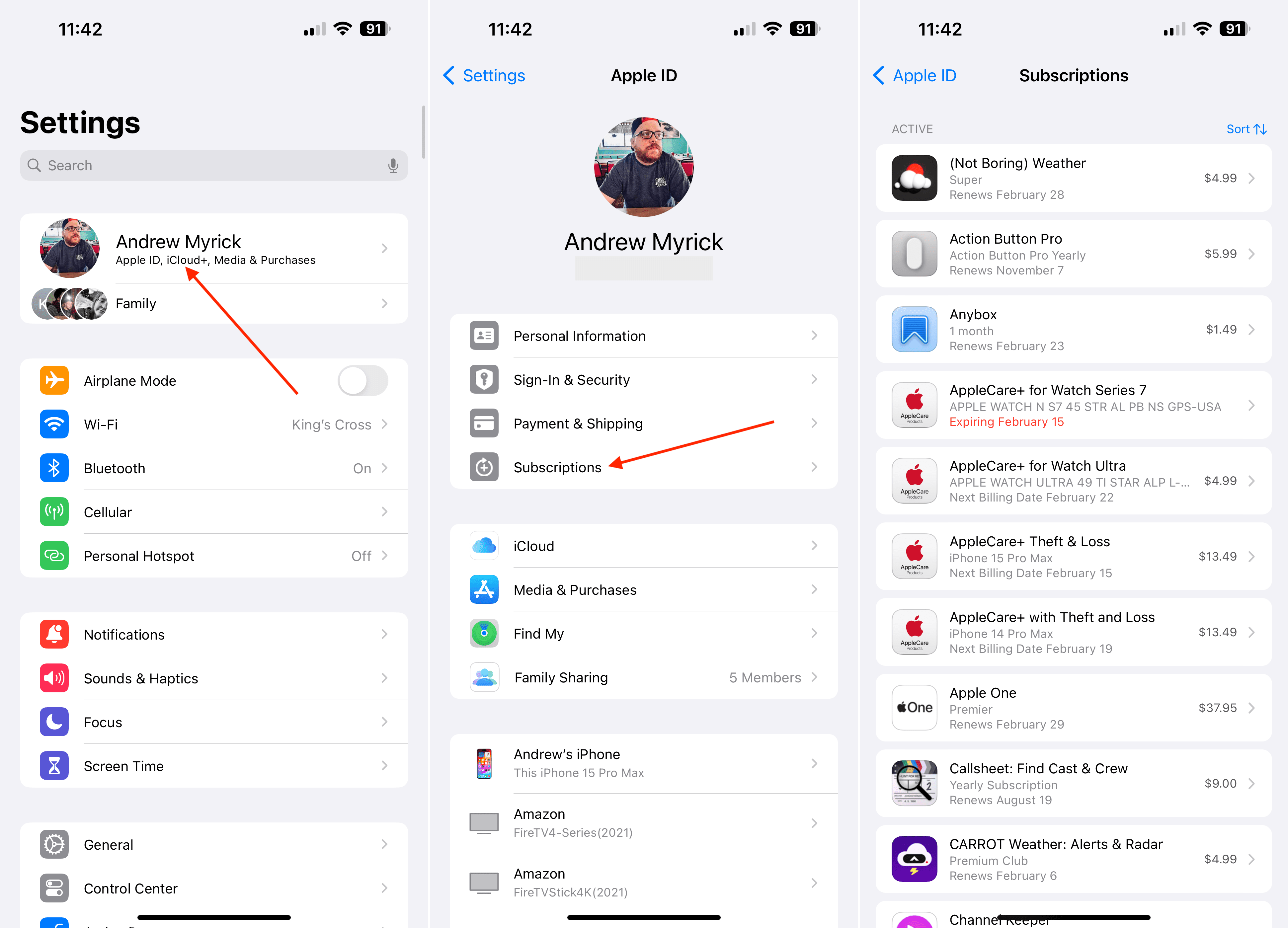
Open Settings: Tap on the Settings app on your iPhone.
Tap on Your Name: At the top of Settings, you’ll see your name and profile picture. Tap on this.
Go to Subscriptions: Scroll down and find the “Subscriptions” option. Tap on it to view your active and expired subscriptions.
Managing Subscriptions
View Details: Here, you’ll see a list of all your active and expired subscriptions. Tap on any subscription to view its details, including the next renewal date and cost.
Making Changes: If you wish to cancel or change a subscription, tap on it and follow the instructions to make the necessary adjustments.
Regularly checking this section helps you stay on top of your subscriptions, ensuring you’re not paying for services you no longer use.
Using the Shortcuts App to Check Subscriptions
For even quicker access, you can use the Shortcuts app on your iPhone to create a direct shortcut to your subscriptions page.
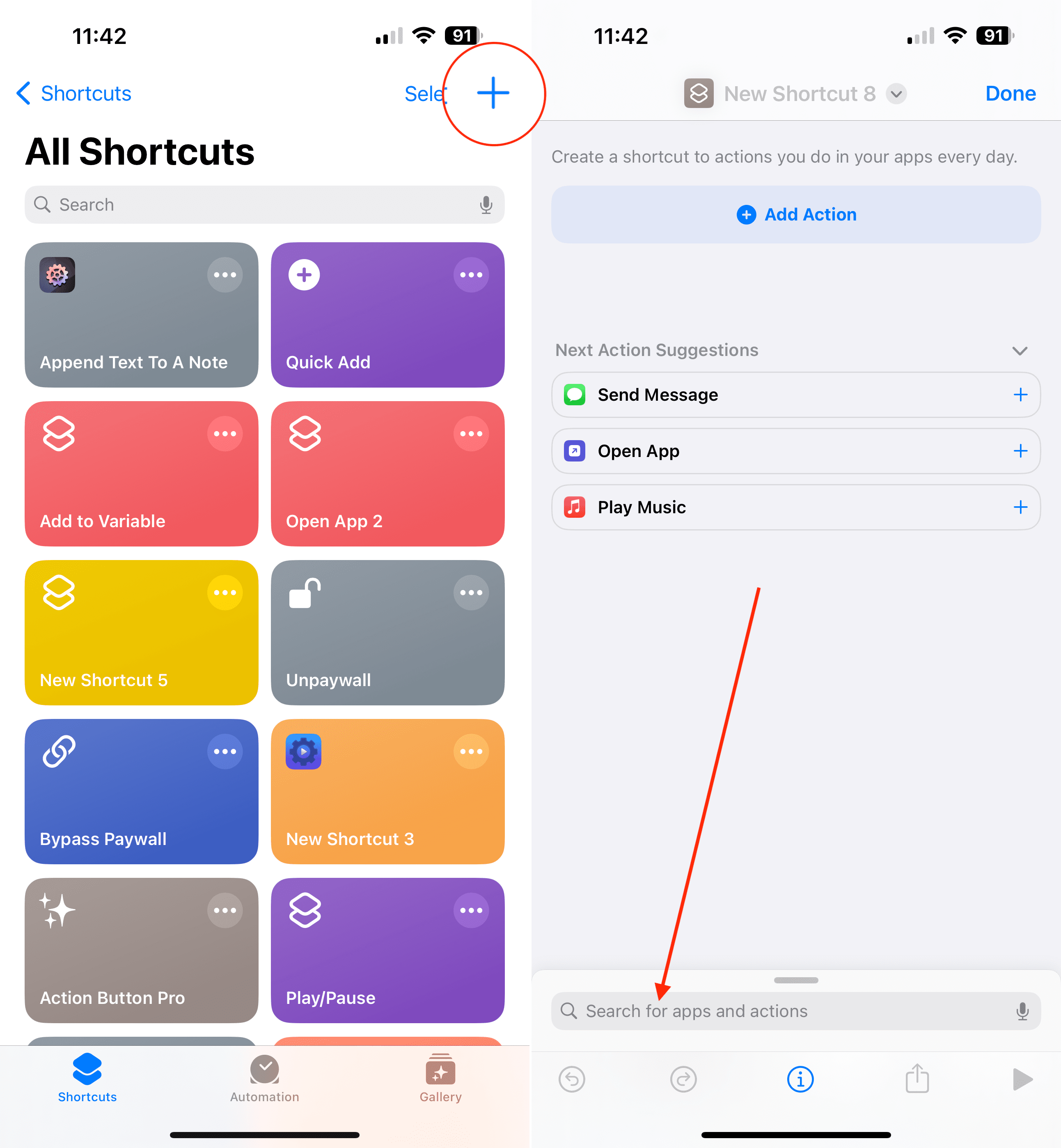
Open the Shortcuts App: Find and open the Shortcuts app on your iPhone.
Create a New Shortcut: Tap on the “+” icon to create a new shortcut.
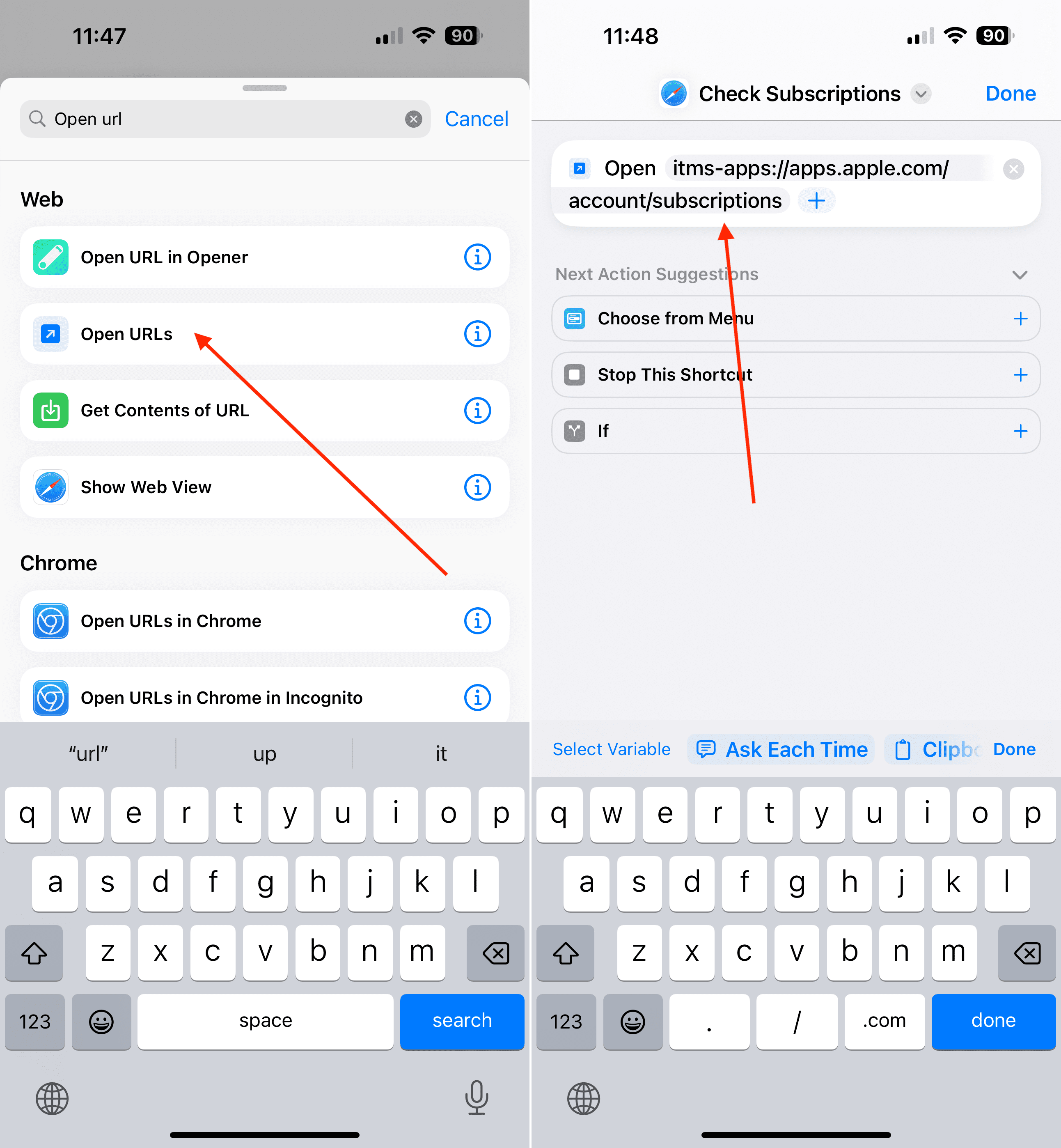
Open URLs Action: In the search bar at the bottom, search for “Open URL”.
Add URL: Once the Open URL Action appears, tap the URL bubble. Enter the following URL: itms-apps://apps://apps.apple.com/account/subscriptions
Name Your Shortcut: Name your shortcut something like “Check Subscriptions” for easy identification.
Tap the Done button in the top right corner.
Add to Home Screen (Optional): For easier access, add the shortcut to your home screen.
After you’ve created that Shortcut and added it to your Home Screen, then all you need to do is just tap the corresponding button! From here, you’ll be taken directly to an overview of your subscriptions within the App Store. While it’s not something that you probably think about on a regular basis, keeping an eye on your subscriptions can really help you, and your wallet, in the long run.
This shortcut reduces the steps needed to check your subscriptions, making it a quick and efficient process.
Conclusion
Monitoring your App Store subscriptions is a key aspect of managing your digital life and finances. Whether you choose to navigate through the Settings app or set up a convenient shortcut, staying on top of these subscriptions can save you money and ensure you’re only paying for what you truly need and enjoy.
Andrew Myrick is a freelance writer based on the East Coast of the US. He enjoys everything to do with technology, including tablets, smartphones, and everything in between. Perhaps his favorite past-time is having a never-ending supply of different keyboards and gaming handhelds that end up collecting more dust than the consoles that are being emulated.










Write a Comment