• Skip to primary navigation
  • Skip to main content
  • Skip to primary sidebar
  • Skip to footer

AppleToolBox

Tools and Fixes for Mac, iPad, iPhone & iWatch

Search posts

  • About
  • Contact

CONNECT WITH US

CATEGORIES

  • iPhone
  • iPad
  • iPod
  • Apple Watch
  • Mac/MacBook
  • AirPods
  • Apple TV
  • News
  • Apple Services
  • HomePod
  • Reviews

SITE

  • Home
  • About Us
  • Contact
  • Advertise

Search posts

You are here: Home / iPhone / How to Choose Another Phone Number in FaceTime

How to Choose Another Phone Number in FaceTime

By Danny Maiorca 0 comments Last updated June 30, 2023

FaceTime is a great way to keep in touch with loved ones, and some companies even use the service to enable better collaboration between team members. One of the nicest things about it is that you can choose whether you want others to contact you with either your email address or a phone number.

Related Reading:

  • FaceTime Call Failed? Here’s How to Fix It
  • FaceTime: Poor Connection Error on iPhone and iPad, How to Fix
  • How to Change Incoming Call Settings for FaceTime on iPhone
  • How to Use FaceTime With Android
  • How to Move a FaceTime Call From iPhone or iPad to Mac

If you want to choose another phone number in FaceTime, you can do so from numerous Apple devices. Here’s how to make the needed adjustments on your iPhone and iPad, along with doing the same on your Mac.

Contents

  • How to Choose a Phone Number in FaceTime on Your iPhone and iPad
  • Can You Choose Another Phone Number in FaceTime on Your Mac?
  • Customize Your Phone Number Settings in FaceTime With These Tips

How to Choose a Phone Number in FaceTime on Your iPhone and iPad

Choosing another phone number on FaceTime is the same on both iPhones and iPads. First, let’s look at how to add a new number for FaceTime:

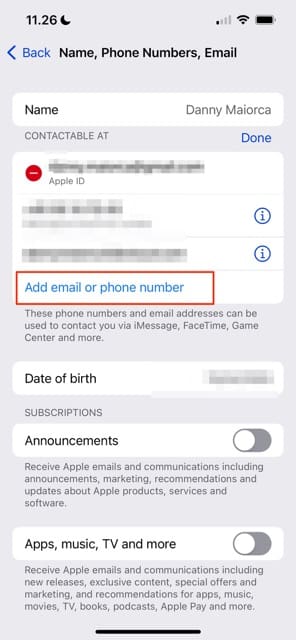
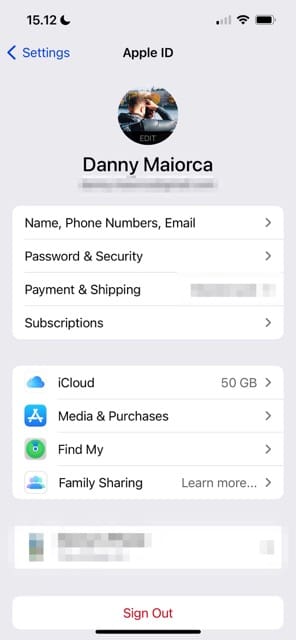
  1. Go to the Apple ID section in your device’s Settings app and click on Name, Phone Numbers, Email; it’s the first tab beneath your name and email address.
  2. Select Edit under Contactable At.
  3. Tap Add email or phone number.
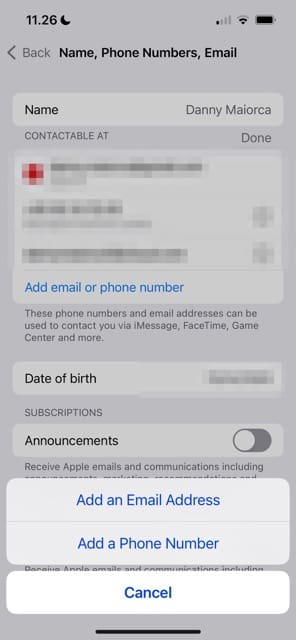
  4. Choose Add a Phone Number when the option appears at the bottom of your screen.
  5. Enter the new number you want to add to FaceTime.
  6. You’ll receive a verification code for that number; enter this when you get it.
Apple ID Homepage Screenshot
Add a new phone number on your iPhone
Choose contact detail options on FaceTime
How to add a new number on FaceTime

Can You Choose Another Phone Number in FaceTime on Your Mac?

Though your Mac doesn’t come with a SIM card, you can still change your phone number settings for FaceTime from a computer if that’s easier for you.

Follow these instructions to choose another phone number in FaceTime from your Mac:

  1. Open System Settings and go to the Apple ID section.
  2. Select Name, Phone, Email. How to choose a phone number in Mac System Settings
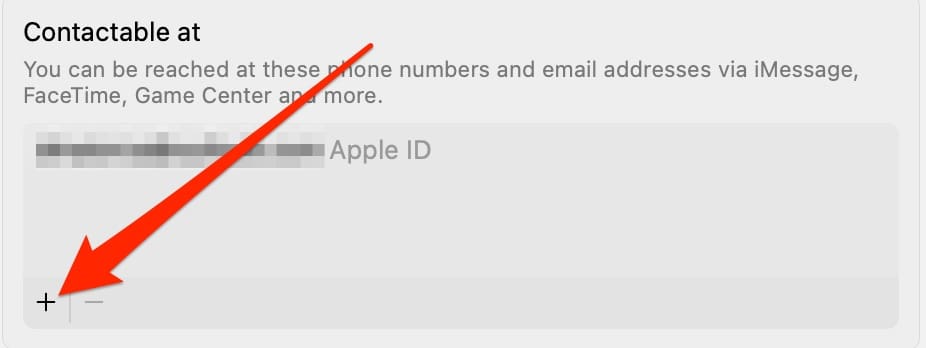
  3. Under the Contactable at box, tap the + icon. Add a new Mac contact detail
  4. Next to Add:, make sure that you’ve ticked Phone number. Then, add the phone number you want to link to your account. How to add a new Mac phone number
  5. Select Next and verify your phone number when you receive the code.

After adding your phone number, you can check to ensure that everything looks as it should by opening FaceTime and going to FaceTime> Settings. Under General, you’ll see a section called You can be reached by FaceTime at: Your newly-added phone number will appear here.

Toolbar for FaceTime

Customize Your Phone Number Settings in FaceTime With These Tips

As you can see, choosing another phone number in FaceTime isn’t too hard. If you want to remove your old number, you can do so without too many problems – but even if you simply want to add something new, the process should not take longer than a couple of minutes altogether.

After adding your new phone number, others will have more updated options to contact you. You can make further adjustments whenever you want by following these changes through again.

Related Posts:

  • Screen Shot 2021-08-21 at 6.58.10 PM
    DuckDuckGo's Email Privacy Features Might Beat Apple
  • Android to Mac File Transfer Header
    How to Transfer Files from Android to Mac
  • sidecar on iPadOS and macOS
    Sidecar not working in iPadOS and macOS? How to fix…
  • pexels-karolina-grabowska-5624998
    The Best Apple Gifts for The 2022 Holidays
  • How to Use AirPods Max With Android Hero
    How To Use iMessage on Android
  • 2023 Mac Studio lifestyle - 1
    macOS Could Not Be Installed, How-To Fix
  • Mac Android Second Screen header
    How to Use an Android Phone or Tablet as a Second…
  • photo of an iphone with ios 16 downloaded on it
    iOS 16 Tips and Tricks: The Definitive List
  • Facetime Mac Header
    How Do I Fix Failed FaceTime Calls?
Danny Maiorca

Danny has been a professional writer since graduating from university in 2016, but he’s been writing online for over a decade. He has been intrigued by Apple products ever since getting an iPod Shuffle in 2008 and particularly enjoys writing about iPhones and iPads. Danny prides himself on making complex topics easy to understand. In his spare time, he’s a keen photographer.

Reader Interactions

Write a Comment Cancel reply

Primary Sidebar

Recent Posts

  • How to Hide Username and Photo on the Mac Lock Screen
  • Microsoft Resume vs. Apple Handoff – Which Wins for Cross-Device Work?
  • How to Export iTunes Library to New Computer
  • What the Gemini Desktop App Will Bring to Mac
  • What to Do When Windows 11 Won’t Detect Your iPad
  • Outlook Outage 2026: iPhone Fixes for Sign-In Chaos

Connect with us

Footer

ABOUT

  • About Us
  • Contact us
  • Advertise
  • Privacy
  • Terms of Use

GUIDES

  • iOS & iPadOS
  • Apple ID
  • iCloud
  • App Store
  • iTunes
  • FaceTime
  • iMessage
  • Siri
  • Books and iBooks
  • Game Center
  • AirPlay

CONNECT

  • Facebook
  • Twitter
  • FeedBurner
  • YouTube

© Copyright 2010-2024 Guiding Tech Media · All Rights Reserved

This site and its content are in no way affiliated or endorsed by Apple, Inc. · Reproduction without explicit permission is prohibited