For as amazing as the camera system is on the iPhone, there are still some instances that cause frustration. One common issue comes when you’re trying to take a quick picture of your pets.
You may think you took the “perfect shot”, only to open it in Photos and see a creepy glow in their eyes. This happens for a few different reasons, but the iPhone makes it extremely easy to edit those photos.
When you come across those creepy, glowing eyes, this happens for a reason, and it’s not just related to the surrounding scenery. Pets have a reflective layer behind the retina which acts like a mirror, reflecting light back. The reason for this is to help your dogs and cats see better at night.
It’s the reason why you’ll see the glow reflected back in the picture, especially if the flash is on. With different types of dogs, the reflection may be different, and there are some dogs that even have the same red-eye as humans.
How to get rid of pet glowing eyes from your iPhone
In those instances that you take a great picture of your pet, only to get the glowing eyes, you can quickly edit them out. All you’ll need is the Photos app, as there is a shortcut to the Red Eye tool built right into the editor.
Here’s how you can get rid of pet glowing eyes on your iPhone:
Open the Photos app on your iPhone.
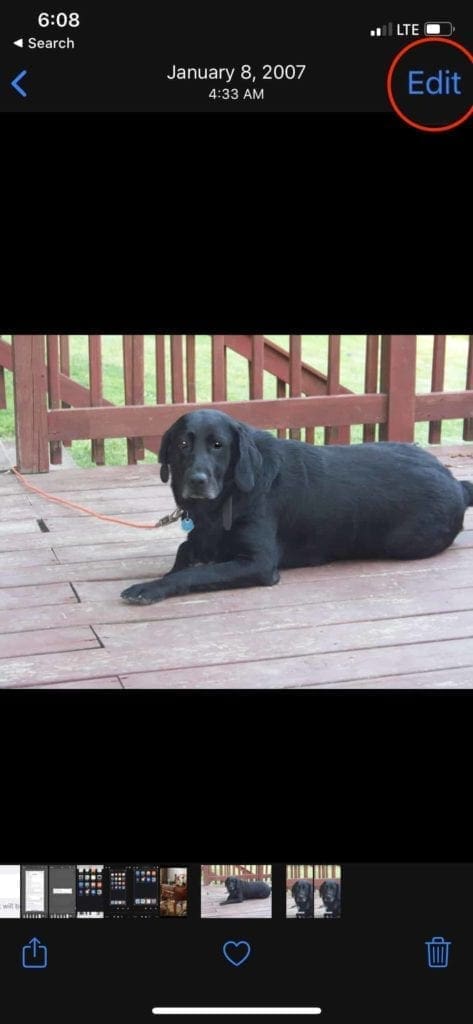
Locate and select that photo that you wish to edit.
Tap Edit in the top right-hand corner.
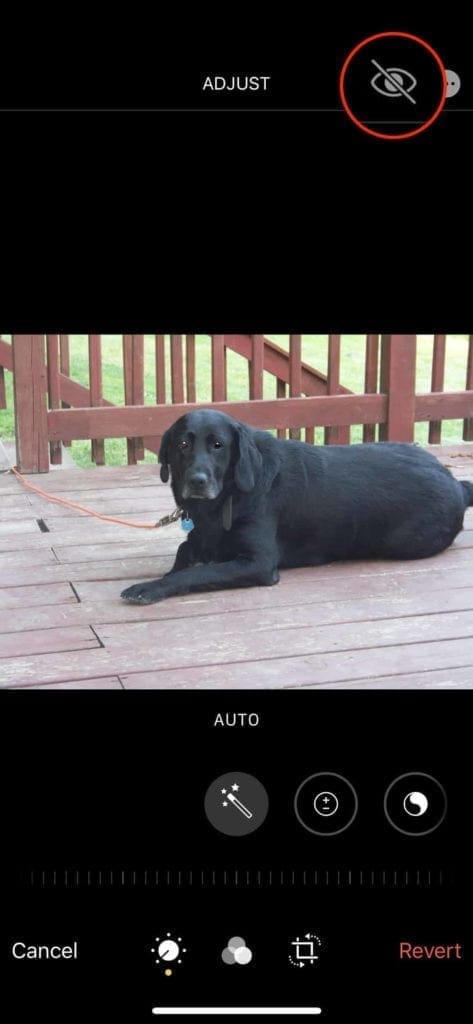
Select the icon in the top right with an eye and a line going through it.
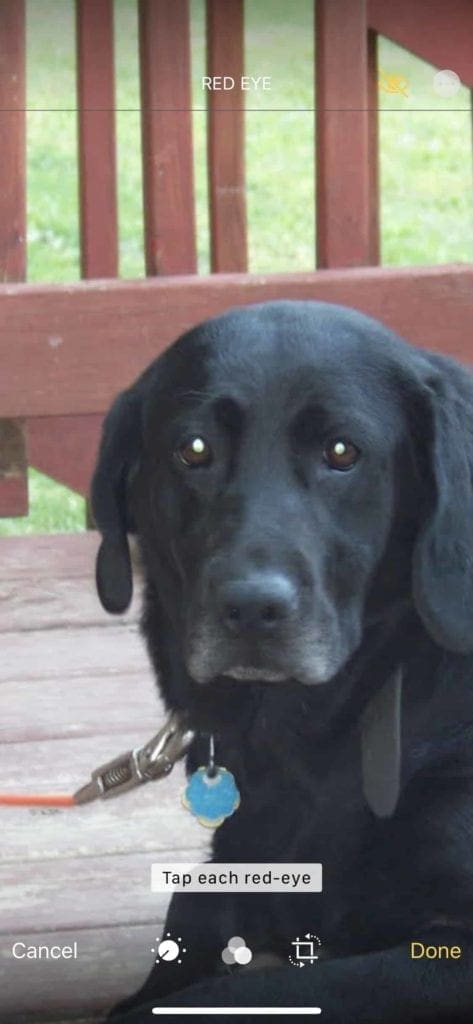
Using two fingers, zoom in as close as possible to each eye.
Continue tapping until the glowing eyes are removed.
Tap Done in the bottom right-hand corner.
We like to mention that you may need to continue tapping on any glowing portion of the eyes. For one reason or another, the red-eye detector may not get all of the glowing eyes removed. But in the event that you need a bit more power….
There’s an app for that
The App Store is great because there are so many different options and tools at your disposal to get the job done. Many of your photo editors have some type of red-eye detection so that you can get those cleared up. And although these were made primarily with humans in mind, they will also work with your pets too.
Here are some of our favorite apps to edit your pictures and get rid of those glowing eyes:
Photoshop Express (Free w/ IAP) – Edit pictures like the pros with this easy-to-use digital studio full of photo editing features on your mobile device. Photoshop Express delivers a full spectrum of free photo effects and editing features at your fingertips.
Fix+: Red Eye Remover (Free w/ IAP) –Red eyes still happens these days and it is annoying, even with the latest phone models. That is because of how our eyes work. The red color reflects the color of blood vessels in our retina. Fix+ was built to completely get rid of that effect with super realistic results.
Facetune ($3.99) – Without the expensive price tag or complicated tools, Facetune gives you the ability to retouch and add artistic flair to selfies and portraits with ease, from the convenience of your iPhone.
Visage: face tune, edit photos (Free w/ IAP) – Discover “Visage Lab” app that will enhance a face in a photo with the wave of a magic wand! Just select a portrait photo from your iPhone/iPad or make a shot with your camera and let the app do the rest.
As we stated before, these are just some of our favorite apps to remove red/glowing eyes. There are plenty of others, like Pixelmator or Enlight, that will work just as well.
What can I do to avoid future pet glowing eyes in photos?
As is the case when trying to frame and take the perfect picture of your friends and family, it’s important to frame the right picture of your pets. Since animals (primarily dogs and cats) have this glowing eye effect, there are a few things to consider when taking pictures.
Turn off the flash – This is the most common reason for the glowing eye effect to occur. Especially if your dog is looking right at you/the camera when the flash is going off. The light will be reflected and bounce back, giving that ominous glow in your photos.
Get down to their level – Even if the flash is turned off, there could be another light source that could cause issues. If you get down to your dog’s level and get a bit closer, this could remove any potential light sources for wreaking havoc.
Enhance the scenery – This is primarily for those taking “staged” pictures of their pets. Adding a lot of colorful background items will remove the need for the flash and making it easier to focus on your pet.
These are just some of the ways you can try to reduce running into issues when taking pictures of your pets. However, you could also try using some third-party camera applications with manual controls. This not only aim to remove any potential glowing eyes but will also just make for a better photo altogether.
Conclusion
Having a pet can be one of the greatest things in life, and you’ll want to capture as many moments of you and your best friend as possible. Don’t let a batch of “glowing eye” pictures to ruin what was a perfect moment captured forever.
If you continue having issues with using the Red-Eye fixing tool in Photos, let us know in the comments. Or take a look at some of our recommendations for third-party apps to use in order to get the job done and your photo fixed.
Andrew Myrick is a freelance writer based on the East Coast of the US. He enjoys everything to do with technology, including tablets, smartphones, and everything in between. Perhaps his favorite past-time is having a never-ending supply of different keyboards and gaming handhelds that end up collecting more dust than the consoles that are being emulated.










Write a Comment