For macOS users, personalizing the user interface to suit individual preferences and workflow is a key aspect of optimizing productivity and ease of use. One feature that some users may find less intuitive is the ‘Click to Reveal’ functionality, particularly when dealing with desktop widgets or managing applications.
This comprehensive tutorial is designed to guide you through various methods to streamline your interaction with the macOS interface. We’ll cover everything from viewing desktop widgets more seamlessly to efficiently managing your applications and notifications.
Navigating through the nuances of macOS can be both an exciting and intricate journey, especially when it comes to customizing user interface elements to fit your personal workflow. A specific feature that some users find less intuitive is the ‘Click to Reveal’ functionality, often encountered while interacting with desktop widgets or various applications.
Open the System Settings app on your Mac.
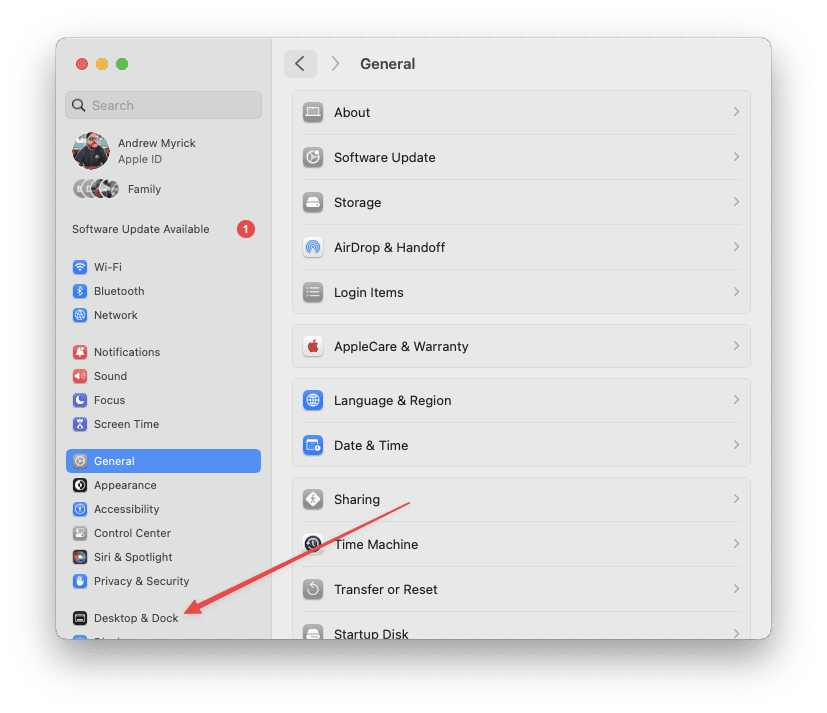
In the sidebar on the left, scroll down and click Desktop & Dock.
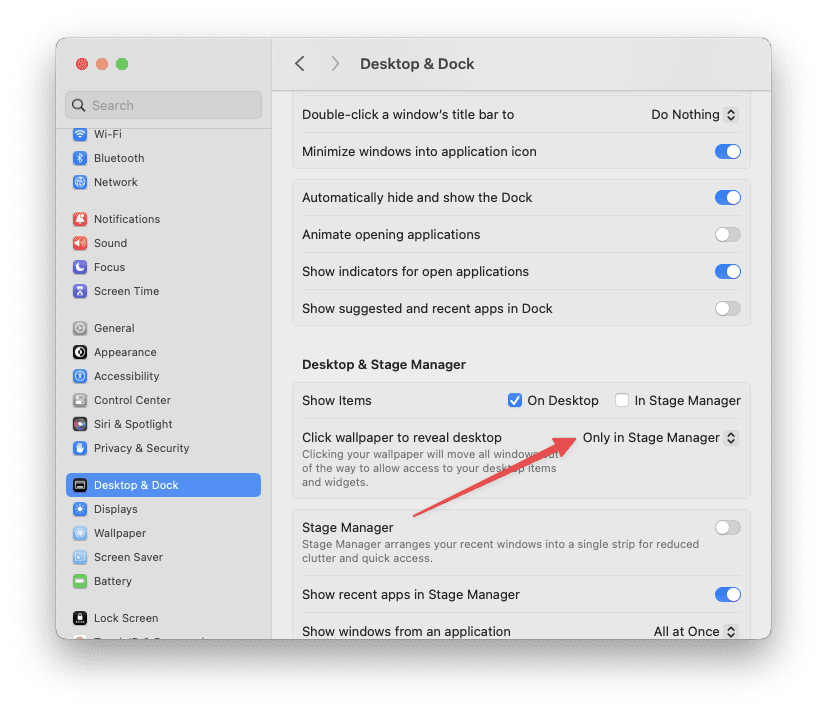
Scroll down until you reach the Desktop & Stage Manager section.
Click the drop-down next to Click wallpaper to reveal desktop.
From the list of options, select Only in Stage Manager.
Close the System Settings app to save your changes.
Now, you’ll no longer have to worry about your desktop and background being revealed every time you click out of an open app window. As you can probably surmise, the only exception to this is if you happen to use Stage Manager. Unfortunately, there does not yet seem to be a workaround for those are using Stage Manager as opposed to the traditional desktop interface on macOS.
How to View Desktop Widgets Without ‘Click to Reveal’
Desktop widgets on macOS offer a convenient way to access real-time information and quick functionalities right from your desktop. Traditionally, accessing these widgets involves the ‘Click to Reveal’ action, which some users may find to be an extra step that interrupts their workflow.
Quickly Minimize Your Apps
The easiest way to view your desktop widgets after disabling ‘Click to Reveal’ is to simply hide or minimize the apps that are open. There are a couple of different keyboard and mouse shortcuts that you can use in order to do so:
Command + H
Command + M
Option + Command + H + M
Option + Command + Click on an empty area on your desktop
Set Up Hot Corners to View Your Desktop
In the quest for a more streamlined and intuitive macOS experience, Hot Corners emerge as a powerful feature, often underutilized by many users. Hot Corners allow you to assign specific actions to each corner of your screen, enabling instant access to various functions—including your desktop widgets—simply by moving your cursor to a designated corner. This approach can significantly enhance your productivity and interaction with macOS, offering a seamless alternative to the standard ‘Click to Reveal’ method.
Open the System Settings app on your Mac.
In the left sidebar, scroll down and click Desktop & Dock.
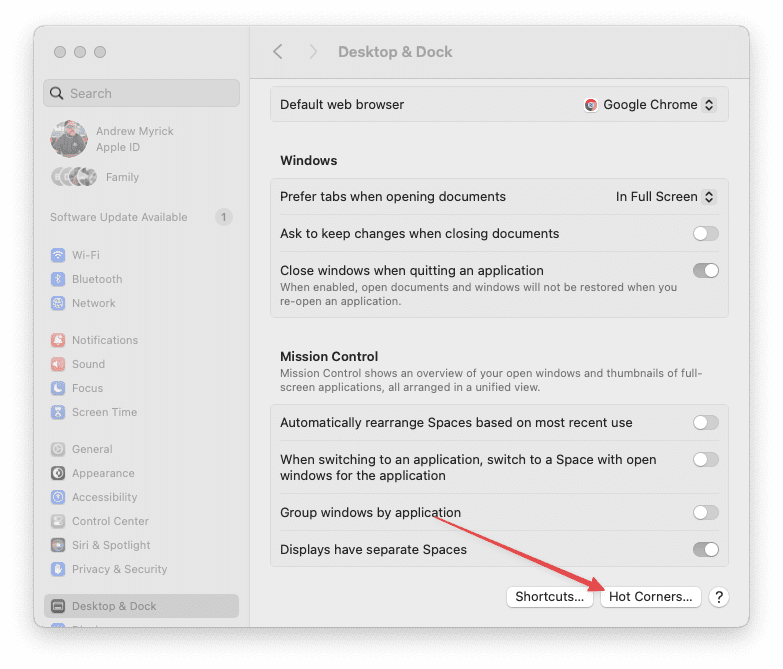
On the right side of the window, scroll all the way to the bottom.
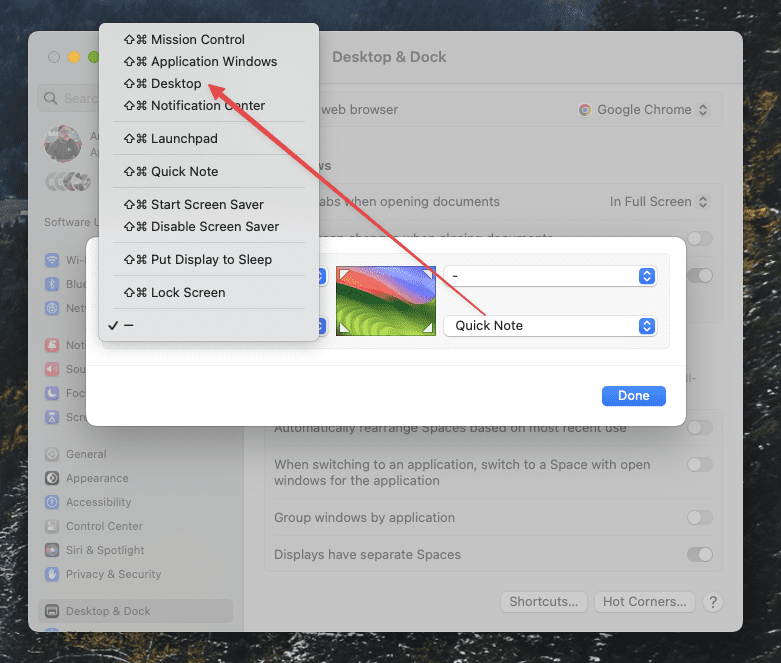
Click the Hot Corners… button.
Click the drop-down menu next to one of the four corners that you want to use.
From the menu that appears, highlight and select Desktop.
Click the Done button.
Notification Center Is Still Around
Until recently, the default way for using widgets on your Mac was through the Notification Center. Even with the addition of being able to natively add desktop widgets to the Mac, Apple has not yet removed the ability to view widgets from the Notification Center. This can come in rather handy for those who don’t want to be distracted by desktop widgets, and here’s how you can add widgets to the Notification Center:
Click the time and date in the top right corner of your Mac’s Menu Bar.
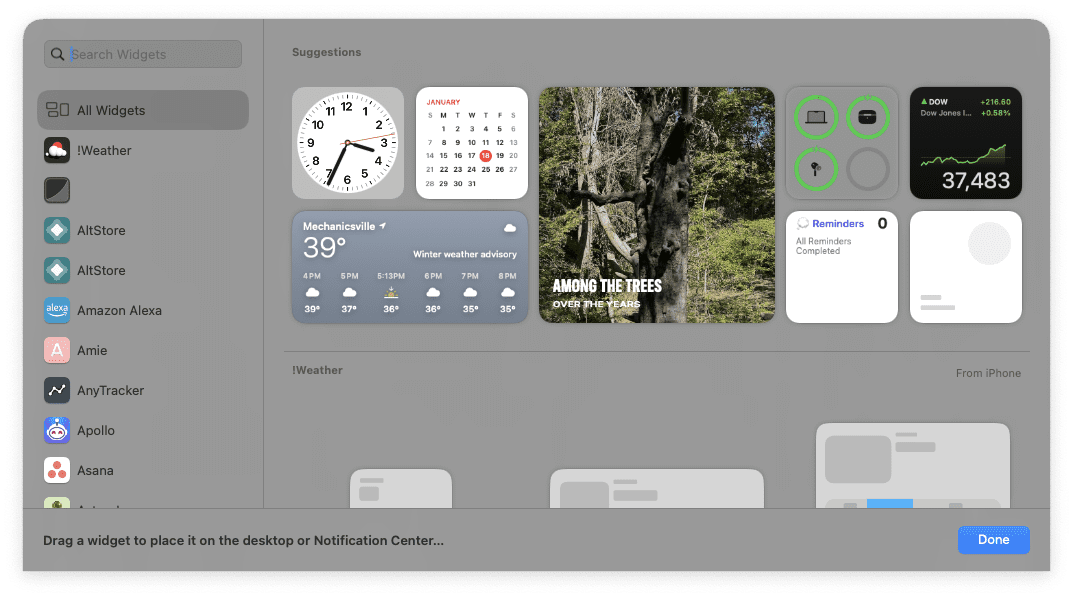
At the bottom of the screen, click the Edit Widgets button.
From the pop-out window that appears, locate the widget that you want to add.
Hover your mouse cursor over the top of the widget that you want to add.
Click the + button in the top left corner.
Repeat the steps for any other widgets that you want to add to your Mac’s Notification Center.
Once you’ve picked all of the widgets you want to have, drag and drop the widgets according to how you want them to be displayed.
While going through the various widgets that are accessible on your Mac, you’ll notice that there are different sizes that can be used. This is similar to the interface that you’ll find when picking widgets on an iPhone or iPad. Essentially, you’ll be able to customize which widgets appear along with the layout based on your needs or wants.
Conclusion
Customizing the macOS interface to suit your preferences, especially when it comes to managing desktop widgets and applications, can significantly enhance your user experience. By disabling the ‘Click to Reveal’ functionality and employing alternatives like keyboard shortcuts, hot corners, and the Notification Center, you can streamline your interactions with your Mac.
Each of these methods offers a unique way to access and manage your applications and widgets more efficiently, allowing you to focus more on productivity and less on navigating the intricacies of the operating system. With these tips and tricks, you’re now well-equipped to tailor your macOS experience to your personal workflow and preferences.
Andrew Myrick is a freelance writer based on the East Coast of the US. He enjoys everything to do with technology, including tablets, smartphones, and everything in between. Perhaps his favorite past-time is having a never-ending supply of different keyboards and gaming handhelds that end up collecting more dust than the consoles that are being emulated.















Write a Comment