• Skip to primary navigation
  • Skip to main content
  • Skip to primary sidebar
  • Skip to footer

AppleToolBox

Tools and Fixes for Mac, iPad, iPhone & iWatch

Search posts

  • About
  • Contact

CONNECT WITH US

CATEGORIES

  • iPhone
  • iPad
  • iPod
  • Apple Watch
  • Mac/MacBook
  • AirPods
  • Apple TV
  • News
  • Apple Services
  • HomePod
  • Reviews

SITE

  • Home
  • About Us
  • Contact
  • Advertise

Search posts

You are here: Home / iPhone / How to Turn Passcode Off on iOS

How to Turn Passcode Off on iOS

By Danny Maiorca 0 comments Last updated December 29, 2022

>Having a passcode on your iPhone can help keep your device safe from people you don’t want to give access to. However, you can turn it off if you feel like it’s more of a nuisance than a help.

Related Reading:

  • Fix: iPhone Won’t Accept the Correct Passcode
  • iPhone Passcode Required After iOS Update: How to Fix
  • How to Disable Your Password for the App Store
  • How to Customize Which Actions You Can Use Face ID for on iOS
  • How to Make a Memoji Without Using Face ID

If you want to turn off your passcode for your iOS device, you’re in the right place; we’ll show you how to do precisely that in this article.

Contents

  • Do I Need Face or Touch ID if I Turn Off My iOS Passcode?
  • Do You Need iOS 16 to Turn Off the Passcode on Your iPhone?
  • How to Turn Off Your iPhone’s Passcode
  • Switching Off Your iPhone’s Passcode Is Simple

Do I Need Face or Touch ID if I Turn Off My iOS Passcode?

No – you won’t need to turn on your Face or Touch ID if you stop using your iOS passcode. However, you should strongly consider whether you want to leave your phone as vulnerable as that.

If you switch off your passcode and you don’t use Face ID, other people will be able to access your device without extra barriers. This can become especially problematic if you lose your device or you find yourself in close proximity to someone you don’t trust.

Do You Need iOS 16 to Turn Off the Passcode on Your iPhone?

No; the passcode is one of the most established iOS features, and you don’t need iOS 16 to switch it off. That goes for whether you simply haven’t downloaded iOS 16 yet, or if your iPhone does not support iOS 16 at all.

How to Turn Off Your iPhone’s Passcode

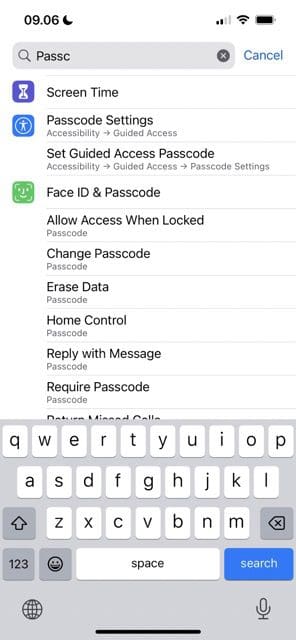
Screenshot showing how to search for the passcode option on iOS
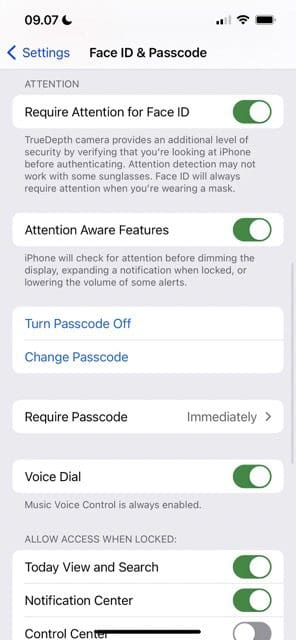
Screenshot showing Face ID/Passcode Interface on iPhone
Screenshot showing how to turn off iOS passcode

Okay, so you know whether you need Face or Touch ID once you’ve turned off your iPhone passcode. You’re also aware of the risks that come with switching it off, and you know that you don’t need iOS 16 to switch it off.

With all of that out the way, let’s look at how you can turn off your iPhone’s passcode.

  1. Open the Settings app and begin searching for “passcode” in the search bar. Go to Face ID & Passcode (or Touch ID & Passcode if your iPhone still has a home button).
  2. Enter your passcode on the next screen.
  3. Scroll down and select Turn Off Passcode.
  4. Click on Turn Off when the pop-up message appears.

While you can turn your passcode back on later, you will need to re-add any car keys and cards you use with Apple Pay if you choose to do that.

Switching Off Your iPhone’s Passcode Is Simple

If you want to turn off your iOS passcode, the process is pretty straightforward. However, you should remember that doing so can cause more issues than it’s worth.

Once you’ve assessed the risks, the choice is yours as to whether you still want to go ahead with it. If you’ve decided that turning your passcode off is worth it, the tips we’ve listed in this article will help you achieve your desired outcome.

Related Posts:

  • 2023 Mac Studio lifestyle - 1
    macOS Could Not Be Installed, How-To Fix
  • How to Disable the Login Password on Mac
    How to Disable the Login Password on Mac
  • Update Apple ID settings on your iPhone, iPad, or Mac after changing your password
    Getting a Message to Update Apple ID Settings on…
  • pexels-designecologist-1779487
    The Best iPhone And Mac Shortcuts For Beginners
  • Memoji-Stickers
    How to Edit and Create a Customized Memoji in iOS 17…
  • pexels-tima-miroshnichenko-6860464
    How To Start Using Regex With The Shortcuts App
  • pexels-andrea-piacquadio-3760811
    Automator Workflow Types: Understanding The Differences
  • 2022 Mac Mini with Studio Display and Accessories
    Mac Tips For New Users In 2023
  • iPhone SE 2022 - 9
    How To Make Memoji Without Face ID
Danny Maiorca

Danny has been a professional writer since graduating from university in 2016, but he’s been writing online for over a decade. He has been intrigued by Apple products ever since getting an iPod Shuffle in 2008 and particularly enjoys writing about iPhones and iPads. Danny prides himself on making complex topics easy to understand. In his spare time, he’s a keen photographer.
Reader Interactions

Write a Comment Cancel reply

Primary Sidebar

Recent Posts

  • How to Set Up iCloud Passwords on a Windows PC?
  • How to Turn Off Apple Music’s Dark Mode
  • How to Disable Predictive Text in iOS 26
  • How to Stop Sharing Analytics in iOS 26
  • How to Manage Your iPhone Call Log
  • Are Apple’s Safety Precautions Enough for AirTags?

Connect with us

Footer

ABOUT

  • About Us
  • Contact us
  • Advertise
  • Privacy
  • Terms of Use

GUIDES

  • iOS & iPadOS
  • Apple ID
  • iCloud
  • App Store
  • iTunes
  • FaceTime
  • iMessage
  • Siri
  • Books and iBooks
  • Game Center
  • AirPlay

CONNECT

  • Facebook
  • Twitter
  • FeedBurner
  • YouTube

© Copyright 2010-2024 Guiding Tech Media · All Rights Reserved

This site and its content are in no way affiliated or endorsed by Apple, Inc. · Reproduction without explicit permission is prohibited

Last Updated on December 29, 2022 by Mitch Bartlett