• Skip to primary navigation
  • Skip to main content
  • Skip to primary sidebar
  • Skip to footer

AppleToolBox

Tools and Fixes for Mac, iPad, iPhone & iWatch

Search posts

  • About
  • Contact

CONNECT WITH US

CATEGORIES

  • iPhone
  • iPad
  • iPod
  • Apple Watch
  • Mac/MacBook
  • AirPods
  • Apple TV
  • News
  • Apple Services
  • HomePod
  • Reviews

SITE

  • Home
  • About Us
  • Contact
  • Advertise

Search posts

You are here: Home / iPhone / How to Customize Which Actions You Can Use Face ID for on iOS

How to Customize Which Actions You Can Use Face ID for on iOS

By Danny Maiorca 0 comments Last updated December 29, 2022

Ever since being introduced, Face ID has been handy for iOS users around the world. You probably use it to unlock your iPhone, and you can also easily pay for items using Apple Pay.

Related Reading:

  • How to Use Face ID With a Mask
  • How to Make a Memoji Without Face ID
  • Apple’s Future Plans for Face ID on Mac, iPhone, and iPad
  • iOS 16 Tips and Tricks: The Definitive List
  • iOS 16: Tips to Keep Your iPhone Safe

Face ID is also handy for security purposes. But while you may have certain functions you’d like to use the feature for, that may not be the case for all of them. If you want to customize the actions you can use Face ID for on iOS, you’re in the right place; we’ll discuss that in this article.

Contents

  • Which iOS Devices Can You Use Face ID On?
  • How to Customize the Actions You Want to Use Face ID for on iOS
  • Customizing Face ID on iOS Is Straightforward

Which iOS Devices Can You Use Face ID On?

Having originally been introduced in 2017, several iOS devices now have Face ID as a built-in feature. If you’ve purchased the iPhone 14, you will be able to use it to unlock your device and more.

However, you don’t strictly need an iPhone 14 to use Face ID. If you use an iPhone X or later, you can use Face ID on your device. The easiest way to determine whether you can use the feature is by checking if your iPhone has a home button or not.

In addition to iPhone models released in 2017 and later, you can also use Face ID if you have an iPad Pro.

How to Customize the Actions You Want to Use Face ID for on iOS

screenshot of the settings app on ios
screenshot showing options to use face id on ios

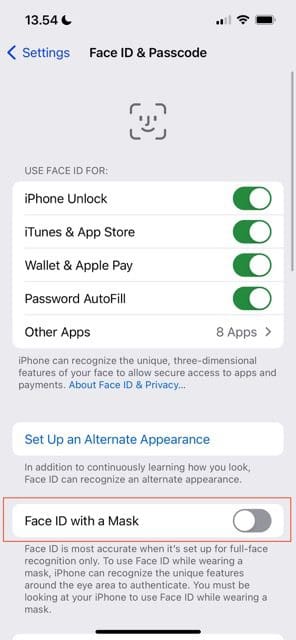
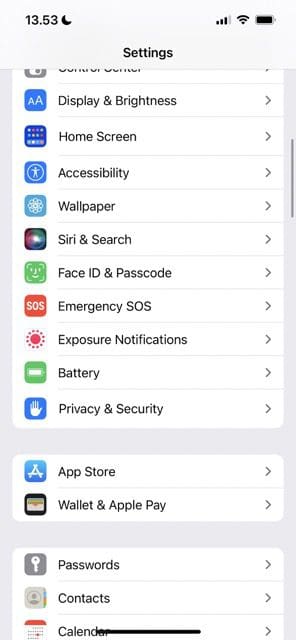
Now that you know a little more about which devices support Face ID, let’s talk about how to customize the feature. If you want to do that, follow the steps listed below.

  1. Open the Settings app and go to Face ID & Passcode.
  2. On the next screen, you’ll need to enter your device’s passcode; do this when prompted.
  3. When you’ve entered your passcode, you’ll see a section titled “Use Face ID For:”. Toggle the options you’d like to use the feature for; if you expand the Other Apps tab, you can also determine which apps you give permission to use Face ID.

If you live in or visit a place with a mask mandate, you can also toggle Face ID with a Mask on; it’s closer to the end of the top bit before you need to scroll down.

If you toggle something new on, your iPhone may ask you to enter the login details for your Apple ID.

Customizing Face ID on iOS Is Straightforward

Customizing Face ID on iOS takes only a few steps; once you’ve entered your passcode, you can change whatever you want. You can choose which apps have access to Face ID, along with deciding whether you want to use it to unlock your iPhone.

You can do a lot more with your Face ID, too, such as setting up an alternative appearance. If your device uses this feature, you might want to check and see whether there’s anything you’re missing out on.

Related Posts:

  • pexels-ketut-subiyanto-4909474
    How To Use Face ID While Wearing A Mask In iOS 14.5
  • iPhone-Unlock-With-Mask-Not-Working
    Here’s Why iPhone Unlock With a Mask Is Not Working
  • 2022 Mac Mini with Studio Display and Accessories
    Mac Tips For New Users In 2023
  • 2023 Mac Studio lifestyle - 1
    macOS Could Not Be Installed, How-To Fix
  • pexels-andrea-piacquadio-3760811
    Automator Workflow Types: Understanding The Differences
  • sidecar on iPadOS and macOS
    Sidecar not working in iPadOS and macOS? How to fix…
  • pexels-designecologist-1779487
    The Best iPhone And Mac Shortcuts For Beginners
  • photo of an iphone with ios 16 downloaded on it
    iOS 16 Tips and Tricks: The Definitive List
  • iPhone SE 2022 - 9
    How To Make Memoji Without Face ID
Danny Maiorca

Danny has been a professional writer since graduating from university in 2016, but he’s been writing online for over a decade. He has been intrigued by Apple products ever since getting an iPod Shuffle in 2008 and particularly enjoys writing about iPhones and iPads. Danny prides himself on making complex topics easy to understand. In his spare time, he’s a keen photographer.
Reader Interactions

Write a Comment Cancel reply

Primary Sidebar

Recent Posts

  • How to Disable Predictive Text in iOS 26
  • How to Stop Sharing Analytics in iOS 26
  • How to Manage Your iPhone Call Log
  • Are Apple’s Safety Precautions Enough for AirTags?
  • How to Hide Username and Photo on the Mac Lock Screen
  • Microsoft Resume vs. Apple Handoff – Which Wins for Cross-Device Work?

Connect with us

Footer

ABOUT

  • About Us
  • Contact us
  • Advertise
  • Privacy
  • Terms of Use

GUIDES

  • iOS & iPadOS
  • Apple ID
  • iCloud
  • App Store
  • iTunes
  • FaceTime
  • iMessage
  • Siri
  • Books and iBooks
  • Game Center
  • AirPlay

CONNECT

  • Facebook
  • Twitter
  • FeedBurner
  • YouTube

© Copyright 2010-2024 Guiding Tech Media · All Rights Reserved

This site and its content are in no way affiliated or endorsed by Apple, Inc. · Reproduction without explicit permission is prohibited

Last Updated on December 29, 2022 by Mitch Bartlett