Thanks to iOS 14.5, you can now unlock your iPhone even when wearing a face mask. This feature is of utmost importance in today’s world. Compulsory indoor mask-wearing will probably continue to remain in force for a long time. Being able to unlock your iPhone with your mask on is a really handy feature. Unfortunately, this option may not always work properly.
Feature Exclusive to iPhone 12 or Later Running iOS 15.4
The option to use Face ID with a mask is available only on the iPhone 12, 12 Mini, 12 Pro, 12 Pro Max, iPhone 13, 13 Mini, 13 Pro, 13 Pro Max, and later running iOS 15.4 or later. As you can see, this feature is exclusive to iPhone 12 and later. Older iPhone models simply don’t have the hardware necessary for that kind of facial recognition.
If you already installed the latest iOS version on your device, but can’t find the option to use this feature, check your iPhone model. Most likely, you’re using a device that doesn’t support this feature. In that case, you can use your Apple Watch to unlock your iOS device when wearing a mask. Or you can upgrade to a newer iPhone model.
Make Sure Your Eyes Are Not Blocked
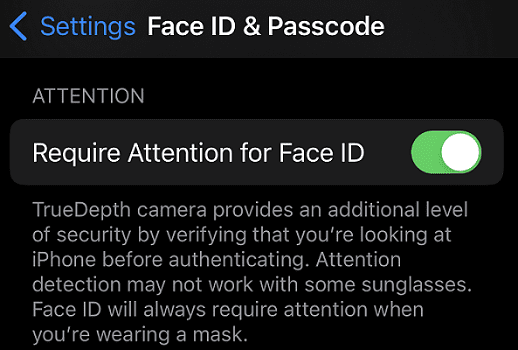
If you managed to enable this feature but doesn’t always work, check if your mask is too high or too close to your eyes. Ensure your eyes are unblocked. Face ID must clearly see your eyes and the area around them to unlock your device. Hold your iPhone higher when wearing a mask, and check if you notice any changes.
⇒ Important Note: Face ID with a mask doesn’t work with sunglasses. Certain sunglasses can block the infrared light used by the TrueDepth camera, leaving Face ID unable to authenticate you.
If you’re wearing eyeglasses, try taking them off to allow Face ID to properly scan your eyes and the area around your eyes. Check if you notice any improvements.
Additionally, you can improve the accuracy of Face ID with a mask by setting it up with your glasses on. If you have multiple pairs of glasses, add them with Face ID. You can add up to four pairs of glasses.
Navigate to Settings, select Face ID & Passcode, scroll down to Add Glasses and follow the on-screen instructions.
Ensure Nothing’s Obstructing TrueDepth Camera
If something’s covering the TrueDepth camera, Face ID may not work properly. Remove any traces of dirt blocking the camera. Remove your case, and check if you notice any improvements. If Face ID stopped working after putting on a screen protector, make sure the TrueDepth camera is not obstructed. You may want to remove the problematic screen protector.
Add an Alternate Appearance
If you often change your appearance with the help of makeup or other accessories, set up an alternate appearance.
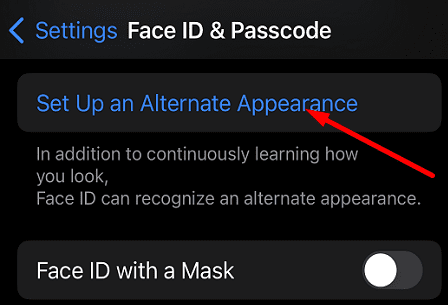
Navigate to Settings.
Go to Face ID & Passcode.
Tap Set Up an Alternate Appearance.
Place your face inside the frame, and move your head to complete the circle.
Complete the circle for a second time and hit Done.
Reset Face ID
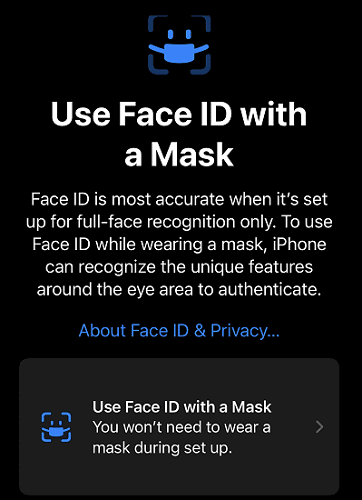
The “Face ID With a Mask” option uses the unique features around your eyes to unlock your device even with a mask on. But if this option doesn’t always work, reset Face ID and set up “Face ID With a Mask” again.
Go to your iPhone’s Settings.
Select Face ID & Passcode.
Tap Reset Face ID and follow the on-screen instructions.
Then, set up Face ID again, and toggle on Face ID With a Mask.
Select Face ID With a Mask.
Follow the on-screen instructions to set up this feature.
Force-restart your iPhone after setting up Face ID With a Mask. Press and quickly release the Volume Up button. Then, press and release the Volume Down button. Immediately press and hold the Side button until the Apple logo appears on the screen.
Conclusion
If you can’t find the option to use Face ID with a mask, make sure you’re using a compatible iPhone model running iOS 15.4 or later. Ensure your eyes are not blocked, and lower your mask if it’s too close to your eyes. Make sure nothing’s covering the TrueDepth camera. Additionally, set up an alternate appearance. If the issue persists, reset Face ID and set up “Face ID With a Mask” again.
Did you manage to solve the problem and unlock your iPhone with a mask on? Let us know in the comments below.
Madalina has been a Windows fan ever since she got her hands on her first Windows XP computer. She is interested in all things technology, especially emerging technologies — AI and DNA computing in particular.












Write a Comment