Apple products are all about customization and freedom of expression. For years, we’ve been able to customize our iOS devices, either with sleek presets created by Apple or with our own photos, videos, and elements. Not many casual iOS users know that you can change more than your lock screen, home background, and ringtone. There’s a whole other world of iOS customization hidden in your phone’s settings that you may not be aware of. That’s certainly the case with people not knowing how to change Safari webpage fonts. If you’re interested in making your iOS device truly your own, learn about how to change Safari webpage font and some other Safari hacks.
If you’re looking to change a Safari webpage font, it’s not as simple as navigating through a few settings menus. While still simple, you’ll need to go through quite a few steps. Before you begin using Javascript scripts, you’ll need to enable them. Head to Settings > Shortcuts > Advanced > Toggle Allow Running Scripts. Then, follow the step-by-step guide to change your fonts:
1. Open the Shortcuts app on your iOS device. If you have iOS/iPadOS 13 or later, it’ll be on your device automatically. Anything lower and you’ll have to download it.
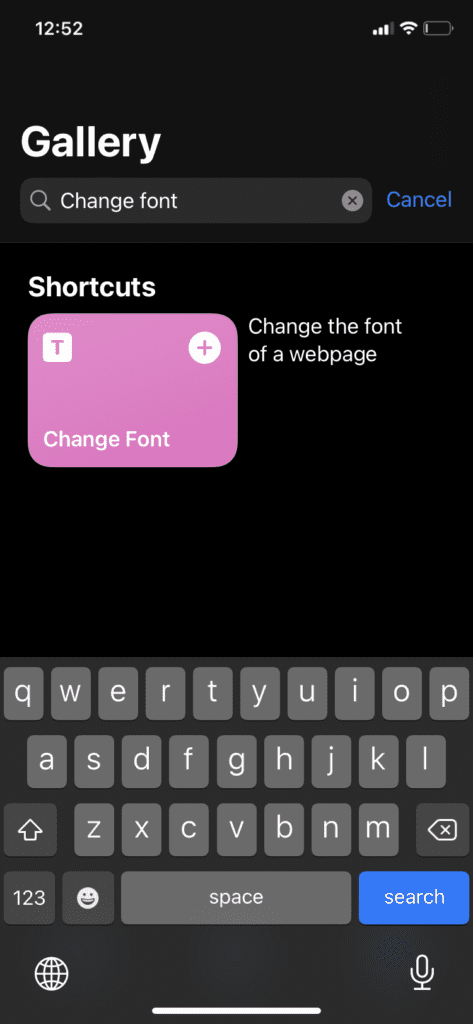
2. Navigate to the Gallery tab on the bottom right-hand side of the Shortcuts app.
3. In the Gallery tab, you can search for shortcut scripts you can install on your device. Type in “Change Font” in the search bar.
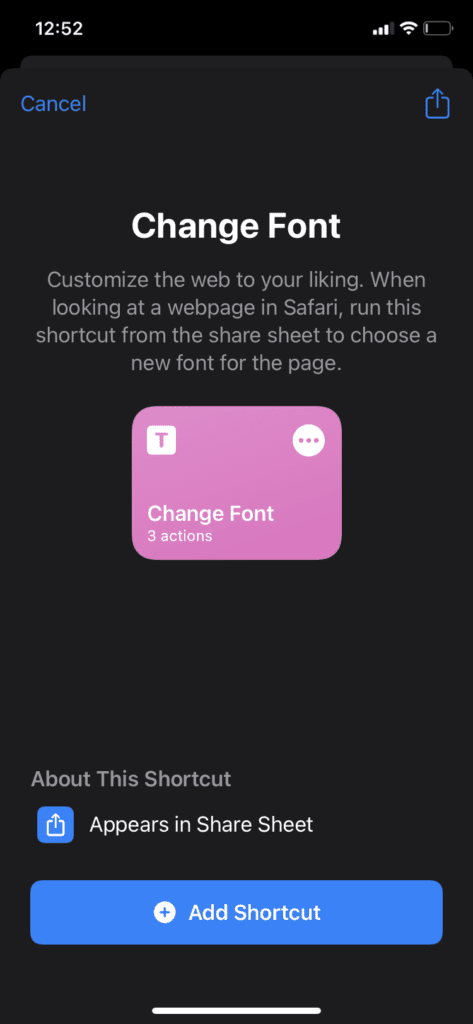
4. Select the Change Font card to proceed with the installation.
5. Press on Add Shortcut.
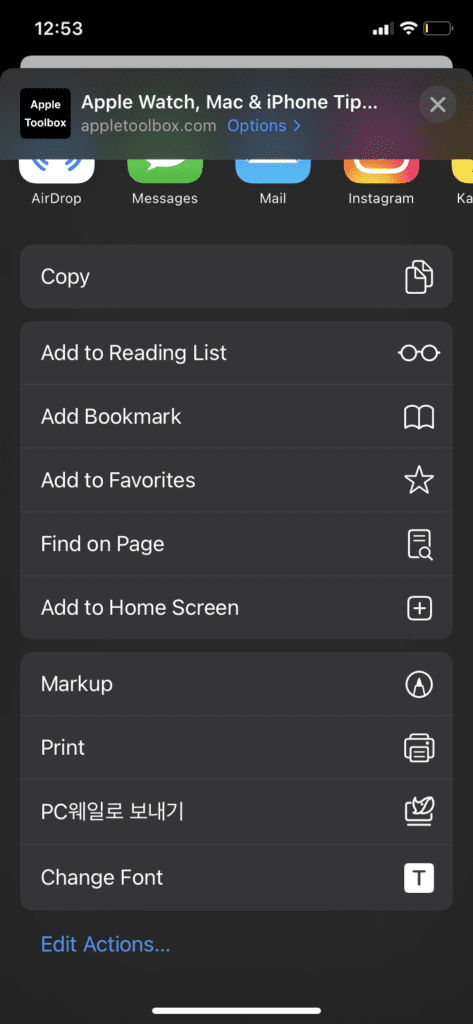
6. You’ll be able to access this shortcut anywhere there’s an Apple share button. To test this, head over to Safari and open any webpage. Tap on the share icon in your navigation bar to bring up the share sheet.
7. Scroll to the very bottom and find the Change Font shortcut you installed.
8. You can then look through all the available fonts and pick the one you’d like to use.
9. You’ll get a notification asking if you want to change the font of the webpage you’re currently on. Click Allow.
10. All font on the webpage should be changed!
Other iOS Safari Hacks
If you’re enjoying your new fonts on Safari, you might have gotten a taste for some more customization. There’s a whole new world out there when it comes to customizing your Safari app. Here’s some more you can enjoy.
Organize Tabs Into Groups
If you frequently share content with friends and family, you may have found it tedious to individually copy and paste each link and send it to them. This may be a bit easier on a computer as you can utilize copy and paste shortcuts. Instead, iOS devices have tab groups. In Safari, click on the new tab button on the bottom right corner of the app and click on the Tab button in the middle of the new screen. You can see the Tab Groups tab slide up, where you can create tab groups that allow you to send groups of links easily.
Customize Your Start Page
Not enough people utilize Safari’s start page. What’s great about it is that you can put shortcuts to your favorite websites, view frequently visited websites, access links that have been shared with you, or even customize the background. You can fiddle around with all these elements, but perhaps the most fun is changing the background photo. To do this, open a new fresh tab in Safari to access the start page. Scroll down to the bottom and find the Edit button. Here, you can change what modules you wish to see on the start page and choose your background image! You can choose from Apple’s presets or upload your own.
Install Some Extensions
Not many people know that Safari has a whole host of extensions available on the App Store. That’s right, just like your computer browser, you can customize your Safari with certain apps like shopping lists, coupon collectors and adblockers. Simply head over to your Settings app and scroll down until you find Safari. Navigate to the Extensions tab and click on it. Here, you can see any you’ve already installed or tap on Get to see more. You’ll be taken to the App Store, where you can navigate a bunch of different extensions you can install!













Write a Comment