• Skip to primary navigation
  • Skip to main content
  • Skip to primary sidebar
  • Skip to footer

AppleToolBox

Tools and Fixes for Mac, iPad, iPhone & iWatch

Search posts

  • About
  • Contact

CONNECT WITH US

CATEGORIES

  • iPhone
  • iPad
  • iPod
  • Apple Watch
  • Mac/MacBook
  • AirPods
  • Apple TV
  • News
  • Apple Services
  • HomePod
  • Reviews

SITE

  • Home
  • About Us
  • Contact
  • Advertise

Search posts

You are here: Home / Mac / Fix: MacBook Not Booting After Time Machine Restore

Fix: MacBook Not Booting After Time Machine Restore

By Madalina Dinita 0 comments Last updated January 2, 2023

When your Mac suddenly becomes unusable, you can use Time Machine to restore your files, apps, and settings. Simply select the backup version you want to use, and wait until the machine restores your data. You can also use Time Machine with an external drive.

Unfortunately, your system may sometimes fail to boot after a Time Machine restore. Your Mac may get stuck on a white screen or start up to a circle with a line through it. Let’s discuss what you can do if your machine won’t but after using Time Machine.

Contents

  • What to Do If MacBook Won’t Boot After Time Machine Restore
    • Launch Disk Utility in Recovery Mode
    • Reinstall macOS in Recovery Mode
    • Contact Apple Support
    • Conclusion

What to Do If MacBook Won’t Boot After Time Machine Restore

This problem is usually caused by your startup disk that contains a macOS version, but your Mac can’t use the OS files. To fix the issue, boot into Recovery Mode, run the Disk Utility, or reinstall the OS. Make sure your disk is healthy. If you’re using an external drive, make sure the connection cable is not faulty.

Launch Disk Utility in Recovery Mode

  1. Press the Power button and turn off your computer.
  2. Then power it up, and immediately press and hold the Command and R keys to boot into Recovery mode.
  3. Release the keys when the Apple logo appears on the screen.
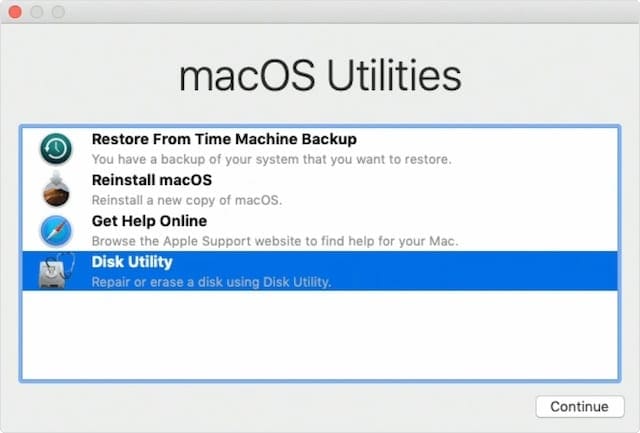
  4. While in macOS Recovery, select the Disk Utility option to repair your startup disk.Disk Utility option in macOS Recovery Mode Utilities window
  5. Restart your Mac and check the results.

Reinstall macOS in Recovery Mode

Make sure your Mac is connected to the Internet. Sometimes, the device won’t connect to Wi-Fi, so use a wired connection instead. Depending on your MacBook model, you may also need an Ethernet adapter.

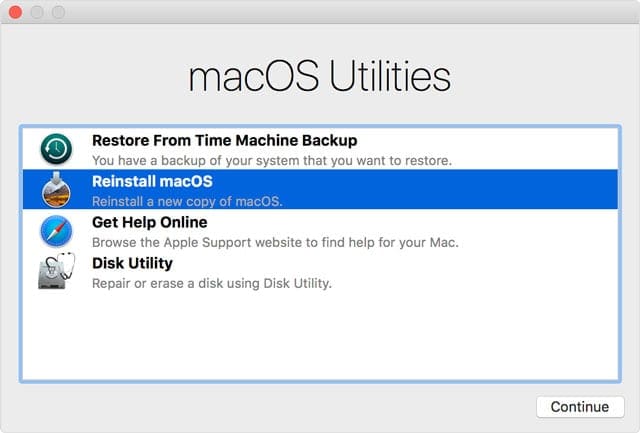
Boot into Recovery mode again. On the macOS Utilities screen, select Install macOS. Your machine will install a fresh macOS version over the existing one. The good news is that you won’t lose your data. Wait patiently, as the whole process may last up to one hour.

reinstall macOS using Recovery Mode menu

Contact Apple Support

If this is a hardware issue, Time Machine is irrelevant. If the problem persists after running Disk Utility and reinstalling the OS, schedule a Genius Bar appointment and get help from Apple’s troubleshooting specialists.

Conclusion

If your MacBook refuses to boot up normally after a Time Machine restore, boot into Recovery Mode and use Disk Utility to repair your drive. Additionally, if the problem persists, boot again into Recovery Mode and reinstall the OS. In rare cases, the hardware might be damaged, and you may need to have your laptop repaired. Did you find other ways to fix this problem? Feel free to share your ideas in the comments below.

Related Posts:

  • 2023 Mac Studio lifestyle - 1
    macOS Could Not Be Installed, How-To Fix
  • sidecar on iPadOS and macOS
    Sidecar not working in iPadOS and macOS? How to fix…
  • An iPhone, Mac, and MacBook on a table
    Can You Use Time Machine to Back up Your Mac to…
  • Update Apple ID settings on your iPhone, iPad, or Mac after changing your password
    Getting a Message to Update Apple ID Settings on…
  • iOS 16 Unsend Messages on Your On Your iPhone
    No Text or Message Notification Alerts or Sounds on…
  • Delete-Group-Reminders-Folder-macOS
    MacBook Will Not Start Up After macOS Update, How-To Fix
  • How to Disable the Login Password on Mac
    My Mac Won't Start or Boot: How To Fix White Screen
  • Windows computer
    How to AirDrop from iPhone to Windows PC
  • Missing Holidays on iPhone Calendar? How-to Fix Hero
    How To Duplicate and Copy Calendar Events in iOS and…
Madalina Dinita

Madalina has been a Windows fan ever since she got her hands on her first Windows XP computer. She is interested in all things technology, especially emerging technologies — AI and DNA computing in particular.

Reader Interactions

Write a Comment Cancel reply

Primary Sidebar

Recent Posts

  • How to Manage Your iPhone Call Log
  • Are Apple’s Safety Precautions Enough for AirTags?
  • How to Hide Username and Photo on the Mac Lock Screen
  • Microsoft Resume vs. Apple Handoff – Which Wins for Cross-Device Work?
  • How to Export iTunes Library to New Computer
  • What the Gemini Desktop App Will Bring to Mac

Connect with us

Footer

ABOUT

  • About Us
  • Contact us
  • Advertise
  • Privacy
  • Terms of Use

GUIDES

  • iOS & iPadOS
  • Apple ID
  • iCloud
  • App Store
  • iTunes
  • FaceTime
  • iMessage
  • Siri
  • Books and iBooks
  • Game Center
  • AirPlay

CONNECT

  • Facebook
  • Twitter
  • FeedBurner
  • YouTube

© Copyright 2010-2024 Guiding Tech Media · All Rights Reserved

This site and its content are in no way affiliated or endorsed by Apple, Inc. · Reproduction without explicit permission is prohibited

Last Updated on January 2, 2023 by Mitch Bartlett