• Skip to primary navigation
  • Skip to main content
  • Skip to primary sidebar
  • Skip to footer

AppleToolBox

Tools and Fixes for Mac, iPad, iPhone & iWatch

Search posts

  • About
  • Contact

CONNECT WITH US

CATEGORIES

  • iPhone
  • iPad
  • iPod
  • Apple Watch
  • Mac/MacBook
  • AirPods
  • Apple TV
  • News
  • Apple Services
  • HomePod
  • Reviews

SITE

  • Home
  • About Us
  • Contact
  • Advertise

Search posts

You are here: Home / Mac / macOS: An Error Occurred While Generating Kernel Cache

macOS: An Error Occurred While Generating Kernel Cache

By Madalina Dinita 0 comments Last updated August 4, 2021

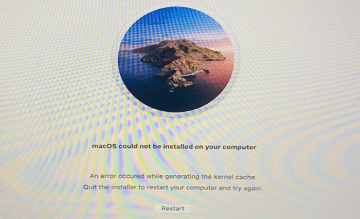
Your Mac may sometimes throw an annoying error that says “An error occurred while generating the kernel cache“. This error message usually pops up at the end of a macOS update. You’re then prompted to quit the installer and restart your computer. But when you do that, your machine goes back to your previous macOS version. Let’s explore what you can do if the update process won’t complete.

Contents

  • Fix: MacOS Couldn’t Generate Kernel Cache During the Update
    • Quick Fixes
    • Check Your Disk for Errors
    • Reinstall MacOS in Recovery Mode
    • Download the Combo Update Package
    • Conclusion

Fix: MacOS Couldn’t Generate Kernel Cache During the Update

⇒ Important Note: Make sure to back up your data, if possible.

Quick Fixes

  • Boot into Safe Mode. Shut down your Mac, and wait 10 seconds. Then restart the device, and immediately press and hold the Shift key. Release it when the login window appears on the screen. Wait for one minute and then boot up your Mac normally, and check for updates again.
  • Create a new admin user account. If your current admin account got corrupted, create a new user profile with admin rights and check if you can install the latest update.
  • Reset SMC and NVRAM. Reset your system settings, and check if the error is gone. For step-by-step instructions, go to Apple’s support pages:
    • How to reset the SMC of your Mac
    • Reset NVRAM or PRAM on your Mac.

Check Your Disk for Errors

  1. Restart your Mac, and immediately press and hold down the Command and R keys.
  2. Release the buttons when the progress bar appears on the screen.
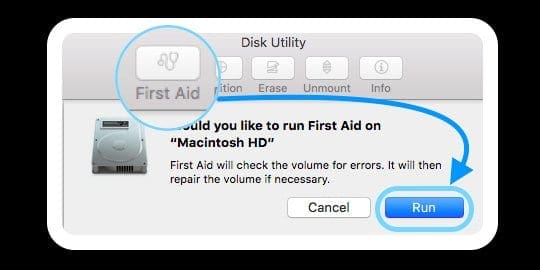
  3. Select Disk Utility in the Utilities window, and click Continue.
  4. Select your main drive (for most users, it should be Macintosh HD).
  5. Click the First Aid option and wait until the tool scans and repairs your disk.Spotlight Search Not Working on MacBook, How-To Fix
  6. Exit Disk Utility and check for updates again.

Reinstall MacOS in Recovery Mode

Try installing a fresh copy of macOS on your computer while keeping your data.

  1. Restart your Mac while holding the Command and R keys to boot into macOS Recovery.
  2. Release the keys when the Apple logo appears on the screen.
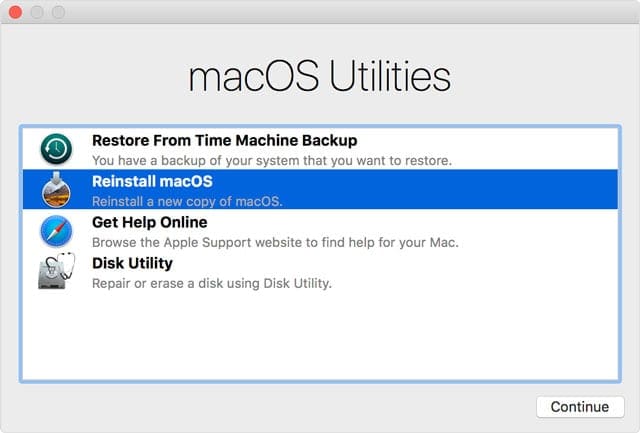
  3. When the macOS Utilities window appears on the screen, select the Reinstall macOS option.reinstall macOS using Recovery Mode menu
  4. Make sure your Mac is connected to the Internet and hit Continue.
  5. Enter your password if prompted to unlock the startup disk.
  6. Wait for your Mac to complete the installation process.
  7. Login to your admin account and check for updates again.

Download the Combo Update Package

You can use this workaround if you want to install macOS Catalina or previous OS versions. As a quick reminder, it seems that Apple no longer offers standalone combo updates for Big Sur and later. The company hasn’t confirmed that the combo update packages are gone for good. However, Big Sur was released months ago, yet the combo update pack is nowhere to be found. Meanwhile, Apple is already working on the next macOS version, Monterey, expected to land in the fall of 2021.

To download previous combo updates, go to Apple’s download pages:

  • Download macOS Catalina 10.15.7 Combo Update
  • Download macOS Mojave 10.14.6 Combo Update
  • Get macOS High Sierra 10.13.6 Combo Update

If you want to install the latest macOS release, you need to use the Software Update menu.

If the error persists, you can also use solutions available in the guides below:

  • Fix: Installation Requires Downloading Important Content
  • Mac: An Error Occurred Preparing the Software Update
  • Stuck in a macOS update loop because there is not enough free space

Conclusion

If an error occurs while generating the kernel cache, and your Mac fails to install the latest macOS version, boot into Safe Mode, create a new admin profile, and reset the SMC and NVRAM. If the problem persists, check your disk for errors, and reinstall macOS in Recovery Mode. Did you manage to get rid of the kernel cache error and install the latest macOS updates? Let us know in the comments below.

Related Posts:

  • 2023 Mac Studio lifestyle - 1
    macOS Could Not Be Installed, How-To Fix
  • Delete-Group-Reminders-Folder-macOS
    MacBook Will Not Start Up After macOS Update, How-To Fix
  • Update Apple ID settings on your iPhone, iPad, or Mac after changing your password
    Getting a Message to Update Apple ID Settings on…
  • MacBook Pro 2021 iPad Mini iPhone 13 Pro AirPods 3 Beats Fit Pro iPad Pro Best Apple Products - 5
    How to Downgrade From macOS Ventura to macOS Monterey
  • sidecar on iPadOS and macOS
    Sidecar not working in iPadOS and macOS? How to fix…
  • An iPhone, Mac, and MacBook on a table
    Can You Use Time Machine to Back up Your Mac to…
  • How to Disable the Login Password on Mac
    My Mac Won't Start or Boot: How To Fix White Screen
  • pexels-jess-bailey-designs-810079
    How To Run Linux On Mac: A Step-by-Step Guide
  • iOS 16 Unsend Messages on Your On Your iPhone
    No Text or Message Notification Alerts or Sounds on…
Madalina Dinita

Madalina has been a Windows fan ever since she got her hands on her first Windows XP computer. She is interested in all things technology, especially emerging technologies — AI and DNA computing in particular.
Reader Interactions

Write a Comment Cancel reply

Primary Sidebar

Recent Posts

  • How to Export iTunes Library to New Computer
  • What the Gemini Desktop App Will Bring to Mac
  • What to Do When Windows 11 Won’t Detect Your iPad
  • Outlook Outage 2026: iPhone Fixes for Sign-In Chaos
  • Guide to Changing iMessage Backgrounds on iPhone and Mac
  • Has Apple Killed Vision Pro? (Insane Sales Flop Explained)

Connect with us

Footer

ABOUT

  • About Us
  • Contact us
  • Advertise
  • Privacy
  • Terms of Use

GUIDES

  • iOS & iPadOS
  • Apple ID
  • iCloud
  • App Store
  • iTunes
  • FaceTime
  • iMessage
  • Siri
  • Books and iBooks
  • Game Center
  • AirPlay

CONNECT

  • Facebook
  • Twitter
  • FeedBurner
  • YouTube

© Copyright 2010-2024 Guiding Tech Media · All Rights Reserved

This site and its content are in no way affiliated or endorsed by Apple, Inc. · Reproduction without explicit permission is prohibited