Installing the latest macOS version on your MacBook should be an easy process. All you need to do is check for updates, and your Mac will automatically take care of the rest. But sometimes, your machine may fail to upgrade to the newest OS version. One of the most annoying update error messages that you may get is the one that says “Installation of macOS could not continue. Installation requires downloading important content.”
However, Apple doesn’t tell you exactly what “important content” means. Let’s jump right in and explore why this error occurs in the first place, and how you can fix it.
macOS Installation Requires Downloading Important Content
Check For macOS Compatibility Issues
If you own an old MacBook, say a 2013 or 2014 MacBook model, stick with Mojave or Catalina. Many old MacBook models are not compatible with Big Sur, Monterey, and newer OS releases.
Before hitting the update button, check the list of supported devices. Make sure your MacBook is compatible with the macOS version you’re trying to install. Forcing the update could brick your computer.
Go Through Previous Updates
This error often occurs if you’re trying to install the latest macOS release, but your device is running a much older OS version. For example, if your Mac is running macOS Yosemite, you need to upgrade to Catalina through El Capitan, then High Sierra, and then Mojave.
Each and every new macOS version brings important system features and improvements. Some of them may add major changes to the update system. “Downloading important content” may be referring to these update changes. Skipping previous updates and jumping straight to the latest macOS version may not always work.
For more information on how to install old versions of macOS, check out the guides below:
If you can’t install the latest macOS release via Software Update, go to the App Store update page. For example, if you’re trying to download Big Sur, use the App Store page dedicated to this release. Maybe the Software Update servers are overloaded. Or maybe an unexpected glitch is preventing you from installing the update. If this is only a temporary server issue, give it a while, then try again.
Use Safe Mode
Try to install the update in Safe mode and check the results. If your Mac is powered by an Intel CPU, restart the device, and then immediately press and hold the Shift key. Release it when the login window appears on the screen.
If you own an Apple Silicon Mac, shut down your computer. Then turn it on, and keep on pressing the Power button until the startup options appear on the screen. Select the startup disk, and hold Shift while clicking on “Continue in Safe Mode.” After that, check for updates normally.
Reinstall the Original macOS Version
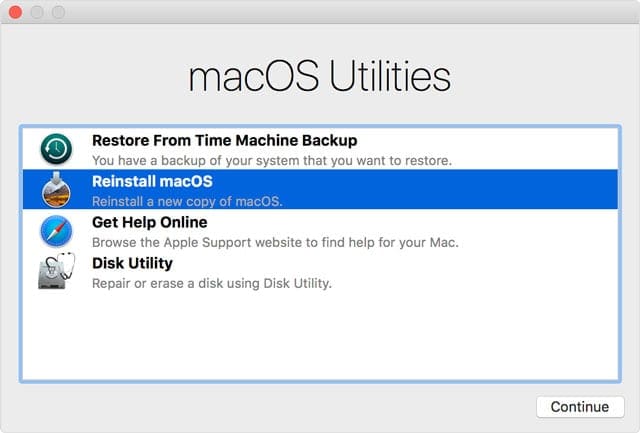
If the error persists, boot into Internet Recovery Mode. Press the Command, Option, Shift, and R keys to reinstall the original macOS which came preinstalled on your Mac from the factory.
Check again for updates to see if the latest macOS version is available for your device.
If the error persists, you may want to check out the guides below as well:
If nothing’s working, feel free to reach out to Apple, and get additional support for this issue.
Conclusion
If you can’t upgrade to the latest macOS version because you need to “download important content”, make sure your MacBook model is compatible with the OS version you’re trying to install. Additionally, if you’re running an older macOS version, you may need to go through previous updates first. If the error persists, boot into Safe Mode, or reinstall the original macOS version that came pre-installed on your machine.
Did these solutions help you troubleshoot the update error? Hit the comments below and let us know which method worked for you.
Madalina has been a Windows fan ever since she got her hands on her first Windows XP computer. She is interested in all things technology, especially emerging technologies — AI and DNA computing in particular.












Write a Comment