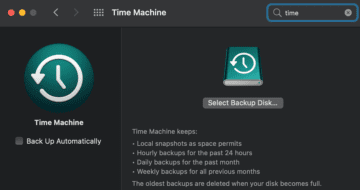
If your disk is almost full, it’s only a matter of time until your Mac alerts you there’s not enough space to save a new backup. To prevent such situations, you need to regularly delete the files you no longer need and set your Time Machine to automatically delete the oldest backups when the disk is almost full. Unfortunately, many users complained Time Machine sometimes fails to do that. Let’s dive right in and explore how you can troubleshoot this problem.
What to Do if Your Mac Can’t Delete Old Time Machine Backups
Check the Biggest Backups
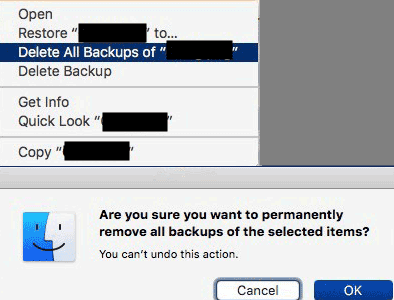
Use TimeTracker for Mac to check the size of each backup batch and see which files are taking too much space. After you do that, you can delete all the backups of the largest file(s) to free up more space. Launch Time Machine, locate the large file(s) and select Delete all backups of file X.
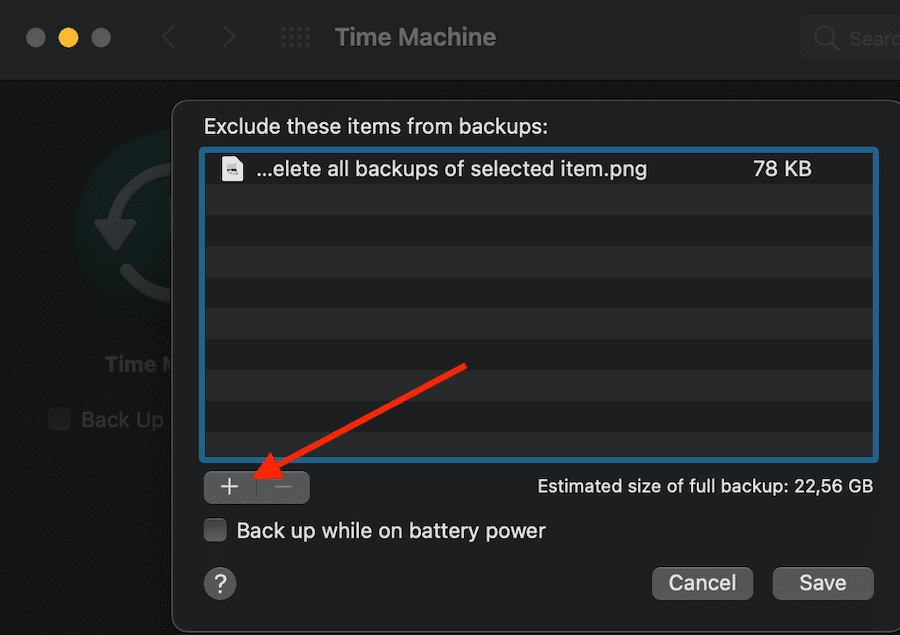
Alternatively, you can also instruct Time Machine to simply ignore large files. Navigate to System Preferences → Time Machine → Options → Exclude these items from backup. Select the file(s) you want the tool to ignore and hit the Exclude button. Save the changes and check the results.
Delete Old Backups Using Terminal
If your old backups are extremely stubborn, you can manually delete them. Launch Terminal and run the sudo tmutil delete command. Launch Finder, and then drag the backup folder you want to remove to your Terminal window.
After you launch Finder, select your Time Machine hard disk, go to Backup and then Backup.db. That’s the database where the OS organizes your collection of backups. Each folder has its own timestamp which helps you identify which of the backups is the oldest. This method is safe and won’t interfere with the other existing backups. To avoid deleting the wrong backup, always double-check which folder you are removing.
Run Disk Utility
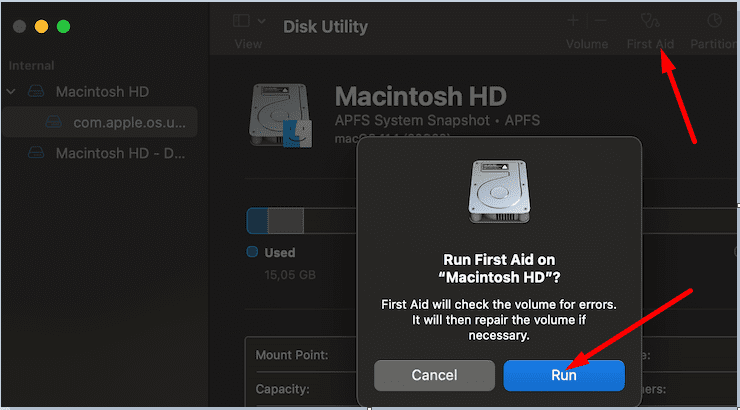
Check your disk and make sure it’s not faulty. Run Disk Utility and check for errors. Should the tool find any, it will automatically repair them. Go to LaunchPad, search for Disk Utility, launch the tool and select the First Aid option. Check if this method solved the problem.
If Disk Utility shows no errors, try reformatting the Time Machine disk. By the way, should the reformat process fail, use this troubleshooting guide to fix the issue. If the problem persists, check if a new external drive solves it.
How to Prevent “Your Disk Is Almost Full” Alerts
Make sure your Mac always has enough room for manoeuvring new backup files. Go for at least twice the size required to create the backup. Ideally, try to maintain the free space close to three times the capacity of the source to make sure the backup process goes smoothly.
Backup your music library in iCloud. In this manner, you can access the library on all your Apple devices and safely exclude the audio files from the backup. The same is valid for your photos and other multimedia files. Back them up in iCloud and you should be able to save tens of GB of data. Virtualization and emulation programs require an awful lot of memory to run smoothly. So, if you run virtualization or emulation apps on your Mac, do exclude the files from the backup as well.
Check out these handy guides for more tips and tricks on how to free up disk space on your Mac:
If Time Machine fails to remove old backups and the disk gets full, you won’t be able to create new backups. To solve the problem, you need to manually remove the old backups and check your disk for errors. To prevent similar issues, make sure to exclude large multimedia files from the backup, as well as virtualization and emulation programs. Did you manage to solve the issue? Feel free to share your feedback in the comments below.
Madalina has been a Windows fan ever since she got her hands on her first Windows XP computer. She is interested in all things technology, especially emerging technologies — AI and DNA computing in particular.
You didn’t answer the basic question of how to make Time Machine automatically delete the oldest backups when running low on disk space. That’s what it’s supposed to do, right?
In the opening paragraph of the article you said, “To prevent such situations, you need to regularly delete the files you no longer need and set your Time Machine to automatically delete the oldest backups when the disk is almost full. ” Okay, you said we need to set Time Machine to automatically delete the oldest backups… Great, but you never said how to do that. I cannot find a way to do it anywhere. So, how do I do that?
Exactly Robert! And neither does anyone else. I have searched and every site comes up with workarounds, but never addresses the fact Time Machine simply can’t do what it promises.
I am guessing that nobody wants to rub up Apple the wrong way.
I gave up on this auto delete feature. I use two disks for Time Machine all the time (disks are so cheap now) and when one is full I simply open Disk Utility and erase the disk (or better yet its partition–this way I can use other space on a big disk and not have to disturb the contents). Take less than two minutes.











You didn’t answer the basic question of how to make Time Machine automatically delete the oldest backups when running low on disk space. That’s what it’s supposed to do, right?
In the opening paragraph of the article you said, “To prevent such situations, you need to regularly delete the files you no longer need and set your Time Machine to automatically delete the oldest backups when the disk is almost full. ” Okay, you said we need to set Time Machine to automatically delete the oldest backups… Great, but you never said how to do that. I cannot find a way to do it anywhere. So, how do I do that?
Exactly Robert! And neither does anyone else. I have searched and every site comes up with workarounds, but never addresses the fact Time Machine simply can’t do what it promises.
I am guessing that nobody wants to rub up Apple the wrong way.
I gave up on this auto delete feature. I use two disks for Time Machine all the time (disks are so cheap now) and when one is full I simply open Disk Utility and erase the disk (or better yet its partition–this way I can use other space on a big disk and not have to disturb the contents). Take less than two minutes.