No matter what operating system you are using, you might run into a problem where an app that you use or rely on just stops working. This could be an indication that the app’s servers are down, or that an unknown bug has appeared seemingly out of thin air. This is completely normal and not indicative of an app’s ability to work, but it’s important to know how to “fix” it.
Such is the case with the official Twitter for Mac app that is available on the Mac App Store. Over the course of just a few days, more and more users found that the app would instantly crash whenever you tried to open it. Luckily, the problem was identified, but an update was not immediately available from the Mac App Store.
Delete And Re-install Twitter for Mac
Many users found that if you encountered Twitter for Mac crashing, the easiest way to solve the problem was to simply delete and re-install the app on your Mac. Here are a couple of different methods for how you can do so on the Mac:
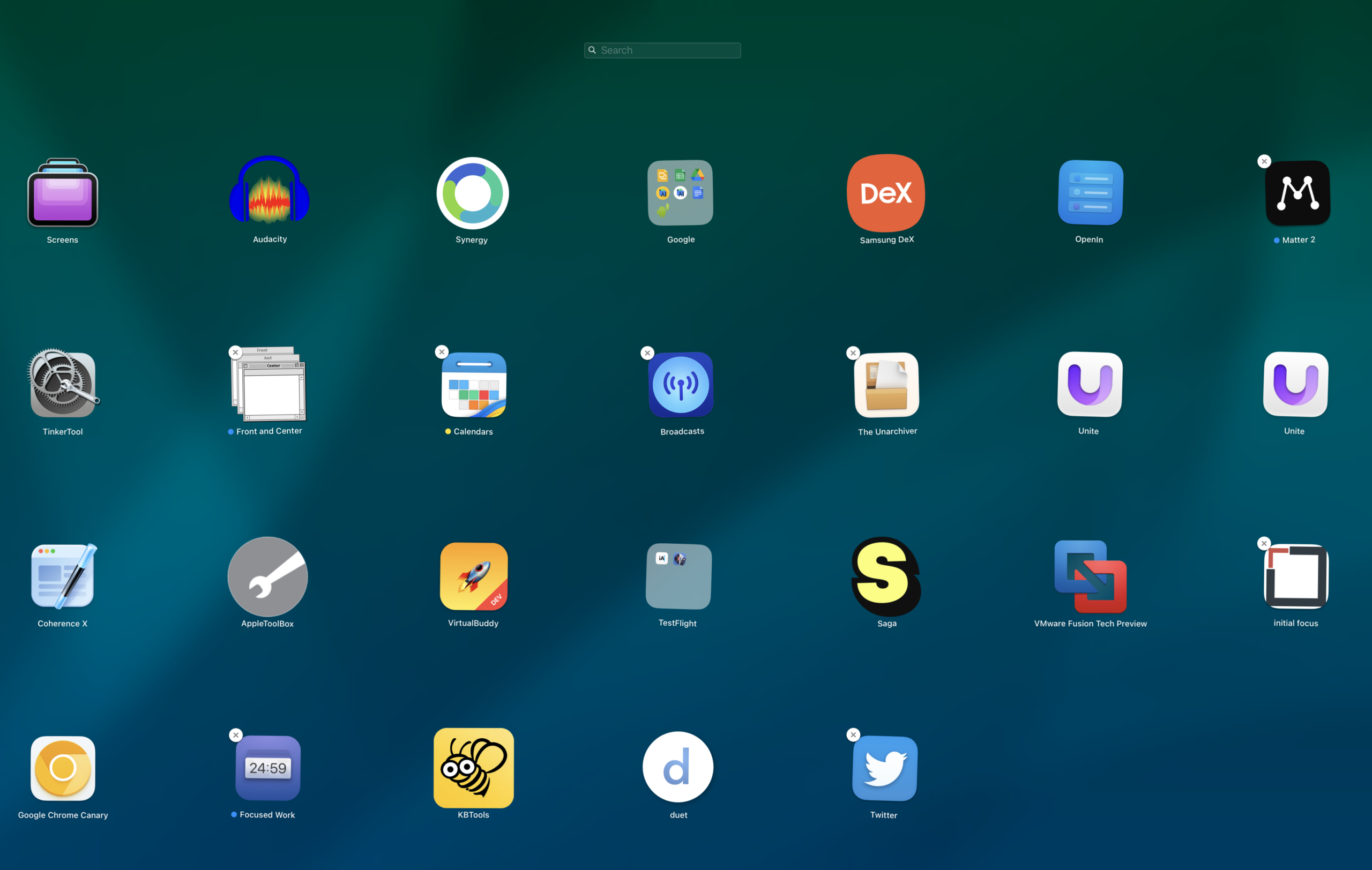
Open Launchpad on your Mac.
Locate the Twitter app in Launchpad.
Press the Option key on your keyboard.
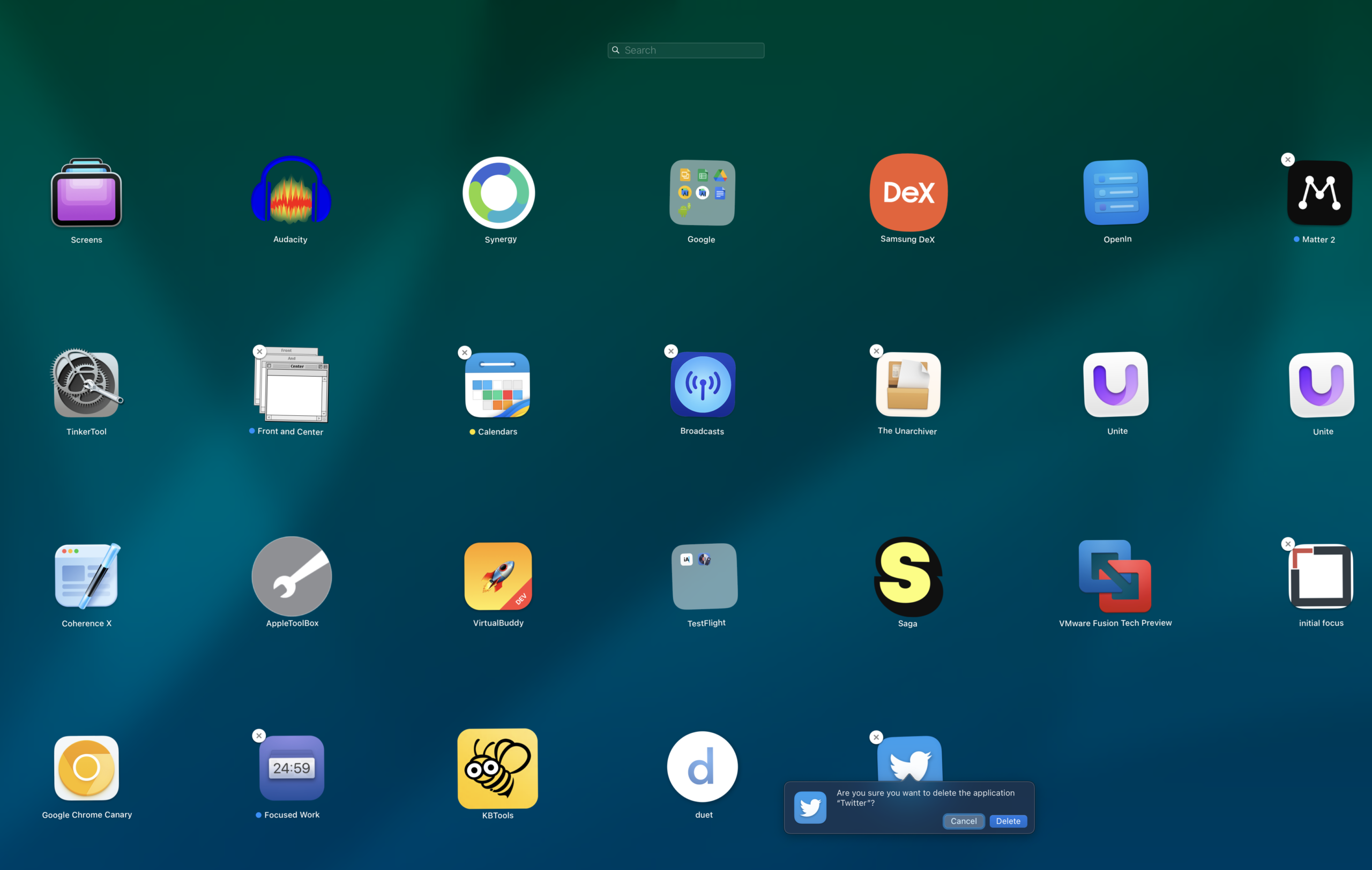
In the top left corner of the Twitter app icon, click the X.
When prompted, click the Delete button.
Exit Launchpad.
Restart your Mac.
Open the Mac App Store and re-install the Twitter for Mac app.
If the problem has been solved, log in with your Twitter account information.
If you’re not familiar with Launchpad, you can also delete the Twitter app from Finder.
Open the Finder app on your Mac.
Navigate to the Applications folder.
Locate Twitter for Mac from the list of installed applications.
Drag the app to the Trash icon on your Dock.
If prompted, enter your login or administrator password.
Right-click the Trash icon in the Dock.
Select Empty Trash.
If you want to ensure that any remaining “cruft” from the Twitter for Mac app has been removed, we recommend restarting your Mac after emptying the Trash.
Remove The ‘Guest’ Account
Another method for solving the problem of the Twitter for Mac crashing was to remove a phantom “guest” account. The fix below was discovered by app developer Steve Troughton-Smith, who states that “Very specifically, it’s the background notifications feature flag — ‘_k3i1’ that is causing the crash for the guest account”.
This appears to be something related to the “featureswitches from the server” and the only way to get stop Twitter for Mac crashing is to delete the appropriate file. Here’s how to do so:
Open the Finder app on your Mac.
In the Menu Bar, click Go.
From the drop-down menu, select Go To Folder….
In the prompt that appears enter Library/Containers/maccatalyst.com.atebits.Tweetie2.
Press Enter.
Locate and highlight (or click on) the app.featureswitches.4.- guest – file.
Press CMD + Delete keys to delete the file. Alternatively, you can right-click the file and select Move to Trash. Or you can just drag the file into the Trash icon on your Dock.
Shortly after the issue was discovered, one of the Twitter for Mac app developers mentioned that “We’re trying to get the patched version out to the MAS (Mac App Store).” So, while the bug has been fixed, the developers are just waiting for the update to become available on the Mac App Store. At the time of this writing, the update was still not available.
Andrew Myrick is a freelance writer based on the East Coast of the US. He enjoys everything to do with technology, including tablets, smartphones, and everything in between. Perhaps his favorite past-time is having a never-ending supply of different keyboards and gaming handhelds that end up collecting more dust than the consoles that are being emulated.













Write a Comment