So you have some movie and show rentals that didn’t completely download for whatever reason (oftentimes, there’s just not enough space on your iDevice). And now, your “Rentals” tab tells you to “Go to Downloads to manage your downloads.” But you can’t find “Downloads” on iTunes or in your Videos or TV App. Just where the heck is this so-called “Downloads” button??? And just how do I resume downloads that interrupted?
Or maybe you successfully rented a movie. But when you went to actually watch it, you get a message saying that you’ve rented this video but have not downloaded it. You find the “Downloads” section but nothing shows up!
For some other iFolks, they see a message that they’ve already downloaded this movie or show. But when you go to downloads to manage it, that movie (or other media content) isn’t there.
For all of these problems, when you check your billing history, it shows a charge for this content, the exact media that you cannot download or get access to. For whatever reason, this is a frustrating Apple experience! And for those of us on the road traveling, it’s a very, very inconvenient problem occurring at the worst of times.
We all buy various content types (music, movies, or TV shows) from the iTunes Store. Sometimes while downloading your purchases, your download(s) are unexpectedly interrupted for a variety of reasons. But the end result is that same: your download stops before it finishes
source: apple
Downloads of Movies, TV shows, and other Media from the iTunes Store stop unexpectedly due to
Lost or Slow Intenet connections
iTunes quitting before the download finished
Restarting during a download
An app, third-party security software, or a firewall, blocked the download
First, check that your settings are correct. If using iOS 10.1 and below using the Videos app, check that in Settings > Videos the Show iTunes Purchases is switched to ON. Your rentals then appear next to Movies when using the Video App. And remember that you access your media content in your Videos App.
For iOS 10.2 and above using the TV app, check that Home Sharing is ON and signed in with your Apple ID in Settings > TV.
Check Your Storage Space
Before you download anything, especially media content like movies and shows, verify that your iDevice has sufficient storage for that media. The average file size of an HD movie on the iTunes Store is between 3 to 5 GB. And SD movies are typically between 1 to 1.5 GB.
Go to Settings > General > Storage & iCloud Usage. Look under the section Storage and check your available space. If you need to open some storage for your media content, select manage storage and remove some apps or app content (if applicable.) It’s also a good idea to give your iDevice a good clearing out of the clutter every year or 6 months. Performing a “spring cleaning” ensures your iDevice is in good storage shape for all your content and new apps etc.
Force Close iTunes and Videos or TV App
Double-click the Home button to see your most recently used apps
Swipe right or left to find the iTunes and Videos or TV Apps
Swipe up on each app’s preview to close
Locate Downloads
Many iFolk are not locating the downloads feature within iTunes. And we agree, it’s not very obvious
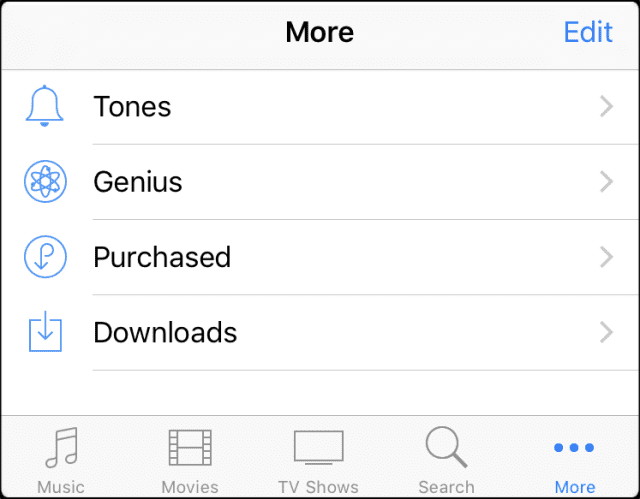
For iPhones or iPod touches, tap the More button (three dots) at the bottom right of the screen. Then tap Downloads.
There’s also tabs for Tones, Genius, and Purchased here
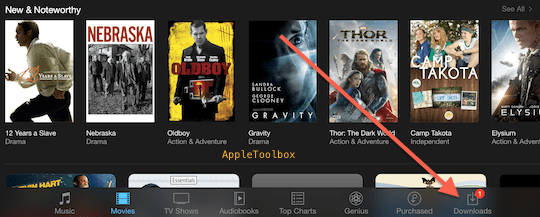
For iPads, tap Downloads
You don’t see Downloads unless you have items available to download or active or paused downloads
How to resume downloads that interrupted on iDevices
1.Open the iTunes app
2.Tap Downloads (iPad: iTunes Store > Downloads; iPhone: iTunes Store > More > Downloads)
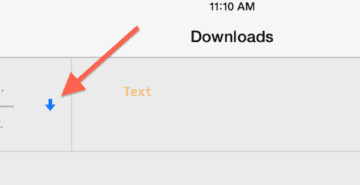
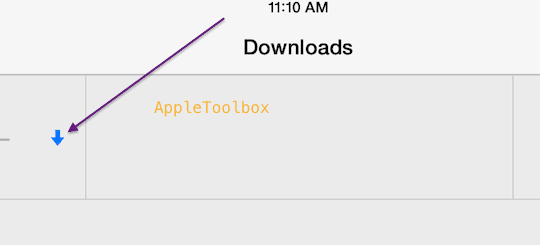
3.Tab the blue arrow to resume your download.
Missing Downloads Tab?
A common issue and problem is a missing Downloads tab. If you see no Downloads icon, tab Settings > iTunes Store & App Store> your Apple ID > tap Sign Out, wait 10-20 seconds, and then Sign In. If still no Downloads icon, it is possible that your download is completed. Launch the iTunes app then tap Purchased and check to see if your new purchases are listed there.
How to resume downloads that interrupted on Computers (Windows or macOS/OSX):
Launch iTunes
Click Store > Check for Available Downloads
Enter your password, then press the Return or Enter key on your keyboard, or click View Account.
Your downloads restart automatically
How to resume downloads that interrupted: Reader Tips
Some iFolks report success when downloading their movies by changing the quality setting from HD to SD or vise-verse. So when renting an HD movie, choose the SD version instead AND THEN refuse to buy it. Even with the refusal, it starts downloading. STOP the SD Download THEN try to download the HD version again. This trick works for some.
Open iTunes and navigate to the bottom menu bar. Tap Search (magnifying glass icon). In the Top search bar, type in the name of the movie or show that didn’t fully download. Tap on the movie or show and try to download again.
Reboot Everything
Go to Settings> iTunes & App Store and sign out of your Apple ID account
Next, close ALL your apps by double-clicking your Home button
Perform a Forced Restart
On an iPhone 7 and above: Press and hold both the Sleep/Wake and Volume Down buttons for at least ten seconds, until you see the Apple logo
On an iPhone 6s and earlier, iPad, or iPod touch: Press and hold both the Sleep/Wake and Home buttons for at least ten seconds, until you see the Apple logo
Go back to Settings> iTunes & App Store and sign IN to your Apple ID account again and then check your downloads for that rented movie or show
If the movie or show isn’t in your downloads, try renting that movie again
If you are charged twice, contact Apple via Live Chat or email and they should refund one of the charges
Obsessed with tech since the early arrival of A/UX on Apple, Sudz (SK) is responsible for the original editorial direction of AppleToolBox. He is based out of Los Angeles, CA.
Sudz specializes in covering all things macOS, having reviewed dozens of OS X and macOS developments over the years.
In a former life, Sudz worked helping Fortune 100 companies with their technology and business transformation aspirations.
we updated this article, so the newest tips might help. we also have some great reader suggestions:
Some iFolks report success when downloading their movies by changing the quality setting from HD to SD or vise-verse. So when renting an HD movie, choose the SD version instead AND THEN refuse to buy it. Even with the refusal, it starts downloading. STOP the SD Download THEN try to download the HD version again. This trick works for some.
Open iTunes and navigate to the bottom menu bar. Tap Search (magnifying glass icon). In the Top search bar, type in the name of the movie or show that didn’t fully download. Tap on the movie or show and try to download again.
Reboot Everything
Go to Settings> iTunes & App Store and sign out of your Apple ID account
Next, close ALL your apps by double-clicking your Home button
Perform a Forced Restart
On an iPhone 7 and above: Press and hold both the Sleep/Wake and Volume Down buttons for at least ten seconds, until you see the Apple logo
On an iPhone 6s and earlier, iPad, or iPod touch: Press and hold both the Sleep/Wake and Home buttons for at least ten seconds, until you see the Apple logo
Go back to Settings> iTunes & App Store and sign IN to your Apple ID account again and then check your downloads for that rented movie or show
If the movie or show isn’t in your downloads, try renting that movie again
If you are charged twice, contact Apple via Live Chat or email and they should refund one of the charges
Tried all suggestions but the same problem. Itunes says I have purchased the film and to go to downloads to manage but no downloads icon and nothing under purchased either. Turned ipad on and off, tried PC same outcome, went to Apple help and that says no purchase. Do I just wait to see if a bill is generated and then complain? In the mean time I guess on the bus to the cinema!
Hi same here – looked in other forum entries, tried all the reset actions. No dice. Tells me I bought movie, need to download. No download icon in iTunes movie screen.
By pressing ‘Rent HD Film’ again, it says “you have already rented this but it has not been downloaded. Got to downloads to manage your downloads”. In the downloads it says “you have no active downloads”. Where the hell I can find this movie or get my money back…?!
Let me enter a response which doesn’t included anything helpful to the problem just whining like everyone else. Feel free to ONLY post if you have a solution. Thanks.
I just rented a movie. There’s no download button so I logged out and logged in, restarted my ipad and still nothing. I try to rent it again and it says “You’ve already rented this but it hasn’t been downloaded”. So annoying and wasting my time and money. In fact the download button appeared and disappeared when I entered my password …
And what do you do if the download button isn’t showing? And you go to “find available downloads” and it says that all purchases have been downloaded…Now what? Paid but still no movie. 🙁
iTunes movies circa 6/2016 sucks !!!! Sucks !!
I have had this problem many times at midnight when trying to relax. It’s a $6 rental kick in teeth before going to bed
So I have rented a movie but the download wasn’t even started. I have followed the directions for my ipad Mini but there is no download button that lets e start the download. Can you help?












nope can’t even find these steps on my ipad
Hi Lori,
we updated this article, so the newest tips might help. we also have some great reader suggestions:
Some iFolks report success when downloading their movies by changing the quality setting from HD to SD or vise-verse. So when renting an HD movie, choose the SD version instead AND THEN refuse to buy it. Even with the refusal, it starts downloading. STOP the SD Download THEN try to download the HD version again. This trick works for some.
Open iTunes and navigate to the bottom menu bar. Tap Search (magnifying glass icon). In the Top search bar, type in the name of the movie or show that didn’t fully download. Tap on the movie or show and try to download again.
Reboot Everything
Go to Settings> iTunes & App Store and sign out of your Apple ID account
Next, close ALL your apps by double-clicking your Home button
Perform a Forced Restart
On an iPhone 7 and above: Press and hold both the Sleep/Wake and Volume Down buttons for at least ten seconds, until you see the Apple logo
On an iPhone 6s and earlier, iPad, or iPod touch: Press and hold both the Sleep/Wake and Home buttons for at least ten seconds, until you see the Apple logo
Go back to Settings> iTunes & App Store and sign IN to your Apple ID account again and then check your downloads for that rented movie or show
If the movie or show isn’t in your downloads, try renting that movie again
If you are charged twice, contact Apple via Live Chat or email and they should refund one of the charges
Keep us posted,
Cheers,
Liz
Apple has been terrible since Jobs died, so I will go to Amazon or Netflix (the modern day professionals.)
OK found it in Video file but now says a problem downloading video
Tried all suggestions but the same problem. Itunes says I have purchased the film and to go to downloads to manage but no downloads icon and nothing under purchased either. Turned ipad on and off, tried PC same outcome, went to Apple help and that says no purchase. Do I just wait to see if a bill is generated and then complain? In the mean time I guess on the bus to the cinema!
Hi same here – looked in other forum entries, tried all the reset actions. No dice. Tells me I bought movie, need to download. No download icon in iTunes movie screen.
I went to the downloads tab… “You have no active downloads.” WTF Apple?
By pressing ‘Rent HD Film’ again, it says “you have already rented this but it has not been downloaded. Got to downloads to manage your downloads”. In the downloads it says “you have no active downloads”. Where the hell I can find this movie or get my money back…?!
Let me enter a response which doesn’t included anything helpful to the problem just whining like everyone else. Feel free to ONLY post if you have a solution. Thanks.
I just rented a movie. There’s no download button so I logged out and logged in, restarted my ipad and still nothing. I try to rent it again and it says “You’ve already rented this but it hasn’t been downloaded”. So annoying and wasting my time and money. In fact the download button appeared and disappeared when I entered my password …
And what do you do if the download button isn’t showing? And you go to “find available downloads” and it says that all purchases have been downloaded…Now what? Paid but still no movie. 🙁
I am having the same problem please help!!
I am having the same trouble. Rental download was interrupted because of slow hotel wifi, and not I have no download button to restart the download.
iTunes movies circa 6/2016 sucks !!!! Sucks !!
I have had this problem many times at midnight when trying to relax. It’s a $6 rental kick in teeth before going to bed
So I have rented a movie but the download wasn’t even started. I have followed the directions for my ipad Mini but there is no download button that lets e start the download. Can you help?