When making or receiving a FaceTime call with my friends, family, or co-workers, you would expect it to keep its connection and not to fail mid-discussion. Unfortunately, however, you’ll sometimes encounter problems where the call doesn’t last too long before cutting off. Needless to say, if you encounter the FaceTime call failed issue, this needs fixing!
If you’ve encountered problems where FaceTime keeps disconnecting, don’t worry; you’re not alone. Many people endure problems where calls either disconnect early or fail altogether. This can occur at moments where you least expect it, so knowing how to deal with the issue in advance is a good idea.
This guide will help you fix the “My FaceTime keeps disconnecting” problem.
Other Tips for Fixing the FaceTime Call Failed Problem
Besides the tips we’ve listed above, you can try several other things to fix the issue when your FaceTime call has failed. Below is a brief overview of what you can try:
Make sure Airplane mode is toggled off
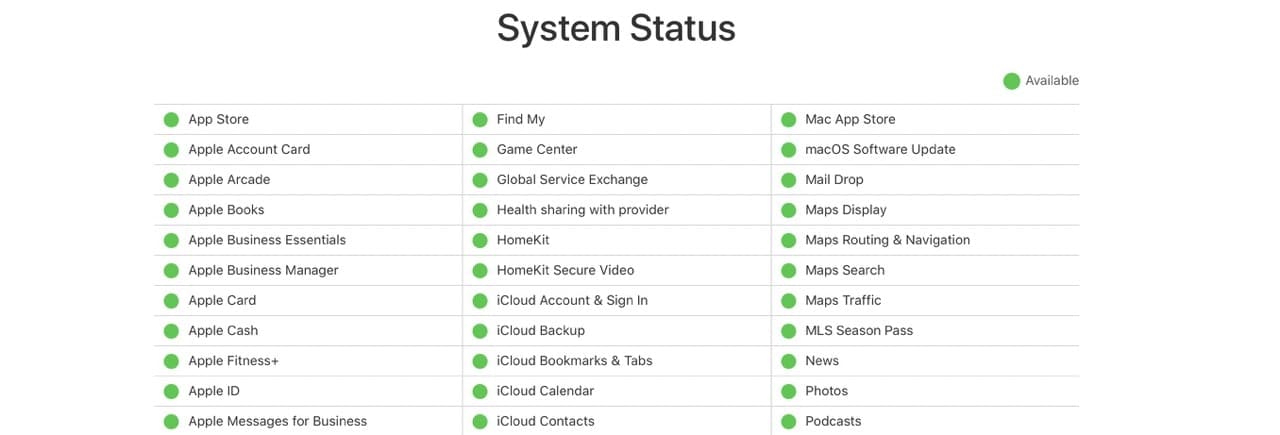
Check Apple Server status for any ongoing issues
Toggle FaceTime off, wait 20-30 seconds, and toggle it back on
Sign out of FaceTime, restart, and sign back in
Delete and reinstall the FaceTime App
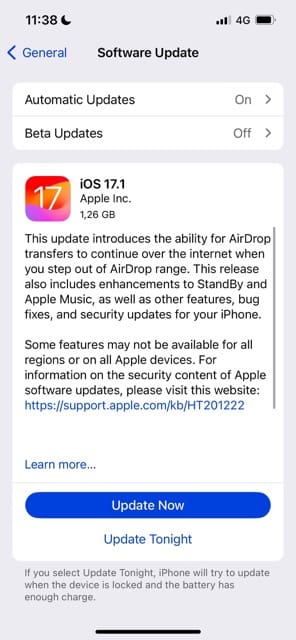
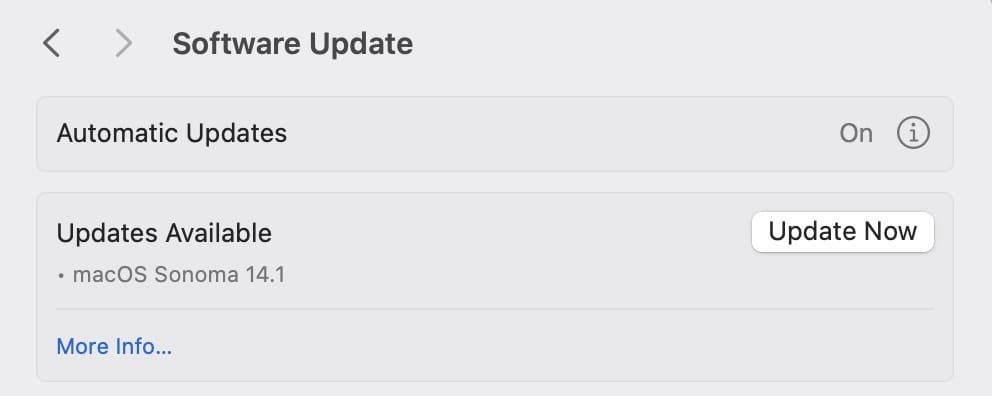
Update your iOS or macOS to the latest version
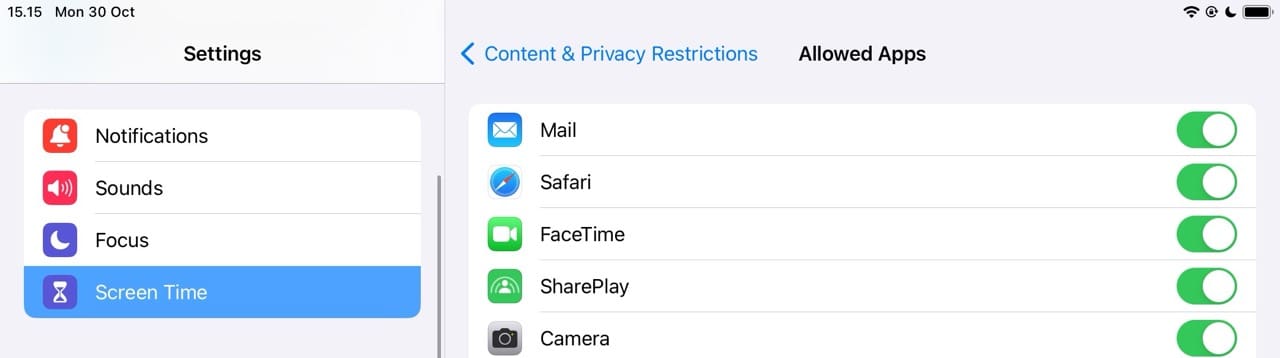
Turn off Screen Time or toggle Content & Privacy Restrictions
Check that your date and time is Set Automatically
Now, let’s look at the top ways to fix this issue in more detail.
1. Check That Airplane Mode Is Off
It seems that toggling Airplane mode can sometimes cause a lot of issues with FaceTime. In fact, a lot of readers tell us that Airplane mode was causing their calls to drop and start showing that “reconnecting” message and eventually “FaceTime Call Failed.”
You can toggle Airplane Mode off and on again by following these instructions:
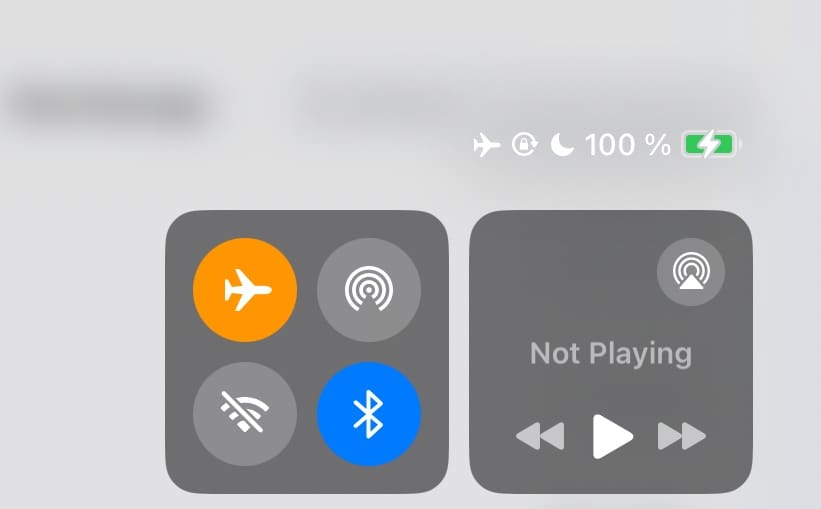
Swipe down in the top right-hand corner to reveal your iPhone’s Control Center.
Go to the Airplane Mode logo and tap it so that it’s no longer switched on.
2. Update iOS, iPadOS, or macOS
Simply updating your operating system might stop your FaceTime call from failing.
If you have an iPhone or iPad:
Go to Settings > General > Software Update.
Update your software if you see a prompt to do so. You’ll likely need to enter your passcode beforehand.
If you have a Mac:
Go to System Settings > General.
Select Software Update.
If you see a prompt to update your software, click on Update Now.
If you use a Mac that operates on a software version before macOS Ventura, you’ll need to go to System Preferences > Software Update instead.
3. Check Apple’s Server Status
You can also visit Apple’s System Status site and ensure that FaceTime’s Servers are operational. Look for FaceTime. And if marked with a yellow yield-like icon, check back later and wait for Apple to resolve problems
4. Look at Screen Time and Restrictions
Sometimes, restrictions on your device can stop FaceTime from working correctly. You can, in particular, look at your Screen Time app limits.
Open your Settings app and go to Screen Time > Content & Privacy Restrictions.
Tap Allowed Apps.
Make sure that FaceTime is toggled on.
If you have an older version of iOS, go to Settings > General > Restrictions.
5. Toggle FaceTime Off and On
You can re-enable FaceTime by going to Settings > FaceTime and toggling the app off and on again. If this doesn’t work at first, add a restart in between.
6. Sign Out of Your Apple ID
Signing in and out of your Apple ID might help you fix the FaceTime call failed problem. You can do this by going to your Settings app.
If you use an iPhone:
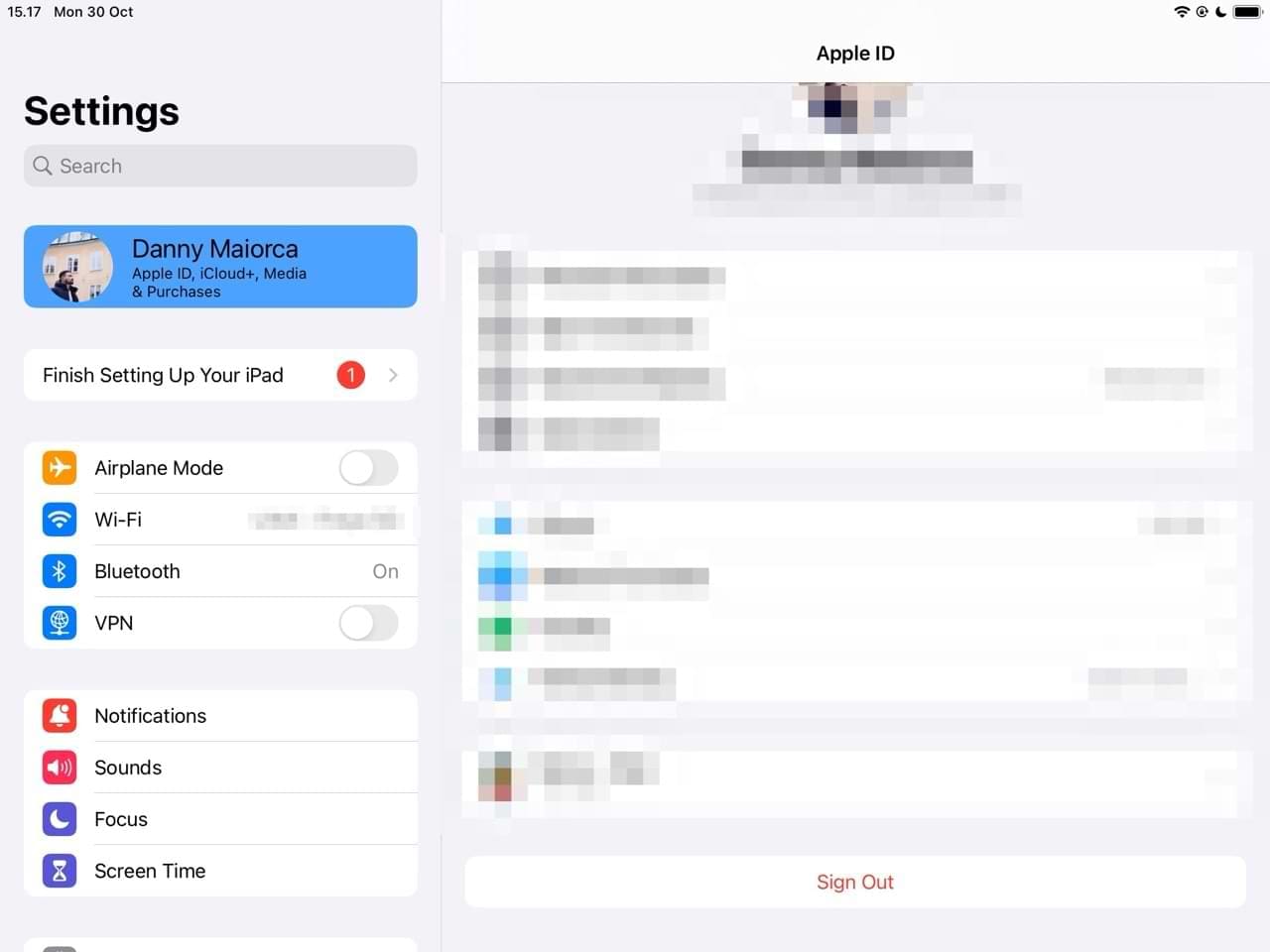
Open the Settings app and click on your Apple ID.
Go to Sign Out and log out of your account.
Sign back in and try to see if FaceTime is still working.
On your Mac:
Go to System Settings > Apple ID.
Hit Sign Out, which you’ll see at the bottom of your screen.
Log back into your account after signing out.
After closing FaceTime, restart both devices, sign back into FaceTime, and launch FaceTime to try making a call again.
7. Check Date and Time Settings
Ideally, your device should set your date and time automatically. However, you can check to see whether this is the case – and these instructions will help you do that.
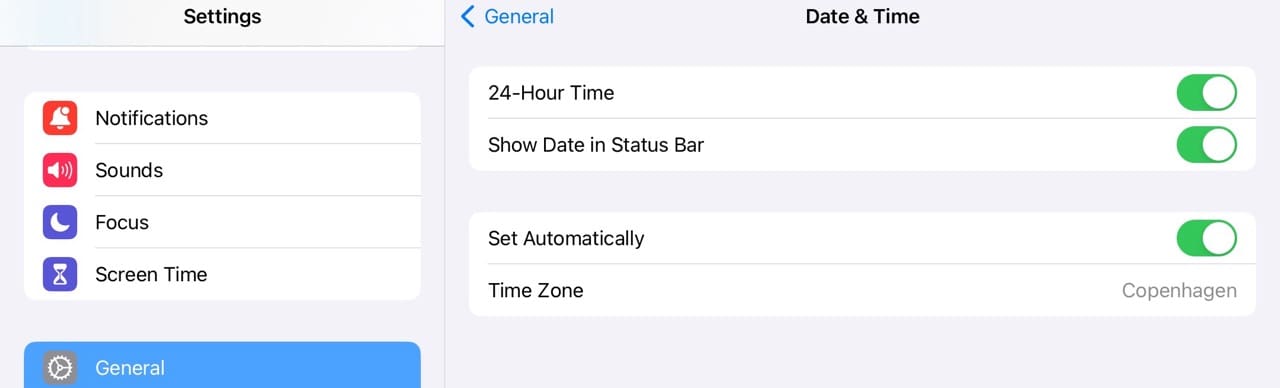
Go to Settings > General > Date & Time.
Turn on Set Automatically.
If you have a Mac:
Choose Apple logo > System Settings.
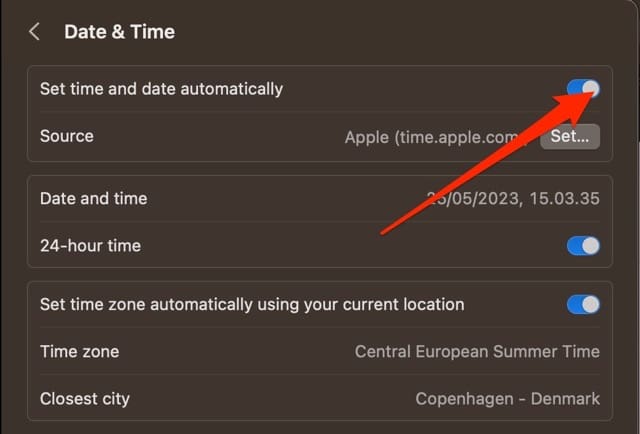
Go to General > Date & Time.
If Set time and date automatically is on, toggle it off, wait 20 seconds, and toggle back on.
8. Delete and Reinstall The FaceTime App
For users with iOS 12 or above, you can delete and reinstall the FaceTime app on your device.
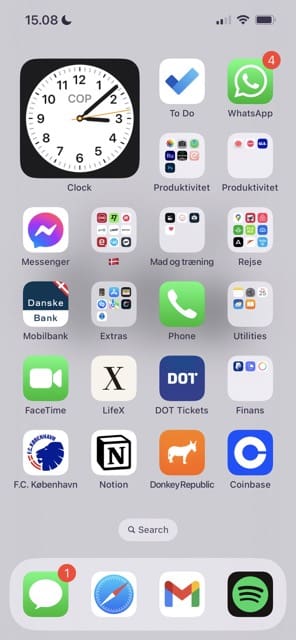
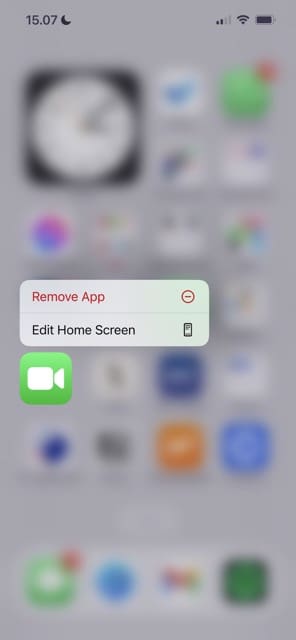
Press and hold the FaceTime logo.
Tap Remove App when the dropdown menu appears.
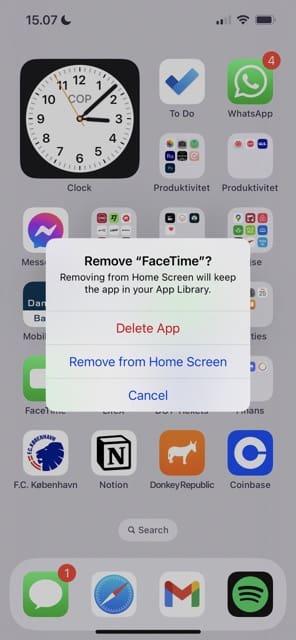
Select Delete App when you see the pop-up window.
After completing the above steps, go to the App Store and search for FaceTime. Then, reinstall the app.
You can also delete or offload FaceTime via Settings > General > iPhone Storage.
9. Reset Your Router
FaceTime not working might be due to your Wi-Fi connection, especially if you use a Mac or an iPad without cellular data. Try these steps:
Try turning your router off and on or unplugging it, waiting a minute, and plugging it back in.
Check with your router manufacturer on how to reset your particular model.
Update your router’s firmware.
If the Problem With FaceTime Persists…
The steps above should hopefully have fixed your FaceTime call failed issues. But if the problem still persists, you can try these steps as well.
Forget Your Current Wi-Fi Network
You can forget your current Wi-Fi network on an iPhone or iPad by going to Settings > Wi-Fi and clicking on Forget This Network. On a Mac, you’ll need to go to System Settings > Wi-Fi instead.
To reconnect, enter the passcode again like you would if connecting for the first time. Make sure that you have this on-hand before proceeding.
Restart or Force Restart your iOS Device
Resetting or force restarting your iPhone or iPad depends on the device you have.
On an iPad with no Home Button and iPhones X or later: Press and hold the side/top/power button and either volume button until the slider appears.
On an iPad or iPhone with a Home Button and iPod Touch: press and hold the side/top/power button until the slider appears. Drag the slider to turn the device off, and after the device switches off, press and hold that side/top/power button again until you see the Apple logo.
With iOS 11 and above, you can also restart using Settings > General > Shut Down.
How To Force Restart an iPad, iPod, or iPhone
Force restarting your device is slightly different.
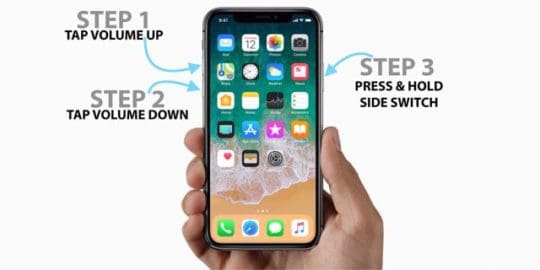
On an iPad with no Home Button and iPhones 8 or later: Press and quickly release the Volume Up button. Press and quickly release the Volume Down button. Then press and hold the side/top/power button until the device restarts.
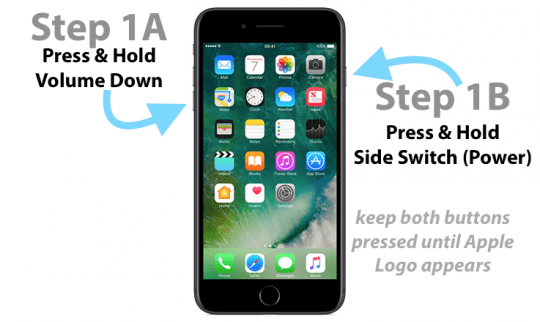
On an iPhone 7 or iPhone 7 Plus: Press and hold both the side and Volume Down buttons for at least 10 seconds, until you see the Apple logo.
On an iPhone 6s and earlier, iPad with a Home Button, or iPod touch: Press and hold both the Home and the top (or side) buttons for at least 10 seconds, until you see the Apple logo.
Change Your DNS
If restarting your device doesn’t work, changing your DNS settings could get your FaceTime working as it should.
Go to Settings > Wi-Fi > Tap your current Wi-Fi network’s name.
Tap the DNS field and enter the DNS servers; 8.8.8.8 and 8.8.4.4 (Google’s Public DNS). Alternatively, you can choose another third-party DNS.
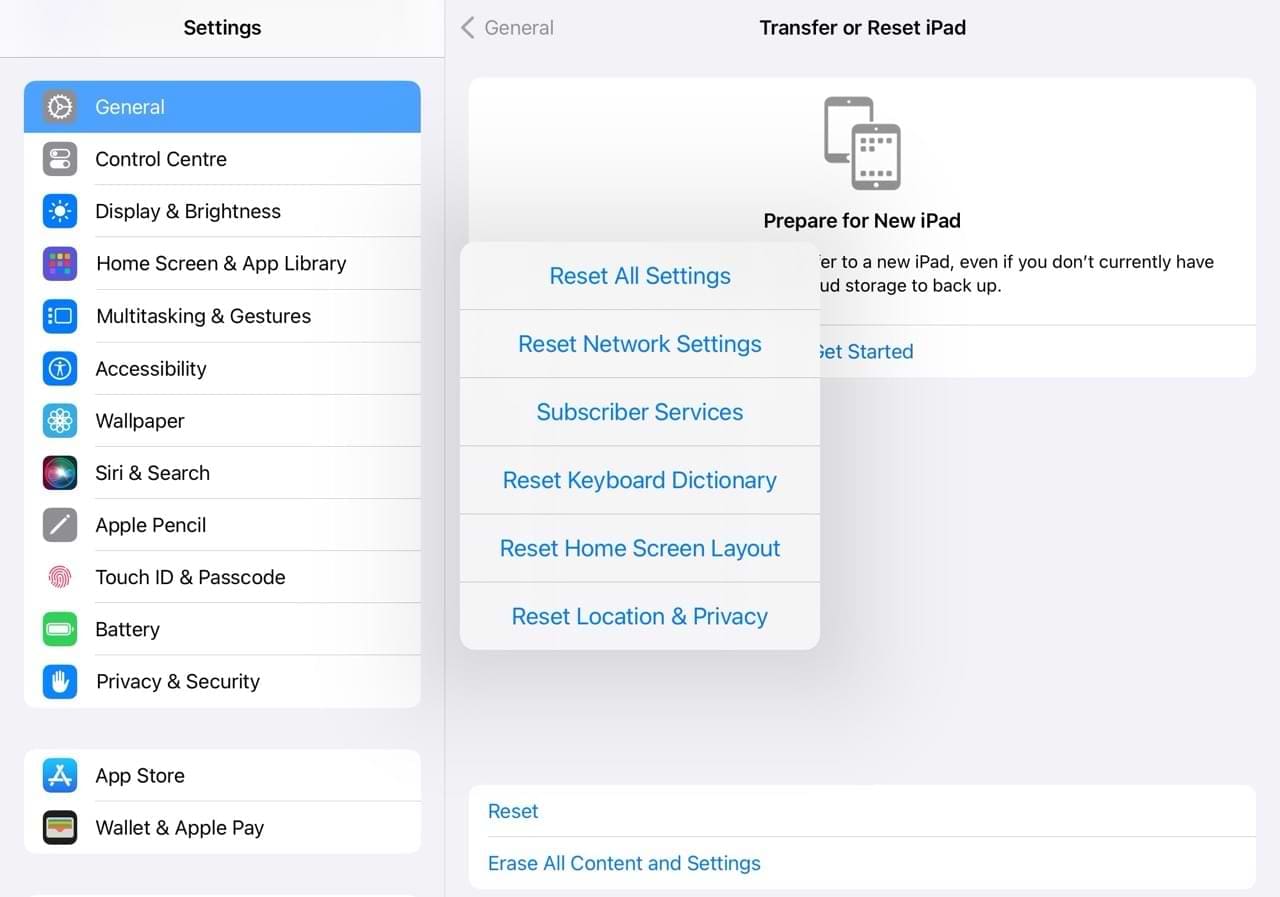
Reset All Your Device’s Settings
This process should be your last resort, as it resets all of your personalized features back to the factory defaults.
It resets to default everything in Settings, including notifications, alerts, brightness, and clock settings like wake-up alarms. Resetting all settings also reverts all your personalized and customized features like wallpapers and accessibility settings back to factory defaults. You need to reconfigure these settings once your device restarts.
Performing this action does not impact any of your personal device data, including photos, texts, documents, and other files.
Go to Settings > General > Transfer or Reset iPhone/iPad.
At the bottom of the next screen, tap Reset. Then, follow the necessary instructions to restart your device.
Advice for Specific FaceTime Problems
Some of our readers have written to us with specific issues that they’re facing. Here are the issues below, along with some potential solutions.
I Can Only Contact Some People in My Contacts List
If you’re unable to FaceTime some people in your contacts list, it’s possible that they’ve restricted FaceTime in their Screen Time settings. Ask them to check the Allowed Apps section and toggle FaceTime on. If that doesn’t work, try deleting their contact details and re-adding them. You can also try changing your number if you use an eSIM that has more than one contact number.
FaceTime Call Dropping Off Mid-Chat
FaceTime dropping off in the middle of a call is almost always because of a connectivity or software problem. Try these tips:
Toggle FaceTime off and on in Settings > Facetime.
Readers tell us that FaceTime seems to work most consistently when you sign into iMessage and FaceTime with the same Apple ID. If you see that FaceTime on your Mac is stuck on verifying (look at Facetime > Settings), check your email and follow the instructions in the verification email that Apple sent to complete the process.
If you have an older Mac, you can also reset the NVRAM.
Shut down your Mac.
Press and hold these four keys together: Option, Command, P, and R at start-up.
Release the keys after about 20 seconds, during which your Mac might appear to restart, makes a second start-up chime, or after the Apple logo appears and disappears for the second time.
If you use a third-party camera attached to your Mac and you see the video flash briefly before the call fails, check for any manufacturer updates for the camera drivers for your version of macOS or Mac OS X
For more info on FaceTime issues with Macs, see this article.
Try These Tips to Fix FaceTime on Your Apple Device
If FaceTime keeps disconnecting, you can try a large suite of different things to stop the issue from persisting. Wi-Fi could play a role, but it might also be software-related issues. Regardless of the reason why, you should hopefully find the fix now that you’ve read this guide.
Should none of the things we’ve mentioned today work, we recommend booking an appointment at your nearest Apple Store. You can also get help via the Apple Support app and by contacting the company’s support team directly.
If anything worked for you when fixing Failed FaceTime calls, feel free to let us know in the comments!
Danny has been a professional writer since graduating from university in 2016, but he’s been writing online for over a decade. He has been intrigued by Apple products ever since getting an iPod Shuffle in 2008 and particularly enjoys writing about iPhones and iPads. Danny prides himself on making complex topics easy to understand. In his spare time, he’s a keen photographer.
I have found it yesterday, that some iPad cases interfere somehow with the Facetime if front cover is flipped to the back of iPad and it has been confirmed by Apple Genius Bar work,
Issue: Cx presents a device that disconnects the FaceTime call when the third party case is stuck to the back of the iPad
Steps to Reproduce: Verified in store by placing test call.
Cosmetic Condition: Device is in good condition. No signs of damage or misuse
Proposed Resolution: We tried two different case which are sold at apple.
Issue did not occur.
Issue is only happening with customers case.
Concluded issue is with the cases bought by customer.
Resolution: Service Solution
Reason: Other
Contact Apple Support Case: 101410266981
The FaceTime on my iPad keeps dropping off about 10 mins into chat. I’ve tried reinstalling but still happens. Works perfectly on my iPhone.
Help please
My FaceTime keeps dropping out after a couple of minutes – but ONLY to one other person. And that person has no trouble except when phoning me! It is clearly not a problem with either iPhone or either WiFi, as they work OK with calls to others.
It appears to happen whoever initiates the call.
Any ideas why this should occur just between these two phones?
I can’t find face time on my iPhone 6s and each time someone calls me on FaceTime a different person picks the call and that person isn’t me
Please how do I fix this problem
I’ve been having this problem and I’m glad I’m not the only one. Ive just been turning off and turning on my phone to get it to start working again. The facetime calls tend to end exactly at 19 seconds
Had the same problem, would last 20 secs then disconnect , been like this for last 4 weeks .
Did as mentioned , turned the phone off then back on .
Perfect now , no problems at all , thank you .
Sorry to hear about your problems with FaceTime. Since you’ve tried everything listed, please give Apple Support a call and see if they have any additional tips to get your system working!
Having the same problems as Julie on the Ipod Touch 4th Gen. The call connects and can see my camera working but don’t get any video back from the other caller. They can see and hear me. Tried different callers so I know its not their issue.
Also, tried all the reset and other advice given but still not working.
I can open FaceTime and can hear them ok and I see myself but not them. All the responses I see here are for FaceTime not working at all and they are from 5 years ago. I tried toggle on and off. This is happening on both iPad and Mac air. Today it said Wifi signal weak, yet all other devises work fine, including TV streaming, so doubt it is strength of wifi.
Help! I have go be using DUO on my android phone, prefer FaceTime on my bigger devises,
Sorry, you’re having issues with FT. Let’s try a forced restart by pressing Home and Power buttons at the same time and maintaining this hold until you see the Apple Logo on-screen. Make sure you hold those buttons down together until the logo appears–even if it feels like a long time!
Now check if FT works for your calls.
If not, let’s reset your network settings–go to Settings > General > Reset > Reset Network Settings. Performing this action removes any stored WiFi passwords so have these available to add in again.
Try FT again.
If no joy, let’s reset all settings. Go to Settings > General > Reset and tap Reset All Settings. Performing this changes all your personalized settings back to defaults including any accessibility settings, wallpapers, and stored WiFi passcodes. It does NOT erase any data like photos, messages, and other app data.
Try FT again.
If none of these help, you may need to backup and restore from a backup (or set up as new). OR, make an appointment at the Genius Bar of an Apple store to run Diagnostics on your device.
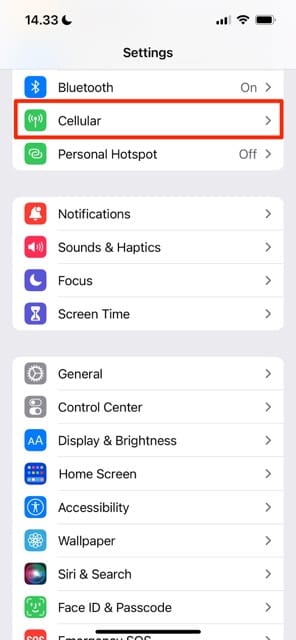
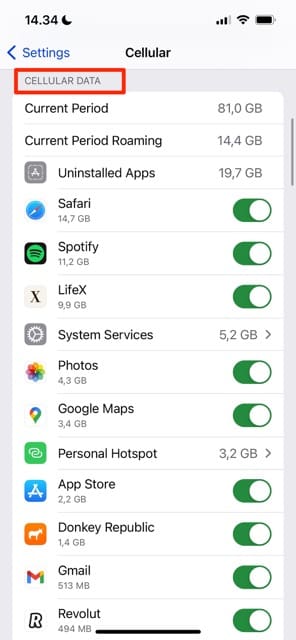
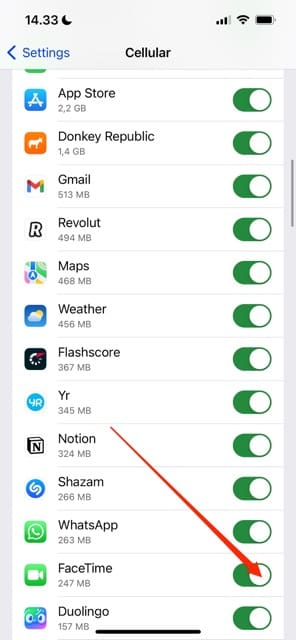
If you’re trying to use FaceTime over cellular, make sure that Use Cellular Data is on for FaceTime. Go to Settings > Cellular > Use Cellular Data For, and turn on FaceTime.
Make sure time zone is set to your current zone OR better yet, have iOS set this automatically. Go to Settings > General > Date & Time and turn on Set Automatically
Reset your network settings. Tap Settings > General > Reset > Reset Network Settings. This also resets WiFi passwords, cellular settings, and any VPN settings
I have an issue with Ipad 2 face time. I am getting the facetime call when i call from iPad 2 but when i naswer the it failed to connect…Evrytime happening the same, it was working for the other devices.
Tried the 8.8.8.8 and it did not work, I’ve rebooted my router and iPad 2 and did as stated yet, it still says poor connection etc. every time I FaceTime or get FaceTime call via wifi when my wifi connection is strong even very strong!!!
Hi both me my wife and daughter have an iPhone 4S my wife can face time any of us but we can’t face time her only my daughter and I can face time each other’s phone no one has been blocked any ideas ???
Hi
I will be in Tanzania in October. Many of the lodges have WIFI. I have an Ipad 2. Can I do facetime with my son in NYC from Tanzania? I can from NJ to NYC with him.
I tried all your tricks but my wife’s new iPad 4 receives incoming calls but switches off immediately and reports to the caller XXXX (client) is not available for FaceTime
This even is FaceTime on, ready for the expected call and a finger ready for accepting the call.
The red touching button “refuse” seems to be already switched on when the call arrives
All settings seem to be correct, account is OK, Wifi is OK and even the DNS is set to 8.8.8.8
In addition to these solutions, what we have found is that if you simply delete and reinstall the sending user account in the FaceTime application it will often solve the problem. We hope this helps some of you!
Ever since the iOS6 update, FaceTime hasn’t been working. I’ve tried all that and it still doesn’t work :[ going to Apple tomorrow because I use FaceTime frequently
It didn’n work for me. My mac pro can facetime to my ipad3 but when my ipad call to my mac pro, it just ringing, facetime pop up but no answer button, only end button. I don’t know how to answer incoming call on my mac
Thank you so much for this fix! I could not figure out why I wasn’t getting IMessages anymore and also why FaceTime wasnt functioning but after this I was able to Face Time my sis in law and Face Time and get a good night kiss from my 3 year old nephew 🙂 thanks so much!!!!
I have a 2nd gen iPad.. I rebooted, reset all FaceTime settings and eventually the whole iPad and nothing worked. I was also going to take the ipad back to apple when I saw the 8.8.8.8 fix and it worked. Thank you!













I’ve tried everything and still having issues with FaceTime failed calls
Hi there,I need help! Every time I FaceTime one or some of my friends it kicks me off and I’ve literally tried everything! Can you help me?
I am having the same issue! I’ve Googled and tried everything that was suggested. Nothing works. Have you found a solution?
I have found it yesterday, that some iPad cases interfere somehow with the Facetime if front cover is flipped to the back of iPad and it has been confirmed by Apple Genius Bar work,
Issue: Cx presents a device that disconnects the FaceTime call when the third party case is stuck to the back of the iPad
Steps to Reproduce: Verified in store by placing test call.
Cosmetic Condition: Device is in good condition. No signs of damage or misuse
Proposed Resolution: We tried two different case which are sold at apple.
Issue did not occur.
Issue is only happening with customers case.
Concluded issue is with the cases bought by customer.
Resolution: Service Solution
Reason: Other
Contact Apple Support Case: 101410266981
Employee 973619389
The FaceTime on my iPad keeps dropping off about 10 mins into chat. I’ve tried reinstalling but still happens. Works perfectly on my iPhone.
Help please
My FaceTime keeps dropping out after a couple of minutes – but ONLY to one other person. And that person has no trouble except when phoning me! It is clearly not a problem with either iPhone or either WiFi, as they work OK with calls to others.
It appears to happen whoever initiates the call.
Any ideas why this should occur just between these two phones?
I tried everything nothing works.
Is there any other ways to fix this?
Apple needs to fix this. It’s been going on far too long and still after doing all trouble shooting steps. Ridiculous
I can’t find face time on my iPhone 6s and each time someone calls me on FaceTime a different person picks the call and that person isn’t me
Please how do I fix this problem
I’ve been having this problem and I’m glad I’m not the only one. Ive just been turning off and turning on my phone to get it to start working again. The facetime calls tend to end exactly at 19 seconds
Had the same problem, would last 20 secs then disconnect , been like this for last 4 weeks .
Did as mentioned , turned the phone off then back on .
Perfect now , no problems at all , thank you .
FaceTime – Call Failed
Tried everything to get FaceTime to work and still get Call Failed.
Any ideas on how to fix this ongoing issue?
Hi Steven,
Sorry to hear about your problems with FaceTime. Since you’ve tried everything listed, please give Apple Support a call and see if they have any additional tips to get your system working!
SK
Having the same problems as Julie on the Ipod Touch 4th Gen. The call connects and can see my camera working but don’t get any video back from the other caller. They can see and hear me. Tried different callers so I know its not their issue.
Also, tried all the reset and other advice given but still not working.
I can open FaceTime and can hear them ok and I see myself but not them. All the responses I see here are for FaceTime not working at all and they are from 5 years ago. I tried toggle on and off. This is happening on both iPad and Mac air. Today it said Wifi signal weak, yet all other devises work fine, including TV streaming, so doubt it is strength of wifi.
Help! I have go be using DUO on my android phone, prefer FaceTime on my bigger devises,
Hi Julie,
Sorry, you’re having issues with FT. Let’s try a forced restart by pressing Home and Power buttons at the same time and maintaining this hold until you see the Apple Logo on-screen. Make sure you hold those buttons down together until the logo appears–even if it feels like a long time!
Now check if FT works for your calls.
If not, let’s reset your network settings–go to Settings > General > Reset > Reset Network Settings. Performing this action removes any stored WiFi passwords so have these available to add in again.
Try FT again.
If no joy, let’s reset all settings. Go to Settings > General > Reset and tap Reset All Settings. Performing this changes all your personalized settings back to defaults including any accessibility settings, wallpapers, and stored WiFi passcodes. It does NOT erase any data like photos, messages, and other app data.
Try FT again.
If none of these help, you may need to backup and restore from a backup (or set up as new). OR, make an appointment at the Genius Bar of an Apple store to run Diagnostics on your device.
Keep us posted,
SK
I am an iphone 6 user.i ma having issues with facetime. I changed rhe DNS settings but still it is not dialling. Please help.
Hi Rabia,
Try the following:
If you’re trying to use FaceTime over cellular, make sure that Use Cellular Data is on for FaceTime. Go to Settings > Cellular > Use Cellular Data For, and turn on FaceTime.
Make sure time zone is set to your current zone OR better yet, have iOS set this automatically. Go to Settings > General > Date & Time and turn on Set Automatically
Reset your network settings. Tap Settings > General > Reset > Reset Network Settings. This also resets WiFi passwords, cellular settings, and any VPN settings
For more tips, check out this article
SK
Thank you very much , the DNS settings change did it, was getting frustrated as Apple Support don’t know how to fix this
After trying out so many suggestions, the DNS settings change did the trick – thank you very much
Continuation for the above post, when i Answer the call, it says failed to connect
I have an issue with Ipad 2 face time. I am getting the facetime call when i call from iPad 2 but when i naswer the it failed to connect…Evrytime happening the same, it was working for the other devices.
Any help would really appreciate..!!!
Can’t connect to FaceTime on iPad mini 4, keeps saying unavailable… Please help I’ve tried doing 8.8.8.8 yet still don’t work …
It’s ok I’ve sorted it now …
Thanks a lot for the 8.8.8.8 hack.. now i can consider my iphone 6 an iphone..
Tried all the suggestions and still have a blank page in my App Store
Tried the 8.8.8.8 and it did not work, I’ve rebooted my router and iPad 2 and did as stated yet, it still says poor connection etc. every time I FaceTime or get FaceTime call via wifi when my wifi connection is strong even very strong!!!
Have updated iPad, changed to 8888, rebooted. Still no FaceTime any ideas
Non of the above worked! Face time used to work, suddenly stopped and now none of the posted suggestions helped. Any additional thoughts?
Will 8.8.8.8 work in the Philippines?
Hi both me my wife and daughter have an iPhone 4S my wife can face time any of us but we can’t face time her only my daughter and I can face time each other’s phone no one has been blocked any ideas ???
Tried everything else and changed the DNS setting. Problem solved!
Hi
I will be in Tanzania in October. Many of the lodges have WIFI. I have an Ipad 2. Can I do facetime with my son in NYC from Tanzania? I can from NJ to NYC with him.
I tried all your tricks but my wife’s new iPad 4 receives incoming calls but switches off immediately and reports to the caller XXXX (client) is not available for FaceTime
This even is FaceTime on, ready for the expected call and a finger ready for accepting the call.
The red touching button “refuse” seems to be already switched on when the call arrives
All settings seem to be correct, account is OK, Wifi is OK and even the DNS is set to 8.8.8.8
Any suggestions?
Good
In addition to these solutions, what we have found is that if you simply delete and reinstall the sending user account in the FaceTime application it will often solve the problem. We hope this helps some of you!
It still isn’t working.
It Worked!
It really Worked… :)))
Thanks
Thanx it worked!!!!
Ever since the iOS6 update, FaceTime hasn’t been working. I’ve tried all that and it still doesn’t work :[ going to Apple tomorrow because I use FaceTime frequently
It didn’n work for me. My mac pro can facetime to my ipad3 but when my ipad call to my mac pro, it just ringing, facetime pop up but no answer button, only end button. I don’t know how to answer incoming call on my mac
Thanks so much …..finally my FaceTime works again!!!
PERFECT answer. I have been trying to fix the issue for a long time and its all fixed now just with the DNS entry change
It worked for me be sure to do 8.8.8.8 do not add a 4th “.”
Thanks for the 8.8.8.8 thing it worked for me too!
didnt for me either because i jailbrocken my ipod toucah and now facetime wont work and i deleted all the jailbrocken sthing
didn’t work for me 🙁
thanks!! this was a great find:)
Thanks. The 8888. Worked for me too. Can you tell me why this happens?
8.8.8.8 worked for me too. Thanks so much! What an easy fix!
Thank you so much for this fix! I could not figure out why I wasn’t getting IMessages anymore and also why FaceTime wasnt functioning but after this I was able to Face Time my sis in law and Face Time and get a good night kiss from my 3 year old nephew 🙂 thanks so much!!!!
I have a 2nd gen iPad.. I rebooted, reset all FaceTime settings and eventually the whole iPad and nothing worked. I was also going to take the ipad back to apple when I saw the 8.8.8.8 fix and it worked. Thank you!
Was about to take the new ipad back because facetime failed until I put 8.8.8.8 in DNS. Thanks for saving me a trip back to the store.