Congratulations! You’ve bought your very first iPad. For many new iPad users, simple things like finding, installing, and deleting apps — or simply turning the device on and off — can be difficult.
When you first turn on your device, a very simple process will guide you to set up your iPad. After that, your iPad is ready to use. Here’s a simple getting started guide and a few iPad tips that will help you learn the basics of using your iPad.
The first thing you should know when using your iPad is what each external button does. Older iPads have a home button, but this is not the case for some of the newer options. If your device has a home button, you’ll use Touch ID — but if you don’t see one, you’ll need to set up Face ID instead.
How to Turn Your iPad Off and On Again
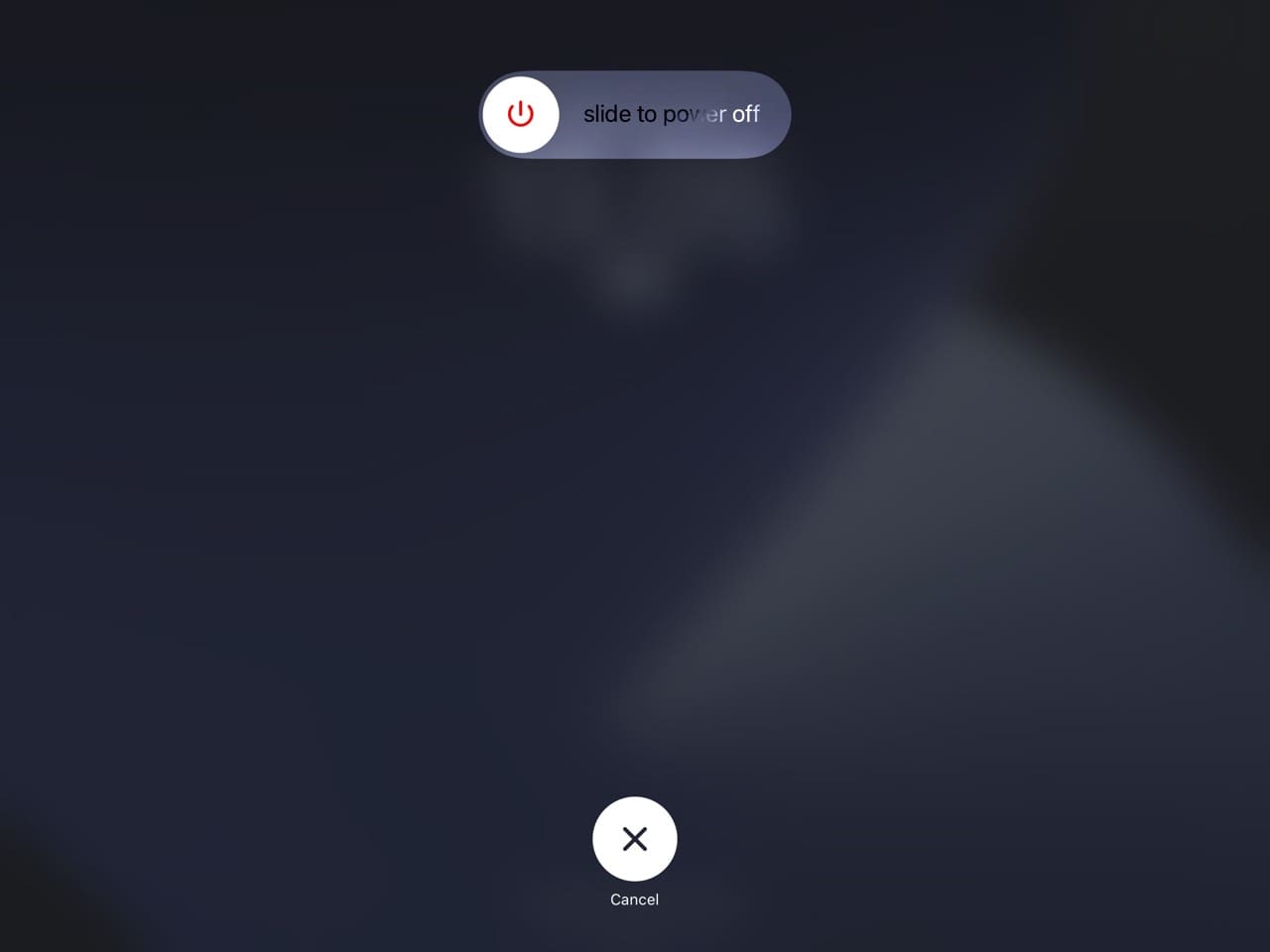
You may turn off your iPad by pressing and holding the Sleep/Wake button for a few seconds until the red “slide to power off” slider appears, and then use the on-screen Slide feature, and the iPad will shut down. See the screenshot below for an example of what we’re talking about.
To restart your device, simply press and hold the Sleep/Wake button until you see the Apple logo.
How to Reset Your Device
To reset an older iPad, just press and hold the Sleep/Wake button and the Home button at the same time for at least ten seconds (Ignore the Slide to Power Off bar) until you see the Apple logo. Note that resetting will very rarely be needed. Only hard reset your device if you are having problems with your iOS device (e.g. iPad becomes unresponsive).
You can reset a newer iPad by quickly clicking on both volume buttons, before holding the standby button until you see the Apple logo on your screen.
The Side Buttons
You’ll see a volume on and off button on the side of your iPad. On your home screen, you can turn the volume up or down for different iPad sounds. These include your keyboard noise and sounds that may occur when you perform certain tasks — for example, when your clock timer has counted down to 0 again.
When listening to a podcast or music, or you’re watching a video, you can turn the volume up or down while in the app you’re using. If your headphones are connected, you can control the sound you hear through your device with these buttons.
Locking Your Screen Orientation
You can choose either portrait or landscape screen orientation, and your choice depends on your own individual preferences. While watching a movie is better in landscape mode, reading a book in bed might not be so ideal in this respect.
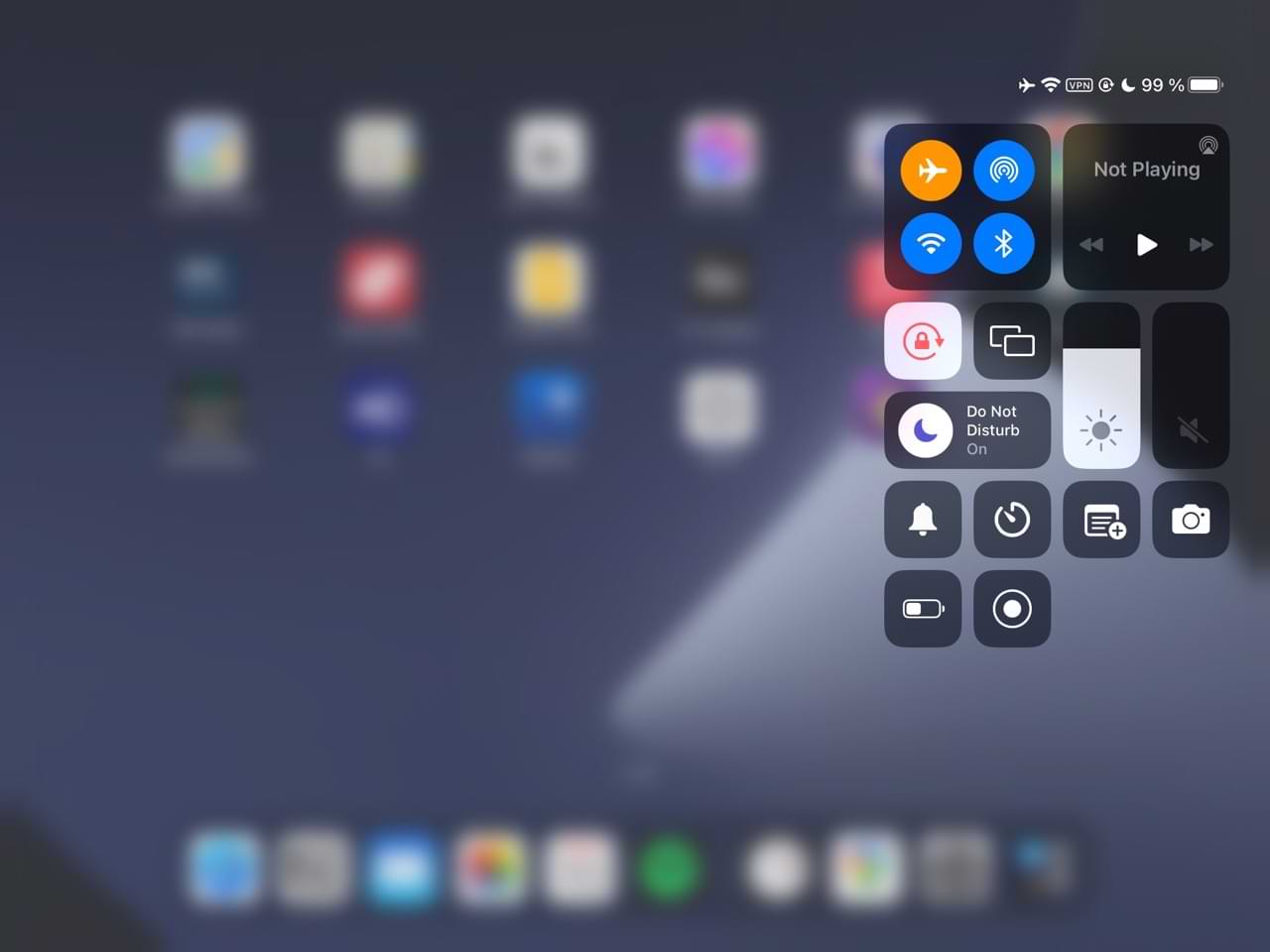
When you unlock your screen, you can control whether you have your screen in landscape or portrait mode by swiping down in the top right-hand corner (where you see your battery and Wi-Fi icons). This will reveal the Control Center. Click on the padlock icon and physically change your iPad’s orientation before tapping the lock icon again when you’re happy.
If you’re having issues with a vertically-locked iPad, and you can’t unlock rotation, consider checking out our guide to fixing the problem.
Home Button
As mentioned, older iPads have a home button. The home button is like a “go home” button and is used to:
Wake the iPad when it is sleeping.
Return to the home screen when you are in any application (app).
Bring up the Multitasking Bar.
Exit when you are deleting and/or organizing apps.
Apps: What Are Apps?
An application (or app) is software designed to run on iOS devices (such as iPads, iPods, iPhones and Macs). They are available through the Apple App Store. Some apps are free, while others have a price.
Paid apps usually fall somewhere within the range of $0.99 – $9.99 price range. Free apps often contain some advertisement embedded within the program, and sometimes, you’ll need a paid subscription to use apps to their maximum capability. For example, while you can download Spotify (and use) for free, a premium subscription provides access to its key features — such as listening without ads.
The iPad comes with various built-in apps including, but not limited to:
Safari to browse the Internet, Mail to send and receive emails.
Photos to organize your image files.
FaceTime to video-call.
Messages to send and receive short messages.
Other built-in apps include Notes, Maps, Calendar, and the App Store.
How to Find Apps
You will download third-party apps, such as Evernote and Pinterest, from the App Store on your iPad. With millions of apps available, finding what you need is difficult. You can do research by reading through online articles and watching YouTube videos, but another idea is to search the App Store directly.
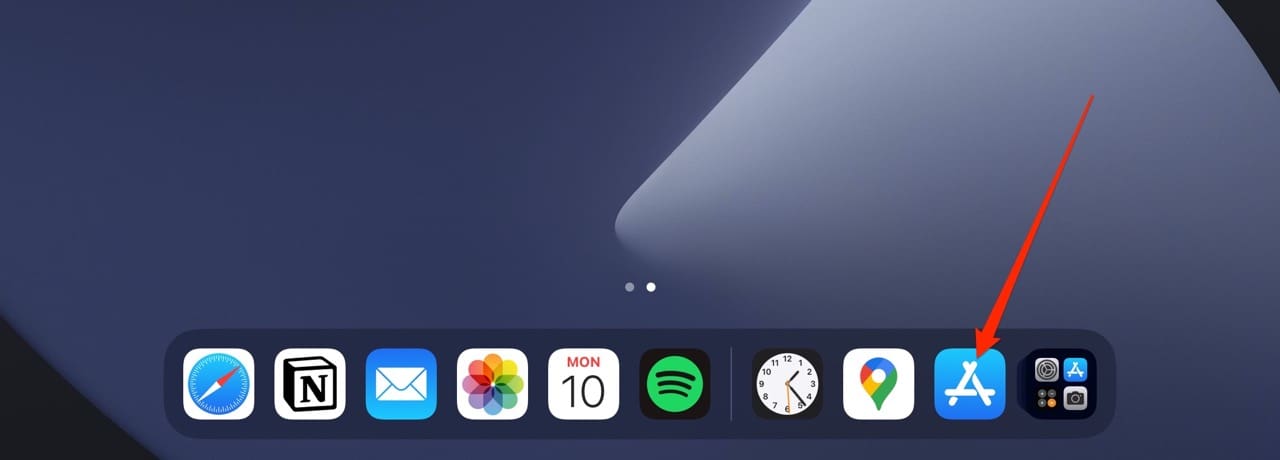
Simply tap the App Store icon. Here, you can sort and find apps by categories, popularity and user ratings.
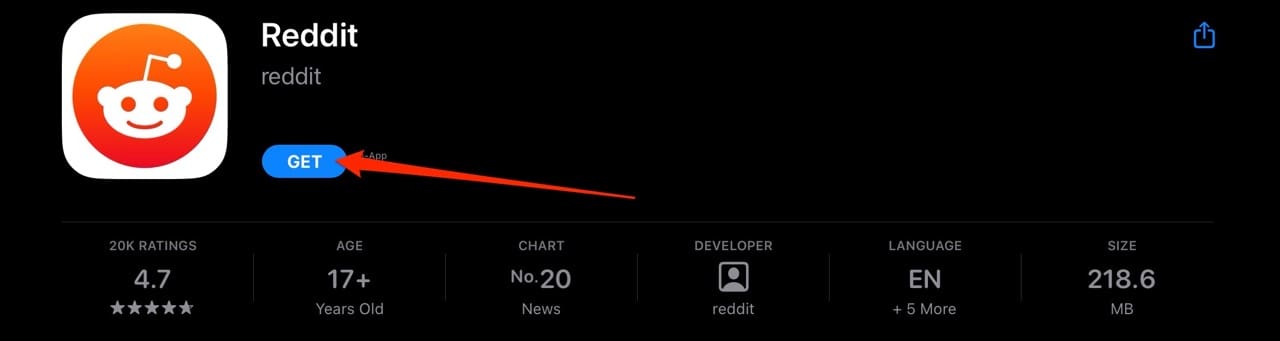
To buy/install an app, tap Get. After that, your iPad will ask for your Apple ID and password. You can use Touch ID or Face ID in many cases as well. If you do not have an Apple ID, create one here.
Once you have downloaded the app, a new icon for the app will appear on the home screen. Here, that you can launch it by tapping the icon. We’ll talk more about deleting and organizing apps later.
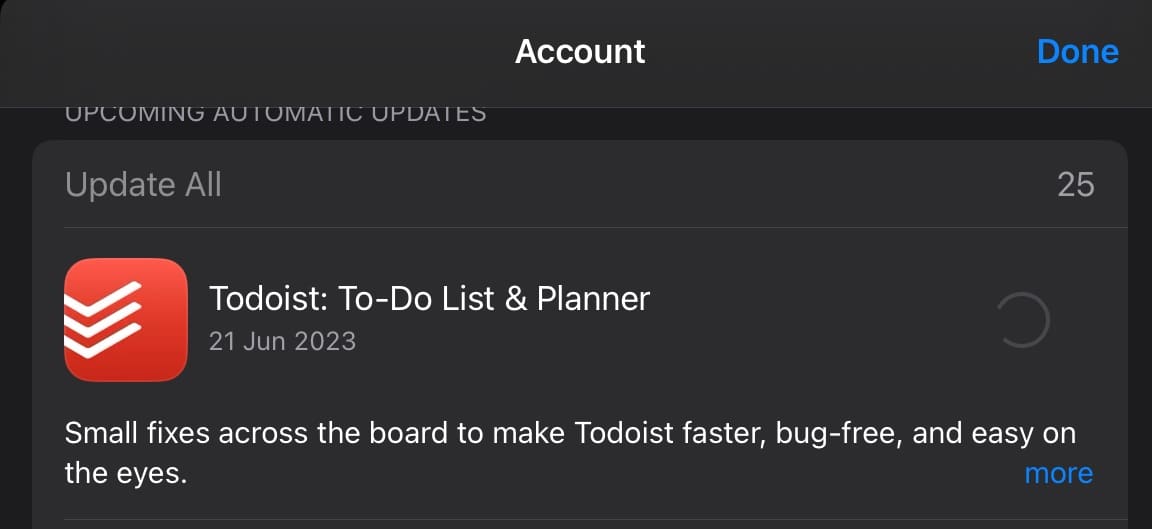
Developers will intermittently release updates for apps. You can update these by going to your profile picture and, under the Account window, selecting Update All.
iPad Multitasking
Multitasking is an iOS feature that allows apps to run in the background while you are using another app. You can switch between apps at any time. To do this, double click your home button and the main screen will slide out of the way to open recently-used apps.
Multitasking also means that quitting an app by pressing the home button does not close the app. You can close the app by double-tapping your home button — or swiping up from the bottom of your screen — and then swiping up to close specific apps. Deleting and reinstalling unresponsive apps (we’ll talk about how to delete apps in a minute) could help solve potential bugs and glitches.
How to Delete and Organize Apps
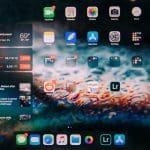
If you have many apps, you will have multiple screens. You can navigate between screens by swiping your finger across the iPad.
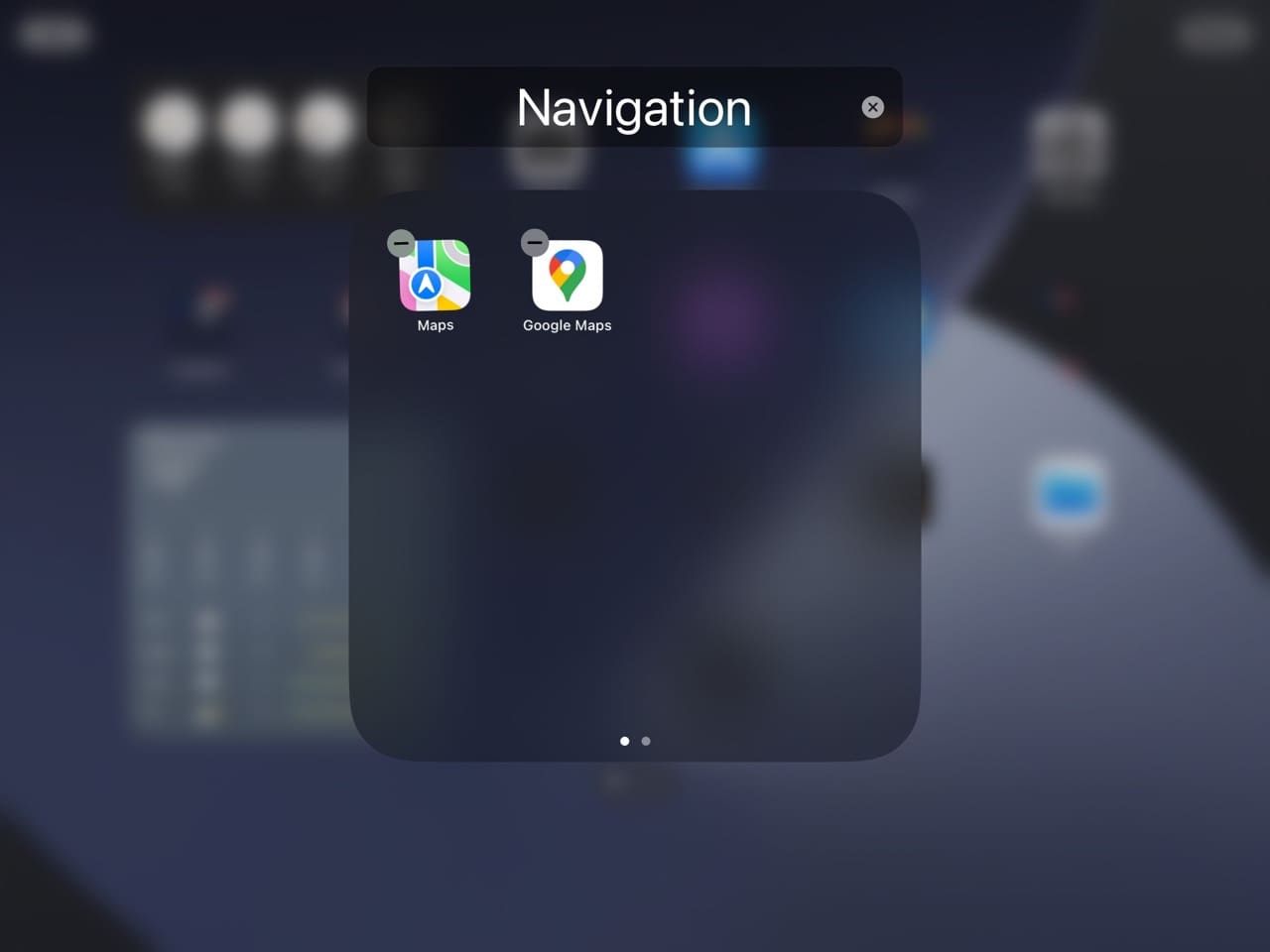
You may also want to organize your apps into folders, or only move them for whatever reason. To move apps, touch and hold your finger on the app’s icon you want to move until all of the icons on the screen start jiggling. Then you can move the app icons with your finger, dragging it to your desired location. You can also create folders to house groups of apps (e.g. games, financial, news, etc.). To do this, tap and hold any app; when they jiggle, drag one app icon onto another one to create a folder.
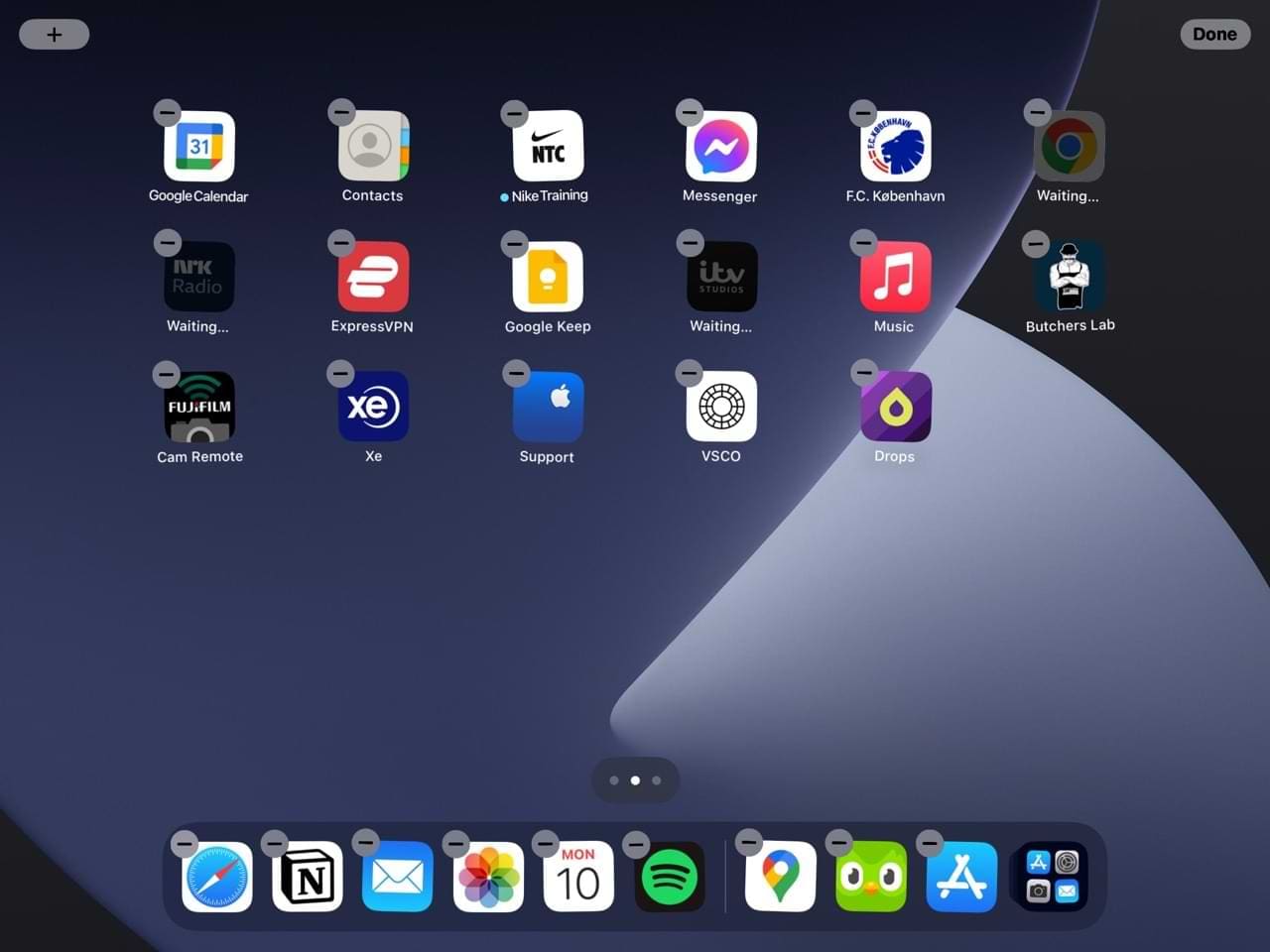
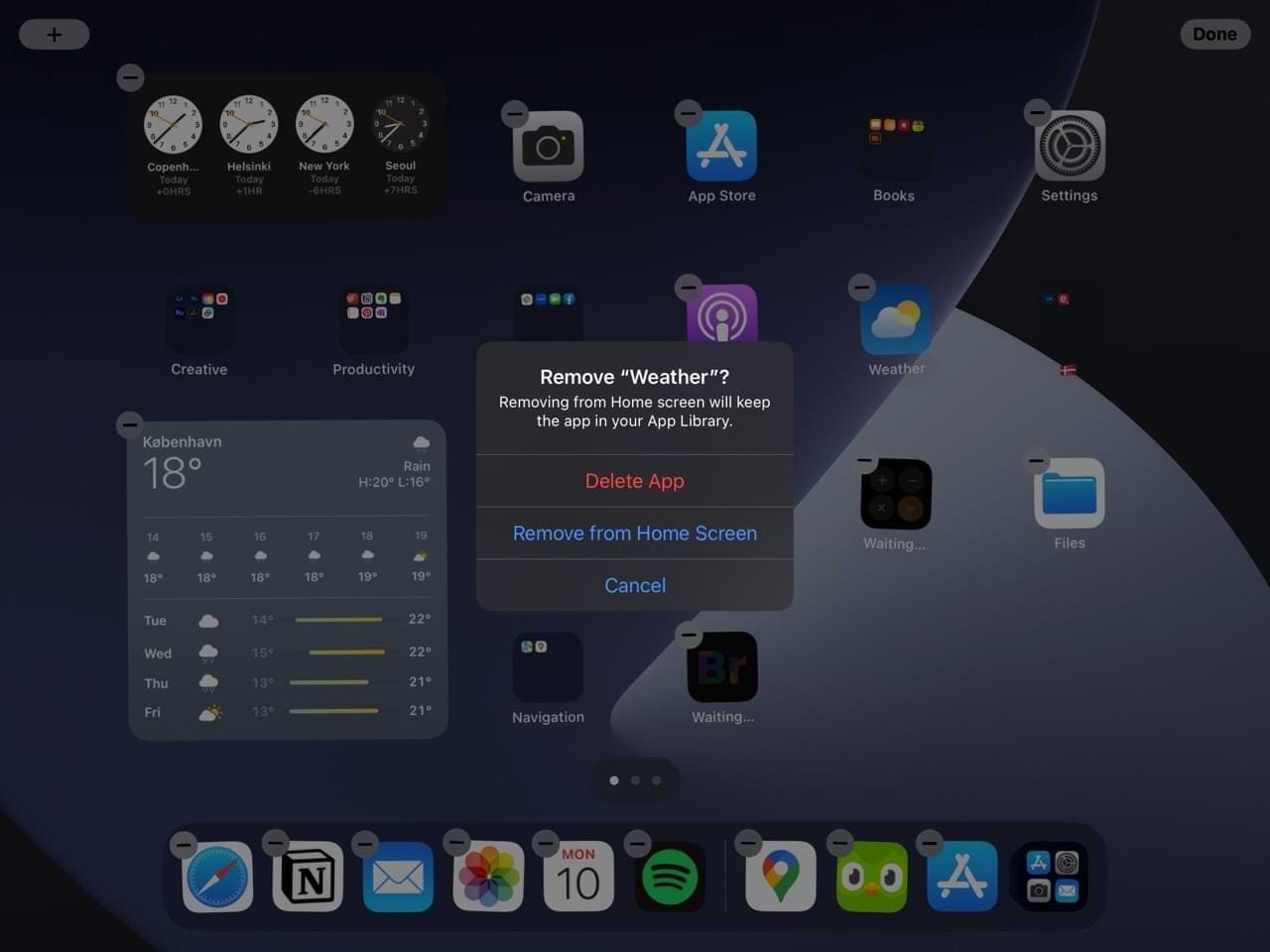
To remove an app from your iPad, simply touch and hold on an app that you want to get rid of until the icons start wiggling. You might see one of two options. The first is that each app wiggles and has a – icon. If that happens, click on the – button.
Select Delete App when you see the pop-up window. Alternatively, you can remove an app from the home screen by clicking that option. You can still access that app from Spotlight or your App Library.
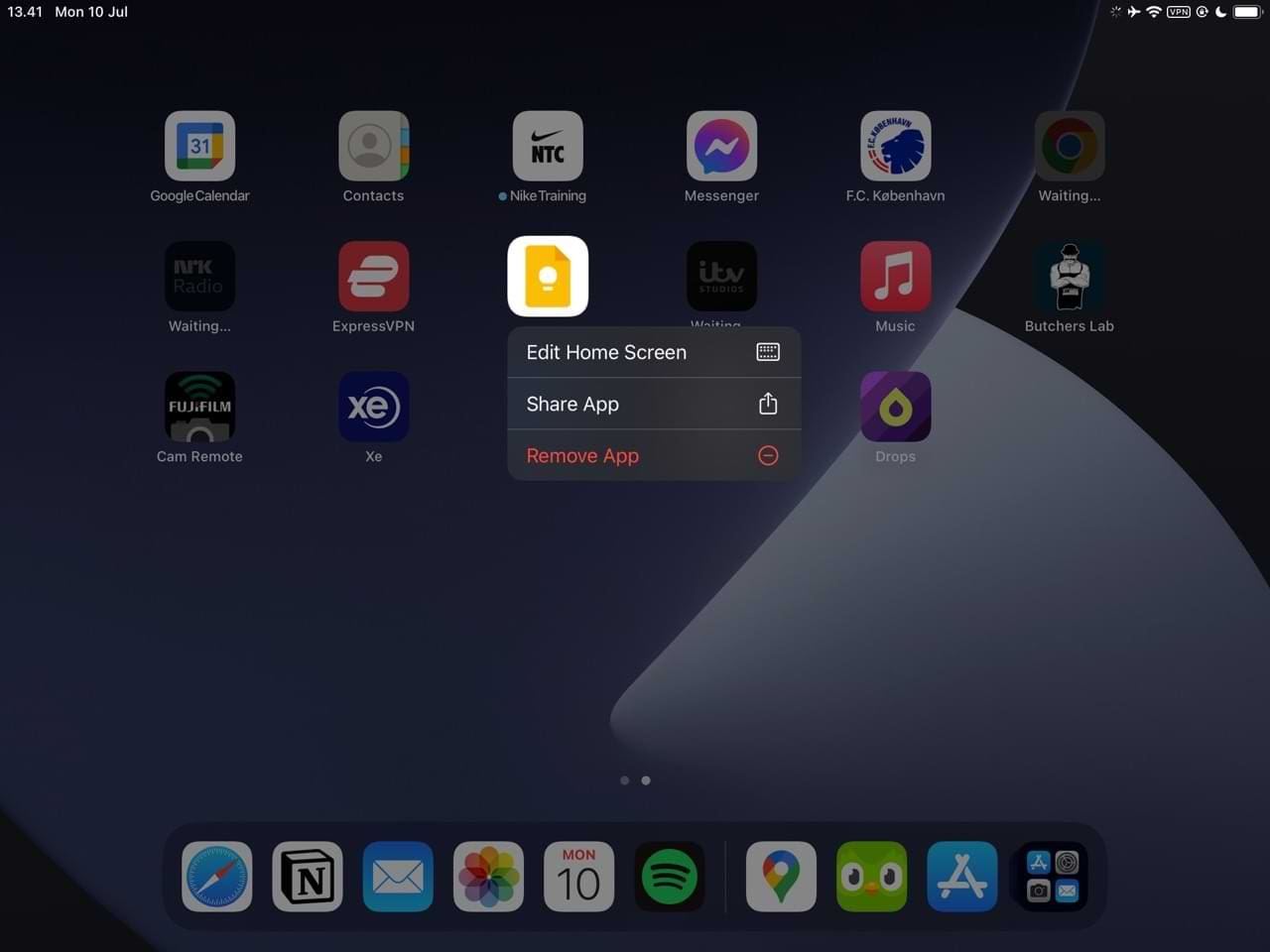
You might also see a dropdown menu with an option that says Remove App. Click on this and confirm that you’d like to delete your app.
It is also important to mention that once you delete an app, you can still re-download that app later meaning you do not need to re-purchase.
When you finish organizing your iPad apps, stop the jiggling by clicking the home button.
Battery and Charging Your iPad
A fully-charged iPad should last you for around 10 hours, but a lot will depend on what you do. If you’re constantly using your device, for example, the battery will drain quicker. Similarly, if your device is on standby, your battery will last longer.
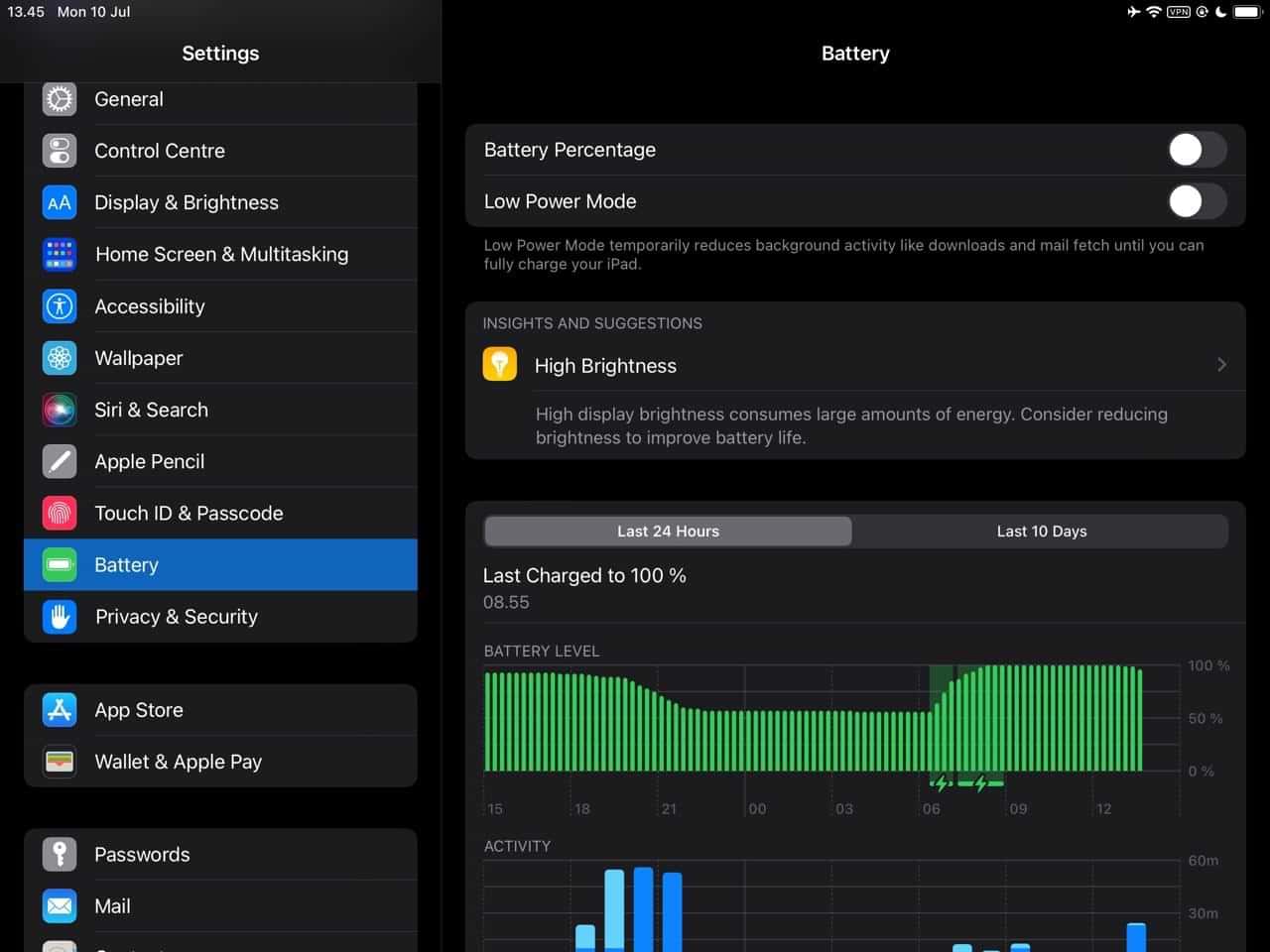
You can prolong your iPad battery life by using Airplane Mode when you don’t need an internet connection, and you might also find that activating Low Power Mode helps. You can activate Low Power Mode by opening the Control Center and choosing the battery icon.
Alternatively, go to Settings > Battery and toggle on Low Power Mode.
To charge an iPad, you’ll plug your charger into wall socket or computer USB port. Although you can wirelessly charge iPhones, this feature isn’t available for iPads as of July 2023.
Updating Your iOS Software
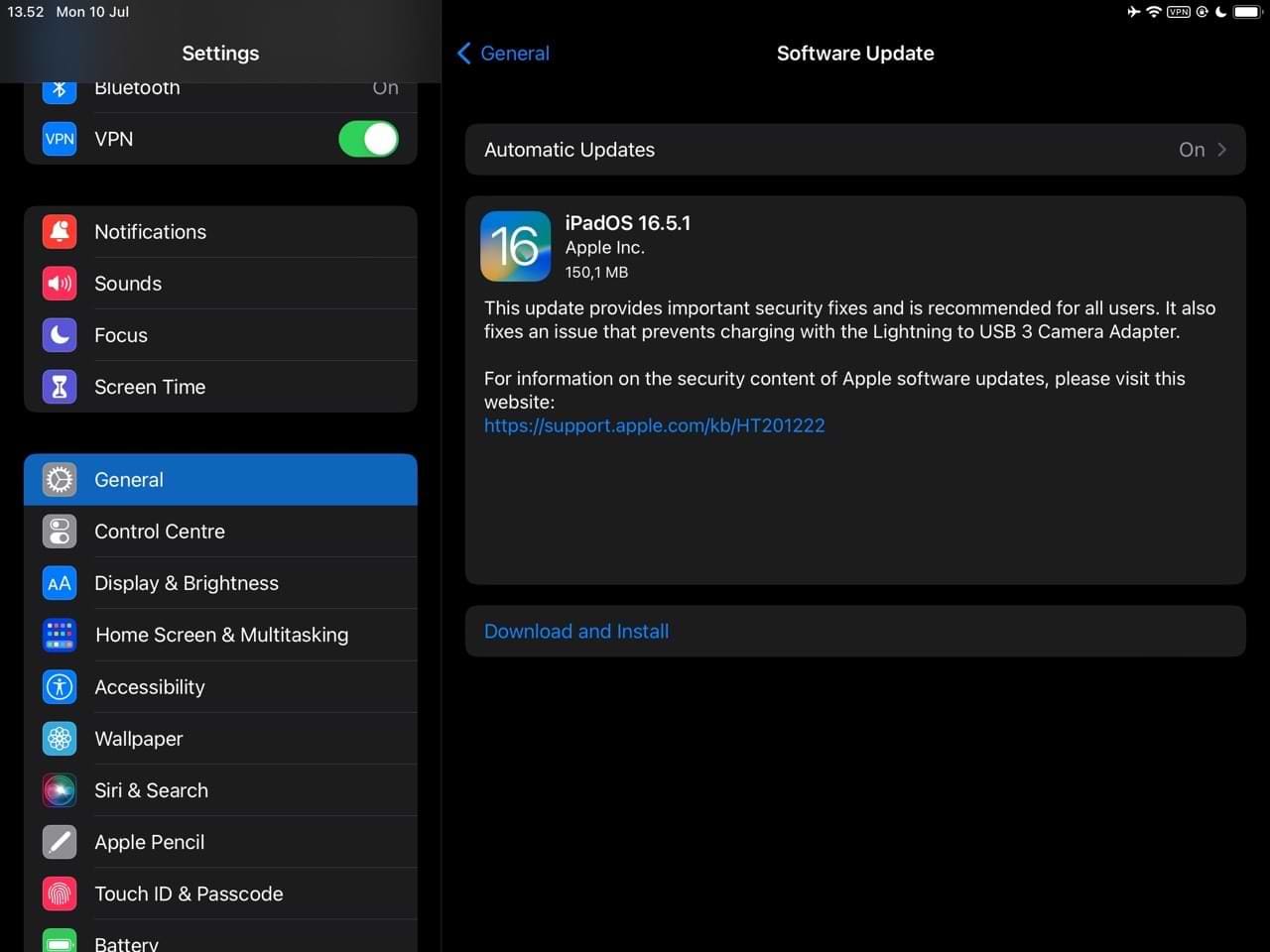
Apple releases a big iPadOS software update every September, and you’ll also receive smaller updates throughout the year. To update your software, tap Settings > General > Software Update. The iPad will check for updates and if there is one available you can download it automatically.
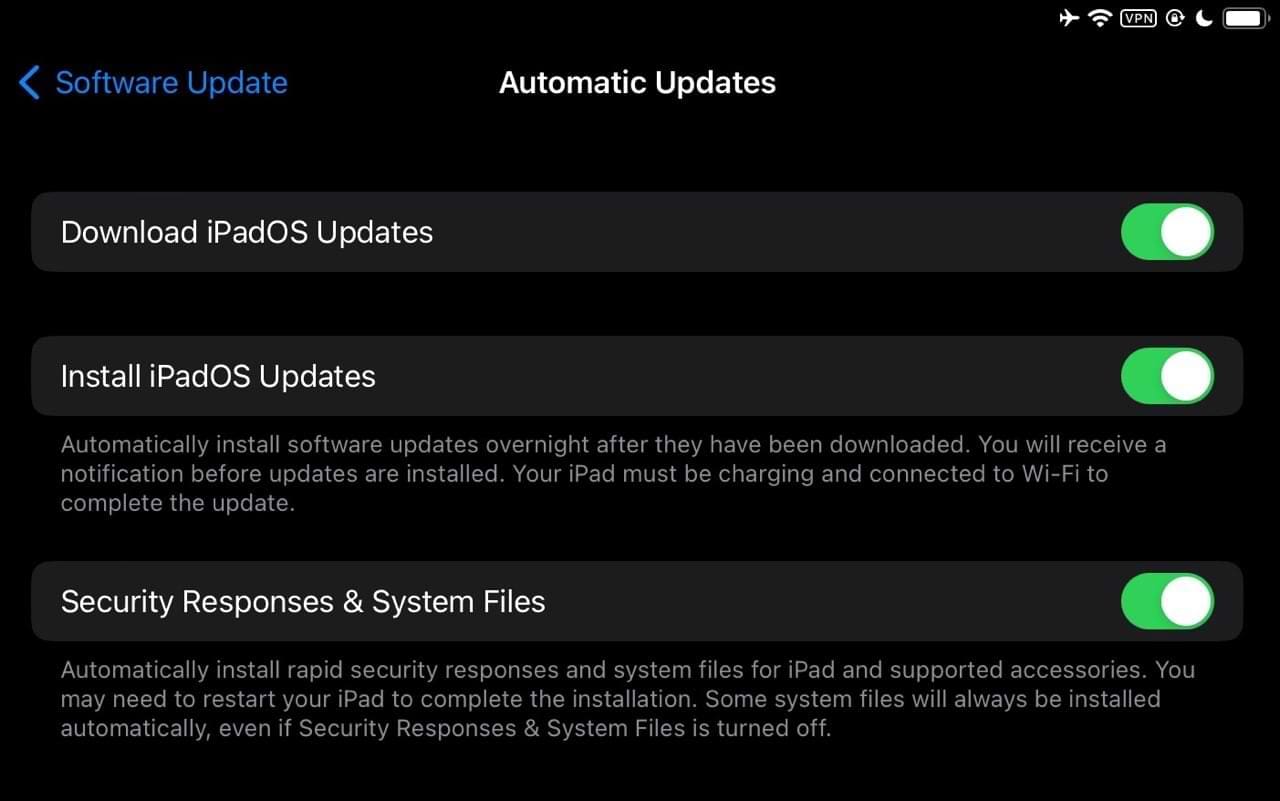
You can also set up automatic updates by following the steps above, but clicking on Automatic Updates and toggling on Download iPadOS Updates and Install iPadOS Updates.
Customizing Home Screen
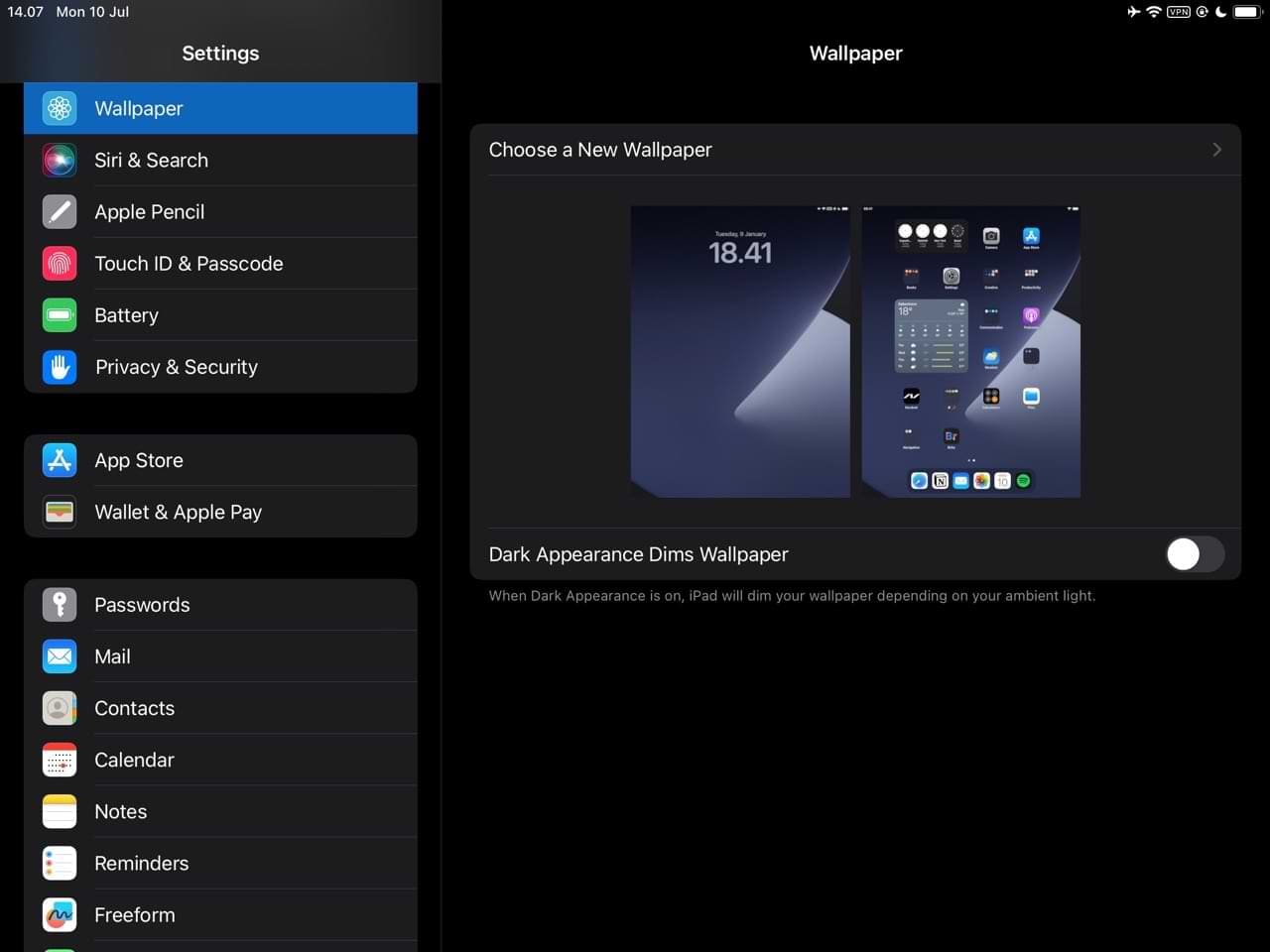
You can customize your iPad home screen in the same way that you would with an iPhone. There are many default wallpapers if you go to Settings > Wallpaper. You can also pick images from your Camera Roll.
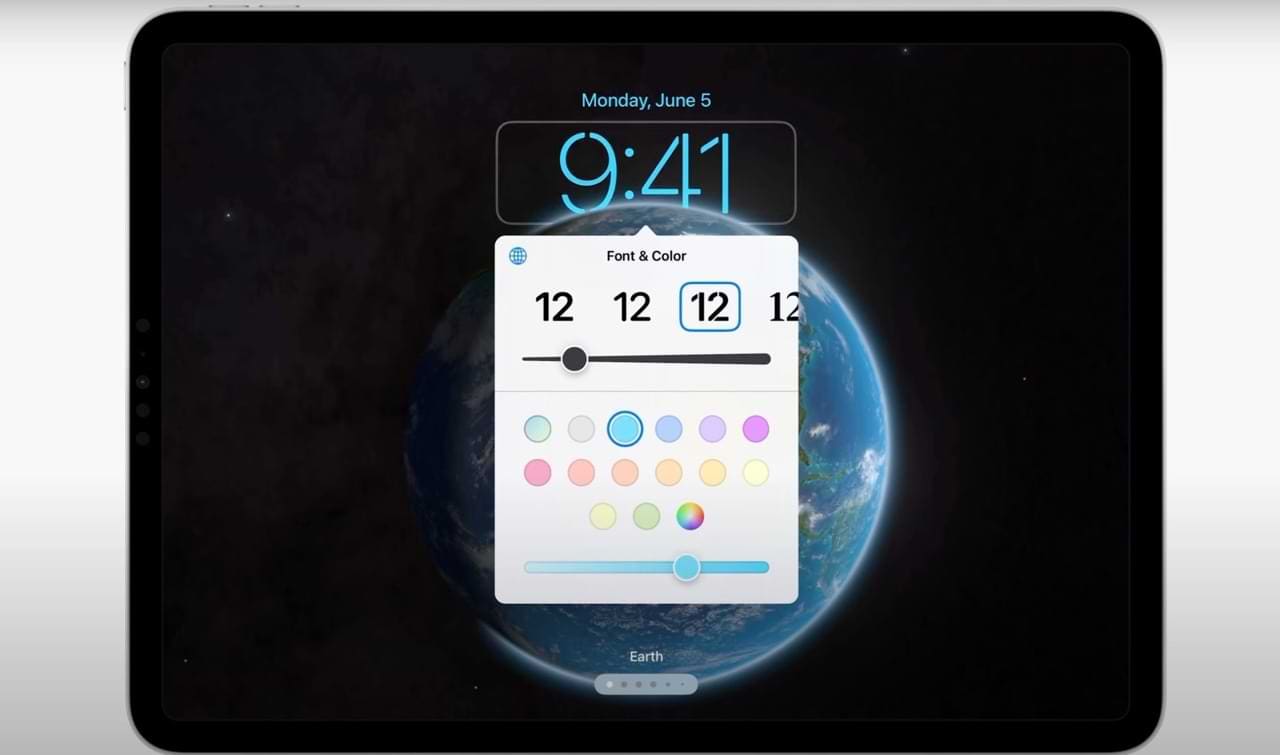
In iPadOS 17, you’ll also be able to customize your home screen by adding lock screen widgets — in addition to choosing a font that matches your personality. You will be able to do this from the same tab in your Settings app. Below is an example of your customization options that Apple showed at WWDC 2023.
WWDC 2023/Apple on YouTube
Get Started With Your iPad
Getting an iPad is exciting, and you’ll love your new device once you get to grips with how it works. But considering that there’s a lot to learn, it’s worth taking a bit of time to learn the basics of using your tablet to its maximum. It’s very similar to an iPhone, but some aspects might be a bit difficult for you to use initially — such as navigating a larger screen.
In this guide, you’ve discovered the basics for using your iPad — from apps to software updates and different buttons. Now, it’s time to start customizing your device.
Danny has been a professional writer since graduating from university in 2016, but he’s been writing online for over a decade. He has been intrigued by Apple products ever since getting an iPod Shuffle in 2008 and particularly enjoys writing about iPhones and iPads. Danny prides himself on making complex topics easy to understand. In his spare time, he’s a keen photographer.









There’s a short cable available: USB-C to USB-A. Can this be used on an iPad Pro to read a Flash Drive?
Hi John,
Possibly. It depends on if you iPad Pro can support the power requirements for your drive. This generally works on iPad Pro models from 2018 onwards.
You should also run the latest software update for iPadOS
my I pad is asking for activation, why…I had it for years..how to get in?
My new iPad I bought with my new 6s will not open simple PDFs files.
My iPhone and computer will open same PDFs files….help
On my iPad, My emails won’t open, instead they just flash
How to inhibit password
I just have a blank screen when I go into the mail app on my ipad