Accidentally saved an Outlook Attachment in the Temp Folder and can’t find or restore it? Do you want to retrieve documents from Outlook? Saved a file in your Outlook Temp folder and now can’t find that Outlook Temp Folder or your file? Tried using Finder with no result? Here is what to do to locate your Outlook Temp Files!
Outlook Mac stores temporary files such as e-mail signatures, opened attachments like images, documents, PDF files, etc., and other e-mail content in the following location(s):
For Older Versions of Office: ~/Library/Caches/TemporaryItems/Outlook Temp
For Office 2016 and higher: /private/var/folders and look inside these folders for com.microsoft.outlook or Outlook Temp
Locate Outlook Temp files on Newer Outlook Versions
Open Finder
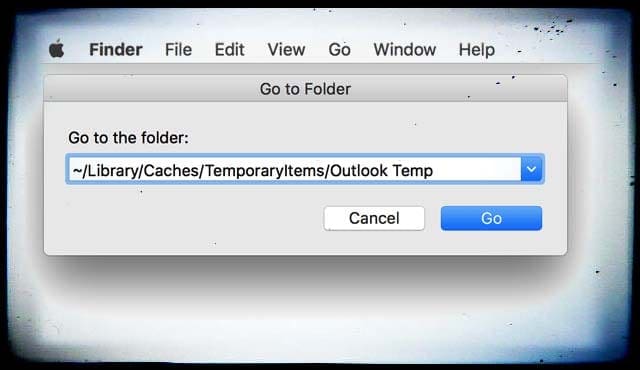
Go to the “GO” drop-down menu and select “Go to Folder…”
Enter /private/var/folders and click go
For /private/var/folders, you need to search within the folder for the com.microsoft.outlook or outlook temp–sometimes it’s inside the b6 or rz folders but often it’s elsewhere!
Search around through various folders after the path /private/var/folders to find Outlook Temp
Some readers find it here: /private/var/folders/b6/w46fh44s2wz53qqvcwhnrz440000gp/T/com.microsoft.Outlook/Outlook Temp
Others found it here: /private/var/folders/rz/2mcg5kq124bcngdy8fk8kk_n3w_jjw/T/com.microsoft.Outlook/TemporaryItems
If the file still isn’t found, repeat this process for the location /private/tmp/
Locate Outlook Temp on Older Outlook Versions
Open Finder
Go to the “GO” drop down menu and select “Go to Folder…”
Enter ~/Library/Caches/TemporaryItems/Outlook Temp
And click go
OR, alternatively
Open Finder
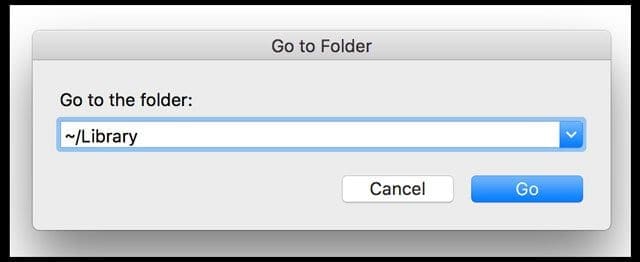
Go to the “GO” drop-down menu and hold down the option (alt) key
The “Library” option appears
Click on “Library” and then you find “Caches” and “TemporaryItems” and finally “Outlook Temp”
Obsessed with tech since the early arrival of A/UX on Apple, Sudz (SK) is responsible for the original editorial direction of AppleToolBox. He is based out of Los Angeles, CA.
Sudz specializes in covering all things macOS, having reviewed dozens of OS X and macOS developments over the years.
In a former life, Sudz worked helping Fortune 100 companies with their technology and business transformation aspirations.
OS Big Sur 11.2.2: Just do it manually opening folders in the following sequence:
[Your] Mac — private — var — folders — 05 — 6qkzjs945bcp8ywnlgx753m0000gn — T — com.microsoft.Outlook — Outlook Temp.
Voilá!
Having melted my brain trying to find Outlook temp folder on Mac Office 365 for hour+, found an elegant way to retrieve files. find an email with an attachment, Open it and click on File, then “Save As” when Outlook Temp Folder pops up. You can see all docs saved to Outlook temp.
Right-click on file you want to retrieve, menu pops up then click on “Move to Trash”
You can then go to Trash Can to retrieve and save to a normal folder.
This avoids searching for Library, temp folders and hunting thru subfolders.
thanks so much. i looked at lots of other suggestions for getting a file out of outlook temp but none worked. i think they were for windows users. i really appreciate the suggestion for mac. i followed your suggestion for the new version of outlook to go to” /private/var/folders” , found the list of folders and then typed “temp” into the search box. that worked immediately! saved me redoing the whole manuscript again!
Just lost 4 hours of work because i saved a Word file as a temporary outlook item. Closed Outlook and file was definitively gone. Spent another hour to find out how to eventually recup the file. No way. This brings me to the following: I was a die hard Mac fan for years, but now I can clearly see where the company’s priorities are – IPhone and ITunes. Apple’s computer OS and desktop/folder/file navigation philosophy are total crap. Microsoft is light years ahead. So my Retina will be the last Mac computer I will ever buy. Never ever again. A totally disappointed user. You have lost a client.
This help does not work for all versions of software combination but it does provide some nice pointers. The key is that Apple tends to hide these files in different places for different versions. To find that location I opened an attachment in outlook. Then I looked at the properties which shows the file location. Then in finder I did what was described in terms of go to folder and copied in that file locations which worked fine.
FYI: With Outlook 2016, images are not found in this cache. (Not sure if this was true of Outlook 2011.) When opening an image from an email the image is placed in /private/var/folders////com.microsoft.Outlook/Outlook Temp/
In my particular case the token values were “jc”, “1k0p6pbd5g98n7qkdwgj2h305h682r”, and “T”. The easiest way to find a particular image was to use find:
After a long long search and help from my friends.
I used the GoTo tool in Finder and typed ~/Library/Caches/TemporaryItems/Outlook Temp.
And it worked!
But why, oh why make it difficult for users ? I will go off Apple products if they keep doing this to us!
I very much appreciate the advice. iPhoto placed several photos of mine in a temp file instead of exporting them to the desktop. I looked for several minutes—-would NEVER have figured it out by myself. thank you!!!!
Apple has made finding this temporary space much more difficult in one of the recent updates to either the Mac OS or Outlook. The Temp folder has moved and I am not sure that the OS does not change the Temp folder over time. Here is how I am able to find the files in the Temp folder:
1. Open the originating document from Outlook and hit Save As. From this, you can find the full path to the temp folder holding subject file (along with the inadvertently saved version).
2. This step requires another app that will allow you to view the hidden files and folders. (I use PathFinder but you also need to “turn on” viewing of hidden files and folders). You need access to the folder called private at the root of the MacHD.
3. Once you have access to the private folder, you can then drill down to the subfolder show in the originating document.
4. Drag the misplaced file to your Desktop and you are ready to go.
One more point. You can “goto” the private folder in Finder. In my particular case (which I assume will not be the same for everyone), here is where the files were located:
/private/var/folders/24/”a very long string starting with kfx…”/T/com.microsoft.Outlook/Outlook Temp
If Apple/MS had intentionally tried to hide these files, they could not have done a better job. In classic Apple file, the rule is “my way or the highway.”
What a complicated way to find a file that should be readily accessible. It cost me a whole day of work. Yes, I too was close to having a fit because my file was lost.
first time I tried it I also got the “file could not be found” message….until I added the little squiggly do-da in front of the /libarary
Does anyone know how to stop Word from doing this in the future? Im using a Macbook Pro and constantly have this issue with files, I press ‘save as’ then hit return (I know, bad habit) and don’t realise it’s saved them as temp files not on the desktop.
Hey Serhat, after having tried other help lines but in vain I could not believe that hitting the hidden ALT key would do THE magic thing. Great job and THANK YOU!
I echo the thanks above. I, too, almost had a heart attack and am now happy and calm, having pushed send on the document I was working on. Much appreciated!!
At 3:30 the morning before a presentation is due, I would just like to say I have never been more grateful for a website in my entire life. Thank you with all of my heart.
Thanks a lot! Very easy and quick fix.
I tried Microsoft Office 365 support first but without success……. The answer I got was that there was no problem…….
This was perfect!
Awesome – thank you!
I don’t know why other sites had much more complicated instructions I couldn’t understand – this was really clear and saved me from having to recreate my edits from scratch!
Excellent directions. Easy to find. I tested the theory after discovering an empty folder today. It must be only very temporary as the document I worked on last night could not be found. I presume when I shut down it cleared all info. Wish I looked for your advice sooner but I’ll know for the future (if I save incorrectly again). Many thanks.
Help!
For a job interview, I was sent 10 questions in a Word doc. I opened it and created a Save as… with a slightly different name. I think it went into the Outlook Temp folder, but I don’t see it there.
I spent too much time crafting my answers, late at night, and now they’re GONE!
Please help.
Thank you so much. I had a really important file with a lot of work on it saved only to Outlook temp. The alternate option was the only one that worked, and I would never have figured this out on my own. Thanks so much!!!!
I did this but see that I don’t have a TemporaryItems sub-folder. I can locate an Outlook Temp folder but it’s empty. If I go into outlook and open an attachment, then select “file save”, it opens an Outlook Temp folder that has lots of files in it. Do you have any idea what’s going on here?
Thank you so much for this article! For a horrible five minutes I thought my file had not been saved, until I realised it was in this hidden directory – having easy instructions to get there reduced my stress significantly.
Phil, I had the same problem as you, and I cannot find the go drop down menu, and I don’t know what other screen you are talking about. Where is that on a new macbook pro? So very frustrated!












OS Big Sur 11.2.2: Just do it manually opening folders in the following sequence:
[Your] Mac — private — var — folders — 05 — 6qkzjs945bcp8ywnlgx753m0000gn — T — com.microsoft.Outlook — Outlook Temp.
Voilá!
Awesome. Thank you so much!! This was really helpful.
Having melted my brain trying to find Outlook temp folder on Mac Office 365 for hour+, found an elegant way to retrieve files. find an email with an attachment, Open it and click on File, then “Save As” when Outlook Temp Folder pops up. You can see all docs saved to Outlook temp.
Right-click on file you want to retrieve, menu pops up then click on “Move to Trash”
You can then go to Trash Can to retrieve and save to a normal folder.
This avoids searching for Library, temp folders and hunting thru subfolders.
Hi John,
Great advice and thinking! We appreciate you paying it forward.
Liz
VERY helpful!! Thanks.
thanks so much. i looked at lots of other suggestions for getting a file out of outlook temp but none worked. i think they were for windows users. i really appreciate the suggestion for mac. i followed your suggestion for the new version of outlook to go to” /private/var/folders” , found the list of folders and then typed “temp” into the search box. that worked immediately! saved me redoing the whole manuscript again!
Just lost 4 hours of work because i saved a Word file as a temporary outlook item. Closed Outlook and file was definitively gone. Spent another hour to find out how to eventually recup the file. No way. This brings me to the following: I was a die hard Mac fan for years, but now I can clearly see where the company’s priorities are – IPhone and ITunes. Apple’s computer OS and desktop/folder/file navigation philosophy are total crap. Microsoft is light years ahead. So my Retina will be the last Mac computer I will ever buy. Never ever again. A totally disappointed user. You have lost a client.
Outlook is a Microsoft product not Apple. I blame Microsoft for making this folder so difficult to find.
I can find the Cache folder, but it does not contain a TemporaryItems sub folder. Does anyone know how to fix this?
You are my actual favourite person right now!
Thanks Reanna, Glad We could assist!
This help does not work for all versions of software combination but it does provide some nice pointers. The key is that Apple tends to hide these files in different places for different versions. To find that location I opened an attachment in outlook. Then I looked at the properties which shows the file location. Then in finder I did what was described in terms of go to folder and copied in that file locations which worked fine.
Gary’s advice is PERFECT. Spent forever wondering why I couldn’t find the Outlook Temp folder. Did what Gary suggested and found it in seconds!!!
FYI: With Outlook 2016, images are not found in this cache. (Not sure if this was true of Outlook 2011.) When opening an image from an email the image is placed in /private/var/folders////com.microsoft.Outlook/Outlook Temp/
In my particular case the token values were “jc”, “1k0p6pbd5g98n7qkdwgj2h305h682r”, and “T”. The easiest way to find a particular image was to use find:
sudo find /private/var/folders -name
Thank you!!!!
Thank you that was really easy to follow and i feel proud i learned something new today!
Thank you!!! I opened a powerpoint from outlook, and could not find it after saving it (and having spent an hour editing it). You saved me!
You are awesome and you saved me ++++
After a long long search and help from my friends.
I used the GoTo tool in Finder and typed ~/Library/Caches/TemporaryItems/Outlook Temp.
And it worked!
But why, oh why make it difficult for users ? I will go off Apple products if they keep doing this to us!
I very much appreciate the advice. iPhoto placed several photos of mine in a temp file instead of exporting them to the desktop. I looked for several minutes—-would NEVER have figured it out by myself. thank you!!!!
Apple has made finding this temporary space much more difficult in one of the recent updates to either the Mac OS or Outlook. The Temp folder has moved and I am not sure that the OS does not change the Temp folder over time. Here is how I am able to find the files in the Temp folder:
1. Open the originating document from Outlook and hit Save As. From this, you can find the full path to the temp folder holding subject file (along with the inadvertently saved version).
2. This step requires another app that will allow you to view the hidden files and folders. (I use PathFinder but you also need to “turn on” viewing of hidden files and folders). You need access to the folder called private at the root of the MacHD.
3. Once you have access to the private folder, you can then drill down to the subfolder show in the originating document.
4. Drag the misplaced file to your Desktop and you are ready to go.
Hope this helps.
One more point. You can “goto” the private folder in Finder. In my particular case (which I assume will not be the same for everyone), here is where the files were located:
/private/var/folders/24/”a very long string starting with kfx…”/T/com.microsoft.Outlook/Outlook Temp
If Apple/MS had intentionally tried to hide these files, they could not have done a better job. In classic Apple file, the rule is “my way or the highway.”
worked great, instructions were easy to follow, most importantly I found the file I thought was lost
Thank you so much, really helpful and easy.
Thank you, you just saved my life.
Thank you! I feared I had lost work and would have to do it again. Much appreciated!
What a complicated way to find a file that should be readily accessible. It cost me a whole day of work. Yes, I too was close to having a fit because my file was lost.
first time I tried it I also got the “file could not be found” message….until I added the little squiggly do-da in front of the /libarary
Thanks for the short cut! Very easy.
Does anyone know how to stop Word from doing this in the future? Im using a Macbook Pro and constantly have this issue with files, I press ‘save as’ then hit return (I know, bad habit) and don’t realise it’s saved them as temp files not on the desktop.
THANK YOU – this was SO easy and I was completely freaking out over my potentially 12 hours of lost information.
Hey Serhat, after having tried other help lines but in vain I could not believe that hitting the hidden ALT key would do THE magic thing. Great job and THANK YOU!
I echo the thanks above. I, too, almost had a heart attack and am now happy and calm, having pushed send on the document I was working on. Much appreciated!!
At 3:30 the morning before a presentation is due, I would just like to say I have never been more grateful for a website in my entire life. Thank you with all of my heart.
You are a big lifesaver. I couldn’t figure out where it was. Thanks so much for sharing
Thanks a lot! Very easy and quick fix.
I tried Microsoft Office 365 support first but without success……. The answer I got was that there was no problem…….
This was perfect!
Thank you. This was as easy as 1-2-3. Great Help…!! Thanks Again.
Awesome – thank you!
I don’t know why other sites had much more complicated instructions I couldn’t understand – this was really clear and saved me from having to recreate my edits from scratch!
Excellent directions. Easy to find. I tested the theory after discovering an empty folder today. It must be only very temporary as the document I worked on last night could not be found. I presume when I shut down it cleared all info. Wish I looked for your advice sooner but I’ll know for the future (if I save incorrectly again). Many thanks.
Help!
For a job interview, I was sent 10 questions in a Word doc. I opened it and created a Save as… with a slightly different name. I think it went into the Outlook Temp folder, but I don’t see it there.
I spent too much time crafting my answers, late at night, and now they’re GONE!
Please help.
Thank you so much. I had a really important file with a lot of work on it saved only to Outlook temp. The alternate option was the only one that worked, and I would never have figured this out on my own. Thanks so much!!!!
Thank you so much!
I did this but see that I don’t have a TemporaryItems sub-folder. I can locate an Outlook Temp folder but it’s empty. If I go into outlook and open an attachment, then select “file save”, it opens an Outlook Temp folder that has lots of files in it. Do you have any idea what’s going on here?
Thank you!!! I was about to throw my computer through the window… Found the files… Thank you… Thank you… :o)
Oh.. my goodness!! thanks a lot!! was almost crying! 7 hours of work!! Thanks
Excellent advice. Many thanks!!!!
Thank you so much for this article! For a horrible five minutes I thought my file had not been saved, until I realised it was in this hidden directory – having easy instructions to get there reduced my stress significantly.
Thank you, thank you. The OS X and Windows Office Documentation or lack thereof was pathetic.
thank you!! you saved me hours of work
THANK YOU ! Saved me much time and work !
this worked – THANK YOU!!!!!!
Thank you, thank you, thank you! Mwah!
Thank you! You saved me an hour of work plus an hour of trying to find the file I had worked on.
I did this and it says file cannot be found. Is there a way to set a preference so it doesn’t do this.
OK I found it – on my other screen at the top – I do not understand why its not kept on the same screen as Finder ….
Phil, I had the same problem as you, and I cannot find the go drop down menu, and I don’t know what other screen you are talking about. Where is that on a new macbook pro? So very frustrated!
I accidently removed all attachments from my email outlook and I dont know how to reverse this. Please help!!
I unfortunately do not have a GO drop down menu. Is there an equivalent on newer versions of Finder?
Fantastically easy – avoided a near heart attach – thanks
You just saved the day. This post was a lifesaver. Thanks so much!
Thank you so much. realy nice 😀
thank you this was so easy. i ‘ve been trying to follow more complicated instructions without success. i was able to do this in 3 seconds. 🙂 sigh.