I use iMessage almost every hour and FaceTime nearly every day. So when I update my iOS or upgrade my device and get the message “Waiting for Activation” when trying to sign in to iMessage or FaceTime, it’s a really big problem!
If you experience similar problems with iMessage or FaceTime not activating or stuck in activation and ask yourself WHY, read on!
We’ve got you covered with our best tips and advice to fix the iMessage waiting-for-activation error on the iPhone.
I know I’m not alone. Quite a few of our readers tell us they too have an issue with FaceTime or iMessage not activating.
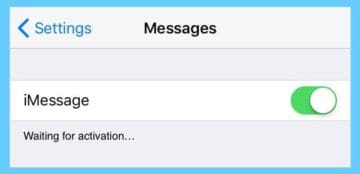
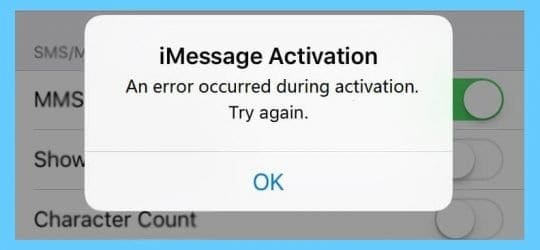
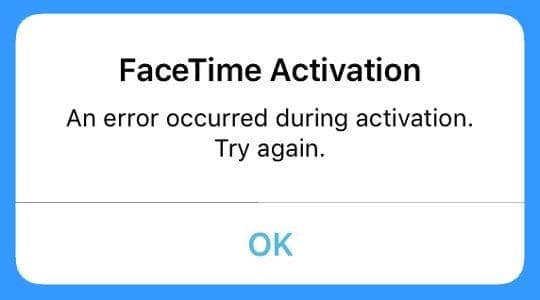
They’re all getting this message Waiting for activation… and after a while, users get this message Activation unsuccessful. Turn on iMessage to try again.
You may see a slightly different message on your device, depending on the iOS version
Please note that activation may take up to 24 hours to complete. Leave iMessage, and FaceTime enabled for this entire period and do not toggle it off and on.
If after 24 hours, iMessage or FaceTime still aren’t working, it pays first to call your mobile phone carriers support team to ensure the problem isn’t on their end.
Are you using an iPhone?
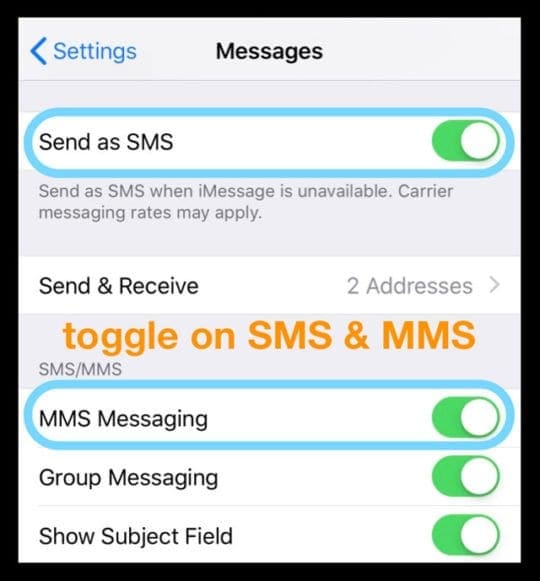
If your iPhone is failing to activate iMessage or FaceTime, make sure you activated SMS messaging on your phone.
Go to Settings > Messages and toggle on MMS Messaging and Send as SMS.
Also, check that your mobile plan includes SMS service. On iPhones, iMessage activates using SMS so it cannot initiate without it.
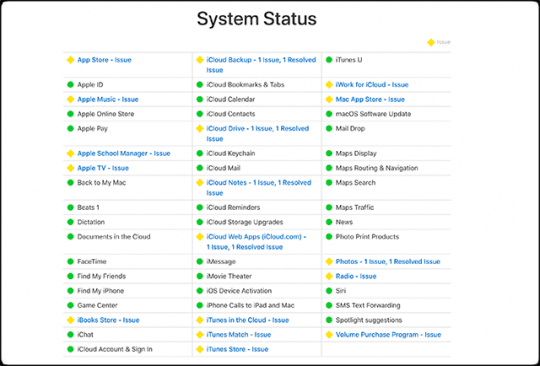
Check Apple’s System Status
Sometimes Apple experiences system issues that impact iMessage and FaceTime, so it’s a good idea to check Apple’s system status and verify that the problem is not on their end.
If there is a system issue, it’s marked in yellow or red. The solution? Wait it out.
How do I fix when FaceTime or iMessage says waiting for activation?
Try each step until you resolve your problem:
Ensure that you are using a valid Apple ID
Make sure that you have a cellular or WiFi data connection
Open iMessage, under the message settings, a pop-up message may appear saying your carrier may charge for SMS messages and select “cancel.”
iMessage activates itself after you have clicked cancel. But this would not fully activate itself. Instead, you activated iMessage via e-mail, so you can only send messages with your e-mail address
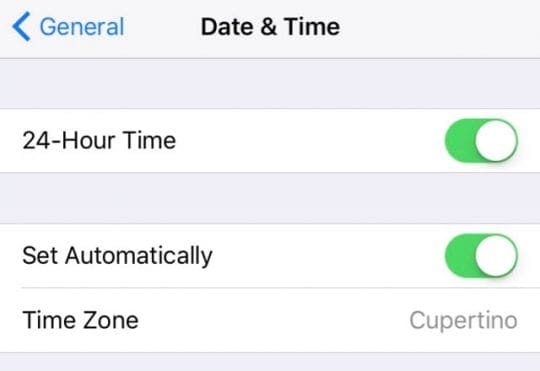
Look at your time and date settings
Make sure you set your date, time, and time zone correctly
Go to Settings > General > Date and Time and make any corrections
Or toggle Set Automatically off and on
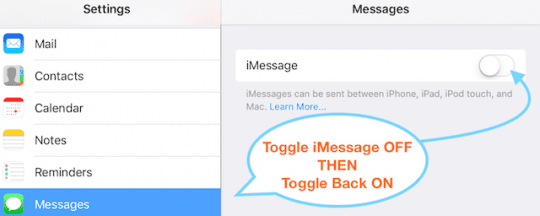
Turn off iMessage and FaceTime services
Toggle iMessage or FaceTime Off, wait 20-30 seconds and then turn it back On.
If that doesn’t work, add a restart before you toggle iMessage or FaceTime back on
Contact your mobile company
Check with your mobile carrier and ensure you have credit on your SIM card, especially for pre-paid plans. If you don’t have any credit, add some money (even a small amount.)
Our readers report that iMessage (and Facetime) will NOT activate without SMS credit on your mobile account!
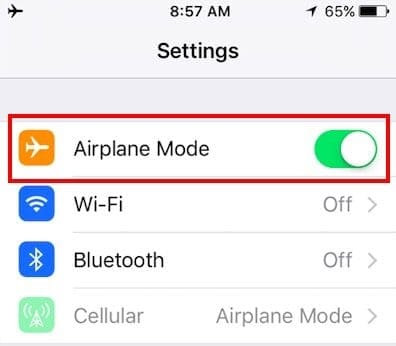
Try Airplane Mode
Toggle Airplane Mode on and off
Restart your device
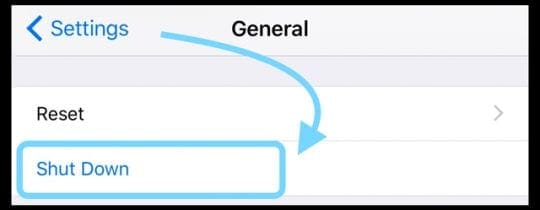
Go to Settings > General > Shut Down
Verify your phone number(s)
Check your phone number. Go to Settings > Phone > My Number. Verify that your number is accurate in My Number and then restart your device
Sign out of your Apple ID in iMessage
Sign out of iMessage via Settings > Messages > Send & Receive and tap your Apple ID to sign out (just of iMessage.)
Once signed out, toggle WiFi off and on
Return to iMessage and toggle it on
Sign in with your Apple ID
Check for any restrictions
Look at Settings > Screen Time > Privacy & Content Restrictions > Account Changes
For iOS 11 and below, General > Restrictions > Accounts
Make sure that you selected “Allow Changes” to enable the FaceTime to work
Reset your network settings
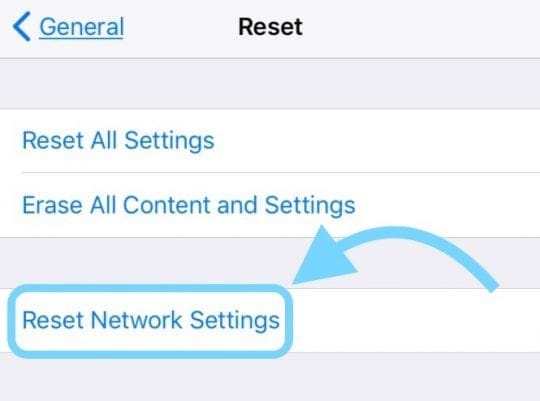
Go to Settings > General > Reset > Reset Network Settings
Try a combination of steps
Several readers tell us that combining a few of the suggested steps worked for them.
Toggle off both iMessage and FaceTime
Turn on Airplane Mode
Turn on WiFi (with Airplane Mode on)
Toggle iMessage back on
Then, toggle on FaceTime
Turn Airplane Mode off
Tap Okay to allow carrier charges (if you see this message)
This fix works particularly well for anyone migrating from a physical SIM Card to an eSIM. And then after that change, they discover that both FaceTime and iMessage stopped working.
Reset all settings
Remove any personalized settings and return to defaults.
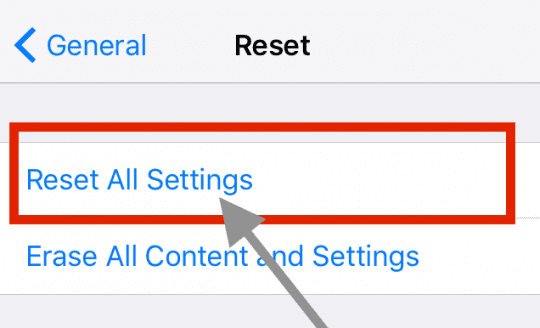
Go to Settings > General > Reset > Reset All Settings
This is usually the last resort since it resets all your personalized features back to factory defaults
It resets to default everything in Settings, including notifications, alerts, brightness, and clock settings like wake up alarms
Resetting all settings also reverts all your personalized and customized features like wallpapers and accessibility settings back to factory defaults.
Performing this action does not impact any of your personal device data, including photos, texts, documents, and other files
You need to reconfigure these settings once your iPhone or iDevice restarts
If the above tips do not help, please try the following (extreme solution)
Reset iPhone to factory settings
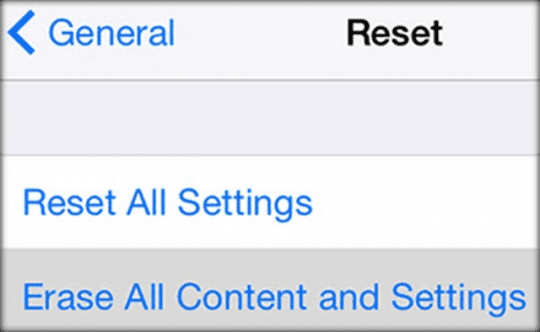
Disable iMessage (Settings > Messages) and back up your device (iTunes or iCloud) and tap Settings > General > Reset and select Erase all content and settings.
This process deletes everything. When iOS setup assistant start, select “Set Up as New iPhone.” Sign in with your Apple ID and then restore your device from your backup.
Are you having problems activating iMessage or FaceTime on a Mac?
Check your Apple ID
Messages: Choose Messages > Preferences> Accounts. Select your iMessage account, then click Sign Out. And sign in again
FaceTime: Choose FaceTime > Preferences > Settings. Tap Sign Out. Then sign in again
Reset your Mac’s NVRAM
Sometimes problems with iMessage and FaceTime are related to the settings your Mac stores in NVRAM. So let’s reset that!
Resetting NVRAM (also called PRAM)
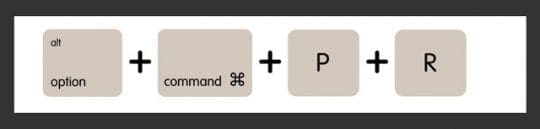
Shut down or restart your Mac, then turn it back on then press and hold these four keys together: Option, Command, P, and R
Release the keys after about 20 seconds or when you hear a second startup chime (dependent on model.) For the iMac Pro, release the keys after the Apple logo appears and disappears a second time
Disable firewalls or third-party security software
If your Mac has a firewall, a VPN, other security programs, or third-party networking software, check that this software isn’t blocking any of the network ports used by iMessage and FaceTime.
Try to temporarily disable that software and see if you can access iMessage or FaceTime.
Most users can set up iMessage and FaceTime on the first try; however, some were not able to do so. Hopefully, these methods help you overcome this activation issue.
Let us know your progress in the comment section below.
And if after all this, FaceTime or iMessage still won’t activate, contact Apple Support.
Reader Tips
I used a combination of steps: 1) toggle off both iMessage and FaceTime. 2) Turn on Airplane Mode. 3) Turn on WiFi (with Airplane Mode on.) 4) Toggle on iMessage and then FaceTime, in that order. 4) Turn Airplane mode off. 5) Tap Okay for allowing carrier charges. That did the job!
If you have another iPhone (or can borrow someones for a few minutes), take your iPhone’s SIM card out, put it in the other iPhone and tap Reset All Settings. Make sure the other person knows you’re doing this and get their permission! It doesn’t erase any data but returns any customized settings to their defaults. It worked for me!
For me what worked was a combination of adding credit AND turning Airplane Mode on and off
Adding some additional credit for a total positive account balance for my prepaid iPhone fixed the problem for me
I took out my iPhone’s SIM and put it in my old iPhone. Then on the old iPhone chose to Erase All Content and Settings–worked like a charm to get iMessage and FaceTime back working on my NEW iPhone!
Obsessed with tech since the early arrival of A/UX on Apple, Sudz (SK) is responsible for the original editorial direction of AppleToolBox. He is based out of Los Angeles, CA.
Sudz specializes in covering all things macOS, having reviewed dozens of OS X and macOS developments over the years.
In a former life, Sudz worked helping Fortune 100 companies with their technology and business transformation aspirations.
I have tired every singles steps you listed out but none worked to activate my iMessage and FaceTime with my phone number. I don’t want to be using my email address to send and receive messages through iMessage. What else can I do?
This is method is for those who want to get back chatting on iMessages real quick.
-Open a new Apple ID
– On the IMessage activation menu, select login with other Apple ID
– Boom, you are now on though using a different account, remember you can do this as you try out the other methods hence communication continues.
Please inform if this was helpful
I would like to extend my gratitude to this article, which helped me to solve FaceTime waiting for activation happened on my iPhone several days ago. Besides, I think contacting the Apple store for reparation is also a good way. Finally, I was told that using ios system repair tools such as TunesKit iOS System Repair can also do the trick. In conclusion, this post is much helpful.
Thanks for this. Worked for me when I migrated my mobile Apple iPhone Xs from a physical SIM to an eSIM and iMessage stopped working.
What worked for me was a combination of steps: 1) toggle off both iMessage and FaceTime. 2) Turn on Airplane Mode. 3) Turn on WiFi (with Airplane Mode on.) 4) Toggle on iMessage and then FaceTime, in that order. 4) Turn Airplane mode off. 5) Tap Okay for allowing carrier charges. That did the job
Went thru this whole process several times with apple an our carrier over the last several months.
Turns out the issue was someone turned the number in as spam.
Phone was used this summer to text several hundred people of a function.
One of those numbers turned the phone in as spam.
Which went thru the channels an Apple noticed a lock.
This last phone call with Apple actually took 1 hour an 52 minutes.
Stayed online with on another phone while updating the troubled phone first
then going thru a lengthy process of diagnosis.
Good luck out there!
I spent 3 weeks trying to resolve this exact problem. I ignored Apple support prompting me to upgrade your iOS. Reset all settings and Restore etc. I could not bare to go down that path knowing it’s something stupid. Especially since my iMessage had worked previously with my phone number (without SMS credit) for over 2 years.
Turns out, one of the first steps you should do when encountering this issue, is to:
*Double check you actually have credit on your SIM card (that allows you to send a real SMS)*.
Prepaid Data only SIM plans are a gotcha here!
iMessage (or Facetime) will NOT activate without ‘SMS credit’ on your mobile account!
I’ve not seen this advice ever offered by any website in all my research (and i did look hard), and Apple doesn’t mention or re-iterate this fact either.
Thank you for pointing this out–and for doing all the research and testing to discover it! We really appreciate you sharing it with us and will add it to our reader tips. It’s sure to help a lot of other folks out!
Can you not use FaceTime or iMessage on a MacBook without an iPhone, iPad or iPod? We just have a MacBook and want to FaceTime from there only, via wifi.
Absolutely! You do not need an iPhone to use FaceTime or iMessage. Macs FaceTime (and iMessage) very well. You need an Apple ID and password if you don’t have one already (you can always create a new Apple ID on your Mac using Safari)
After you have your Apple ID and password, open FaceTime or iMessage and sign in using that Apple ID. If you have two-step or two-factor authentication turned on for your Apple ID, enter your verification code. If it’s already connected to an account and you want to change it, go to FaceTime (or Messages) > Preferences > Accounts in the upper menu bar and update your Apple ID credentials.
The only caveat is that FaceTime and iMessage works only with folks using other Apple devices–iPhones, iPads, Macs, and iPods. You cannot FT or iMessage with Windows, Android, and other non-Apple operating systems.
Hey my iMessages and FaceTime won’t activate or let me sign in my iCloud and yes I have a good WiFi connection because I have to used WiFi so I can iMessage ppl because my phone turned off
I have iPad mini 3 wifi and imessage is working fine with me, the problem i can’t activate facetime using same apple id used for iMessage! It’s always showing “unable to contact FaceTime server”
Any suggestions?
The easiest way and always work is to turn off MMS Messaging before you activate the iMessgaes, try it, its easy don’t have to try step above, I hope this tip helps you all.
Didn’t work is anyone doing class action lawsuit I’d like to sign up as I purchased this apple iPad to FaceTime and iMessage family and nothing is working despite so called apple care and support it’s been three months now and they have done nothing
I had the same problem activating iMessage on my iPad after I did a restore on my iPhone. I tried ALL the solutions outlined here and various other boards. What finally worked for me was making sure I was signed in using the SAME email address on all devices (iMac, iPhone and iPad). I have an @icloud.com, @mac.com and @me.com email address and thought these were all interchangeable, but they are not. Make sure that whatever of these is listed as your PRIMARY email address that you are signed in for iCloud is the one you use for iMessage.
Hi my iMessage on my iPod 5 will not let me sign in. Everytime I try to sign in it says FaceTime activation failed. I have tried everything in the book. I’ve reset my network settings I’ve restarted my iPod I’ve signed out of all my apple accounts (iCloud iTunes e.t.c.) I’ve even made a new password for my Apple ID and nothing works. If someone could please give me a solution that would be greatly appreciated.
my son’s iPhone has restrictions on so he does not make any changes to settings … when he went from the bay area to Minnesota the date changed automatically on the phone that through it off synch with the phone settings. The iMessage and face time when off automatically and couldn’t turn it on (greyed out) because i had on the restrictions ‘don’t allow changes’ … quick solution: go to General / Restrictions / accounts and ‘allow changes’ then make the change on imessage by turning it on and go back and set restriction to ‘not allow changes’ again to keep your child form making setting changes.
Solution = Get rid of them; I know it hurts after all that money, but trust me! it’s worth it. I bought an unlocked iPhone which cost me a fortune and moved overseas and all around me my family and friends use android samsungs that cost 15% of what my iphone did and work ten times better and faster ! What can I say …
By the way Brian, using the word retards for Apple support is an insult to all the retards on the planet.
My iMessage and FaceTime stopped working .. It won’t authorize. When it starts to work again, will I still get the messages that people sent me while iMessage was done?
Make sure that you are using the correct APPLE ID and PASSWORD!!!!
go to https://www.icloud.com/ and sign in. If you sign in successfully and you are using this for iMessage then you should just call apple and have their retards walk you through the issue.
If you are not able to sign into iCloud then there is your problem. Change your password or get the correct APPLE ID which is associated with your password.
apple your imessage is a joke. Fix the bugs. Going to go to the samsung 3 avoid all this frustration and be able to contact anyone with a different smart phone.. Hmmmm Smartphone Hmmmmmm Iphone not so smart….
I had the same problem with locked Sprint Iphone 5. Im using R-SIM7 for unlock and couldn’t activate my phone, sms, 3G, imessages and facetime wasn’t working(Waiting for activation). Long story short, I managed to fix:
1. To fix this you need to jailbreak with evasi0n and download iFile from cydia(or you can just use ifunbox).
2.Go to (CarrierLab.bundle or 00101 folder) /System/Library/Carrier Bundles/iPhone/00101/carrier.plist
-back up the file carrier.plist (just in case)
Go to the following line and add +011 so it looks like +011447786205094
4.Now go to /System/Library/Carrier Bundles/iPhone/*carrier that your phone is locked to*/carrier.plist
Find SMS perfix under international and delete “011” value so it looks like
SAVE
5. To fix 3G go to /System/Library/Carrier Bundles/iPhone/Unknown.bundles/carrier.plist find SIMs and copy all those “xxxxx” number from there and now go to /System/Library/Carrier Bundles/iPhone/*carrier that your phone is locked to*/carrier.plist4. and find this line intldataroamingallowed *paste here*
SAVE then reboot.
If 3G still not working change to correct APN using unlockit.co.nz
My iMessage shows another phone number other than mine. Can not get it to show my number it shows a totally different number and I can not get it to work. I have tried every ones ideas and nothing.. HELP
After trying the above, and getting rather annoyed, I called my service provider (o2 uk) and they gave me a code to input to the dialler. Texts, and iMessage and FaceTime seem to work as they should afterwards. apparently iPhones on pay and go keep forgetting this code and it has to be input occasionally when text messages stop sending.
Hope that helps anyone else before they get too frustrated.
It worked after I signed out of my apple Id.
Step 1 go to settings
Step 2 go to messages
Step 3 touch n e of the settings n turn it off. Just not the activation one
Step 4 it should now say where ur receiving it from click it and if u have a phone and or email (s) it’ll pop up
Step 5 click sign out of account
Step 6 sign back in
It should work then cuz I’ve tried everything everyone else said n nothing.
Btw I have an iphone4
Sorry if I wasted ur time n didn’t help.
Just bought a second hand iPhone, my iMessage wouldn’t work. I don’t have a SIM card or service yet, but after I turned iMessage off and then back on again it started working.
My iMessages come through with my email address instead of my phone number, and FaceTime still doesn’t work yet.
I assume that will all clear up when I activate service.
I was having the same problem with my phone not sending iMessages (iphone 4S), so I went into settings > messages and turned on iMessages. It still gave me that error message, but I left iMessages on and now I’m sending texts as iMessages and not SMS. Just dismiss the error message in settings, leave iMessage on, and continue on your way. See if that helps!
got my new ipad 3 and i cant activate my imessage.theres no turn off/on botton just asking to sign in my apple id but everytime i try to sign in it says could not sign in.please check your network connection and try again.wat should i do ?help…
This surprisingly worked for me! I went to iMessage in settings and clicked on send and receive at… then I signed out of my apple ID. After, I turned off and on iMessage. While that was attempting to activate, I reset my network settings. Once it reset, I got a bunch of messages that I hadn’t received before and checked iMessage and it was finally activated! Hopefully this helps someone else to.
My face time just disappeared, and I tried to turn ‘on’ at FaceTime, it says varifing my phone, but each occasion it is unsuccessful. All other emails for FaceTime were varified, but not my phone #. Any suggestions to fix this crap will be appreciated. Thanks!
Guys, there is only ONE solution for this problem, if you are using a wifi network it must be superfast, you must be near the router so it can work, otherwise you will need a constant 3 G network connection 🙂
DUDE i have a 4G wifi network but still when i sign in, it does from the sign in screen to the verification screen then goes back to the sign in screen in less than 3 seconds…HELP!















I am on Google not Toggle pl My FaceTime inbuilt Apple App has got deactivated pl
I have tired every singles steps you listed out but none worked to activate my iMessage and FaceTime with my phone number. I don’t want to be using my email address to send and receive messages through iMessage. What else can I do?
It’s hard for activation of my Apple ID what will I do
This is method is for those who want to get back chatting on iMessages real quick.
-Open a new Apple ID
– On the IMessage activation menu, select login with other Apple ID
– Boom, you are now on though using a different account, remember you can do this as you try out the other methods hence communication continues.
Please inform if this was helpful
I would like to extend my gratitude to this article, which helped me to solve FaceTime waiting for activation happened on my iPhone several days ago. Besides, I think contacting the Apple store for reparation is also a good way. Finally, I was told that using ios system repair tools such as TunesKit iOS System Repair can also do the trick. In conclusion, this post is much helpful.
Tried everything not helpful
Thanks for this. Worked for me when I migrated my mobile Apple iPhone Xs from a physical SIM to an eSIM and iMessage stopped working.
What worked for me was a combination of steps: 1) toggle off both iMessage and FaceTime. 2) Turn on Airplane Mode. 3) Turn on WiFi (with Airplane Mode on.) 4) Toggle on iMessage and then FaceTime, in that order. 4) Turn Airplane mode off. 5) Tap Okay for allowing carrier charges. That did the job
Went thru this whole process several times with apple an our carrier over the last several months.
Turns out the issue was someone turned the number in as spam.
Phone was used this summer to text several hundred people of a function.
One of those numbers turned the phone in as spam.
Which went thru the channels an Apple noticed a lock.
This last phone call with Apple actually took 1 hour an 52 minutes.
Stayed online with on another phone while updating the troubled phone first
then going thru a lengthy process of diagnosis.
Good luck out there!
I spent 3 weeks trying to resolve this exact problem. I ignored Apple support prompting me to upgrade your iOS. Reset all settings and Restore etc. I could not bare to go down that path knowing it’s something stupid. Especially since my iMessage had worked previously with my phone number (without SMS credit) for over 2 years.
Turns out, one of the first steps you should do when encountering this issue, is to:
*Double check you actually have credit on your SIM card (that allows you to send a real SMS)*.
Prepaid Data only SIM plans are a gotcha here!
iMessage (or Facetime) will NOT activate without ‘SMS credit’ on your mobile account!
I’ve not seen this advice ever offered by any website in all my research (and i did look hard), and Apple doesn’t mention or re-iterate this fact either.
Hi Dirty Mouse,
Thank you for pointing this out–and for doing all the research and testing to discover it! We really appreciate you sharing it with us and will add it to our reader tips. It’s sure to help a lot of other folks out!
Awesome,
SK
My FaceTime is restricted how to can i fix it please help me Sir.
Hi Naeem,
If you remember your restrictions passcode, go to Settings > General > Restrictions and disable it. Enter your restrictions passcode.
If you do not remember your restrictions passcode, please see this article and navigate to the section “Forget Your Restrictions Password?”
SK
Can you not use FaceTime or iMessage on a MacBook without an iPhone, iPad or iPod? We just have a MacBook and want to FaceTime from there only, via wifi.
Hi Cindy,
Absolutely! You do not need an iPhone to use FaceTime or iMessage. Macs FaceTime (and iMessage) very well. You need an Apple ID and password if you don’t have one already (you can always create a new Apple ID on your Mac using Safari)
After you have your Apple ID and password, open FaceTime or iMessage and sign in using that Apple ID. If you have two-step or two-factor authentication turned on for your Apple ID, enter your verification code. If it’s already connected to an account and you want to change it, go to FaceTime (or Messages) > Preferences > Accounts in the upper menu bar and update your Apple ID credentials.
The only caveat is that FaceTime and iMessage works only with folks using other Apple devices–iPhones, iPads, Macs, and iPods. You cannot FT or iMessage with Windows, Android, and other non-Apple operating systems.
Enjoy it!
SK
Hey my iMessages and FaceTime won’t activate or let me sign in my iCloud and yes I have a good WiFi connection because I have to used WiFi so I can iMessage ppl because my phone turned off
I have iPad mini 3 wifi and imessage is working fine with me, the problem i can’t activate facetime using same apple id used for iMessage! It’s always showing “unable to contact FaceTime server”
Any suggestions?
The easiest way and always work is to turn off MMS Messaging before you activate the iMessgaes, try it, its easy don’t have to try step above, I hope this tip helps you all.
Didn’t work is anyone doing class action lawsuit I’d like to sign up as I purchased this apple iPad to FaceTime and iMessage family and nothing is working despite so called apple care and support it’s been three months now and they have done nothing
DO NOT GIVE UP! KEEP TRYING. TRY THE STEPS, KEEP TURNING OFF AND ON YOUR IPAD DISABLE WIFI CONNECTION AND CONNECT TO WIFI AGAIN.
I had the same problem activating iMessage on my iPad after I did a restore on my iPhone. I tried ALL the solutions outlined here and various other boards. What finally worked for me was making sure I was signed in using the SAME email address on all devices (iMac, iPhone and iPad). I have an @icloud.com, @mac.com and @me.com email address and thought these were all interchangeable, but they are not. Make sure that whatever of these is listed as your PRIMARY email address that you are signed in for iCloud is the one you use for iMessage.
thanks for the information and steps i followed it and it works thank you so much.
Hi my iMessage on my iPod 5 will not let me sign in. Everytime I try to sign in it says FaceTime activation failed. I have tried everything in the book. I’ve reset my network settings I’ve restarted my iPod I’ve signed out of all my apple accounts (iCloud iTunes e.t.c.) I’ve even made a new password for my Apple ID and nothing works. If someone could please give me a solution that would be greatly appreciated.
my son’s iPhone has restrictions on so he does not make any changes to settings … when he went from the bay area to Minnesota the date changed automatically on the phone that through it off synch with the phone settings. The iMessage and face time when off automatically and couldn’t turn it on (greyed out) because i had on the restrictions ‘don’t allow changes’ … quick solution: go to General / Restrictions / accounts and ‘allow changes’ then make the change on imessage by turning it on and go back and set restriction to ‘not allow changes’ again to keep your child form making setting changes.
Brian is absolutely right.
Pproblem = iPhone & Apple
Solution = Get rid of them; I know it hurts after all that money, but trust me! it’s worth it. I bought an unlocked iPhone which cost me a fortune and moved overseas and all around me my family and friends use android samsungs that cost 15% of what my iphone did and work ten times better and faster ! What can I say …
By the way Brian, using the word retards for Apple support is an insult to all the retards on the planet.
My iMessage and FaceTime stopped working .. It won’t authorize. When it starts to work again, will I still get the messages that people sent me while iMessage was done?
i have an iphone 4s but i dont have a sim card non of my messages are delivering even when i have wifi help!!!!!!!!!!!!!!!!!!!!!!!!!!!!!!!!!!!!!!!
Guys I hav my dads old iPhone 5s and it’s connected to wifi I did everything but it didn’t work
The problem is that you bought and iPhone.
Make sure that you are using the correct APPLE ID and PASSWORD!!!!
go to https://www.icloud.com/ and sign in. If you sign in successfully and you are using this for iMessage then you should just call apple and have their retards walk you through the issue.
If you are not able to sign into iCloud then there is your problem. Change your password or get the correct APPLE ID which is associated with your password.
Good Hunting
I meant associates with you email.
Non of this works and it so damn annoying oh and wiping my phone is not an option
apple your imessage is a joke. Fix the bugs. Going to go to the samsung 3 avoid all this frustration and be able to contact anyone with a different smart phone.. Hmmmm Smartphone Hmmmmmm Iphone not so smart….
I had the same problem with locked Sprint Iphone 5. Im using R-SIM7 for unlock and couldn’t activate my phone, sms, 3G, imessages and facetime wasn’t working(Waiting for activation). Long story short, I managed to fix:
1. To fix this you need to jailbreak with evasi0n and download iFile from cydia(or you can just use ifunbox).
2.Go to (CarrierLab.bundle or 00101 folder) /System/Library/Carrier Bundles/iPhone/00101/carrier.plist
-back up the file carrier.plist (just in case)
Go to the following line and add +011 so it looks like +011447786205094
PhoneNumberRegistrationGatewayAddress+011447786205094
SAVE
3.Now go to /System/Library/Carrier Bundles/iPhone/Unknown.bundles/carrier.plist
ADD -> “+011” To all the 10 numbers you see.
PhoneNumberRegistrationGatewayAddress+011447537410207
SAVE
4.Now go to /System/Library/Carrier Bundles/iPhone/*carrier that your phone is locked to*/carrier.plist
Find SMS perfix under international and delete “011” value so it looks like
SAVE
5. To fix 3G go to /System/Library/Carrier Bundles/iPhone/Unknown.bundles/carrier.plist find SIMs and copy all those “xxxxx” number from there and now go to /System/Library/Carrier Bundles/iPhone/*carrier that your phone is locked to*/carrier.plist4. and find this line intldataroamingallowed *paste here*
SAVE then reboot.
If 3G still not working change to correct APN using unlockit.co.nz
Hope this helps anyone having the same issues.
The facetime is missing in my settings page iphone 5
This is stupid it does not work BOO!!!!
Problem fixed! What you need to do is go to Settings > FaceTime > Apple ID: *** > View Account. After you have sign in, FaceTime should be working!
me 2 imessage dosnt work 🙁
My iMessage shows another phone number other than mine. Can not get it to show my number it shows a totally different number and I can not get it to work. I have tried every ones ideas and nothing.. HELP
After trying the above, and getting rather annoyed, I called my service provider (o2 uk) and they gave me a code to input to the dialler. Texts, and iMessage and FaceTime seem to work as they should afterwards. apparently iPhones on pay and go keep forgetting this code and it has to be input occasionally when text messages stop sending.
Hope that helps anyone else before they get too frustrated.
It worked after I signed out of my apple Id.
Step 1 go to settings
Step 2 go to messages
Step 3 touch n e of the settings n turn it off. Just not the activation one
Step 4 it should now say where ur receiving it from click it and if u have a phone and or email (s) it’ll pop up
Step 5 click sign out of account
Step 6 sign back in
It should work then cuz I’ve tried everything everyone else said n nothing.
Btw I have an iphone4
Sorry if I wasted ur time n didn’t help.
Just bought a second hand iPhone, my iMessage wouldn’t work. I don’t have a SIM card or service yet, but after I turned iMessage off and then back on again it started working.
My iMessages come through with my email address instead of my phone number, and FaceTime still doesn’t work yet.
I assume that will all clear up when I activate service.
Thanks it worked for me, just after I restarted my phone
I was having the same problem with my phone not sending iMessages (iphone 4S), so I went into settings > messages and turned on iMessages. It still gave me that error message, but I left iMessages on and now I’m sending texts as iMessages and not SMS. Just dismiss the error message in settings, leave iMessage on, and continue on your way. See if that helps!
got my new ipad 3 and i cant activate my imessage.theres no turn off/on botton just asking to sign in my apple id but everytime i try to sign in it says could not sign in.please check your network connection and try again.wat should i do ?help…
It also worked for me…just sign out from your apple ID in the message setting…then enable/on your iMessage back…
This surprisingly worked for me! I went to iMessage in settings and clicked on send and receive at… then I signed out of my apple ID. After, I turned off and on iMessage. While that was attempting to activate, I reset my network settings. Once it reset, I got a bunch of messages that I hadn’t received before and checked iMessage and it was finally activated! Hopefully this helps someone else to.
Where do you see “send and receive at…” I don’t even have that under messages? Is it an Ipad thing? I’m having the problem with my iPhone
It worked for me also!’n thank you so much
This totally worked!! Thank you
My face time just disappeared, and I tried to turn ‘on’ at FaceTime, it says varifing my phone, but each occasion it is unsuccessful. All other emails for FaceTime were varified, but not my phone #. Any suggestions to fix this crap will be appreciated. Thanks!
None of these worked. I think the server is down, that’s the problem.
It does not work who wrote this lie it does not work and come up with a new idea
I’m having the same problem.
I’d love to hear if anybody finds a fix!!!
None of this stuff worked for me. I’m so annoyed /: I’ve tried absolutely everything! And resetting my phone is NOT an option!
This didn’t work either way, on my network over the phone or even wiping out all my settings??
What’s next?
Guys, there is only ONE solution for this problem, if you are using a wifi network it must be superfast, you must be near the router so it can work, otherwise you will need a constant 3 G network connection 🙂
DUDE i have a 4G wifi network but still when i sign in, it does from the sign in screen to the verification screen then goes back to the sign in screen in less than 3 seconds…HELP!
Me too! Anyone.. HELP!!
It didn’t help me!!!! 🙁
non of the above listed procedures worked for me.
my imessage still shows my old no.
Yes I Wish It Will Work But I Don’t Care No More Because On Christmas I Get My Iphone On ❤️
Hel me pls. How to activate facetime and imessage for my ipad mini