Screen Time is a useful tool for keeping track of your app and website usage, and you can make decisions that you feel are necessary based on that data. For example, you can set limits to stop you from spending so much time on social media if you feel like you currently do.
Sometimes, you might notice that an app shows up on your Screen Time summary – even if you haven’t downloaded it. Why is this the case, then? More importantly, what can you do to fix the issue? Keep reading, and you’ll discover the answers to both of these questions.
Why Do Apps I Haven’t Downloaded Show Up in Screen Time?
Before we identify how you can fix the problem associated with non-downloaded apps appearing in Screen Time, it’s worth finding out why you’re even experiencing the issue in the first place. In the sub-sections below, you’ll discover all the useful information that you need.
Glitches
One of the most common reasons why you may see apps that you haven’t downloaded in Screen Times is due to glitches with your iPhone. When you delete an app, for example, your device might take a bit of time to reflect these changes. With that in mind, it’s very possible that you still see the recently-deleted app in your Screen Time summary after removing it.
Generally speaking, this issue should solve itself within a few hours at most. And often, you won’t even need to wait that long.
In your Screen Time summary, you might also see apps that you haven’t downloaded if one of the developers for another of your apps has shared hosting storage. You may experience this issue when you use apps that are part of a larger conglomerate, for example.
Family Sharing
Many households use Family Sharing to ensure that their children are using their Apple devices responsibly. As you and your kids will probably have different interests, you’ll naturally have different apps on your iPhone, iPad, or Mac.
If you see apps that you don’t have on your devices in Screen Time, it could be something that someone else has on theirs.
You Might Have Downloaded the App, But Forgotten About It
Apple has, in recent years, made it easier to limit your app usage in many ways. One of the best tools you can use in this respect is to remove apps from your home screen. When doing this, you might have forgotten about it if you haven’t used it in a while.
In such instances, it might surprise you why you see a specific app within Screen Time – and we’ll show you how to determine whether this is the case later in our guide.
How to Stop Apps You Haven’t Downloaded From Showing Up in Screen Time
Now that you understand some of the reasons why you might see an app that hasn’t been downloaded appearing in your Screen Time summary, let’s identify what you can do to fix the problem.
Close and Reopen Screen Time
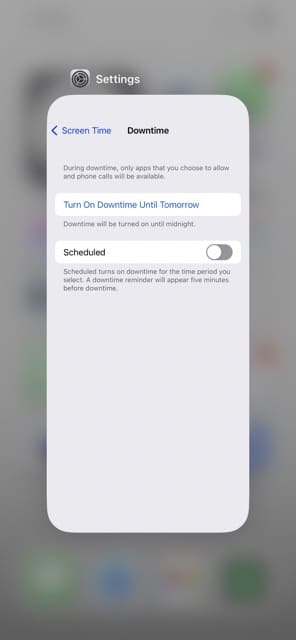
The easiest thing you can do to fix this issue, especially if you’ve recently deleted an app, is to close and reopen Screen Time on your device.
If you have an iPhone without a home button:
Swipe up from the bottom of your screen.
Swipe to remove the Settings app when your list of apps shows up.
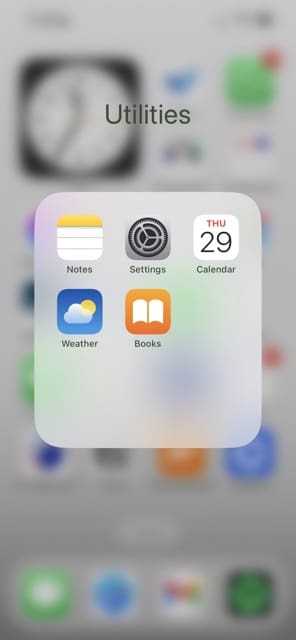
Go into Screen Time again by choosing Settings > Screen Time.
Click on See All Activity to find out if the app is no longer there.
For iPhone users with a home button, you’ll need to double-tap the home button on your device. After that, the steps are identical to if you had a newer iPhone.
Check Your Family Sharing Settings
It can be hard to verify if an app is showing up because someone else in Family Sharing has downloaded and used it, but you can check your shared subscriptions as a possible pointer.
Here’s how to check that particular feature:
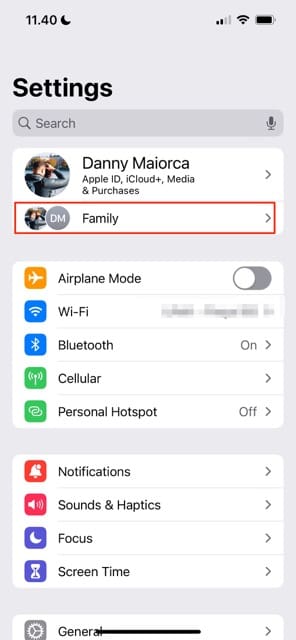
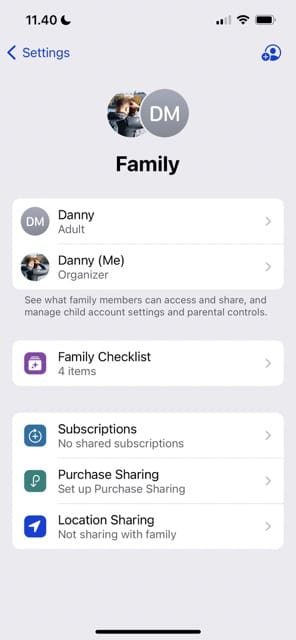
Open the Settings app and click on Family under your Apple ID name.
Tap the other people’s names in your family.
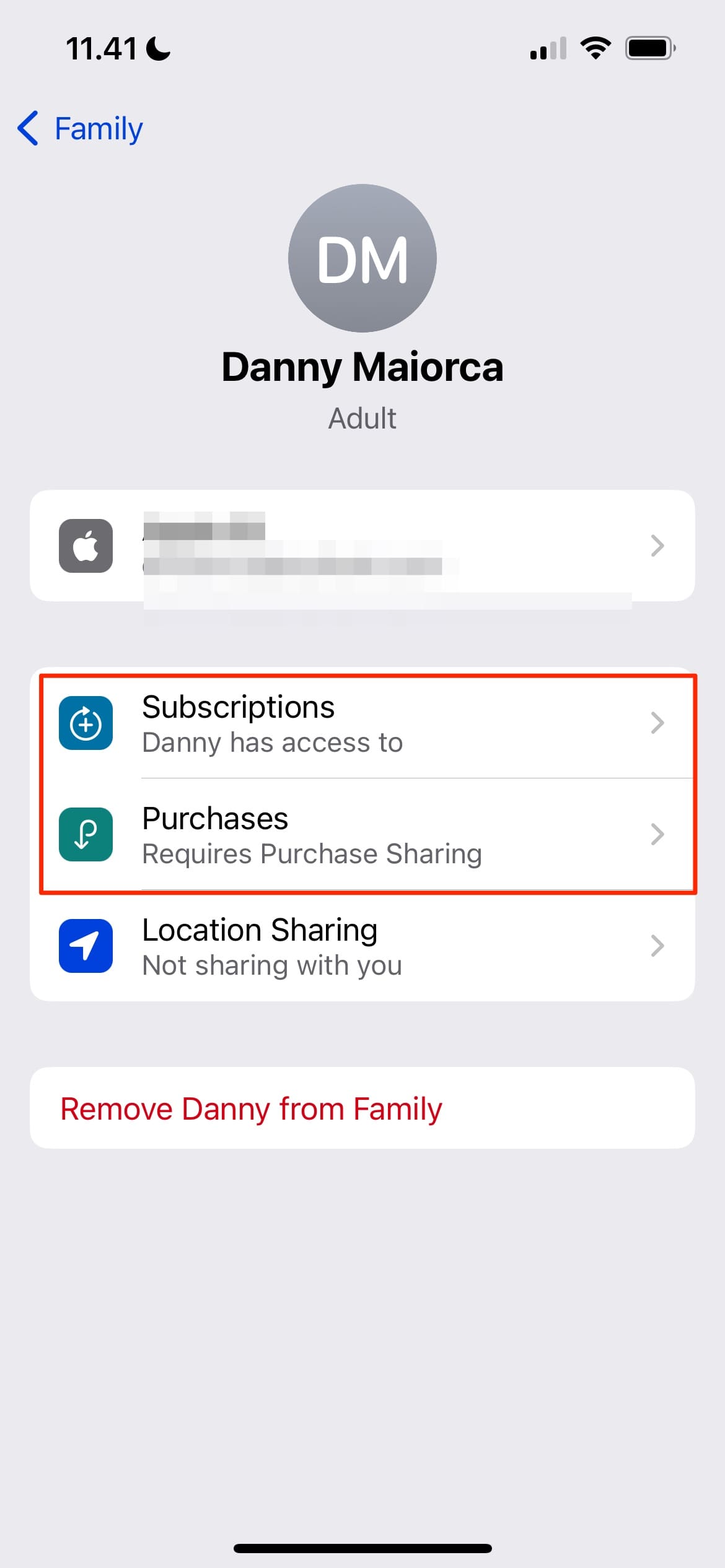
Select Subscriptions.
Check to see if you have any shared subscriptions.
You can also go to Purchases to see if any payments have been made for the app you see. However, this will require the other person to share their information in this respect.
If you can’t verify the app using the above steps, you can always ask the other people in your household to verify whether they’ve downloaded the app you see or not.
Turn Screen Time Off and On Again
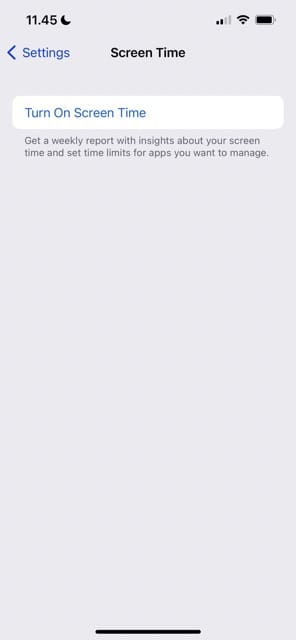
Another way to fix this issue is by switching your Screen Time settings off and on again. Here are the steps you should follow to do this:
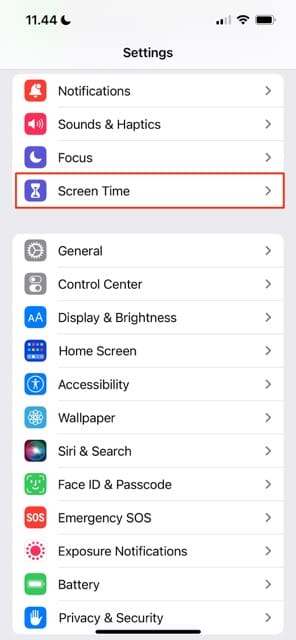
Go to Settings > Screen Time.
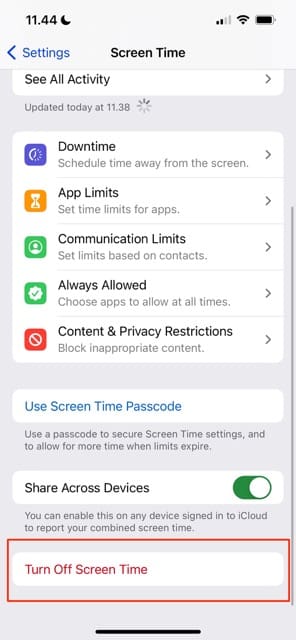
Scroll to the bottom and tap Turn Off Screen Time.
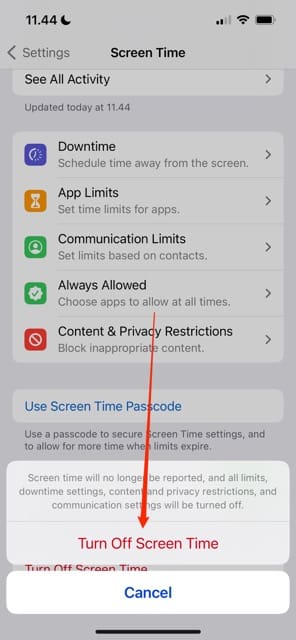
Confirm that you want to switch Screen Time off.
Close and reopen the Settings app and follow step 1. Then, Select Turn On Screen Time and confirm that you want to do this.
Check Your App Library
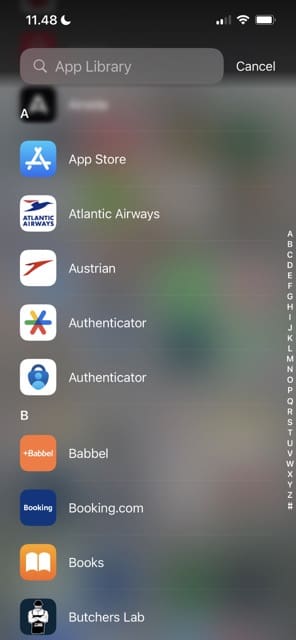
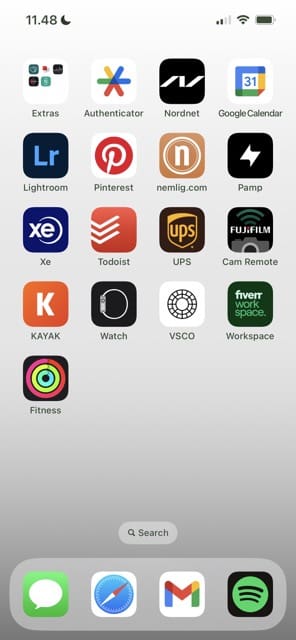
If you’re not sure whether you downloaded an app, but it’s still appearing in Screen Time, you can always try checking your App Library. This is especially useful if you see an app that does not appear on your home screen, as unless you regularly use these, it’s easy to forget about them.
To access your App Library:
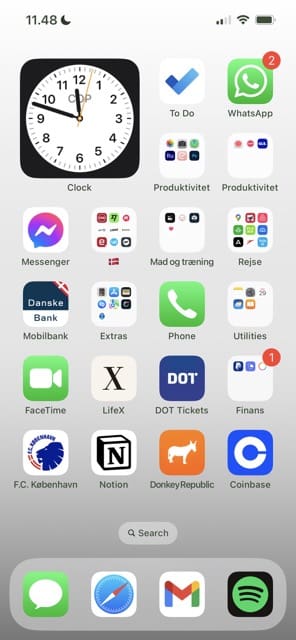
Go to your iPhone’s home screen.
Swipe to the right until you see your App Library.
Search for the app you see in Screen Time within the search bar at the top.
From your home screen, you can also try looking for the app in Spotlight instead. Swipe down on your screen and enter the app name in the search bar.
Remove Apps That You Haven’t Downloaded
If apps that you haven’t downloaded appear in your Screen Time summary, you don’t need to worry in most cases. The issue is often fixable with a few simple steps. However, you should take precautions to ensure that you know why it’s there in the first place.
From restarting Screen Time to checking your App Library, you shouldn’t need to take too long to stop whichever app you see from appearing on your summary.
Danny has been a professional writer since graduating from university in 2016, but he’s been writing online for over a decade. He has been intrigued by Apple products ever since getting an iPod Shuffle in 2008 and particularly enjoys writing about iPhones and iPads. Danny prides himself on making complex topics easy to understand. In his spare time, he’s a keen photographer.
















Write a Comment