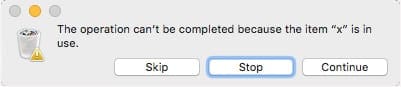
Normally, deleting a file on macOS is a simple affair. You drag it to the Trash or right-click and Move to Trash. Of course, sometimes things can go awry. For example, you may run into an error message that this “The operation can’t be completed because the item (name) is in use.” You can run into this error when sending a file to the Trash, or when attempting to Empty the Trash.
In the latter case, macOS does allow users to delete everything in the Trash beside that file. But that still leaves you with the annoying item sitting in the bin.
If you’ve been hit with that error message, here are a couple of things you can try to get rid of that pesky and stubborn file.
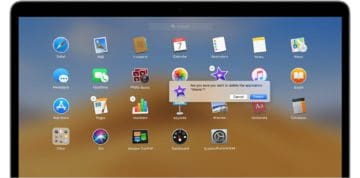
MacBook error message showing the file on mac OS that’s “in use.”
Before you do anything else, you should try a couple of things. These are, by far, the easiest fixes for the problem.
Quit the apps that you think may be using the troublesome file. If you don’t know which app might be using it, you may want to quit all apps.
If that doesn’t work, you’ll want to simply restart your Mac. After it’s booted back up, try deleting the file.
Restarting a Mac should work, but if it doesn’t, there’s likely a startup or login item that is using the file. From here, you’ll want to restart your Mac in Safe Mode and try deleting it. Safe Mode will stop any startup items from running.
In addition, here are a couple more in-depth methods for identifying and dealing with stubborn files from the Trash (or those that won’t move to the trash).
Using the Terminal to locate the “in-use” app and the corresponding file
Use Terminal to locate the app that is using the file.
If you’re comfortable using the macOS Terminal, there is a command you can try that will identify which app is using the specific file.
Double-click on the Trash and make sure that a Finder window pops up.
Open the macOS Terminal, either by using Spotlight search or by going to Applications —> Terminal.
In the next step, you’ll want to type a simple command into the terminal — but don’t hit return just yet!
Type this command, followed by a space: lsof
Then, drag the annoying file from the Trash directly onto the Terminal window.
Once some text pops up, hit Return.
You should now see a list of the apps that processes that are actively using the file (and keeping it from being deleted).
From here, you can simply pinpoint and close the app that’s currently using the file.
If the file is being used by a background process, open Activity Monitor. Find the process in the list and click the X icon to terminate it.
Delete Immediately feature on MacBook
Use delete immediately feature on macOS to get rid of a file on macOS because it’s ‘In Use’.
In OS X El Capitan and later, Apple has also Delete Immediately. It’s a scorched-earth solution and there’s no going back, but it could come in handy for those extremely stubborn files in your Trash.
Delete Immediately is only accessible within the Trash app. So open it and select the files you’d like to delete. Control-click those files and select Delete Immediately. Confirm and those files should be gone.
Nothing worked. What now?
There may be those rare occasions in which the above steps simply don’t work. If that’s the case for you, there may be an underlying issue on your disk.
In these worst-case scenarios, Apple itself recommends booting up your Mac in macOS Recovery mode and using Disk Utility to repair the troublesome drive.
If you suspect there’s a deeper problem with your Mac causing file-trash stubbornness, we recommend taking it to your local Genius Bar or an Apple Authorized Service Provider.
Locked files & insufficient privileges
In addition to files being used by apps or processes, there are a couple of other things that could prevent you from deleting a file. Here’s a quick overview.
If the file is locked, then you’re going to run into trouble deleting it. You can unlock the file by right-clicking it and selecting Get Info. Open the General tab and deselect the Locked checkbox.
Sometimes, you may not have sufficient privileges to delete a file. In most cases, this is a good thing. You can always get an Administrator to delete the file, or give yourself Read & Write permissions in Sharing & Permissions.
We hope that you were able to use the tips in this article to locate the offending file and were able to tackle it. Please let us know if you have any questions using the comments below.
Mike is a freelance journalist from San Diego, California.
While he primarily covers Apple and consumer technology, he has past experience writing about public safety, local government, and education for a variety of publications.
He’s worn quite a few hats in the journalism field, including writer, editor, and news designer.
None of these solutions helped. On Apple Silicon they added more security, even after booting into recovery mode and mounting the drive with Disk Utility, it is still impossible to delete ~/.Trash for some reason (other files can be deleted though).
The only solution I could find was to run csrutil disable in the terminal, rebooting, deleting the relevant files and then re-enabling csr back in recovery mode.
The reason I had to do this was for some reason I stopped being able to empty my trash, saying the file is “In Use” (even in safe mode).
in my case the app using the stubborn file is the Finder app itself, so it is impossible to turn it off — using several variations of delete directory in the terminal have also failed — I am about to pull all of my hair off 🙂 please help













None of these solutions helped. On Apple Silicon they added more security, even after booting into recovery mode and mounting the drive with Disk Utility, it is still impossible to delete ~/.Trash for some reason (other files can be deleted though).
The only solution I could find was to run csrutil disable in the terminal, rebooting, deleting the relevant files and then re-enabling csr back in recovery mode.
The reason I had to do this was for some reason I stopped being able to empty my trash, saying the file is “In Use” (even in safe mode).
in my case the app using the stubborn file is the Finder app itself, so it is impossible to turn it off — using several variations of delete directory in the terminal have also failed — I am about to pull all of my hair off 🙂 please help