Error code 75 indicates that iTunes could not install the latest iOS version on your iPhone. The same error may also pop on the screen when iTunes fails to restore your iOS device. If you already disconnected your iPhone from your computer, but the error persists, follow the troubleshooting solutions below.
First things first, make sure you have enough storage space on your device. Free up some space if necessary and try to update your iPhone again. Then install the latest macOS and iTunes updates.
First, disconnect your iPhone from your computer.
Launch the App Store, and click Updates.
If there’s a newer iTunes version available, click Install.
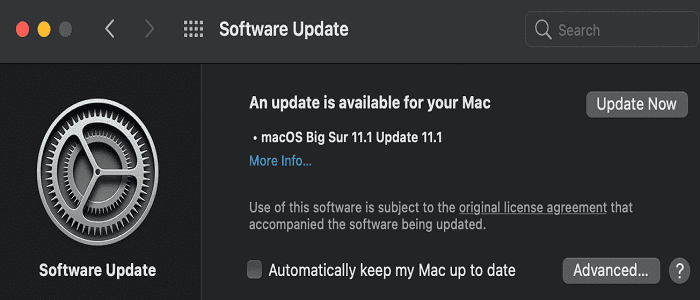
Then go to System Preferences, and click Software Update.
Check for updates and install the latest macOS release.
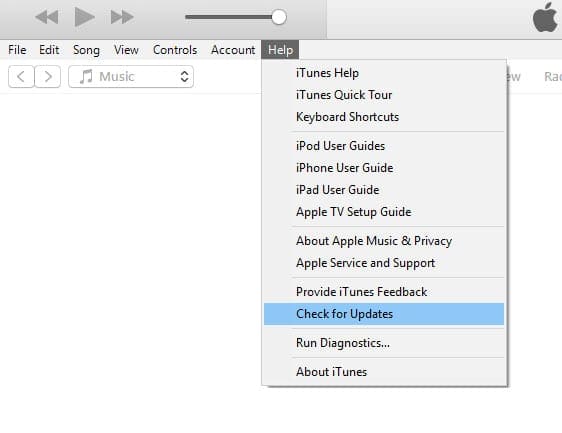
If you’re running iTunes on Windows, launch the app, click on the Help menu, and select Check for updates. This method works only if you installed iTunes from Apple’s website.
The Check for Updates button tells you iTunes was downloaded from Apple’s website
If you downloaded the app from the Microsoft Store, launch the Store app, go to Updates, and updates iTunes.
After updating iTunes and your OS, restart your computer and iPhone. Meanwhile, restart your router as well to refresh your Internet connection.
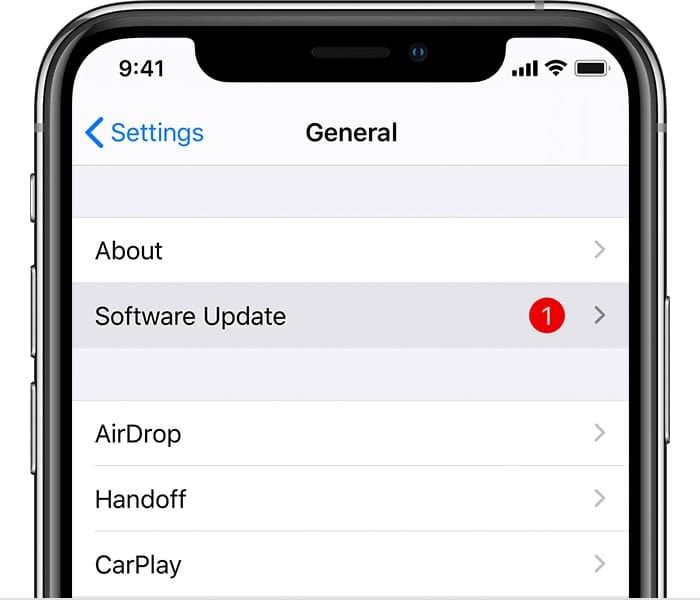
On your iPhone, go to Settings, tap General and select Software Update. Check if you can install the latest iOS version without using iTunes.
Make sure your device is running the latest software.
If you can’t, connect your phone to your computer, and try to update it again via iTunes.
Plug Your iPhone Directly into Your Computer
Equally important, plug your iPhone directly into your computer’s USB port. Using a USB hub to connect the two devices may trigger various issues and glitches. If error 75 persists, or you’re getting a different error, try a different cable, and check if you notice any improvements. Needless to say, use an original Apple cable. Third-party cables may not work as expected.
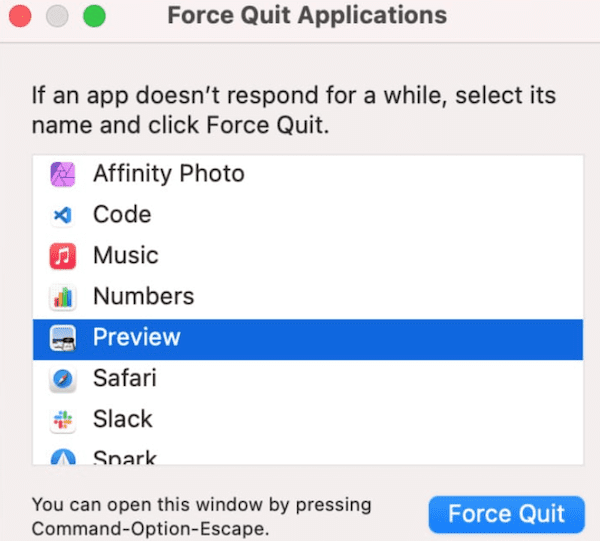
On macOS, click on the Apple menu and select Force-Quit.
Select the apps you want to close.
Hit the Force Quit button.
On your iPhone, swipe up from the bottom of the screen to list background apps.
Then swipe up on each app to close them.
If you’re running iTunes on a Windows computer, launch the Task Manager and close all background apps.
Then temporarily disable your antivirus, firewall, and VPN on all your devices. These tools may sometimes block the update process. Connect your iPhone to your computer, and check for updates again.
If the problem persists, you’ve got two choices left: you can either restore your iPhone or contact Apple Support. We recommend you contact Apple Support first. Use the restore option as a last resort.
Conclusion
Error code 75 usually occurs when you’re trying to update your iPhone via iTunes. To fix it, restart your devices, including your router. Then check for iTunes and macOS updates. Plug your iPhone directly into your computer, and close all background apps, including your antivirus and firewall. If the error persists, contact Apple Support.
Did you find other ways to get rid of error code 75? Do let us know in the comments below.
Madalina has been a Windows fan ever since she got her hands on her first Windows XP computer. She is interested in all things technology, especially emerging technologies — AI and DNA computing in particular.
I had in last 2 days Problems by recovering my new iPhone 12 and had the whole time the 2 errors (Error 9 and Error 75)
I could finally recover it today and the problem was that there was NO SIM CARD in the Phone so i got the whole time these error by resetting /Update











Error 75 on my iphone 12 pro max well updating the iOS version
Cannot Update or restore my ipad.. Get error (75) 067E.004B While updating and restoring fails every tme…
I had in last 2 days Problems by recovering my new iPhone 12 and had the whole time the 2 errors (Error 9 and Error 75)
I could finally recover it today and the problem was that there was NO SIM CARD in the Phone so i got the whole time these error by resetting /Update
Sohail, you are the man!!!!
oh god. it helped. thanks!
Once again a fix that makes absolutely no sense at all, but worked.
Seriously. What the heck. It’s witchcraft I tell you!
IT FINALLY WORKED !!!! omd thank you soo much