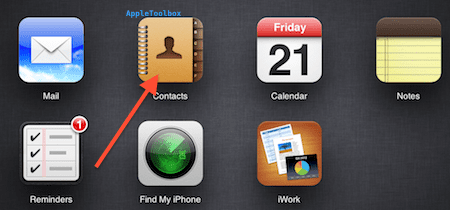
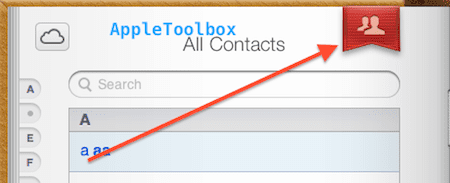
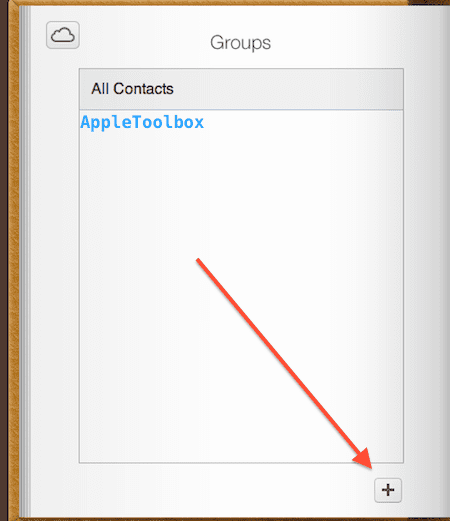
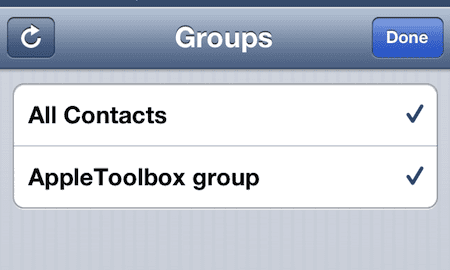
You can easily create groups of contacts (your family, colleagues, sport team etc) on your iPhone, iPad or iPod touch. Note that contacts includes a default All Contacts group and you cannot delete this group. As of now, there is no way to create new groups within iOS. However, you can use iCloud. This short tutorial includes (a) how to set up and manage groups and add contacts to it (b) how to delete a group or a contact from a particular group. Here is how:
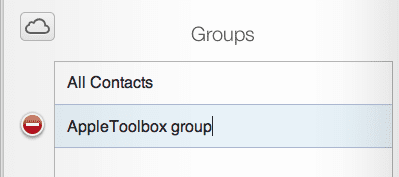
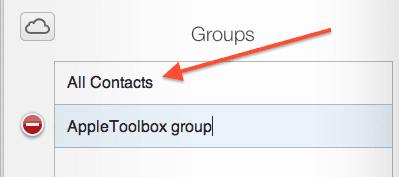
Type a name for the new group and press Enter to save it. And if you want to change it later, simple double-click.
How to add contacts to a specific group
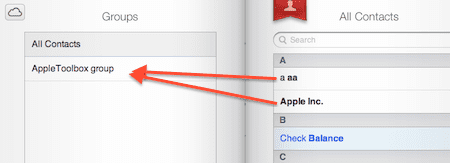
Click All Contacts
Drag a contact name (that you want to add) from the All Contacts list on the right to a group name.
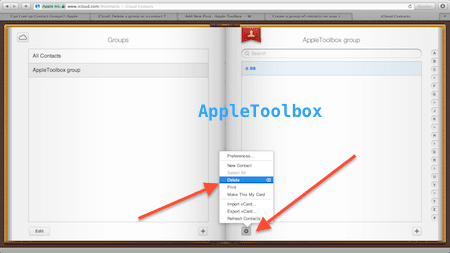
Delete a contact from a group
Select the group name that includes the contact that you want to delete.
Select the contact, then press the Delete key OR click the actions menu and select “Delete”. Please note that deleting a contact does not delete this contact completely, just removes it from the group.
How to remove a group
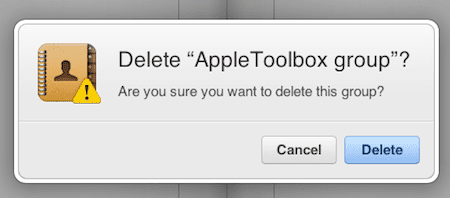
Select the group you want to delete, then press the Delete key OR click on the group name and click the red (-) sign and then confirm your removal.Please note that deleting a group doesn’t delete the contacts it includes.
Now get your iOS device (iPhone, iPad or iPod touch) and now you should see the new group appear
Obsessed with tech since the early arrival of A/UX on Apple, Sudz (SK) is responsible for the original editorial direction of AppleToolBox. He is based out of Los Angeles, CA.
Sudz specializes in covering all things macOS, having reviewed dozens of OS X and macOS developments over the years.
In a former life, Sudz worked helping Fortune 100 companies with their technology and business transformation aspirations.
Alan, You can access the contact groups in iCloud.com in your account.Log into your account and click on Contacts. On the left most panel, you will see the groups that you had created in the past under “All Contacts”. Click on the group that you want to delete, Next, click on the “gear” looking icon at the bottom left of the screen and choose delete group. The next time your device syncs to iCloud, these groups will not be visible.
Your instructions for adding contacts to groups makes little sense to me. Upon clicking ‘all contacts’ the groups listing disappears from the left side of the screen and is replaced by my list of contact addresses. There is no group list on the left, and there is no contact list on the right to drag and drop from. Perhaps you are thinking of new groups?
The post is useless and misleading. The title: “How to create (and delete) group contacts on your iPhone, iPad or iPod touch”, yet the 3rd sentence goes “As of now, there is no way to create new groups within iOS.”
You can’t do any of the group operations for iCloud on your iOS device, so what’s the point of titling the article as so?












As of now there is no way to create groups in IOS. This sums up iOS. I wish I had never bought an iPad.
I want to remove and stop ‘groups.’ I make mistakes sending e mails to a group when I want only to select each recipient.
This is very tiresome.
How do I stop this silly unwanted and imposed group formation?
Alan, You can access the contact groups in iCloud.com in your account.Log into your account and click on Contacts. On the left most panel, you will see the groups that you had created in the past under “All Contacts”. Click on the group that you want to delete, Next, click on the “gear” looking icon at the bottom left of the screen and choose delete group. The next time your device syncs to iCloud, these groups will not be visible.
Your instructions for adding contacts to groups makes little sense to me. Upon clicking ‘all contacts’ the groups listing disappears from the left side of the screen and is replaced by my list of contact addresses. There is no group list on the left, and there is no contact list on the right to drag and drop from. Perhaps you are thinking of new groups?
I need a work around. Thx.
The post is useless and misleading. The title: “How to create (and delete) group contacts on your iPhone, iPad or iPod touch”, yet the 3rd sentence goes “As of now, there is no way to create new groups within iOS.”
You can’t do any of the group operations for iCloud on your iOS device, so what’s the point of titling the article as so?
Idiotic.