When you look around at the different browser apps for the Mac, or Windows for that matter, you won’t really find much of a difference. Sure Firefox looks different from Safari, and Chrome is still ruling the world, while Microsoft Edge gives you many of the features of Chrome with a twist. But the truth remains that we really haven’t seen any major changes to the landscape over the past five years or so.
While Arc Browser is looking to become the first major contender to make waves in the browser space, it’s still not available for the masses as you’ll need an invite. We bring up Arc Browser because it offers the ability to open and use split screen tabs. Instead of needing to use multiple windows to open up two tabs side-by-side, Arc Browser lets you do so right from within the same window.
How to Enable and Use Split Screen in Microsoft Edge on macOS
Arc Browser has been making waves in the community since it was first shown off in 2022 by the Browser Company. And it seems that the Microsoft Edge team has been paying a little bit of attention, as there’s an all-new feature being integrated into the Canary Build of Microsoft Edge.
Split Screen tabs when using Arc Browser for Mac, which is based on the same Chromium engine as Microsoft Edge.
Microsoft is currently working on “Edge Phoenix” which has been described as the “internal reimagining of the browser.” Some of this reimagining includes updating the overall UI, bringing it more in line with the rest of the Windows 11 aesthetic and design. But other parts include new and exciting features which are already available for those daring enough to use the Canary version of Edge.
This includes things such as the ability to enable and use split screen in Microsoft Edge. And thanks to the fact that you can download and install the Microsoft Edge Canary build on your Mac, you are able to test out this new Split Screen feature for yourself.
Here’s how you can enable split screen in Microsoft Edge on macOS:
Download and install the Canary build of Microsoft Edge.
If necessary, follow the on-screen steps to sign into your Microsoft account and set up Edge.
In the address bar, navigate to edge://flags.
Press Enter on your keyboard.
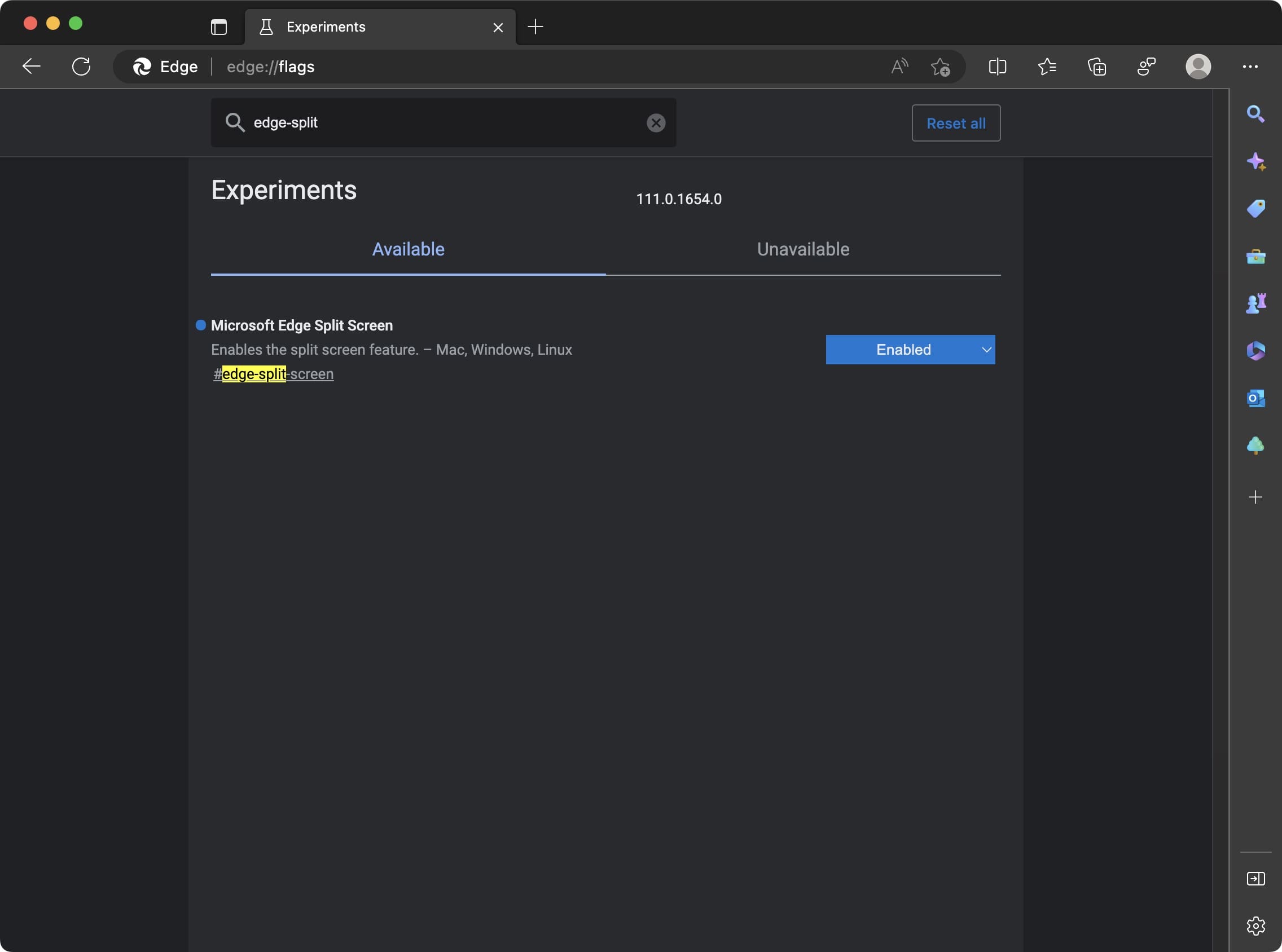
In the search box at the top, enter “edge-split-screen“.
Click the drop-down box next to Microsoft Edge Split Screen.
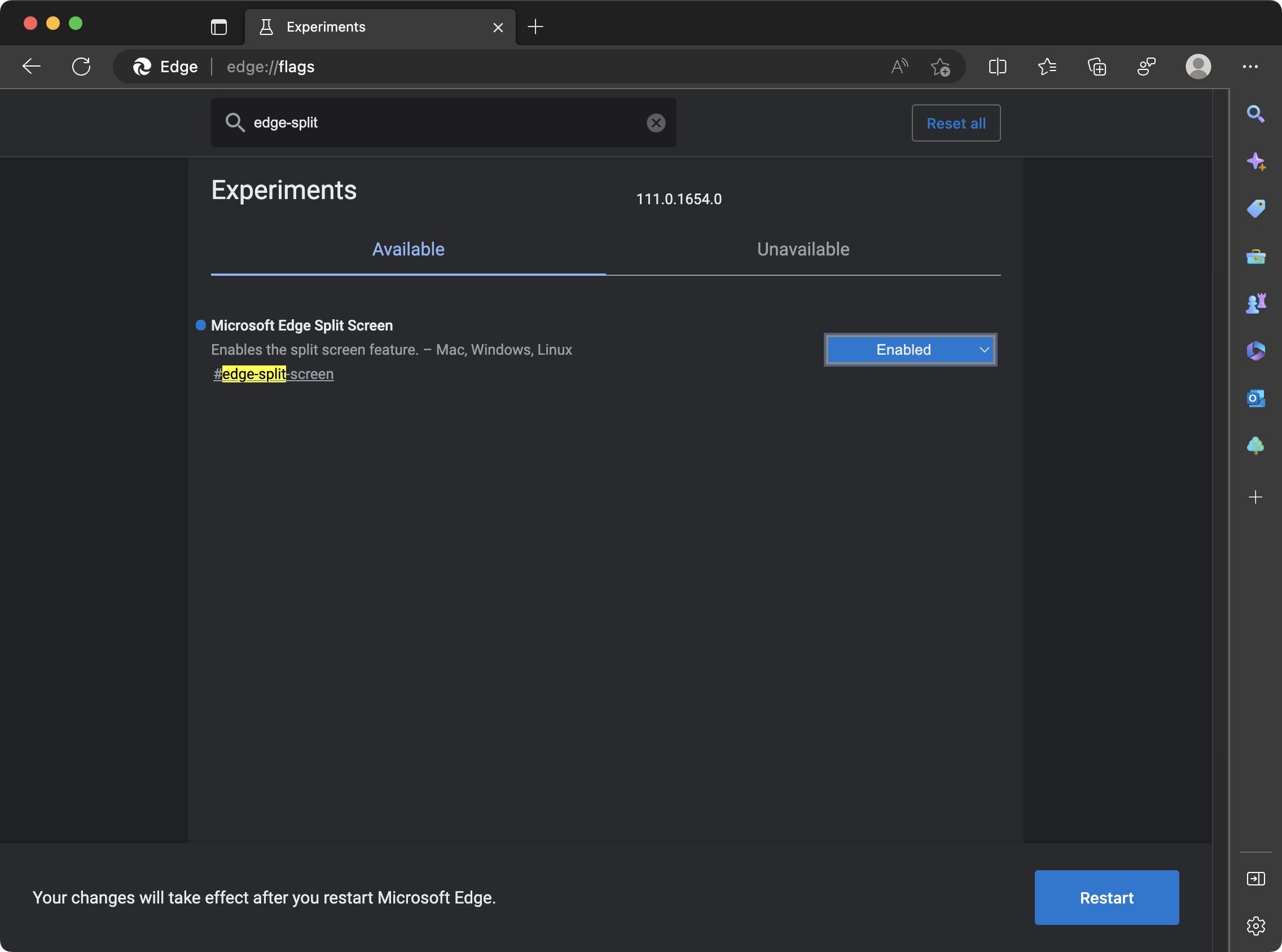
From the menu, select Enabled.
Click the Restart button in the bottom right corner of the window.
Because Microsoft Edge is built upon the Chromium platform, this is how you are able to enable specific flags, just like you would if you were using Google Chrome. With the appropriate flag enabled, there are a few more steps you need to take before you can actually use split screen in Microsoft Edge on macOS.
Open Microsoft Edge Canary on your Mac.
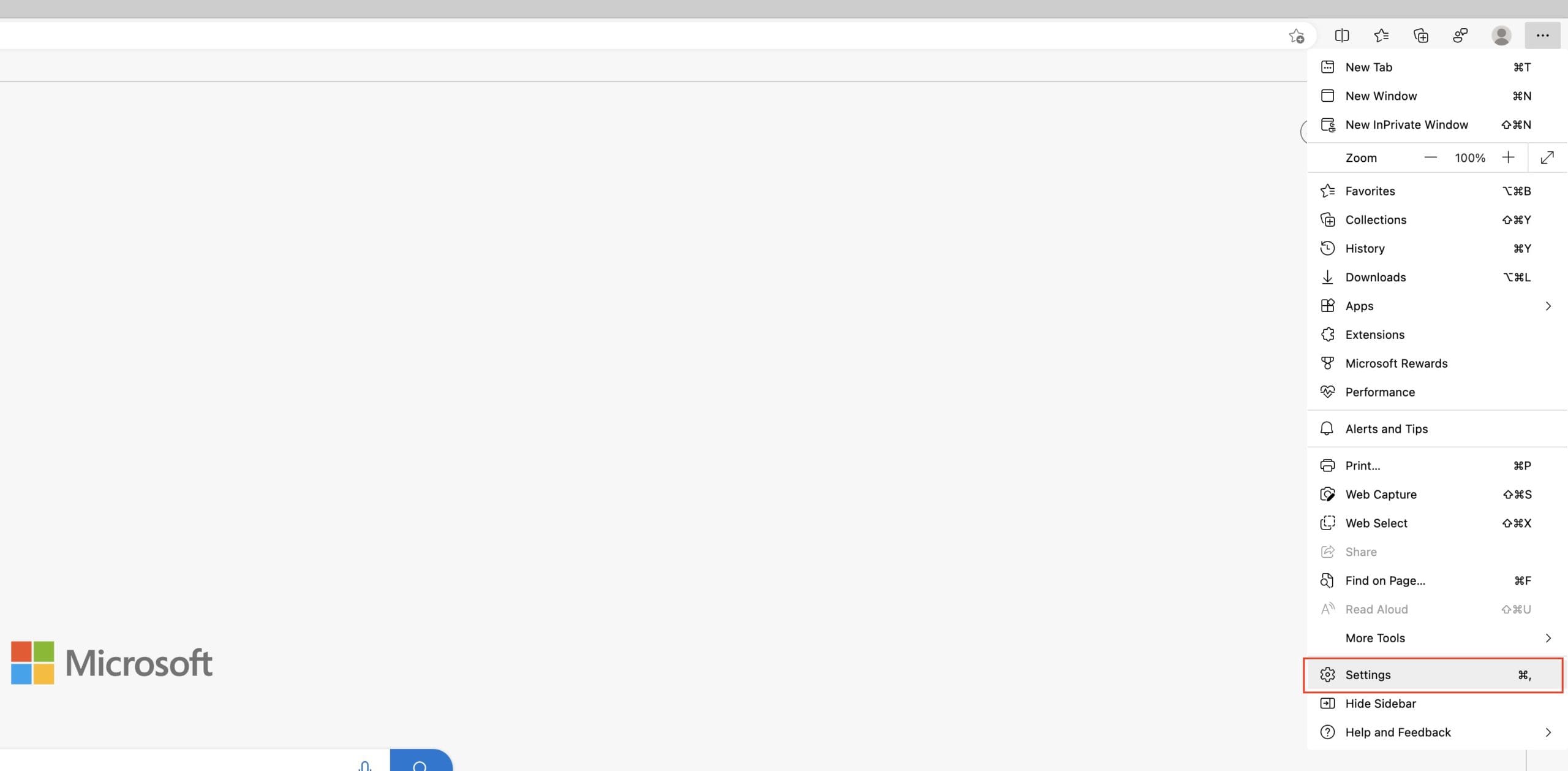
Click the three horizontal dots (…) to the right of the address bar.
From the drop-down menu, highlight and select Settings.
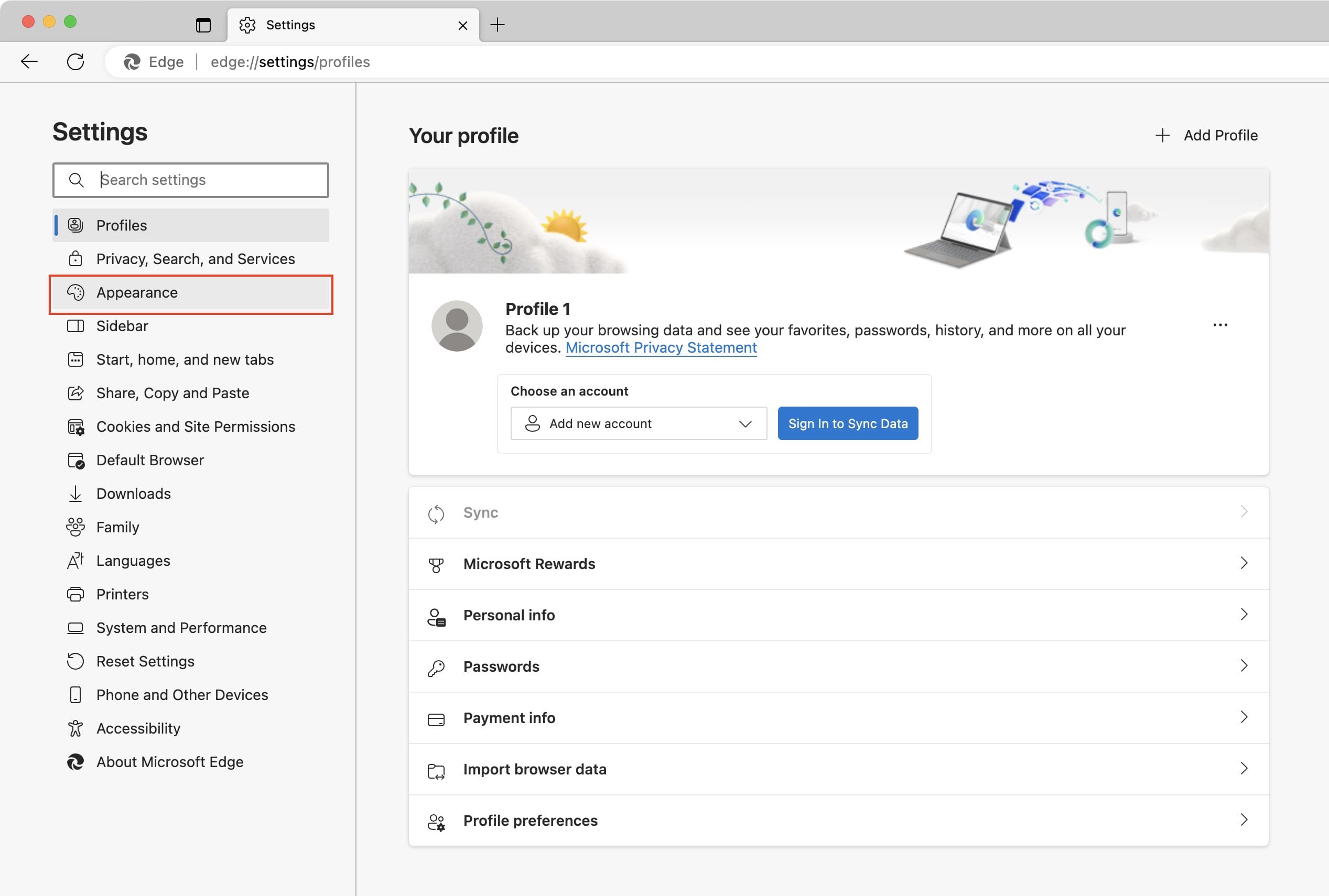
In the sidebar, click Appearance.
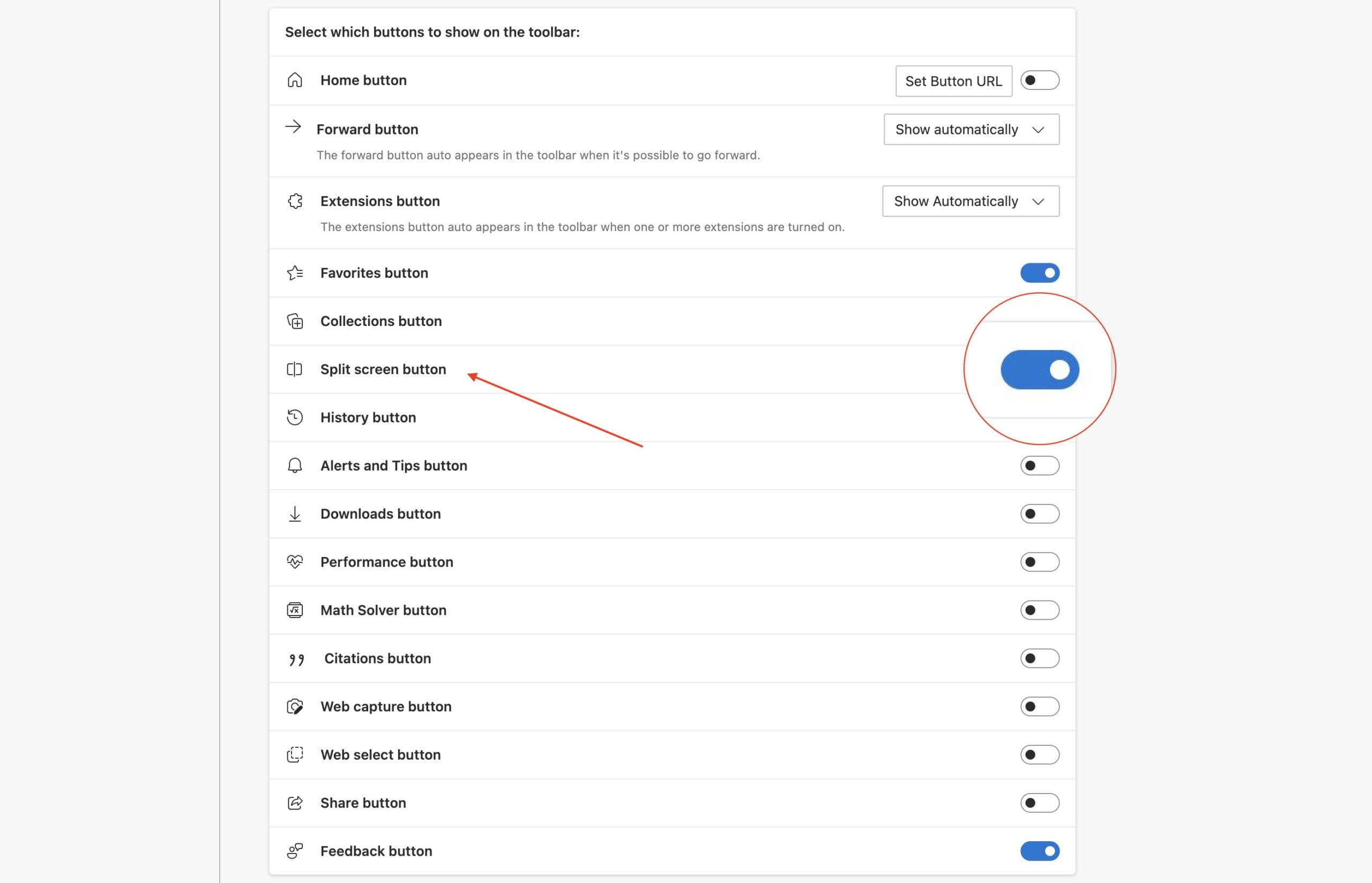
Scroll down until you reach the Customize toolbar section.
Click the toggle next to Split screen button.
From there, you can open up a new tab and close down the Settings screen within Microsoft Edge. The Split Screen button will be enabled, allowing you to use this new and exciting feature.
How to Use Split Screen in Microsoft Edge on macOS
With the split-screen button enabled, it should appear as the first button to the right of the address bar. Now’s where all of the fun begins for those who want to use split screen in Microsoft Edge on macOS.
Navigate to the first website that you want to have opened.
Click the Split-screen button.
In the top left corner of the new window, click the New tab button.
Enter and navigate to the URL for the second website you want to have opened.
And that’s it!
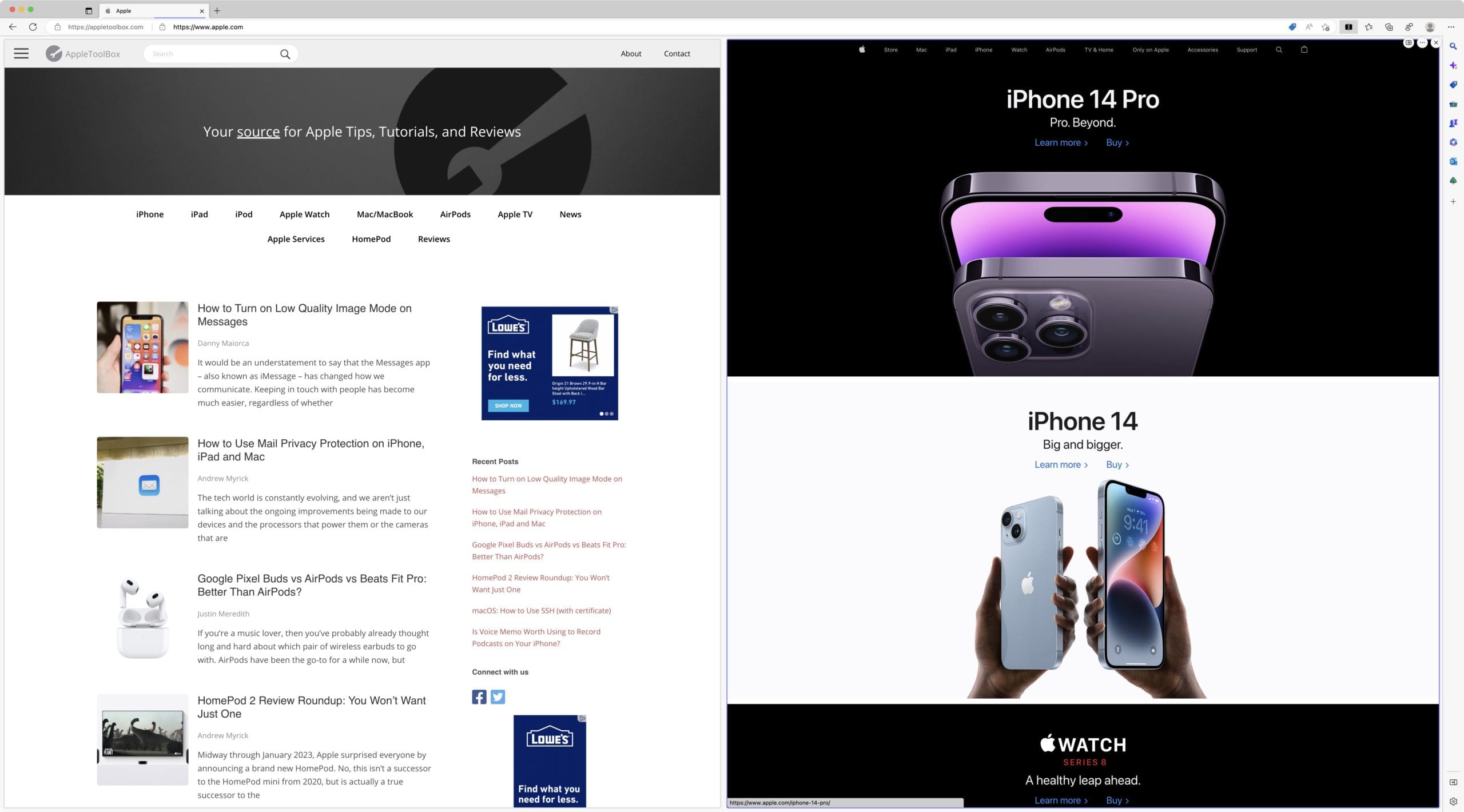
Now, you’ll be able to have tabs open side-by-side in split-screen when using Microsoft Edge on macOS. But that’s not all that you can do with this feature enabled, as Microsoft has provided a few other options when using this.
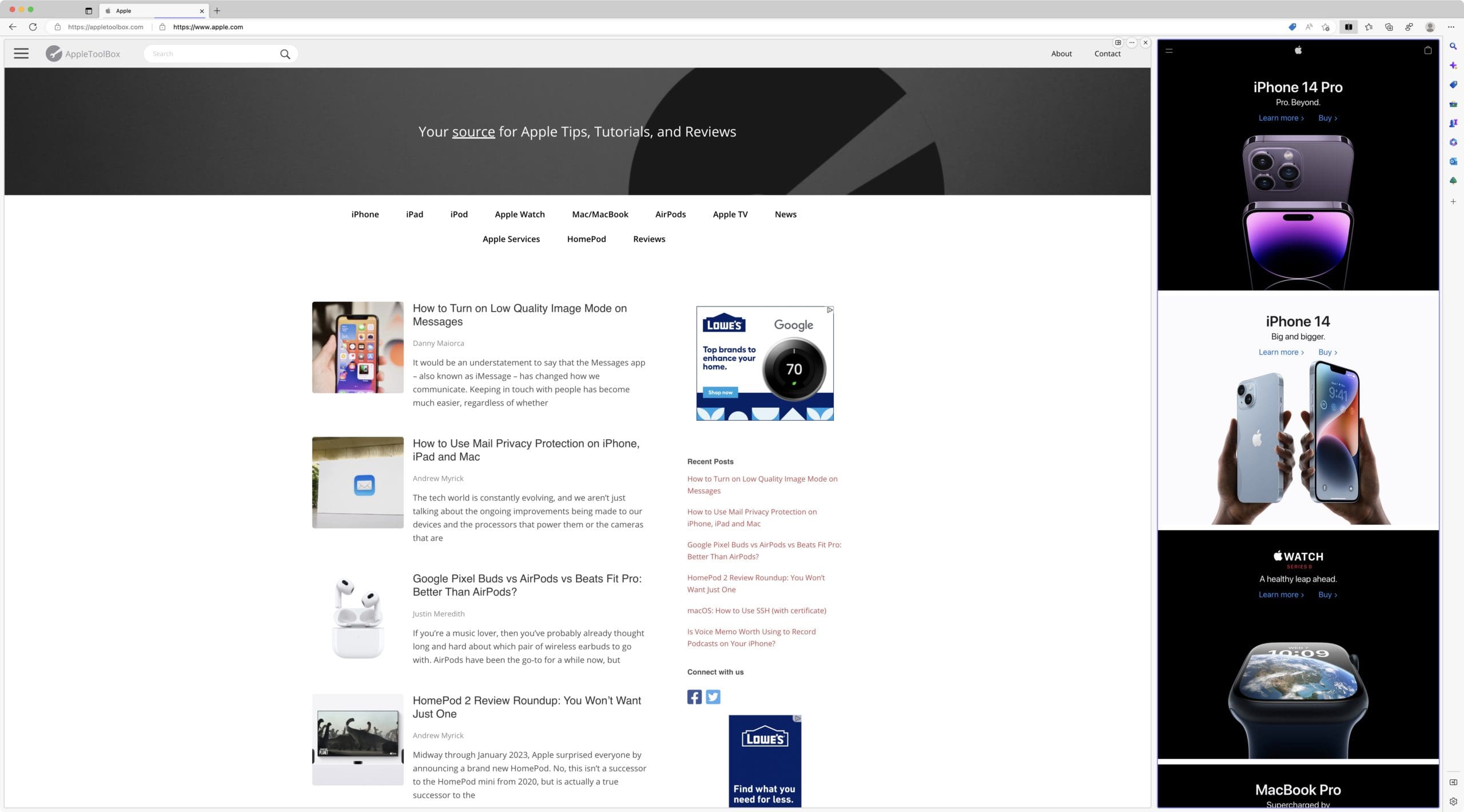
You’ll notice that there’s a divider that separates the two tabs. While this does a good job at providing some separation, it also acts as a way for you to resize the tabs horizontally, allowing you to make one bigger than the other.
All you need to do is hover your cursor over the divider until you see the cursor change to this: <->. Then, click and drag the divider to the left or right to make one side bigger than the other. This is helpful for those times that you might be watching YouTube or another video, but want to see what’s going on with Twitter or just want to browse the web at the same time.
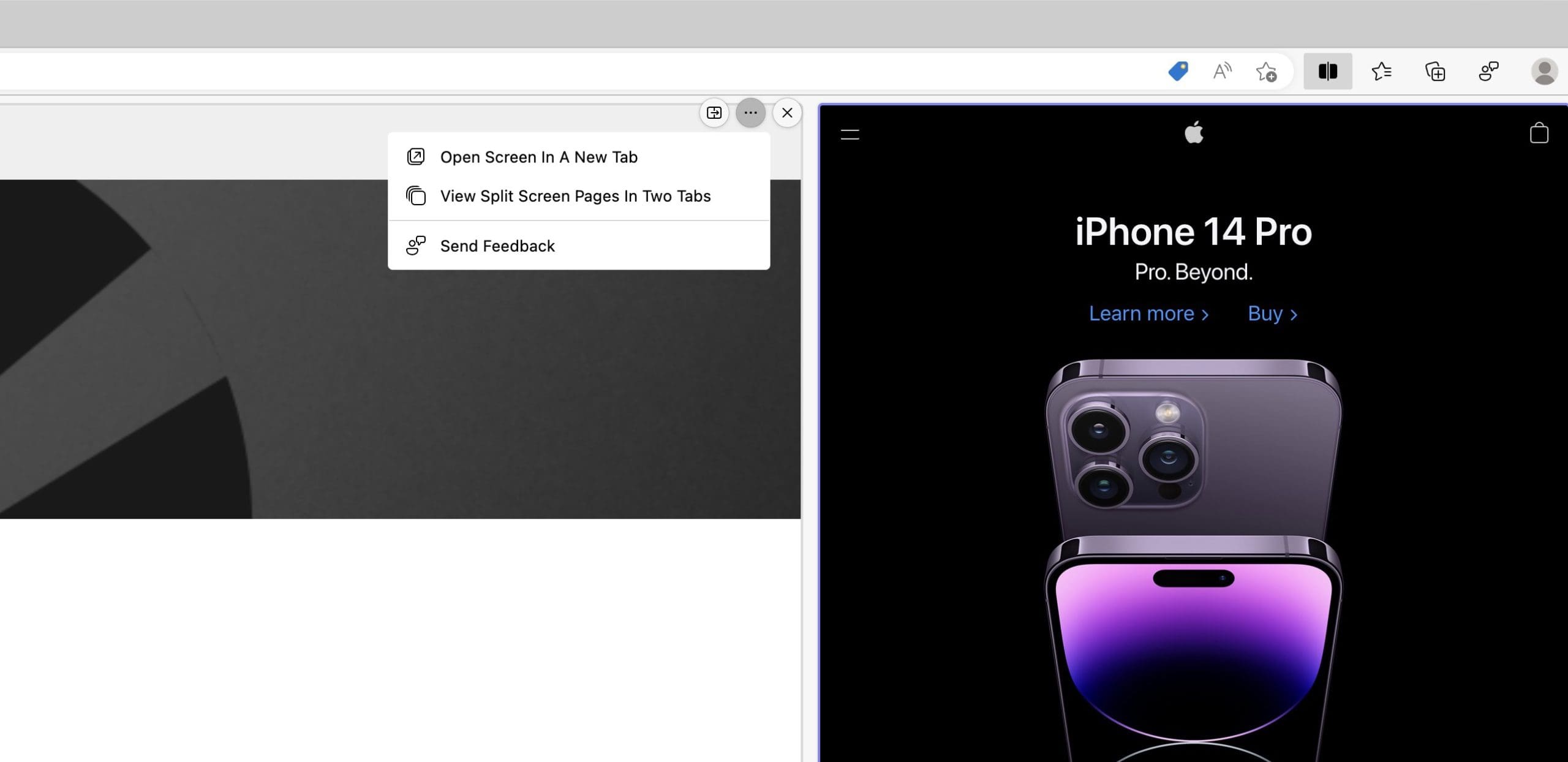
There are a few other options that you have if you hover your cursor in the top right corner of either browser tab. You’ll see a small menu appear with a couple of buttons, each of which offers something a bit different.
Switch between linked and unlinked tabs
Open Link In The Current Tab
Open Link From Left To Right Tab
More options
Open Screen In A New Tab
View Split Screen Pages In Two Tabs
Send Feedback
Close split window
Unfortunately, we wouldn’t expect to see Microsoft implement the ability to open more than two tabs side-by-side at the same time. While that is definitely one of the (many) defining features of Arc Browser, it’s highly unlikely that Edge will adopt it.
Andrew Myrick is a freelance writer based on the East Coast of the US. He enjoys everything to do with technology, including tablets, smartphones, and everything in between. Perhaps his favorite past-time is having a never-ending supply of different keyboards and gaming handhelds that end up collecting more dust than the consoles that are being emulated.













Write a Comment