• Skip to primary navigation
  • Skip to main content
  • Skip to primary sidebar
  • Skip to footer

AppleToolBox

Tools and Fixes for Mac, iPad, iPhone & iWatch

Search posts

  • About
  • Contact

CONNECT WITH US

CATEGORIES

  • iPhone
  • iPad
  • iPod
  • Apple Watch
  • Mac/MacBook
  • AirPods
  • Apple TV
  • News
  • Apple Services
  • HomePod
  • Reviews

SITE

  • Home
  • About Us
  • Contact
  • Advertise

Search posts

You are here: Home / Mac / How to fix ‘the application “Preview.app” is not open anymore’ in macOS

How to fix ‘the application “Preview.app” is not open anymore’ in macOS

By Dan Helyer 1 comment Last updated September 19, 2019

There’s a frustrating issue with macOS, where the app you’re using stops working and spits out an error message saying it isn’t open anymore. This mostly happens with Preview, but it can affect any app on your Mac, including Finder, Safari, the App Store, and others.

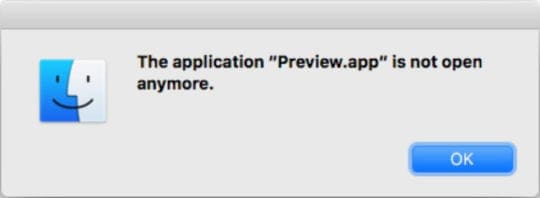
When this error occurs, the app you’re using becomes unresponsive and the following alert pops up: 

'The application Preview.app is not open anymore.' Error message

Despite the error message, your app still appears as though it’s open. There may be a dot beneath it in the Dock or it may still have open windows. But you’re unable to use it. With Preview, that means you can’t open PDFs, screenshots, or other images anymore!

This article explains how to fix this error and get your apps working again. We’ve even gone so far as explaining how to fully reinstall macOS, in case this issue keeps cropping up again and again.

Contents

  • Quick Tips
  • Step 1. Force Quit Preview
    • How do I close Preview using the Force Quit window?
    • How do I close Preview using Activity Monitor?
  • Step 2. Reboot your Mac
    • How do I soft reboot my Mac?
    • How do I hard reboot my Mac?
  • Step 3. Remove your Preview preferences
    • How do I remove my Preview preferences?
  • Step 4. Update or reinstall macOS
    • How do I update to the latest release of macOS?
    • How do I reinstall macOS?

Quick TipsAppleToolBox Quick Tips logo

Here are the basic steps to fix Preview when macOS tells you it’s not open anymore, we’ve explained each step more fully in the article below:

  1. Force Quit Preview using command+option+escape.
  2. Reboot your Mac, using a hard reboot if necessary.
  3. Remove your Preview preferences from the Library.
  4. Update and then reinstall macOS using Recovery Mode.

Related:

  • MacBook apps crashing, how-to-fix
  • How to fix corrupt user accounts in macOS
  • How to quickly restart or relaunch Finder in macOS
  • Can’t delete a file on macOS because it’s ‘In Use’? Try this!

Step 1. Force Quit Preview

The first thing to try and do — although it doesn’t always work for this error — is to close the unresponsive app. Despite the error message telling you Preview “is not open anymore,” it usually is. But it has frozen and needs to be reopened.

There are two ways to Force Quit an app in macOS: using the Force Quit window or using Activity Monitor. If either of these methods works, make sure you reboot your Mac before opening Preview again.

How do I close Preview using the Force Quit window?

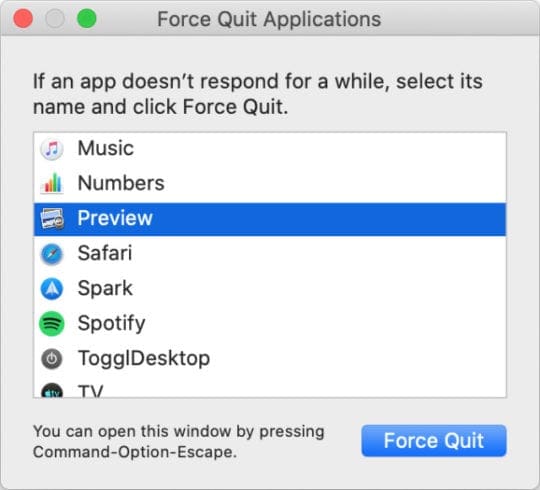
  1. Press the command+option+escape keys to open the Force Quit window.
  2. If the escape key on your Touch Bar is unresponsive, go to  > Force Quit from the menu bar.
  3. Select Preview from the list of applications.
  4. Click Force Quit, then reboot your Mac.

    Force Quit Preview window from macOS
    Use the Force Quit window whenever an app becomes unresponsive.

How do I close Preview using Activity Monitor?

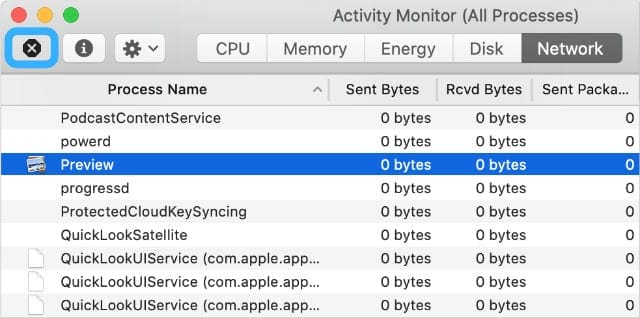
  1. Open the Activity Monitor application in one of these ways:
    1. Go to Finder > Applications > Utilities.
    2. Or go to Launchpad > Other.
  2. Select the CPU tab, then click ‘Process Name’ to sort the processes.
  3. Find and select Preview in the list of processes.
  4. Click the stop sign button in the top-left of Activity Monitor.
  5. Choose Force Quit, then reboot your Mac.

    Activity Monitor highlighting Preview and the Stop button
    Activity Monitor displays all the processes running on your computer at any point in time.

Step 2. Reboot your Mac

If it’s not possible to close Preview using Force Quit or Activity Monitor, you can close it by rebooting your Mac instead. This forces any apps that macOS says are not open to restart, bypassing the error message.

The safest way to reboot your Mac is using a soft reboot, but that may not be possible if the unresponsive app cannot close. If that’s the case, you have no choice but to use a hard reboot. We’ve explained both reboots below.

How do I soft reboot my Mac?

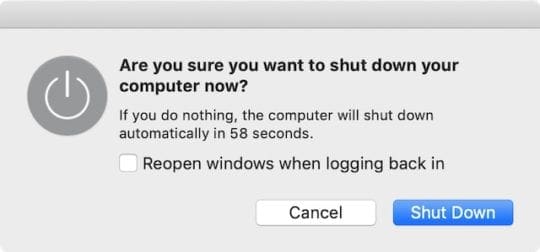
  1. From the menu bar, go to  > Shut Down.
  2. Uncheck the box to reopen windows when logging back in. 
  3. Confirm you want to Shut Down.
  4. Wait at least 30 seconds for your Mac to power off.
  5. Briefly press the power button to turn your Mac on again.

    Shut down window on a Mac.
    Leave the box unchecked so Preview doesn’t immediately reopen after rebooting.

How do I hard reboot my Mac?

  1. Performing a hard reboot may result in lost data or corrupt files. If possible, save your documents and back up your Mac first.
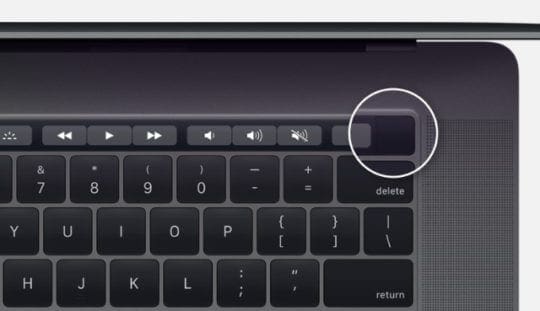
  2. Press and hold the power button for 10 seconds or so until the screen goes black.
  3. Wait 30 seconds, then briefly press the power button again to restart your Mac
  4. In the alert window that appears, click Cancel to avoid reopening any apps.

    Touch ID power button on Touch Bar MacBook
    On newer MacBooks, hold the Touch ID button to restart your Mac. Image from Apple.

Step 3. Remove your Preview preferences

If you still get the same error message — ‘The application “Preview.app” is not open anymore’ — you may need to remove some of your preference files.

Time Machine logo
Make a backup of your Mac first using Time Machine.

These are small files that macOS automatically creates to store your settings for each application. You can usually remove them without losing any data or causing problems, but we recommend you back up your Mac first just in case.

Follow each of the suggestions below, testing Preview again after each one.

We advise you to move the preference files to a new folder on your Desktop for safekeeping, that way you can always put them back if something goes wrong. If this works and your issue is fixed, go ahead and delete those preference files.

How do I remove my Preview preferences?

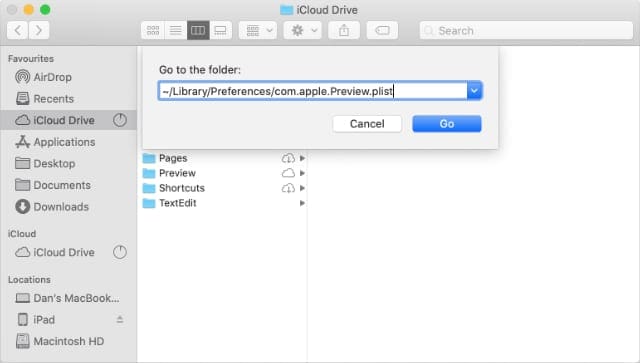
  1. Open Finder, then from the menu bar select Go > Go to Folder.
  2. Type the following location and click Go:
    ~/Library/Preferences/com.apple.Preview.plist
  3. Move the highlighted preferences file to your Desktop for safekeeping.
  4. Reboot your Mac and test Preview again.
  5. If the error persists, repeat the steps above for each of the following files:
    1. ~/Library/Containers/com.apple.Preview
    2. ~/Library/Containers/com.apple.quicklook.ui.helper
    3. ~/Library/Preferences/com.apple.Preview.LSSharedFileList.plist
    4. ~/Library/Preferences/com.apple.Preview.SandboxedPersistentURLs.LSSharedFileList.plist
    5. ~/Library/Saved Application State/com.apple.Preview.savedState
Go to Folder window in Finder going to Preview Preferences
If Finder doesn’t find a preferences file, it means you don’t have it.

Step 4. Update or reinstall macOS

Hopefully, that’s all you need to resolve the ‘“Preview.app” is not open anymore’ errors. But if you’re still experiencing problems, there might be a bug in your operating software. You can fix this by updating or reinstalling macOS.

macOS icon.
Apple regularly releases small updates to macOS.

We suggest you update your Mac to the latest version of macOS first. Apple frequently releases patch updates to fix bugs like this, but you can’t benefit from them if you don’t keep your machine up-to-date.

If you’re already running the latest version of macOS or if an update doesn’t solve anything, you need to reinstall macOS using Recovery Mode. This shouldn’t affect your data — although we recommend you back up your Mac first anyway.

Reinstalling macOS rewrites every line of code in the operating software on your Mac.

How do I update to the latest release of macOS?

  1. Connect your Mac to a working Internet connection.
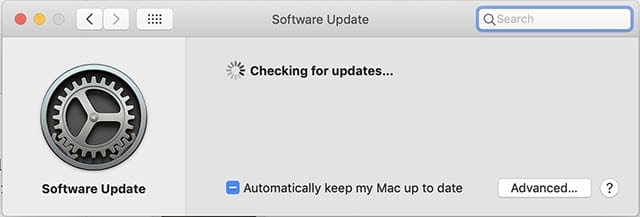
  2. Go to System Preferences > Software Update to check for new updates.
  3. Download and install any updates your Mac finds.

    Safari - macOS Update
    Tick the box at the bottom of the update window to keep your Mac up to date.

How do I reinstall macOS?

  1. If you haven’t already, make a new backup using Time Machine.
  2. Use the following instructions to boot your Mac into Recovery Mode:
    1. Go to  > Shut Down and confirm you want to Shut Down you Mac.
    2. Wait 30 seconds for your Mac to fully power off.
    3. Briefly press the power button, then immediately hold command+R.
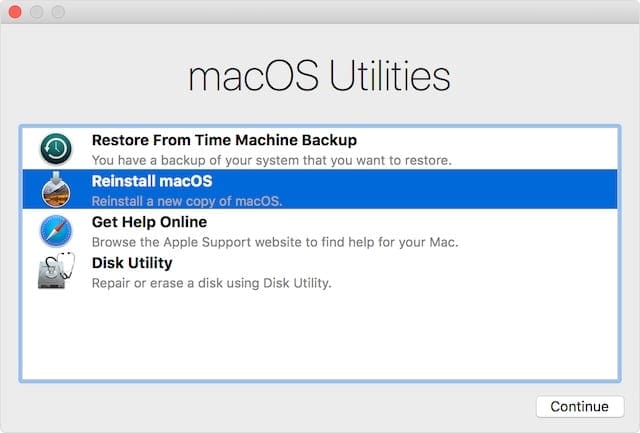
  3. When the Recovery Mode screen appears, click Reinstall macOS.
  4. Follow the on-screen prompts to complete the macOS reinstallation.

    macOS Recovery Mode Utilities window
    Recovery Mode makes it easy to troubleshoot problems with macOS.

Fingers cross, that’s the last of the ‘“Preview.app” is not open anymore’ messages. Check out this post if you need more help with crashing apps on your Mac.

And let us know in the comments if you found these suggestions helpful!

Related Posts:

  • macOS Monterey Universal Control
    How to Reset Dock on Mac
  • 2023 Mac Studio lifestyle - 1
    macOS Could Not Be Installed, How-To Fix
  • 2022 Mac Mini with Studio Display and Accessories
    Mac Tips For New Users In 2023
  • Multiple Windows iPad
    How to Open Multiple Windows of Safari on iPad With iOS 16
  • Mac Output Audio Header
    How to Control Individual Application Volume on Mac
  • 15 Essential Safari Extensions for Mac in 2023
    15 Essential Safari Extensions for Mac in 2023
  • Games coming to macOS Sonoma
    How to Play Windows Games on Mac
  • Photo of someone using Apple Music on their smartphone
    How to Fix Apple Music Not Working on iPhone / iPad
  • How to Install Windows 11 on Mac
    How to Install Windows 11 on Mac
Dan Helyer

Dan writes tutorials and troubleshooting guides to help people make the most of their technology. Before becoming a writer, he earned a BSc in Sound Technology, supervised repairs at an Apple Store, and even taught English in China.

Reader Interactions

Write a Comment Cancel reply

Show 1 Comments

  1. Emile Constantin says

    April 2, 2020 at 9:15 AM

    This was soo helpful thank you so much. I’ve tried every single method there was in order to trh fixing my problem but none of them worked until i checked out ur website which was the only one i came accross that mentioned the “reboot method” and specifically the hard reboot method which is the one that worked for me.. thank you

    Reply

Primary Sidebar

Recent Posts

  • How to Disable Predictive Text in iOS 26
  • How to Stop Sharing Analytics in iOS 26
  • How to Manage Your iPhone Call Log
  • Are Apple’s Safety Precautions Enough for AirTags?
  • How to Hide Username and Photo on the Mac Lock Screen
  • Microsoft Resume vs. Apple Handoff – Which Wins for Cross-Device Work?

Connect with us

Footer

ABOUT

  • About Us
  • Contact us
  • Advertise
  • Privacy
  • Terms of Use

GUIDES

  • iOS & iPadOS
  • Apple ID
  • iCloud
  • App Store
  • iTunes
  • FaceTime
  • iMessage
  • Siri
  • Books and iBooks
  • Game Center
  • AirPlay

CONNECT

  • Facebook
  • Twitter
  • FeedBurner
  • YouTube

© Copyright 2010-2024 Guiding Tech Media · All Rights Reserved

This site and its content are in no way affiliated or endorsed by Apple, Inc. · Reproduction without explicit permission is prohibited

Last Updated on September 23, 2019 by Elizabeth Jones