• Skip to primary navigation
  • Skip to main content
  • Skip to primary sidebar
  • Skip to footer

AppleToolBox

Tools and Fixes for Mac, iPad, iPhone & iWatch

Search posts

  • About
  • Contact

CONNECT WITH US

CATEGORIES

  • iPhone
  • iPad
  • iPod
  • Apple Watch
  • Mac/MacBook
  • AirPods
  • Apple TV
  • News
  • Apple Services
  • HomePod
  • Reviews

SITE

  • Home
  • About Us
  • Contact
  • Advertise

Search posts

You are here: Home / Mac / How to use macOS and Mac OS X Advanced Dictation Feature with Privacy

How to use macOS and Mac OS X Advanced Dictation Feature with Privacy

By Sudz Kar 0 comments Last updated April 26, 2017

Although the Siri feature on the Mac is pretty impressive, for more robust voice controls it’s best to use the Dictation feature available on macOS and most version of MAC OSX. Since El Capitan, we’ve had some advanced dictation commands including searches using Spotlight and navigating those search results. This post walks you through some of the basic settings and more importantly shows you options that provide greater privacy and speed.

Mac OS X & macOS: Dictation not working; how to fix

Related Posts

  • Mac OS X & macOS: Dictation not working; how to fix
  • Use Dictation On Your iPad
  • How to Use Siri on Your Mac

Contents

  • Setting Up Your Advanced Dictation Feature 
    • Advanced Dictation Feature Step – 1
    • Advanced Dictation Feature Step – 2
    • Advanced Dictation Feature Step – 3
  • Using Your Advanced Dictation Feature 
    • Take your dictation and workflow to new levels using applescript and automator T
  • PRIVACY CONCERNS

Setting Up Your Advanced Dictation Feature 

Advanced Dictation Feature Step – 1

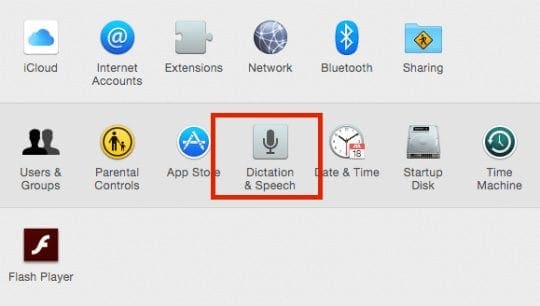
First Turn on the Dictation feature on your Mac by going to ->System Preferences -> Dictation and Speech

How to use macOS and Mac OS X Advanced Dictation Feature with Privacy

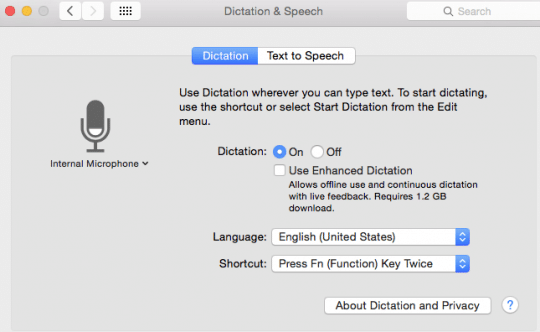
On the next screen, please enable your Dictation feature.

Enable Dictation

Advanced Dictation Feature Step – 2

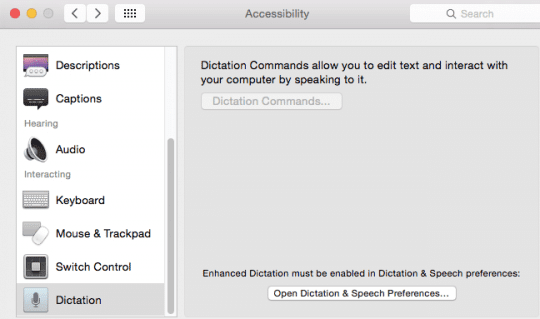
Next, Click on  > System Preferences > Accessibility and scroll down on the left pane and choose Dictation.

Dictation


Advanced Dictation Feature Step – 3

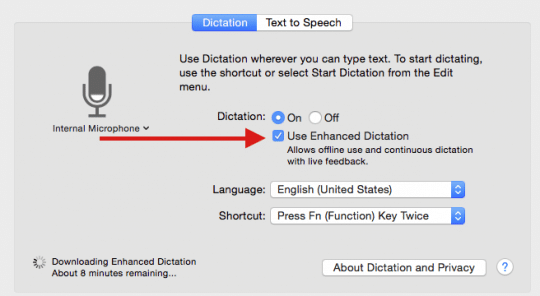
Check mark “Enable Advanced Commands,” and your Mac starts downloading the dialects into your local machine.

Enhanced Dictation


Using Your Advanced Dictation Feature 

Define a custom phrase that when spoken, order a sequence of actions on your Mac. Set the command to work in all apps or a specific one, then click the pop-up next to perform and select Run workflow. Apple provides a list of pre-made workflows to explore. As an example, look at the ones for controllingiTunes. And ask your Mac to play your favorite tune.

Take your dictation and workflow to new levels using applescript and automator T

The macOS or OSX Dictation feature supports a variety of languages including English, Spanish, and many others. It is important that you understand the default behaviour of this feature. By default, the system actually sends the spoken audio to Apple Servers across the internet. This round trip between your Mac and Apple servers causes a delay in the transcription of a few seconds. The server based dictation in macOS also sends other user information such as your address book contacts etc to provide more accurate transcription. Apple never uses this information beyond improving the server based dictation service.

PRIVACY CONCERNS

The Enhanced Dictation option that relies on locally stored assets to perfom the transcription. Selecting the Use Enhanced Dictation checkbox downloads your local language and dialect etc and makes it available on your Mac. Language packs are often quite large–running around 1 GB per language.

When you select this option on your Mac as shown in Step 3, all dictation transcription happens locally on your mac and no information is send to Apple Servers on the internet.

Since this is happening on your local Mac, the speed is also much better than the internet based transcription.

Related Posts:

  • Spotlight Replacement Apps Mac Hero
    Spotlight Search Not Working on MacBook, How-To Fix
  • How to use ChatGPT on iPhone and iPad - Hero
    How to Use ChatGPT on iPhone and iPad
  • sidecar on iPadOS and macOS
    Sidecar not working in iPadOS and macOS? How to fix…
  • pexels-cottonbro-5474033
    How To Use The Mac Terminal: The Basics
  • macOS Ventura Spotlight
    How to Use Spotlight in iOS 16
  • Photo of someone using Apple Music on their smartphone
    How to Fix Apple Music Not Working on iPhone / iPad
  • 2023 Mac Studio lifestyle - 1
    macOS Could Not Be Installed, How-To Fix
  • pexels-andrea-piacquadio-3760811
    Automator Workflow Types: Understanding The Differences
  • 2022 Mac Mini with Studio Display and Accessories
    Mac Tips For New Users In 2023
sudz - apple
Sudz Kar

Obsessed with tech since the early arrival of A/UX on Apple, Sudz (SK) is responsible for the original editorial direction of AppleToolBox. He is based out of Los Angeles, CA.

Sudz specializes in covering all things macOS, having reviewed dozens of OS X and macOS developments over the years.

In a former life, Sudz worked helping Fortune 100 companies with their technology and business transformation aspirations.


Reader Interactions

Write a Comment Cancel reply

Primary Sidebar

Recent Posts

  • Outlook Outage 2026: iPhone Fixes for Sign-In Chaos
  • Guide to Changing iMessage Backgrounds on iPhone and Mac
  • Has Apple Killed Vision Pro? (Insane Sales Flop Explained)
  • 5 Great Apps for Staying Organized on Your iPhone
  • What Are iPhone Antennas and Do You Need One?
  • iPhone Alarm Not Going Off in iOS 26? Here’s What to Do

Connect with us

Footer

ABOUT

  • About Us
  • Contact us
  • Advertise
  • Privacy
  • Terms of Use

GUIDES

  • iOS & iPadOS
  • Apple ID
  • iCloud
  • App Store
  • iTunes
  • FaceTime
  • iMessage
  • Siri
  • Books and iBooks
  • Game Center
  • AirPlay

CONNECT

  • Facebook
  • Twitter
  • FeedBurner
  • YouTube

© Copyright 2010-2024 Guiding Tech Media · All Rights Reserved

This site and its content are in no way affiliated or endorsed by Apple, Inc. · Reproduction without explicit permission is prohibited

Last Updated on April 26, 2017 by Sudz Kar