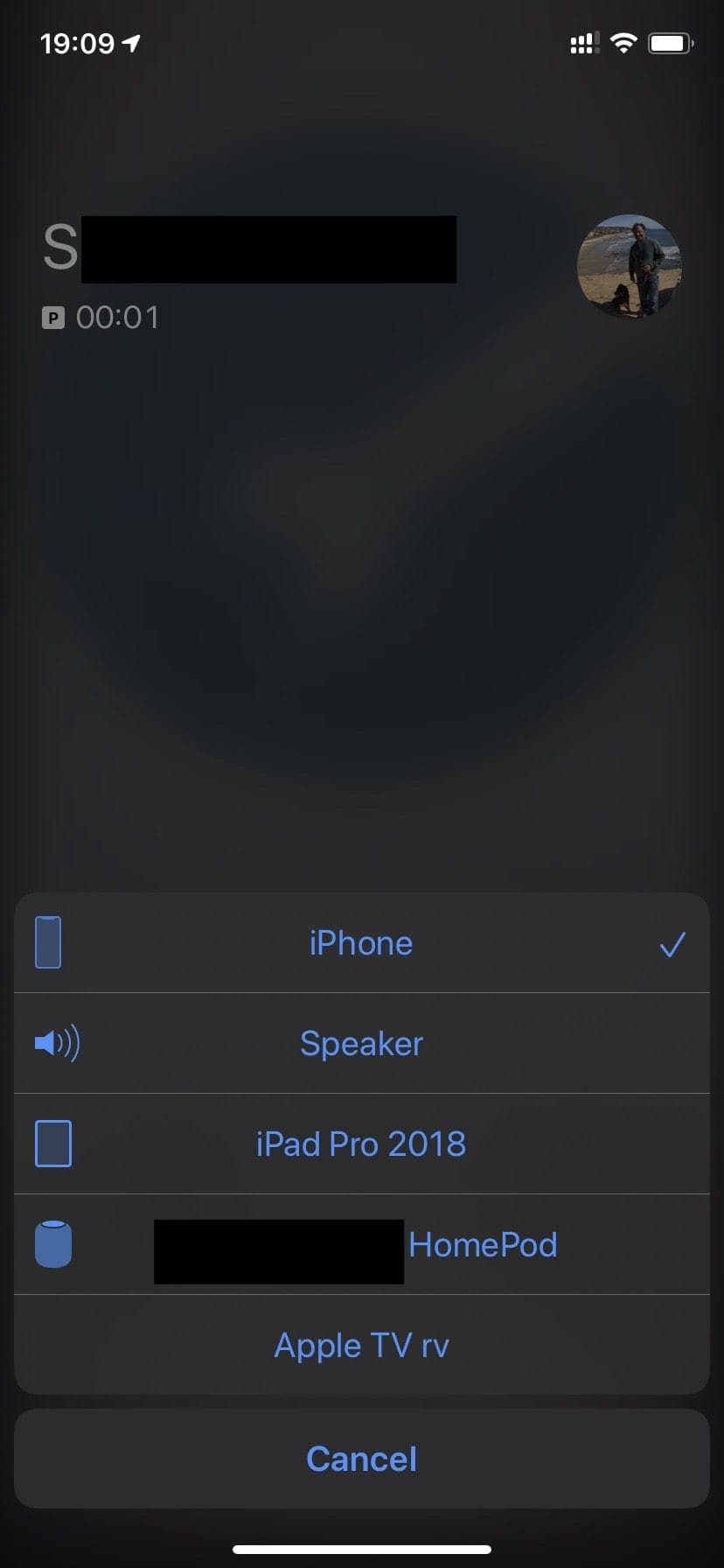
Quite a few of our readers discover that after updating their iPhones to the latest iOS, their AppleTVs now show up as an audio output option when tapping the speakerphone button. This happens when making and receiving calls!
Although Apple’s ecosystem is usually amazing and intuitive, there are always a few quirks! And this issue is one such issue. Luckily, there are ways to remove your Apple TV(s) from the phone app’s list of the speakerphone devices.
Apple considers this expected behavior for AirPlay. Since your iPhone always shows any AirPlay-enabled devices that are within its range, that automatically includes any Apple TV(s) connected to the same WiFi network.
As a quick fix, if you have more than one WiFi network, choose a different network for your Apple TV to immediately stop seeing the Apple TV when you tap the speaker icon on your phone.
This bug appeared in iOS 13.2.2, but the Apple TV, HomePod, and Mac all appear as possible speakerphone options. It seems that although it shows up as an audio output option, you can’t actually choose your Apple TV–it doesn’t appear to work! But it does make switching to your AirPods or other headsets more difficult.
Remove Apple TV from iPhone Speakerphone
Obviously, needing to remove Apple TV from the Speakerphone list is rather annoying, but it’s necessary for the time being. In order to get this working and get your phone back to normal, we’ll have to get started over with the Apple TV. Here are the steps that you’ll need to take:
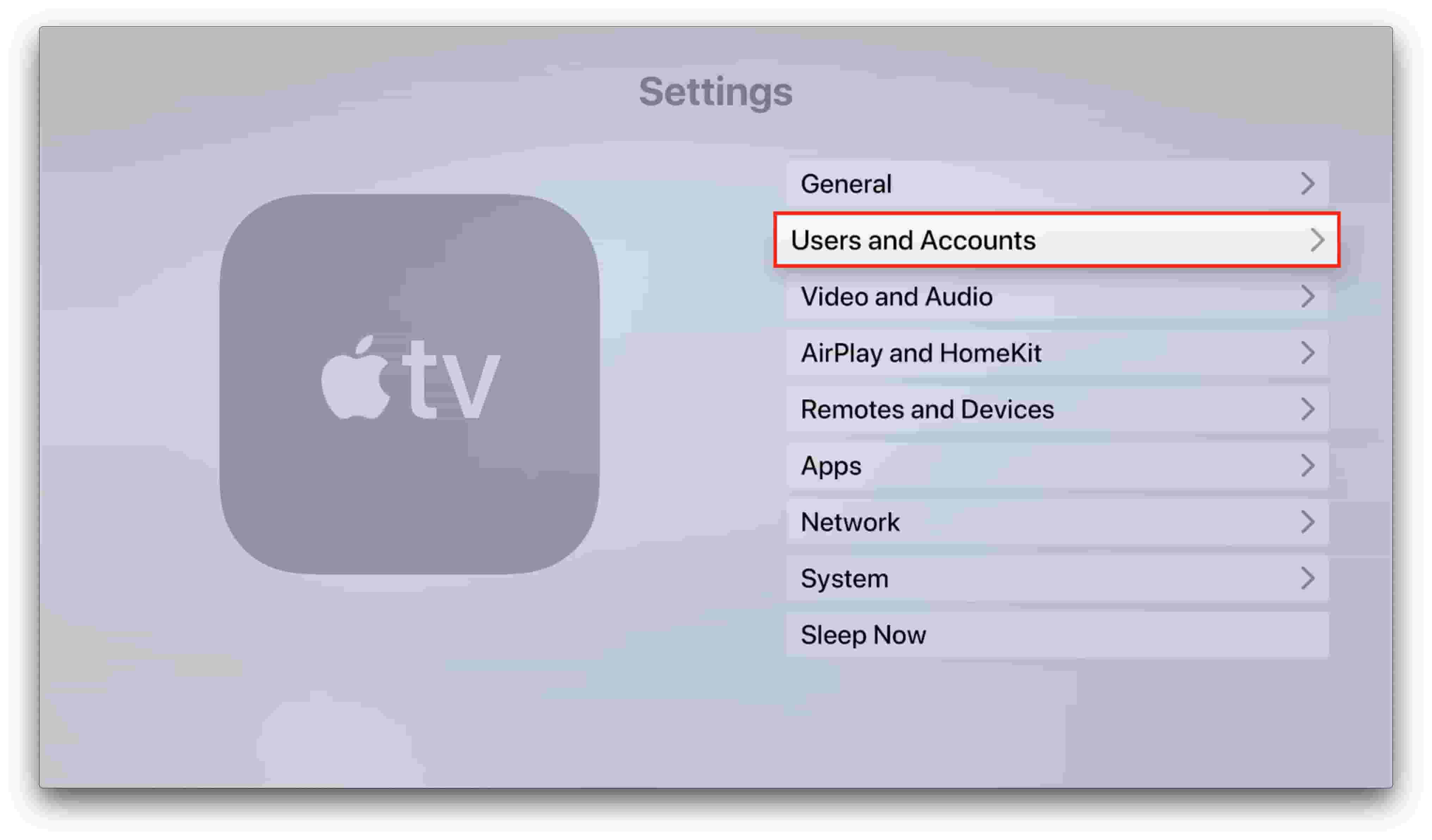
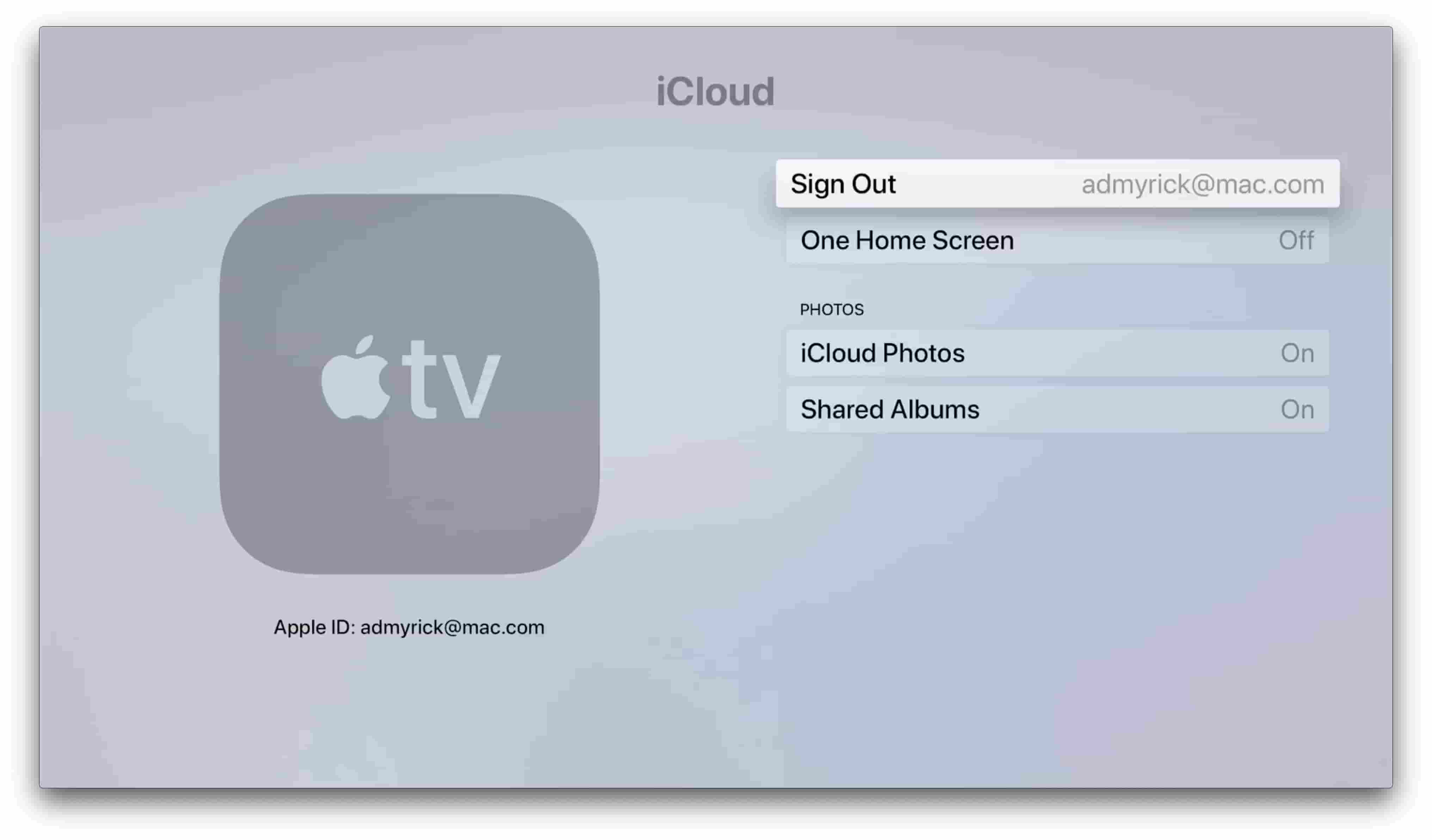
From your Apple TV, open Settings
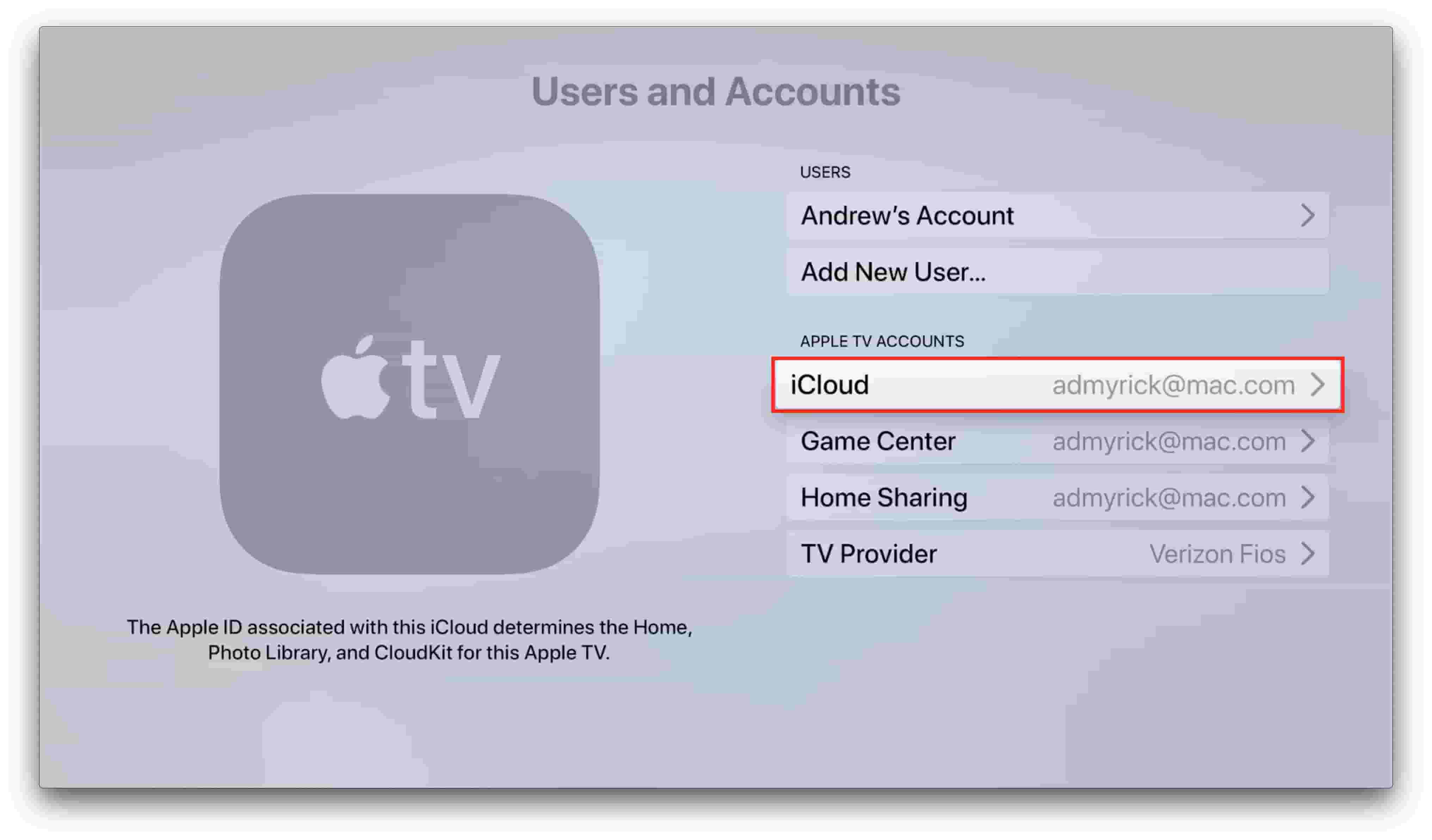
Navigate to User and Accounts and select iCloud
Click on Sign Out
After you have signed out, there are a couple of more steps you need to take:
On the Apple TV, open Settings
Scroll and select Remotes and Devices
Select Remote App and Devices
Tap on Your iPhone and select Unpair Device
Restart your Apple TV and iPhone
After you have restarted both the Apple TV and iPhone, try making a phone call or have a friend give you a quick ring. When viewing the options for hearing the call, the Apple TV should no longer appear. If that’s the case, then voila! the problem has been fixed until Apple gets its act together.
What if I don’t want to unpair my iPhone from my Apple TV?
That’s a very valid question, and the primary question causing much frustration. However, the steps above are a better alternative than the other option for “fixing” the issue. Those steps include resetting the Apple TV itself and using a different Apple ID to log back into it.
If this is the route that you want to go down, everything downloaded to the ATV will be deleted and you will have to re-download everything using a different ID. This is fine if you rely on streaming services, but can be problematic if you have an extensive iTunes Movie Library.
Remove Mac from iPhone Speakerphone
In the event that you want to also remove Mac from appearing as an option on your iPhone speakerphone, the steps here are pretty simple. This feature comes with the help of “Handoff” which makes it much easier for your iPhone and Mac to communicate. Here is how you can remove Mac from iPhone speakerphone:
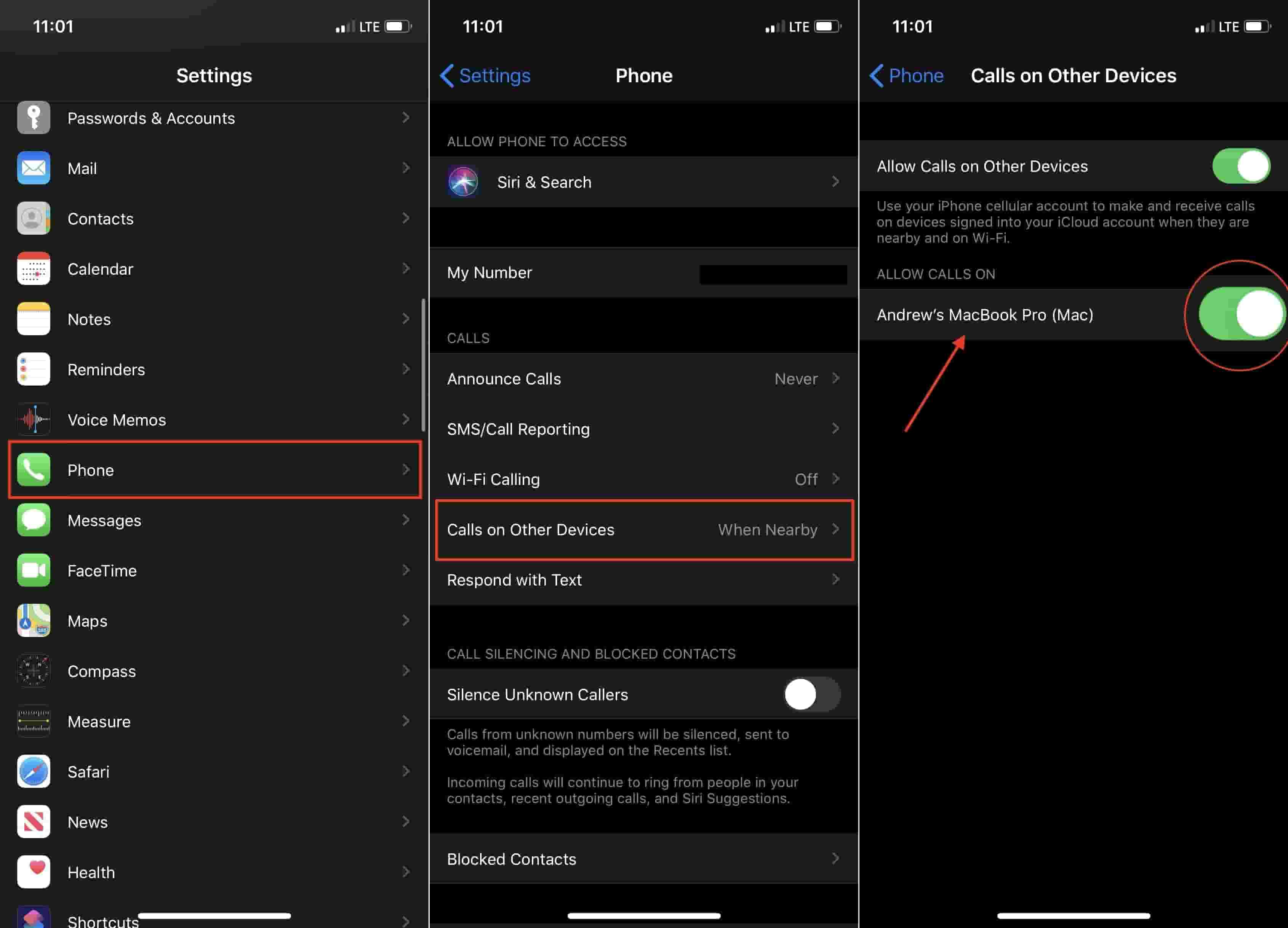
From your iPhone, open the Settings app
Scroll down and select Phone
Tap on Calls on Other Devices
Toggle your Mac to the Off position
Restart your iPhone
When proceeding down this route, toggling off the calls from other devices will only stop the Mac from being able to take phone calls. However, if you continue having issues and want to try something else, you can disable Handoff between your Mac and other connected iCloud devices. Here are the steps:
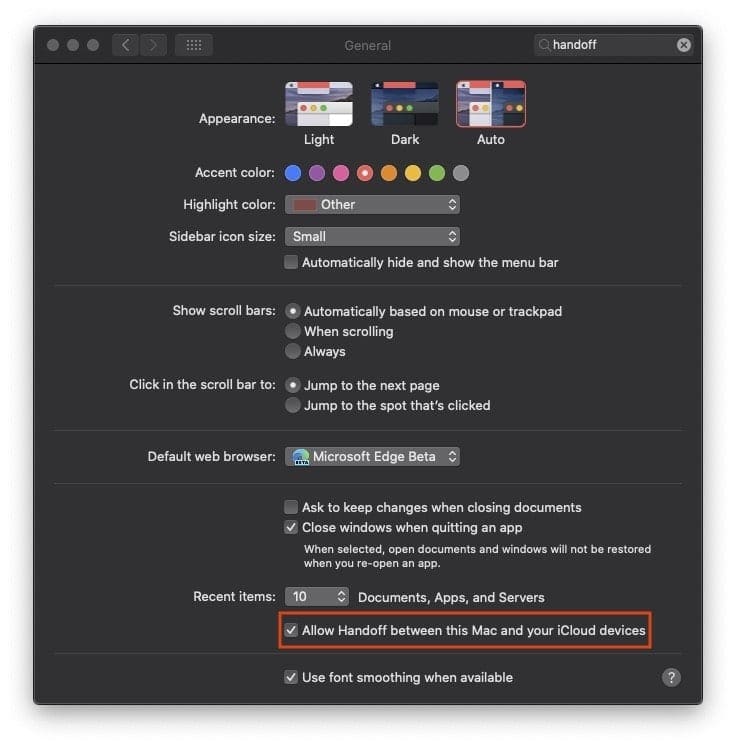
From your Mac, open System Preferences
Click on General
At the bottom, toggle the checkbox for Allow Handoff between this Mac and your iCloud devices
Once done, this will disable any Handoff features to be available between your Mac and other devices. This includes things such as AirDrop which is something that is ultra-convenient in a pinch, especially with screenshots or pictures or just files in general.
Nonetheless, disabling Handoff should remove your Mac from appearing in your iPhone speakerphone in the event that you are experiencing this bug.
Conclusion
For many years, Apple’s software integration between devices “just worked”, but the company seems to have hit a few bumps in the road with the release of iOS 13. The company is still working on releasing new updates. So hopefully, a future update solves this and other issues with the software.
If you continue running into issues, or have found a better workaround, sound off in the comment section below!
Reader tips
Try this process. It worked for me and my family
Open Settings on your iPhone, iPad or iPod touch (for iOS 13.2 or later)
Choose General
Tap AirPlay & Handoff
Tap Automatically AirPlay to TVs
Select Never–this stops it from automatically sending your call to any Apple TV or other compatible smart TV
Andrew Myrick is a freelance writer based on the East Coast of the US. He enjoys everything to do with technology, including tablets, smartphones, and everything in between. Perhaps his favorite past-time is having a never-ending supply of different keyboards and gaming handhelds that end up collecting more dust than the consoles that are being emulated.
All you need to go is go to settings>phone on your iPhone, choose “Calls on Other Devices” and either turn it off or turn off individually the Macs you don’t want showing up.












All you need to go is go to settings>phone on your iPhone, choose “Calls on Other Devices” and either turn it off or turn off individually the Macs you don’t want showing up.
I always had “Calls on Other Devices” off and Apple TV still showed up. Also my Apple TV is not connected to WiFi, it’s a hard wired connection