Let’s be honest: Many of us don’t find the default iPhone alarm particularly satisfying to wake up to. You can, of course, pick another sound… but why not pick your favorite song instead?
Adding a song as your new alarm in the iOS Clock app is very easy. In this guide, we will show you precisely how to do that.
How to Add a Song to Your Alarms in the Clock App on iPhone
To add a song to your alarm, you need to have it downloaded on your device. Having Apple Music is sufficient enough in most cases, but you don’t need a subscription if you have the file already downloaded on your iPhone.
Follow these instructions to add your favorite song as an alarm in the iPhone Clock app.
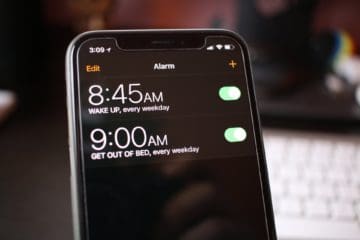
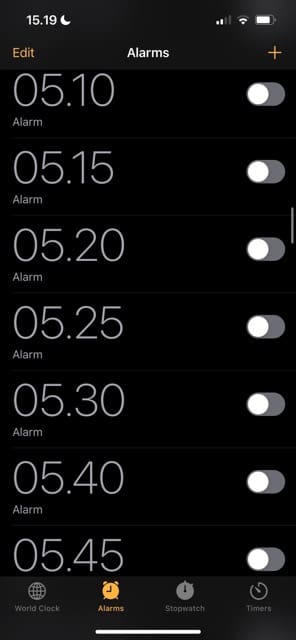
Open the Clock app and go to the time you’d like to set an alarm for.
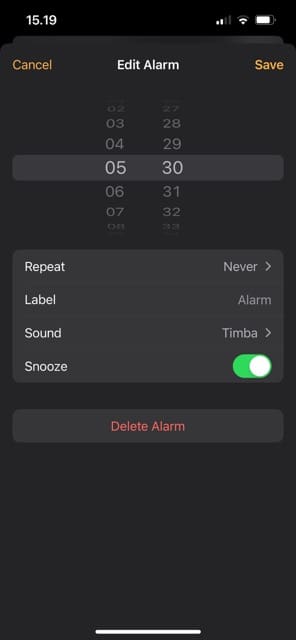
Tap Sound, which will be beneath the time.
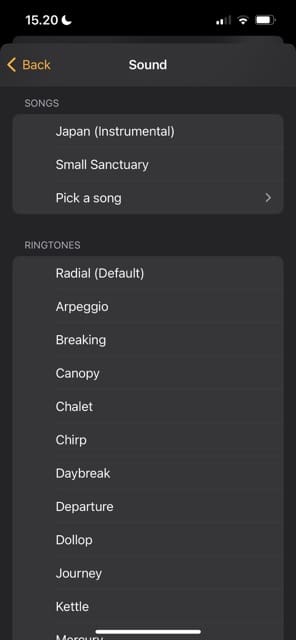
Scroll up. Close to the top, you’ll find the Songs section.
Pick one of the songs that you see. Alternatively, if you want to select something else, Tap Pick a song.
If you opted for the latter, select the song you want to add as your alarm. You’ll need to press the + icon.
Once you’ve chosen your song, you will hear a preview. You don’t need to do anything else if you’re happy, as your changes will automatically save.
Why Isn’t My Song Saving as My iPhone Alarm?
Quite a few of our readers tell us that when they pick a song for their morning (or anytime) alarms that instead of playing the chosen song, the alarm defaults to the Radar (Default) Alarm sound.
After some testing, we discovered that if you download songs to your device, your alarms use that song. But when the songs are not downloaded to the device, the alarm goes back to that default Radar sound. It’s worth trying a few times to see if the alarm change works; if it doesn’t, you can try a number of things to solve the issue.
Restart Your iPhone
Before doing anything else, you should try turning your iPhone off and on again. In many instances, this is as far as you should need to go for fixing problems associated with your alarm sound not working.
How you reset your iPhone depends on the device you have. If you have an iPhone with a Home Button, simply hold the standby button until the slide to power off message appears. When it does, move your finger along the slider to switch your device off; you can turn it on again by holding the standby button again.
If you have an iPhone with Face ID, hold the standby button AND one of your volume buttons. The remaining steps are identical. To turn your iPhone on again, you only have to hold the standby button.
Delete and Re-Install Apple Music
If you’re trying to add a song from Apple Music as your alarm, try deleting and re-installing the app. To do this:
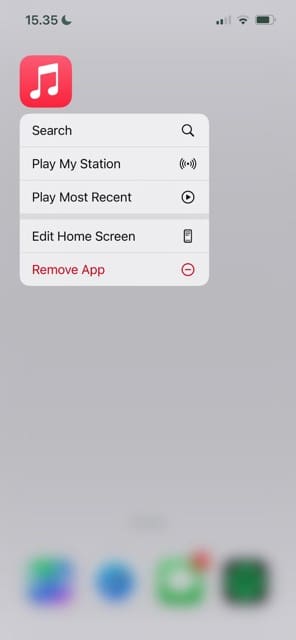
Tap and hold the Apple Music app until a dropdown menu appears.
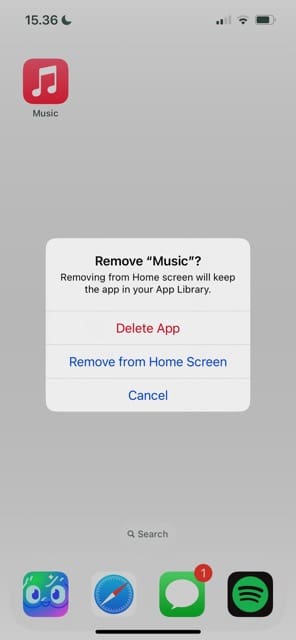
Select Remove App.
Confirm that you want to remove the Apple Music app.
Go to the App Store and re-download Apple Music. Sign back into your account if needed.
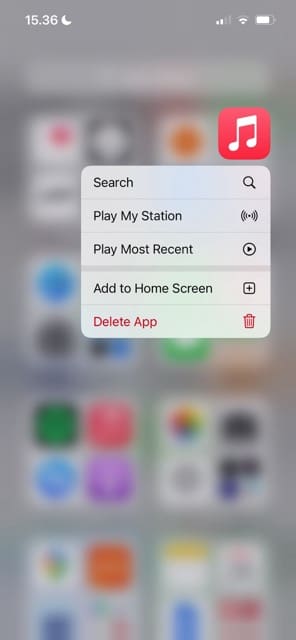
If Apple Music isn’t on your home screen, swipe to the right. Here, you’ll see your app library. Select Delete App.
Delete and Re-Add the Files
You can also try deleting and re-adding your music files if that’s the cause of your problems. Remove your songs in the Apple Music app, before re-connecting your iPhone to your computer. Here, you can re-add the files. You may want to turn your device off and on before you re-add the file.
Check for iOS Software Updates
Many users reported in 2021 that they would no longer hear their preferred song as an alarm sound. Since then, Apple has released several major updates. As such, you should hopefully no longer have problems setting up your alarm again. Update your iOS software by following the instructions below.
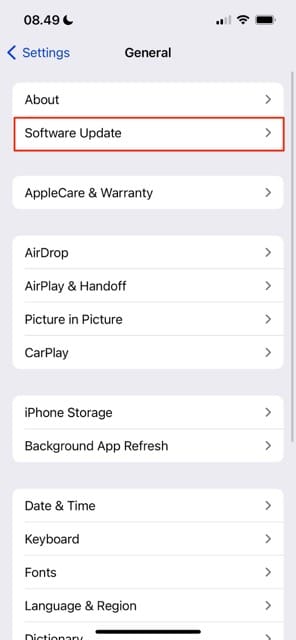
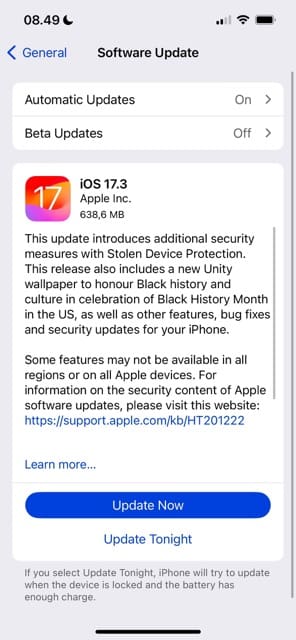
Go to Settings > General > Software Update on your iPhone.
Wait for your iPhone to search for a software update. If it finds one, select Update Now.
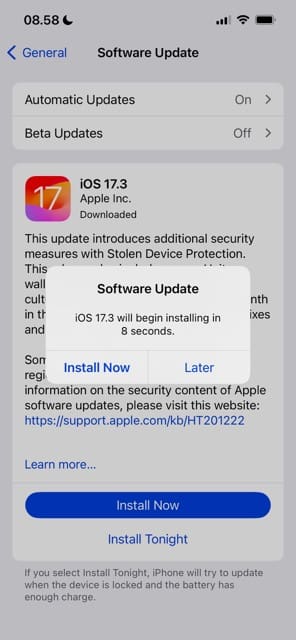
Confirm that you want to download your iPhone software.
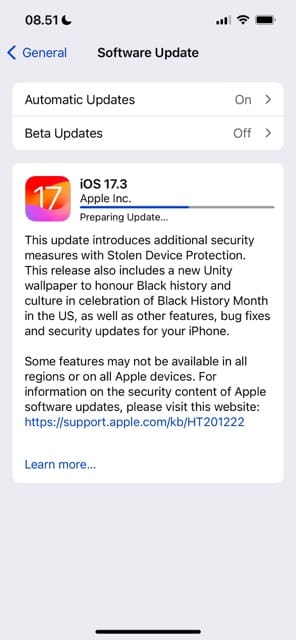
Wait for your iPhone software to download.
Contact Apple’s Support Team
You can also contact Apple’s Support team for further assistance. To do this, go to the Apple Support website. Alternatively, you can download the Apple Support app instead.
Choose a Better Alarm for Your Daily Wake-Up Time
You’ve got plenty of customization options for your iPhone alarm, and that includes being able to add your favorite song. The process is very straightforward; you can add your alarm via files on your phone or through Apple Music. Once you’ve done that, you will hopefully have no problems hearing it. Note, however, that you’ll need to add the song for each time you’d like to set an alarm.
If you have problems with your alarm, you can try deleting and re-installing both Apple Music and your files. On top of that, you have the option to contact Apple Support if needed.
Hopefully, these tips have helped you achieve your desired results. If you’ve experienced any issues, please let us know in the comments section.
Danny has been a professional writer since graduating from university in 2016, but he’s been writing online for over a decade. He has been intrigued by Apple products ever since getting an iPod Shuffle in 2008 and particularly enjoys writing about iPhones and iPads. Danny prides himself on making complex topics easy to understand. In his spare time, he’s a keen photographer.
When I try to use one of my download songs to my alarm it does not work anymore. I never had this problem before. Is there a reason why this is no longer working on my iPhone 10.
My iPhone 11 won’t play any songs that I have downloaded and instead plays the std radar ring. My last iPhone 8 worked just fine. I could choose different songs for different alarms. Have a solution for this?
Is there any way that you can pick a certain spot for the song to begin? I’ve tried a ton of ringtone maker apps but none of them worked. I also suck with tech.
I have a problem with choosing a song, I’m not sure if I saw this problem w somebody else.
I added an mp3 file to my iPhone with another app (bc I have an old mac and it won’t let me use iTunes w my iPhone) and it is showing in the Music app on my phone, but when I am trying to choose a music for my alarm, this song is not showing up, while the others do.
Is there anything I can do to be able to set as my alarm, or is it because the app I added it to my iPhone with? Thank you in advance!
I was able to use an iTunes song for my iPhone XR’s alarm tone iOS 13.3. However, I was sad and frustrated to find out that my song was cut off straight up after only seconds. I want my alarm song to play in its entirety, which is roughly 3.5 minutes. Is this possible and how do I do it?
the alarm woke me up to the song but stopped playing after 15 minutes the song should have played for 23 minutes is there another setting I am missing? Or is there a default amount of time the alarm runs for?
Slide on your mute button on the side of your iPhone, iPad, or iPod to mute any ringtones–just remember to slide it back on if you want to hear your calls and notifications after your wake up.
We don’t know why, but Apple does not provide a way to delete these songs from your list of alarm songs!
It should only show between 5-6 of your most frequently used songs so the list should not continue to grow and grow.
The only other thing that might work (we haven’t tested it though) is to reset all settings–but this is likely not worth it.
Reset all settings
* This is usually the last resort since it resets all your personalized features back to factory defaults
* Go to Settings > General > Reset > Reset All
* This resets to default everything in Settings, including notifications, alerts, brightness, and clock settings like wake up alarms
* Resetting all settings also reverts all your personalized and customized features like wallpapers and accessibility settings back to factory defaults.
* Performing this action does not impact any of your personal device data, including photos, texts, documents, and other files
* You need to reconfigure these settings once your iPhone or iDevice restarts
It would be great to be able to change the options in the “Wake Up Alarm” and choose the ‘wake-up-sound’ from the playlist via downloaded music in Itunes or purchased.
The only way to do this on Apple 5 is to select the ‘alarm’ and have both go off at intervals?
Currently, alarm music must be on your device to show up and play. If the song you selected has a cloud next to it in your music library it won’t work.
If using Apple Music (subscription), choose “Make Available Offline” to download the song to your device and then set it as your alarm.
Allowing any music as an alarm would be nice, whether on the device or via iCloud. Please consider providing Apple your experience and feedback–so maybe they’ll consider it for the next iOS update.
My alarm keeps going back to the default ringer it won’t let me set my Apple Music and I didn’t have this trouble with my other apple phone, can you please help me with this issue?
My iPhone still goes to the default Radar alarm despite following all the instructions on previous posts. Disappointing and the Radar sound is too harsh for waking up!
This is exactly what happens in my experience. Can someone comment on why this might be and what can be done to remedy? My old iPhone operated better than this one, waking me with Pachabel Canon every morning, not that irritating radar default!
We did some testing to see what’s working and what’s not. What we discovered is that any song that’s downloaded to your device seems to work when set as pick a song for an alarm.
However, if you choose a song that’s not downloaded to your device, the alarm defaults to the Radar sound.
Sadly, picking a song that is not downloaded onto your device appears not to work in iOS 12 (and 12.1.)
We tested on three different devices, with one running iOS 12, another iOS 12.1, and finally, an iPad running iOS 11.4–and the only one that worked was iOS 11.4. So we think it’s a bug new to iOS 12.
We did some testing to see what’s working and what’s not. What we discovered is that any song that’s downloaded to your device seems to work when set as pick a song for an alarm.
However, if you choose a song that’s not downloaded to your device, the alarm defaults to the Radar sound.
Unfortunately, picking a song not already downloaded appears not to work in iOS 12 (and 12.1.)
We tested on devices running iOS 12, iOS 12.1, and iOS 11.4–and the only one that worked was iOS 11.4. So we think it’s a bug new to iOS 12.







I can’t get my alarm to work with music. It only plays the default alarm. I just bought an iPhone 13.
My alarm no longer works with downloaded music. I have tried every fix that I can find.
Would greatly appreciate this getting fixed as I noticed it broke after one of the latest IOS updates.
When I try to use one of my download songs to my alarm it does not work anymore. I never had this problem before. Is there a reason why this is no longer working on my iPhone 10.
My iPhone 11 won’t play any songs that I have downloaded and instead plays the std radar ring. My last iPhone 8 worked just fine. I could choose different songs for different alarms. Have a solution for this?
Wow..this was the missing piece (downloading the song first). Thanks so much, and now I can wake to Ok Go’s “Let it Go” every time I set an alarm!
Is there any way that you can pick a certain spot for the song to begin? I’ve tried a ton of ringtone maker apps but none of them worked. I also suck with tech.
Hey there!
I have a problem with choosing a song, I’m not sure if I saw this problem w somebody else.
I added an mp3 file to my iPhone with another app (bc I have an old mac and it won’t let me use iTunes w my iPhone) and it is showing in the Music app on my phone, but when I am trying to choose a music for my alarm, this song is not showing up, while the others do.
Is there anything I can do to be able to set as my alarm, or is it because the app I added it to my iPhone with? Thank you in advance!
I was able to use an iTunes song for my iPhone XR’s alarm tone iOS 13.3. However, I was sad and frustrated to find out that my song was cut off straight up after only seconds. I want my alarm song to play in its entirety, which is roughly 3.5 minutes. Is this possible and how do I do it?
the alarm woke me up to the song but stopped playing after 15 minutes the song should have played for 23 minutes is there another setting I am missing? Or is there a default amount of time the alarm runs for?
How do I turn off ring tone as it plays along with music?
Thaks
Hi Rick,
Slide on your mute button on the side of your iPhone, iPad, or iPod to mute any ringtones–just remember to slide it back on if you want to hear your calls and notifications after your wake up.
Liz
How do I clear the list of songs I set as an alarm? I don’t see an option to remove or delete. Thanks!
Hi Billy,
We don’t know why, but Apple does not provide a way to delete these songs from your list of alarm songs!
It should only show between 5-6 of your most frequently used songs so the list should not continue to grow and grow.
The only other thing that might work (we haven’t tested it though) is to reset all settings–but this is likely not worth it.
Reset all settings
* This is usually the last resort since it resets all your personalized features back to factory defaults
* Go to Settings > General > Reset > Reset All
* This resets to default everything in Settings, including notifications, alerts, brightness, and clock settings like wake up alarms
* Resetting all settings also reverts all your personalized and customized features like wallpapers and accessibility settings back to factory defaults.
* Performing this action does not impact any of your personal device data, including photos, texts, documents, and other files
* You need to reconfigure these settings once your iPhone or iDevice restarts
Songs are not showing up and I have over 600 downloads on my iTunes app. Why is that?
Hi Alisa,
There is a major outage with iTunes and Music today, so it’s likely your problems with iTunes are related to server issues.
Wait for a few hours and check again.
Do you have to use iTunes or can u use spotify
It works with Apple music Derek. As long as the song is downloaded and on your device, it should be available in the alarm settings.
It would be great to be able to change the options in the “Wake Up Alarm” and choose the ‘wake-up-sound’ from the playlist via downloaded music in Itunes or purchased.
The only way to do this on Apple 5 is to select the ‘alarm’ and have both go off at intervals?
I just became a new user of the iPhone.
I have purchased 2 iPhone’s one for my wife and myself.
Now I am trying to use the alarm on my iPhone and selecting music to wake up to instead of that annoying default radar.
It does not work!
It keeps playing that default.
I thought with my iCloud acct. always logged in the music should play regardless if coming from the cloud or my device.
My must I download my paid music to my device in order for the music to play.
This just takes up my storage on my device and eventually will begin to slow down the operation of my new devices!
Has Apple come up with corrective action to this issue?
If so, what is that corrective action so that I can have music stored in my cloud, and not on my device.
Thank you,
Hi Robert,
Currently, alarm music must be on your device to show up and play. If the song you selected has a cloud next to it in your music library it won’t work.
If using Apple Music (subscription), choose “Make Available Offline” to download the song to your device and then set it as your alarm.
Allowing any music as an alarm would be nice, whether on the device or via iCloud. Please consider providing Apple your experience and feedback–so maybe they’ll consider it for the next iOS update.
My alarm keeps going back to the default ringer it won’t let me set my Apple Music and I didn’t have this trouble with my other apple phone, can you please help me with this issue?
My iPhone still goes to the default Radar alarm despite following all the instructions on previous posts. Disappointing and the Radar sound is too harsh for waking up!
This is exactly what happens in my experience. Can someone comment on why this might be and what can be done to remedy? My old iPhone operated better than this one, waking me with Pachabel Canon every morning, not that irritating radar default!
Hi MCollier,
We did some testing to see what’s working and what’s not. What we discovered is that any song that’s downloaded to your device seems to work when set as pick a song for an alarm.
However, if you choose a song that’s not downloaded to your device, the alarm defaults to the Radar sound.
Sadly, picking a song that is not downloaded onto your device appears not to work in iOS 12 (and 12.1.)
We tested on three different devices, with one running iOS 12, another iOS 12.1, and finally, an iPad running iOS 11.4–and the only one that worked was iOS 11.4. So we think it’s a bug new to iOS 12.
Please consider submitting Apple your user feedback to let them know your user experience.
Sam
Hi S Cunningham,
We did some testing to see what’s working and what’s not. What we discovered is that any song that’s downloaded to your device seems to work when set as pick a song for an alarm.
However, if you choose a song that’s not downloaded to your device, the alarm defaults to the Radar sound.
Unfortunately, picking a song not already downloaded appears not to work in iOS 12 (and 12.1.)
We tested on devices running iOS 12, iOS 12.1, and iOS 11.4–and the only one that worked was iOS 11.4. So we think it’s a bug new to iOS 12.
Please consider submitting Apple your user feedback to let them know your user experience.
Sam
The songs are downloaded and it still defaults to the darn default ringtone no matter what I do. And it’s 12.1.
Try again.
Exactly. Same. What a piece of s** and what brutal support.
Any chance that Apple will let us use a Playlist instead of one song?
Hi Wendy,
Not yet, but that’s a great idea! Consider giving that feedback to Apple for the next round of iOS updates.
SK
Here we are a year and a half later, and Apple STILL hasn’t implemented what should be a pretty simple thing.