Even with your AirPods or AirPods Pro turned up to ear-splitting levels, your iPhone ringer might be such a low volume you can barely hear it. This leads to a lot of missed calls, which leads to a lot of upset callers.
There are three reasons incoming phone calls or alerts might be too quiet in your AirPods. In this article, we’ll explain what they are, along with everything you can do to fix them.
1. The ringer volume is set too low for your AirPods
You might not know this, but your iPhone has two different volume levels: one for media and one for your ringer. Although your AirPods are loud when you listen to music, incoming calls or alerts might still be quiet if your iPhone ringer volume is too low.
Take a moment to make sure the ringer is turned up loud enough on your connected iPhone. Apple doesn’t do a great job of separating the two volume levels, so follow the instructions below to make sure you get it right.
How to turn up the ringer volume on your iPhone
On your iPhone, go to Settings > Sounds & Haptics.
Your ringer volume is represented by the Ringer and Alerts slider; move it all the way to the right to turn your ringer volume up to the max.
Alternatively, turn on the Change with Buttons option and use the Volume Up button on the side of your iPhone. Be careful though, these buttons still don’t affect your ringer volume if you’re already listening to other media.
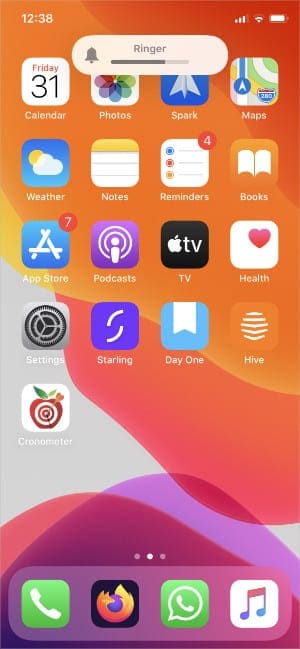
Ringer volume appears at the top of the screen.
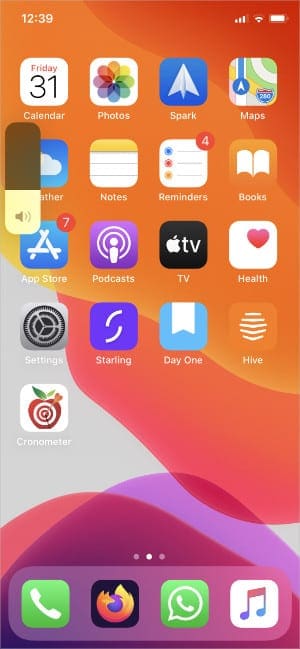
Media volume appears at the side of the screen.
Even with your ringer volume turned all the way up, you still might not hear incoming calls or alerts on your AirPods. If you notice the ringer is quieter while you’re using your iPhone, you might suspect a software bug is to blame.
But in fact, Apple intentionally added this quirk as a design feature.
2. Your iPhone is designed to lower the volume while you use it
iPhones with Face ID sensors can recognize when you’re looking at the screen. With this knowledge, your iPhone turns down the ringer volume whenever you’re looking at it. The thinking behind this goes that if you’re already looking at the screen, you don’t need an annoyingly loud ringtone or alert to catch your attention as well.
Apple calls this an Attention-Aware feature, and it might be the reason the ringer volume is too low on your AirPods or AirPods Pro.
Test your ringer without looking at your iPhone—or turn off Attention-Aware features from the iPhone settings below—to find out if this is the cause of your problems.
Of course, this only applies to devices with Face ID sensors, like the iPhone X or later.
How to disable Attention-Aware features on your iPhone
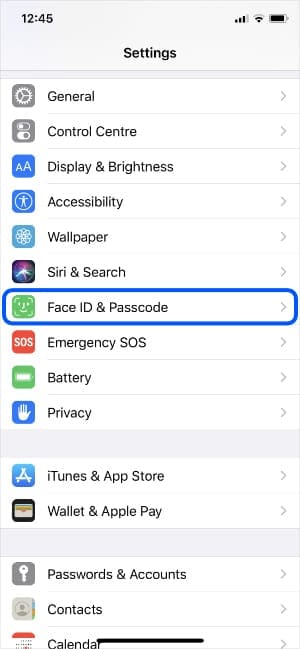
On your connected iPhone, go to Settings > Face ID & Passcode.
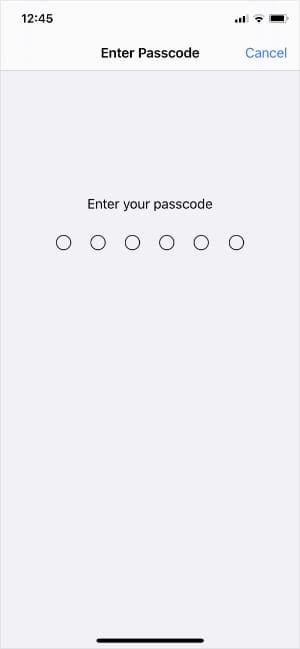
If prompted, enter your iPhone passcode.
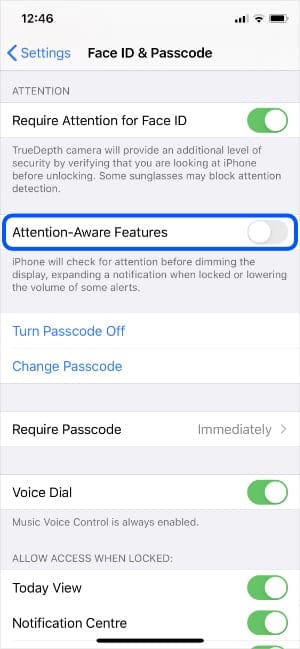
Scroll down and turn off Attention-Aware Features.
Go to the Face ID & Passcode settings.
Enter your iPhone passcode.
Turn off Attention-Aware Features.
You might find that the ringer volume is still too low on your AirPods or AirPods Pro even with Attention-Aware-features deactivated. If that’s the case, you probably do have a software bug.
Don’t worry, there’s plenty you can do to fix it!
3. A software bug is lowering the ringer volume for your AirPods
Apple frequently releases new software updates intended to improve its products. Usually, these updates make your iPhone faster and more reliable, but sometimes they also introduce new software bugs.
Software bugs are mistakes in the code that cause your devices to behave in unexpected ways. It’s quite likely the ringer volume is too low in your AirPods because a software bug is making it that way.
iOS 13 introduced lots of software bugs for iPhone and AirPods users.
These bugs are particularly common in major software updates, like the upgrade to iOS 13 Apple released in September 2019.
If you think you’ve got a bug on your iPhone, follow the steps below to fix it.
Step 1. Update to a newer version of iOS
Hopefully, Apple has already discovered this bug and released a new update to resolve it. If that hasn’t happened yet, keep checking because it will eventually.
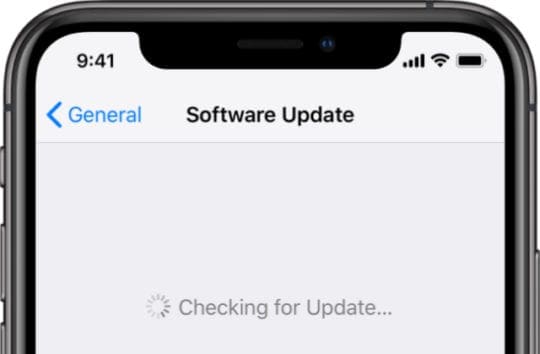
Connect your iPhone to Wi-Fi and go to Settings > General > Software Update to find new updates.
Download and install any updates available for your iPhone.
Install the latest software to benefit from bug fixes.
Step 2. Restart your iPhone
A lot of the time, all you need to do to fix software problems is turn your device off and on again. This works because it restarts various processes that may have stopped working in the background.
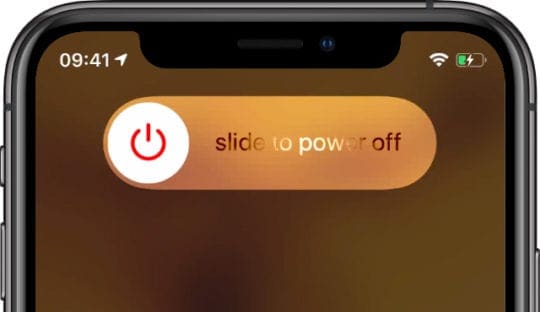
Press and hold the Sleep/Wake button with either Volume button on your iPhone, then slide to power off.
Wait 30 seconds before pressing the Sleep/Wake button again to restart your iPhone.
Slide to power off when prompted by the on-screen message.
Step 3. Reset your AirPods or AirPods Pro
It’s possible the ringer volume is too low because of a connection bug between your iPhone and your AirPods or AirPods Pro. Simply reset and reconnect your AirPods to fix these kinds of issues.
Return your AirPods to their case and close it for 30 seconds, then open it again but don’t remove the AirPods.
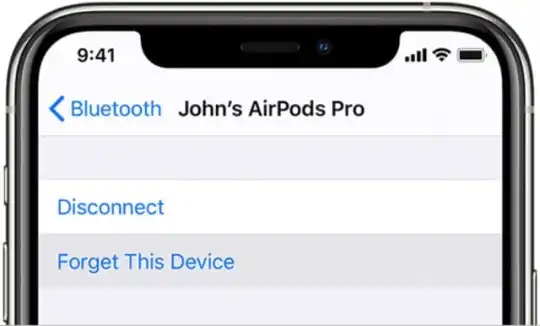
On your iPhone, go to Settings > Bluetooth and tap the i next to your AirPods. Then choose to Forget This Device.
Keep the lid open on your AirPods case, then press and hold the Setup button until the status light flashes amber.
Now move your AirPods close to your iPhone and follow the on-screen prompts to reconnect them.
Remove and reconnect your AirPods from the Bluetooth settings.
Step 4. Reset your iPhone settings
Various bugs can arise from the settings on your iPhone. Luckily it’s easy to reset your iPhone settings without deleting any music, videos, apps, or other content from your iPhone.
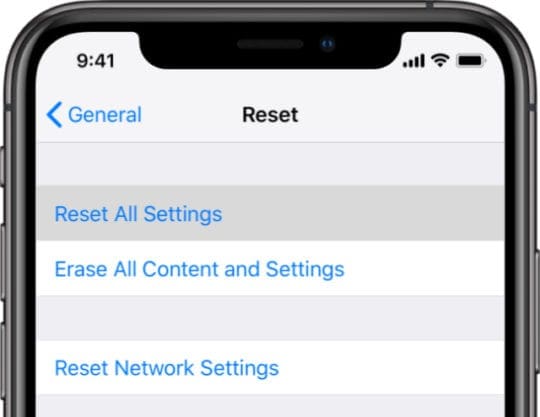
Go to Settings > General > Reset.
Choose to Reset All Settings. This resets everything in the Settings app to its default state.
Confirm you want to Reset Settings.
Choose to Reset All Settings on your iPhone.
Step 5. Erase and restore your iPhone
If nothing else has worked, you should be able to fix almost any software bug by erasing your iPhone entirely and reinstalling iOS. This deletes all the content and data from your iPhone, so be sure to make a backup before you start.
To fully reinstall iOS, you should restore your iPhone using DFU mode. For a quicker alternative, simply erase everything from the settings.
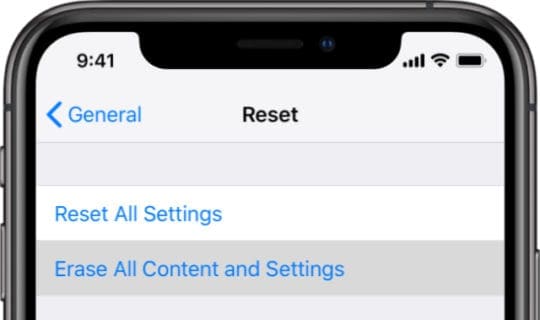
Go to Settings > General > Reset.
Choose to Erase All Content and Settings, then choose to make a new backup if prompted. The next step will completely erase your device; if you don’t have a backup, you will lose all your data.
Confirm you want to Erase iPhone.
After erasing the device, follow the setup prompts to restore your backup.
Make sure you back up your iPhone before you erase it.
Turn up the volume for everything
Now that you’ve balanced the volume levels on your AirPods, you should be able to hear the ringer over whatever else you’re listening to. But you still might struggle to hear anything at all if you use your AirPods in a noisy environment.
Find out all the different ways to make your AirPods louder so you can always hear them. Of course, AirPods Pro users can just turn on Noise Cancellation, but not all of us are that lucky.
Dan writes tutorials and troubleshooting guides to help people make the most of their technology. Before becoming a writer, he earned a BSc in Sound Technology, supervised repairs at an Apple Store, and even taught English in China.












Write a Comment