The Apple Watch is by far the most popular smartwatch on the market, but it’s not available to everyone. To set up an Apple Watch, you need to use an iPhone. And not everybody has an iPhone.
This obviously cuts into Apple’s potential watch sales by alienating Android users. So why does Apple do it?
Do You Still Need an iPhone to Use an Apple Watch?
We’ve seen a lot of changes over six generations of Apple Watch since 2014, but one aspect has never changed…
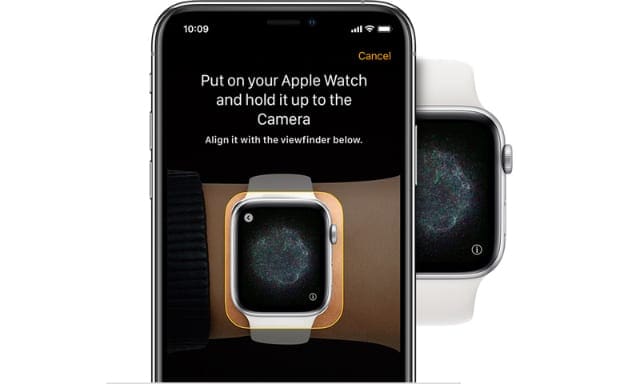
You still need to use an iPhone to set up an Apple Watch.
There is absolutely no way to set up an Apple Watch using an Android phone, a Mac, or even an iPad. This is the case even though you can use an Apple Watch without an iPhone nearby after setting it up.
Why Do You Still Need an iPhone to Use an Apple Watch?
The Apple Watch is designed as an accessory to the iPhone. Although the cellular Apple Watch comes close to offering complete independence, most users still need an iPhone for general day-to-day tasks like browsing the web and taking photos.
The Apple Watch is considered an iPhone accessory.
To make the Apple Watch able to do everything the iPhone does, it would need to be much bigger and heavy, making it unsuitable as a wearable device.
Still, it’s fair to ask why an Apple Watch needs to pair with an iPhone instead of working with an Android device.
Why Doesn’t the Apple Watch Work With Android?
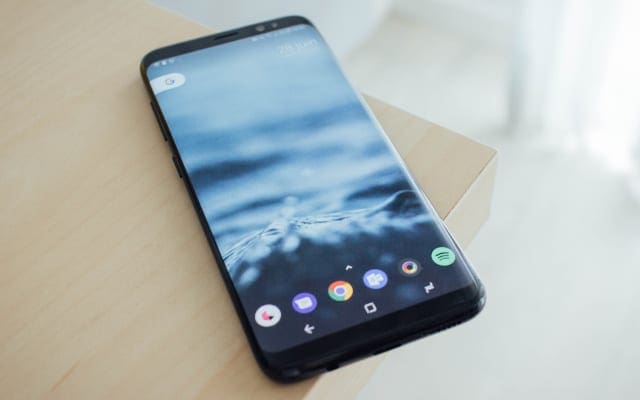
Many Android users are frustrated at the fact that they can’t try an Apple Watch without switching to iPhone. It would be possible for Apple to release an app on the Google Play Store that allows Android users to set up and pair with an Apple Watch.
But Apple refuses to do this.
Apple doesn’t even make it possible for third-party developers to create an app that lets the Apple Watch pair with Android devices.
It’s not possible to use an Android phone with an Apple Watch.
This could be because Apple doesn’t believe Android users will experience the same seamless syncing that takes place between an iPhone and an Apple Watch, and so doesn’t want to offer users a sub-par experience.
But it’s also possible that Apple keeps the Apple Watch on its own platform to push more users to iPhone.
As long as the Apple Watch remains the most popular smartwatch around, more and more people are going to consider getting an iPhone just so they can try the Apple Watch for themselves.
However, if someone in your family already owns an iPhone, you can now use their iPhone to set up an Apple Watch for yourself.
How Do You Set Up an Apple Watch for a Family Member?
With the release of iOS 14 and watchOS 7, Apple finally made it possible to set up an Apple Watch using someone else’s iPhone. You don’t get full watch functionality when you do this, but it’s a start.
To use someone else’s iPhone to set up an Apple Watch, you need to use Apple Watch Family Setup. Apple designed this feature with young children and older people in mind, who could benefit from Apple Watch features but are unlikely to own their own iPhone.
To use Apple Watch Family Setup, you need to join an Apple Family Sharing group with the person whose iPhone you’re using.
Then follow the prompts on their iPhone and your Apple Watch to set it up.
What Can You Do on an Apple Watch Without Your iPhone Nearby?
Even though you need an iPhone to set up your Apple Watch in the first place, you don’t need to keep your iPhone with you all the time. In fact, there is a wide range of tasks you can complete on the Apple Watch without having an iPhone anywhere near you.
Check the time: Set alarms, start a timer, or use the stopwatch.
Track workouts: Use the Workout app and even track your route if your Apple Watch works with GPS.
Work towards goals: The Activity app continues to measure your movement even without an iPhone nearby.
Enjoy local media: View synced photo albums or listen to music, podcasts, and audiobooks that you previously synced to your Apple Watch.
Measure your vitals: Your Apple Watch still measures your heart rate and your blood oxygen without an iPhone present. You can even run an ECG.
Use Apple Pay: If you set up Apple Pay with your paired iPhone and Apple Watch, you can use the watch to pay for stuff without your iPhone.
Do Even More With a Wi-Fi or Cellular Connection
Every Apple Watch has the ability to join Wi-Fi networks that you previously used with your iPhone. If you have a cellular Apple Watch, you can also get online using a cellular data connection.
After connecting your Apple Watch to the Internet over Wi-Fi or cellular, there are even more tasks you can use your Apple Watch for without needing an iPhone.
Use Siri: Ask questions or give Siri a task to do and your Apple Watch will connect to the Internet to do it.
Send and receive messages or calls: If a call or text message is sent over the Internet, like an iMessage, you can receive or reply to it from your Apple Watch. The same goes for VoIP calls.
View data in other apps: Any apps that access the Internet to load data, such as the Weather or Stocks apps, are available to use on your Apple Watch without an iPhone around.
Stream music and podcasts: If you haven’t downloaded music or podcasts, you can stream them to your Apple Watch after connecting to the Internet.
Get directions: When your Apple Watch is connected to the Internet, use it to get directions in the Maps app without ever needing to touch your iPhone.
Control your smart home: Use your Apple Watch to control your smart home if you have accessories linked with the Apple Home app.
Make Sure You Have Space for Apple Watch Downloads
If you plan to use your Apple Watch without an iPhone, you need to download any music, podcasts, audiobooks, photos, or apps you want to enjoy. There isn’t a lot of storage on the Apple Watch, so make sure you free up Apple Watch storage first to give plenty of room for downloads.
Dan writes tutorials and troubleshooting guides to help people make the most of their technology. Before becoming a writer, he earned a BSc in Sound Technology, supervised repairs at an Apple Store, and even taught English in China.











Write a Comment