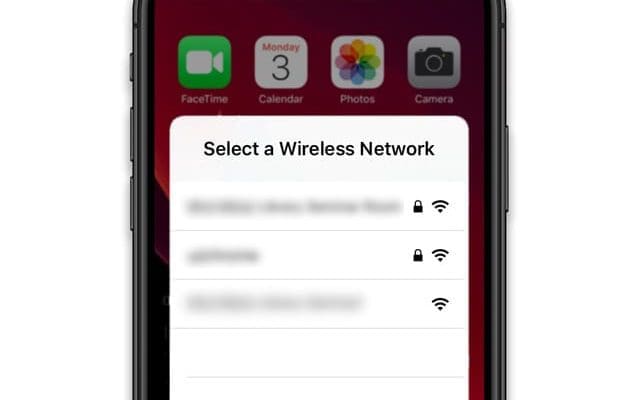
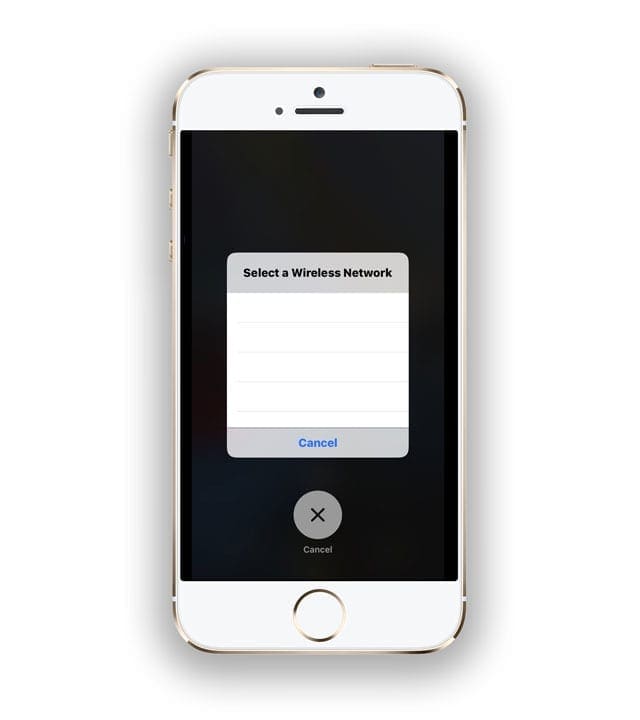
Several users using legacy iPhones have had to deal with constant and annoying pop-up messages on their iPhones, iPads, or iPods that show them a public wireless network and request them to choose one. Although the option to cancel appears, it doesn’t do anything! Users can’t even turn off their devices. Their iDevices are simply stuck on the select a wireless network screen the phone, iPad, or iPod is completely frozen and can’t power off!
This becomes even more of a nuisance when you are on a call and you are trying to hang up the call but you are required to first cancel the pop-up message before you hang up.
This sometimes happens even when you switch off “Ask to Join Networks” in your WiFi settings!
Although this problem cannot be specifically tied to a particular iPhone setting, you can follow some of the suggested steps to get a handle on this issue.
We suggest that you keep your iOS or iPadOS software updated and current on your iPhone., iPad, or iPod touch via Settings > General > Software Update.
Steps to fix when your iPhone or iPad is stuck on select a wireless network prompt
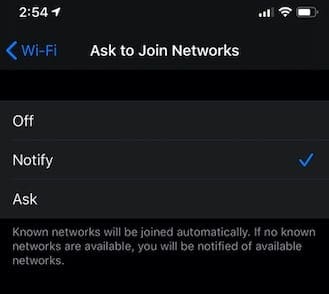
Tap on Settings > Wi-Fi. Scroll down and make sure that you set Ask to Join Networks to Off or Notify. Many folks recommend disabling “Ask to Join Networks” by setting it Off
You may also switch Ask to Join Networks settings a few times
Use ‘Notify’ to better manage joining unknown networks.
Toggle WiFi on and off a few times
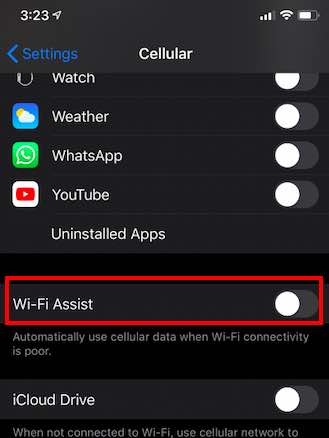
Go to Settings > Cellular > Scroll down to the bottom and make sure that the WiFi Assist is toggled OFF
Choose Settings > Privacy >Location Services > System Services >and toggle off and on Networking & Wireless
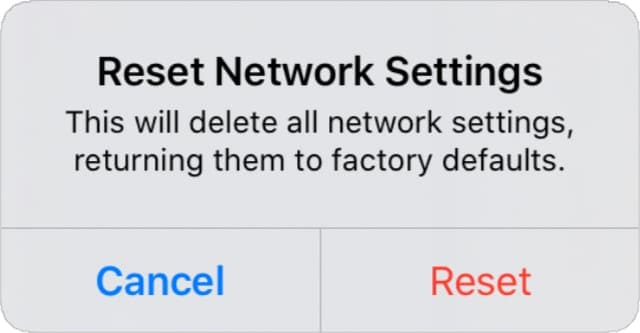
Tap on Settings > General > Reset > Reset Network Settings
Don’t reset your network settings unless you can reconnect to Wi-Fi.
Test to see if your iPhone has resolved the issue once it starts.
If not, continue to the step below and force restart your device
Phone stuck on a blank “Select a Wireless Network” screen? Try a forced restart your device
On an iPhone 6S or below plus all iPads with home buttons & iPod Touches 6th generation and below, press Home and Power at the same time until you see the Apple logo
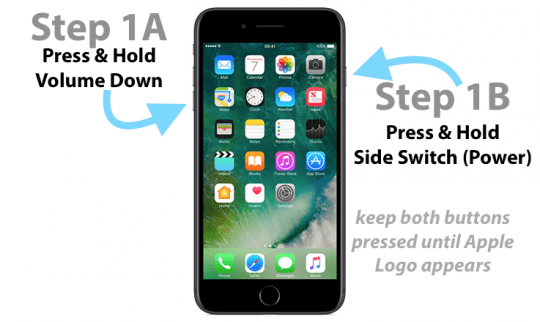
For iPhone 7 or iPhone 7 Plus and iPod touch 7th generation: Press and hold both the Side and Volume Down buttons for at least 10 seconds, until you see the Apple logo
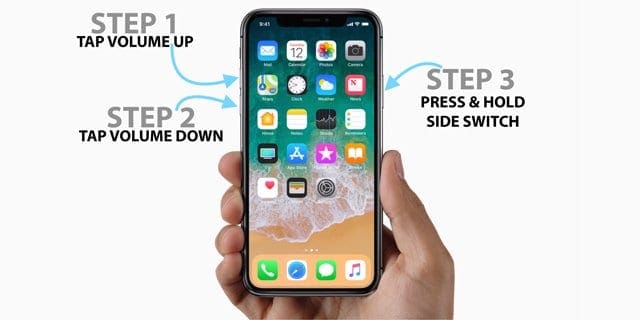
On an iPad with no home button and iPhone 8 and above models: Press and quickly release the Volume Up button. Then press and quickly release the Volume Down button. Finally, press and hold the Side/Top button until you see the Apple logo
Reboot your wireless router
You should be rebooting your router every now and then for best performance.
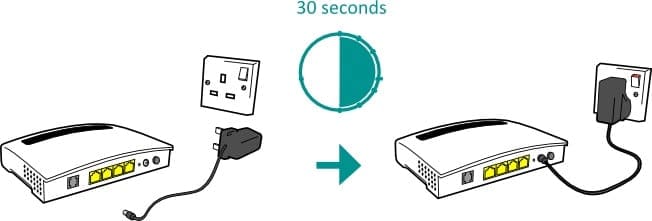
If none of the tips above worked for you, it might be a router issue. So let’s reboot your router–this usually involves unplugging it from power, waiting 30 seconds or more, and then plugging it back in. But check with your manufacturer first, for their specific instructions for your router’s make and model.
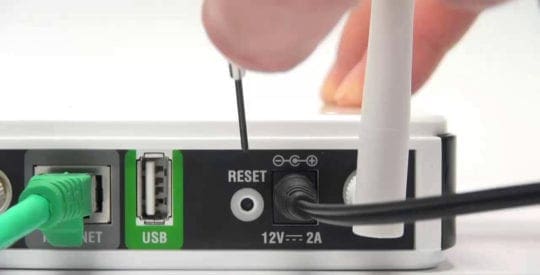
If a reboot didn’t fix the problem, try instead to reset your router. There is often a reset button on the back of the router–but not always. Again, look for instructions for the make and model of your particular router.
Reset your router
Now that you have reset most of the common Wi-Fi settings, test out your device near a public wi-fi service and see if it eliminates the issue.
Obsessed with tech since the early arrival of A/UX on Apple, Sudz (SK) is responsible for the original editorial direction of AppleToolBox. He is based out of Los Angeles, CA.
Sudz specializes in covering all things macOS, having reviewed dozens of OS X and macOS developments over the years.
In a former life, Sudz worked helping Fortune 100 companies with their technology and business transformation aspirations.











Write a Comment