Whether you’re learning a new skill or simply using your device for entertainment, browsing on your iPad is simple. Many websites work in similar ways that they do on your iPhone, only with a bigger screen to consume (or create!) content from.
Over time, you might want to clear your iPad browsing history. Doing so can help you stop everything from becoming cluttered, and you may also find that your device performs better once you’ve removed websites that were previously stored.
Today, you’ll learn how to clear your browsing history on your iPad. We’ll cover both Safari and Google Chrome, and these tips are valid for users with iPadOS 16.0 or later.
Clearing your browsing history in Safari doesn’t require a huge amount of effort. Below are the steps you should follow:
1. After opening Safari on your iPad, click on the icon in the top left-hand corner. A toolbar will then appear on the left-hand side.
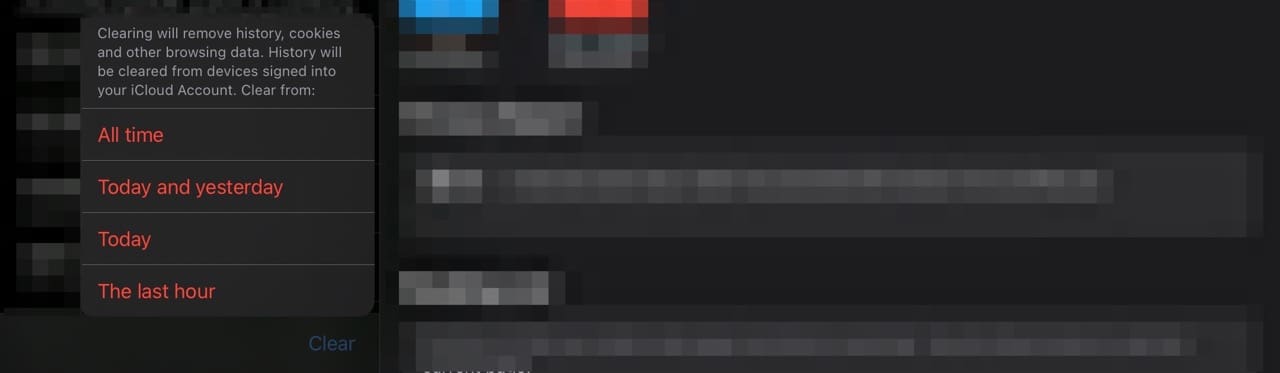
2. Select Clear at the bottom of the toolbar.
3. Choose the time period for which you want to clear your iPad browsing history.
When you clear your browsing history, the changes will take place across other devices where you use the same Apple ID.
How to Clear Your iPad Browsing History in the Settings App
You can also choose to clear your iPad browsing history in your device’s Settings app. Here are the steps you need to take to do that:
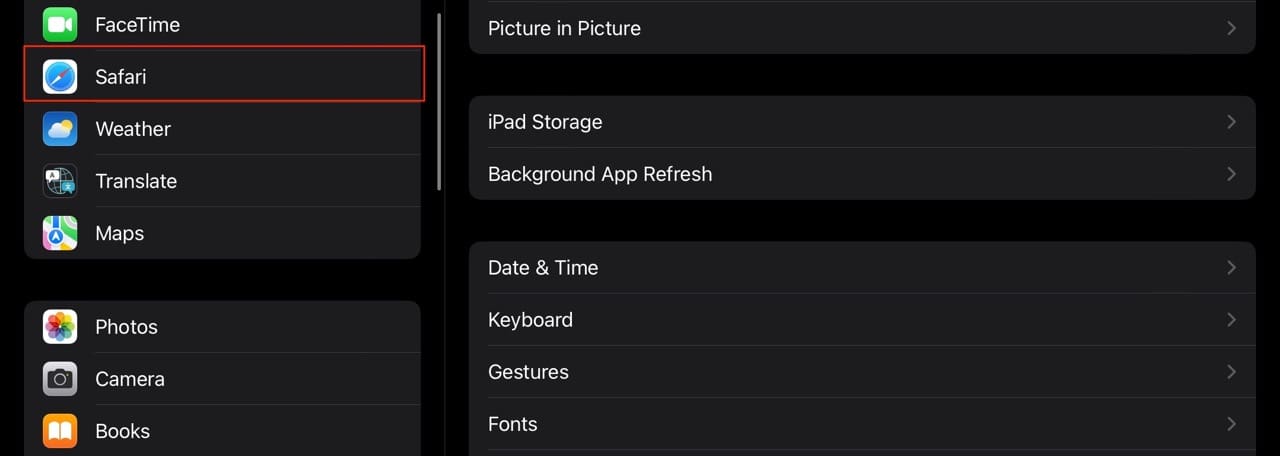
1. Open the Settings app on your iPad.
2. Select Safari in the toolbar on the left.
3. Scroll down to Clear History and Website Data.
4. When the pop-up window appears, hit the Clear button.
Note that when you remove your data using this method, you’ll delete your entire browsing history and cannot choose the timeframe. Like when clearing your browsing history in Safari, your changes will take place in Safari on other devices with the same Apple ID.
How to Clear Your iPad Browsing History in Google Chrome
While Safari is the default browser for many iPad users, you might prefer using Google Chrome. Doing so is a good idea if you don’t have other Apple devices, as you can ensure continuity across your non-Apple gadgets.
Below, you’ll find the instructions you should follow when clearing your browsing history in Chrome on your iPad.
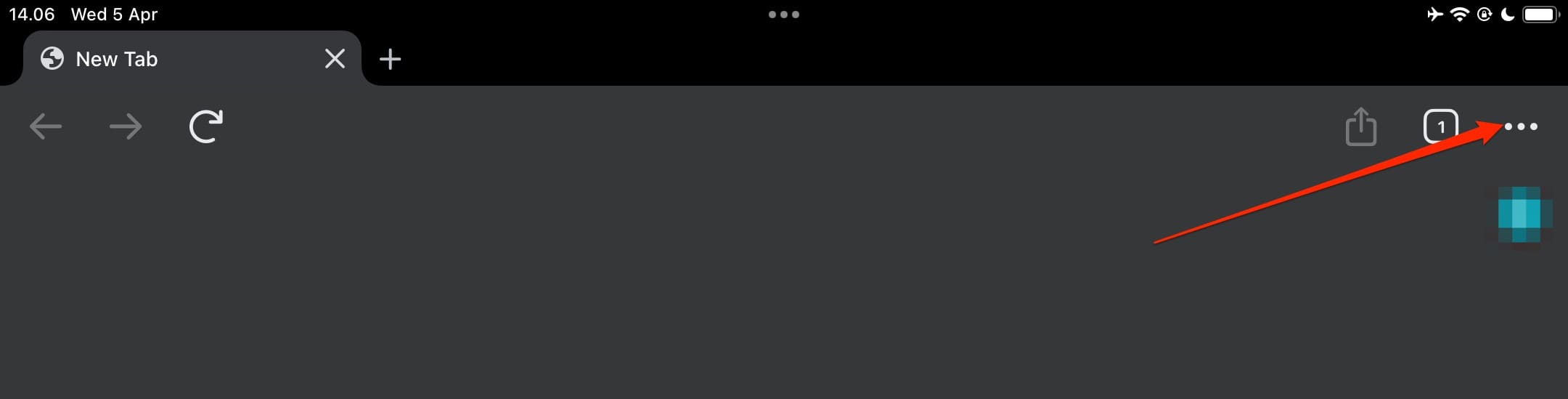
1. Open Google Chrome on your iPad.
2. Click on the three dots icon in the top right.
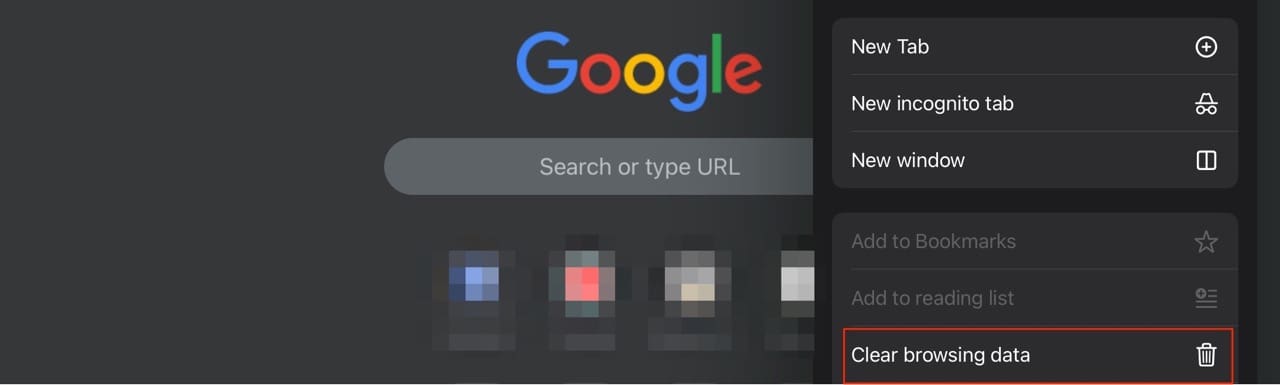
3. Select Clear browsing data when you see the dropdown menu.
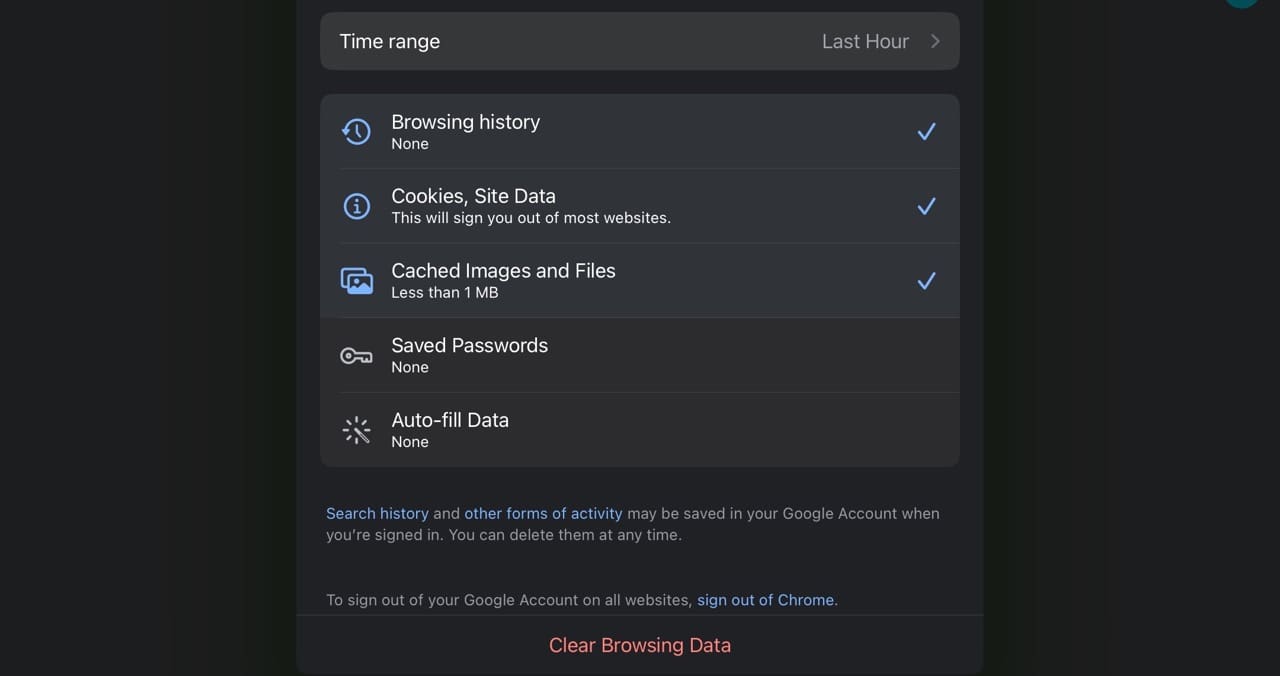
4. You can choose the time span for which you’d like to delete your browsing history in Google Chrome, along with whether you want to remove cookies, passwords, and more. Customize these settings however you feel is necessary.
5. Click on Clear Browsing Data when you’re ready to remove everything.
Clearing Your iPad Browsing History Doesn’t Take a Huge Amount of Time
Regardless of if you use Safari or Google Chrome, you can easily clear the browsing history on your iPad. Removing your websites and caches can help your device perform better, and you can also use it as an opportunity to start afresh.
You can also choose the time period for which you’d like to remove your browsing history, which offers a better degree of control than you’d otherwise have.
Danny has been a professional writer since graduating from university in 2016, but he’s been writing online for over a decade. He has been intrigued by Apple products ever since getting an iPod Shuffle in 2008 and particularly enjoys writing about iPhones and iPads. Danny prides himself on making complex topics easy to understand. In his spare time, he’s a keen photographer.















Write a Comment