Managing Wi-Fi networks is something that has always been relatively straightforward on a Mac. But on iPads, things have historically been a little more complicated.
Now, however, Apple has made it easier to manage Wi-Fi networks from your iPad. More specifically, you have more control over the passwords for different networks your device has connected to.
This article will show you how to manage your Wi-Fi passwords in the Settings app after downloading iPadOS 16.
Finding the password for a Wi-Fi network you’re already connected to is easy in iPadOS 16. The instructions below will help you achieve this.
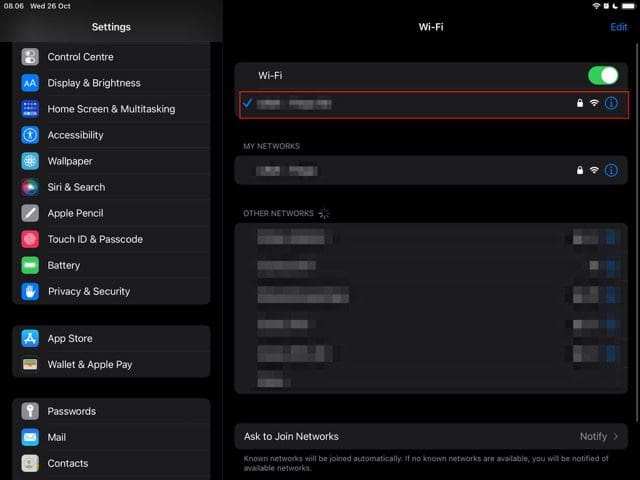
1. Open the Settings app and go to Wi-Fi, which is close to the top of the left-hand panel.
2. Under the Wi-Fi option, which will be toggled on in this instance, click on the network you’re connected to.
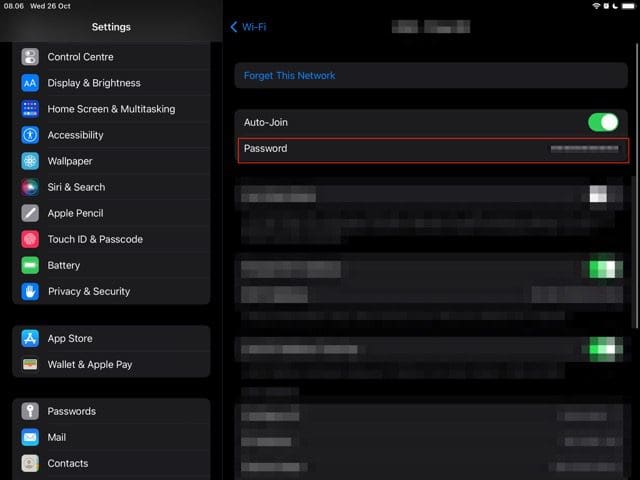
3. Below the Auto-Join toggle, you’ll see an option titled Password. From here, you’ve got a selection of options – as we’ll discuss in the sections below.
How to View Your Wi-Fi Password in iPadOS 16
If you want to view your Wi-Fi password after downloading iPadOS 16, you only need to complete a couple of extra steps from the tips mentioned above.
1. Go to Settings > Wi-Fi and select the Wi-Fi network you’re currently connected to.
2. Tap on the Password tab.
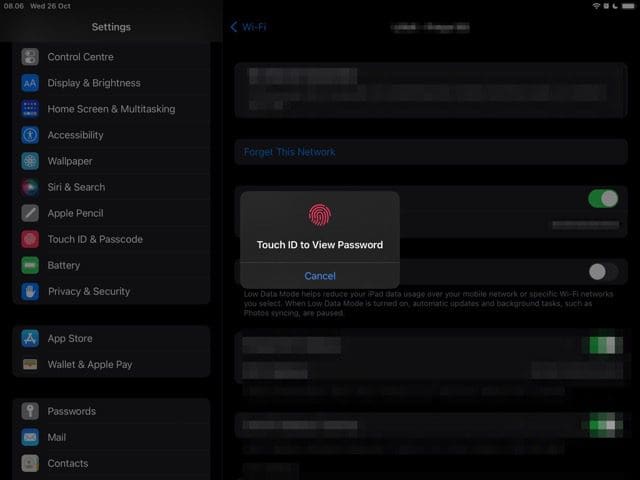
3. Depending on the iPad you use, verify your identity with Touch or Face ID.
4. After using Touch or Face ID, your password will become visible. We recommend that you only do this while in private, as others might steal your information if you’re not careful.
How to Copy Wi-Fi Passwords in iPadOS 16
Copying Wi-Fi passwords is easy if you want to send the code to a friend or family member that would like to connect. On top of that, it’s also handy if you want to send the code to another of your devices.
Here’s how you can copy Wi-Fi passwords in iPadOS 16:
Go to Settings > Wi-Fi and select the network you’re connected to.
Verify your identity with Face or Touch ID.
When your password becomes visible, you’ll see a small Copy prompt; select this.
Editing Wi-Fi Networks in iPadOS 16
While you have more options when managing the passwords of networks you’re already connected to, you can do similar things with saved Wi-Fi networks elsewhere.
If you want to remove Wi-Fi networks or manage their passwords, follow these instructions.
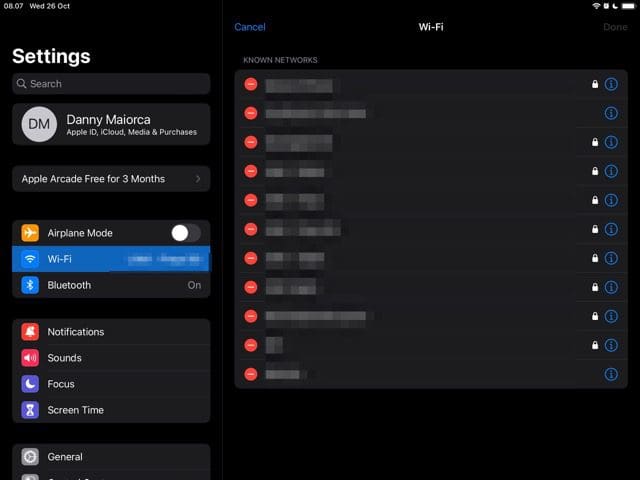
Go to Settings > Wi-Fi. In the top right-hand corner, you’ll see an option called Edit.
After clicking on Edit, your device will ask you to verify your identity via Face or Touch ID.
If you want to remove a network, select the – symbol on the left-hand side. To manage passwords, hit the i icon instead.
To copy the password, select Password and hit Copy when that call to action appears.
iPadOS 16 Offers Plenty of New Password Management Options for Wi-Fi
When using iPadOS 16, you’ve got plenty of options for managing your Wi-Fi passwords compared to previous versions. You can copy codes with more ease, along with removing networks without too many challenges.
Having read this guide, you should have all the information you need to manage your Wi-Fi passwords. If you don’t use some of your networks anymore, you might want to consider deleting them from your device.
Danny has been a professional writer since graduating from university in 2016, but he’s been writing online for over a decade. He has been intrigued by Apple products ever since getting an iPod Shuffle in 2008 and particularly enjoys writing about iPhones and iPads. Danny prides himself on making complex topics easy to understand. In his spare time, he’s a keen photographer.












Write a Comment