In today’s world, we have become so dependent on our smartphones that something as simple as backing up your phone is extremely important. From keeping those precious family photos backed up, to making sure you don’t lose your text messages is something to be aware of.
Apple has gone to great lengths to improve iCloud over the years, as you can even create and store entire device backups right in the cloud. This makes it possible to restore the backup when you inevitably get a new iPhone, regardless of whether it’s a replacement or the latest model.
How to Restore Data Without Recovering an iPhone Backup
A question we’ve been seeing more and more is how to restore data without recovering an iPhone backup? This is something that has happened to us a few times over the years but seems to be a more prevalent issue given how frequently Apple is pushing iOS updates.
You might go through the process of creating a backup, only to find that the created backup is actually corrupt. If this happens, you won’t be able to “use” the backup and will instead need to set up your iPhone completely from scratch.
So is there a way to restore data without recovering an iPhone backup? Well, yes and no. The easiest way to restore data is to simply sign in to the same iCloud account that you were using before. Unless you go through and turn iCloud off, much of your data will still be available when you sign in to your account on a new phone. However, if you are solely relying on iCloud to restore data, here’s what you’ll lose:
Favorite contacts
Third-party app downloads and logins
Home screen layout
Any photos or files that were not backed up to iCloud
App data, such as saved games (if not synced to iCloud)
Photos (if not using iCloud Photos)
Files (if not saved to iCloud Drive)
That may seem like a lot, but the truth is that if you sign in to iCloud, much of your information will still be available. This includes things like photos and videos that were automatically backed up, along with your contacts, and a myriad of other bits of information.
Third-Party Solutions
As long as your old iPhone can be powered on, you might be in luck even if you don’t have a stable and safe iCloud backup. There are third-party solutions (i.e. applications), that can be used to attempt to access and restore the data on your iPhone. Here are a few of the more popular options:
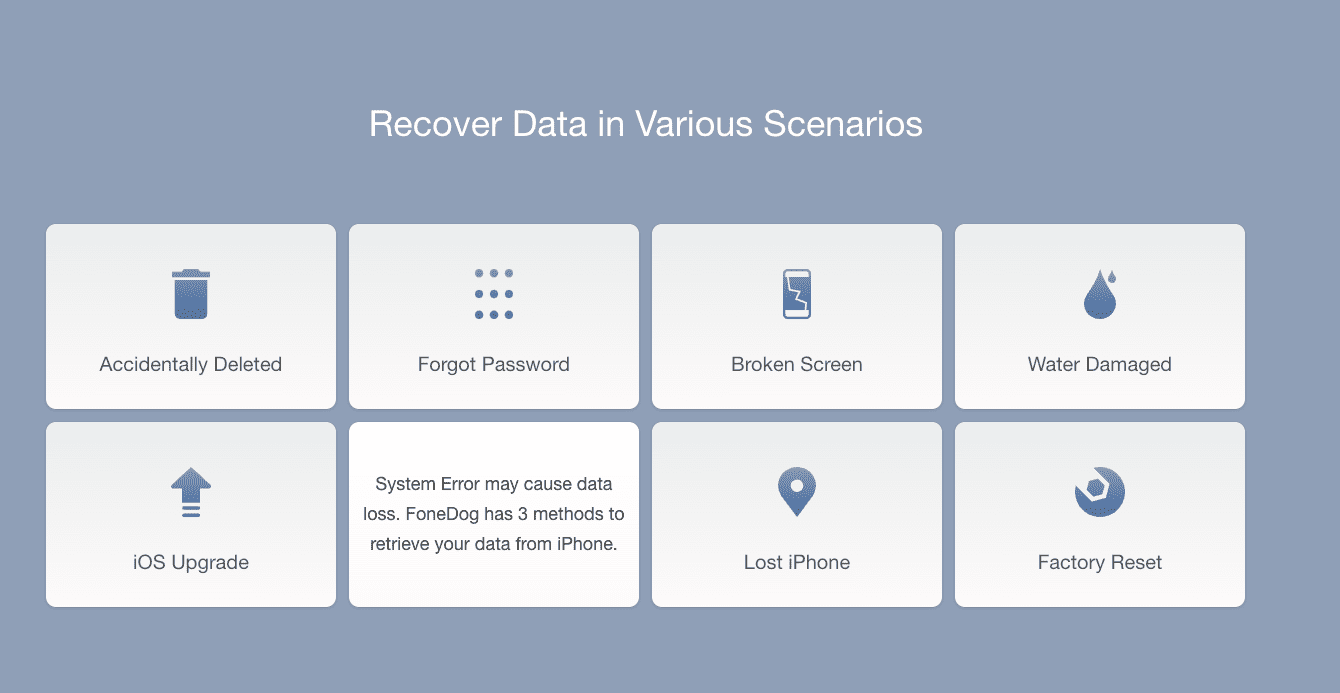
FoneDog iOS Data Recovery – Recover deleted messages, contacts, photos, call history, videos, WhatsApp and much more from iPhone.
3uTools – 3uTools makes it so easy to manage apps, photos, music, ringtones, videos and other multimedia files. Fully view iOS device’s different statuses, including activation, jailbreak, battery and iCloud lock statuses, as well as detailed iOS & iDevice information.
iMyFone D-Back – Quickly recover data directly from iOS device, iTunes/ iCloud/ Third-party program Backup. Selectively recover deleted photos, WhatsApp, messages, and 18+ other data types. Recover data from iCloud with only an iCloud account access.
Unfortunately, if the old iPhone was wiped clean, you are more than likely just out of luck, even if the iPhone can turn on. When you factory reset an iPhone, it completely removes the data and information from the device, so you will be unable to access it.
Use iCloud to Back Everything Up
This may be a foregone conclusion for some, but losing your iPhone’s data is never a great situation. We highly recommend using iCloud to backup your iPhone’s storage as often as possible. If iCloud Backup is enabled, your iPhone will automatically back everything up when it’s connected to power and Wi-Fi. However, here’s how you can manually create an iPhone backup:
Connect your iPhone to a Wi-Fi network.
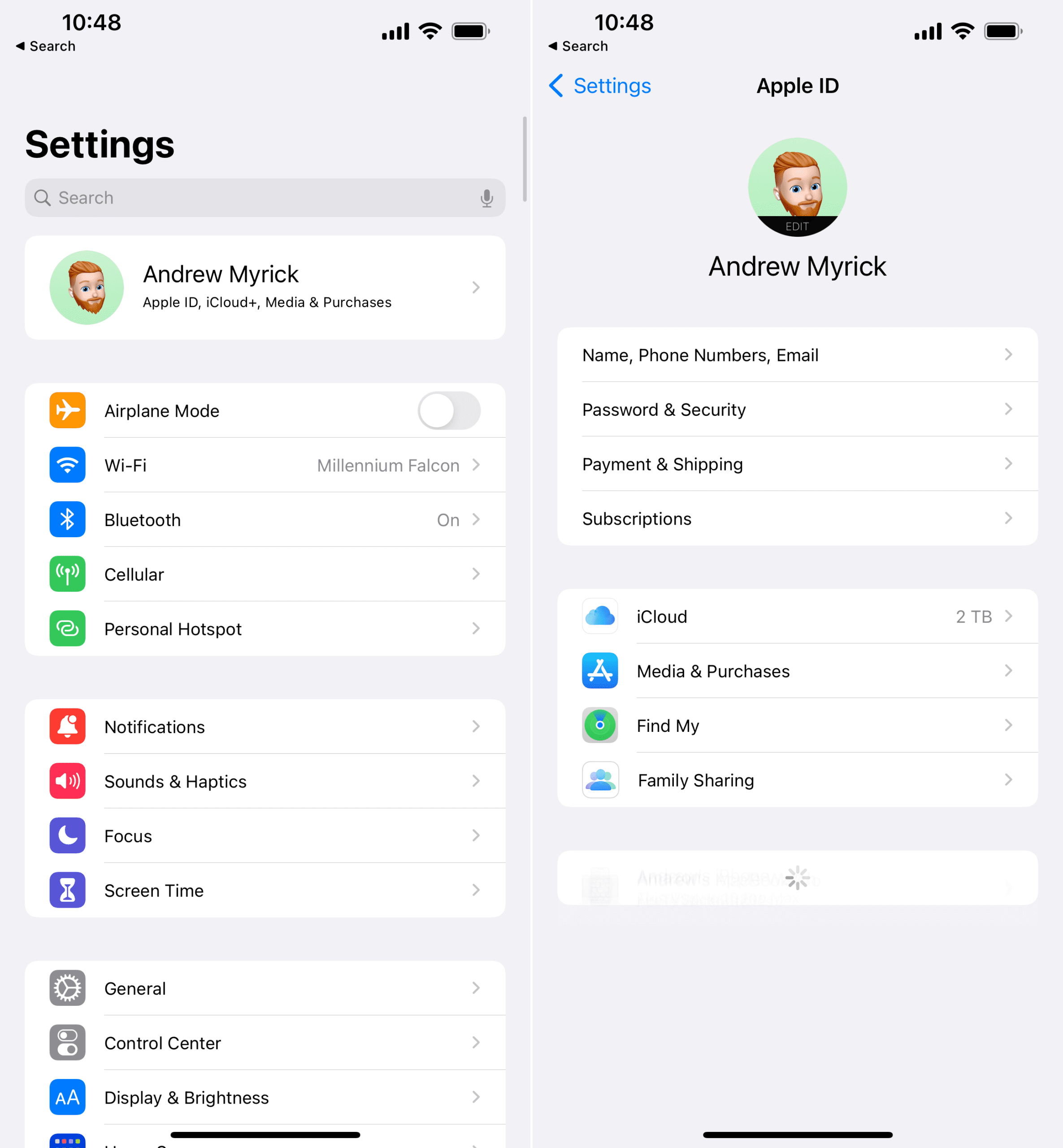
Open the Settings app on your iPhone.
Tap [Your Name] at the top of the Settings app.
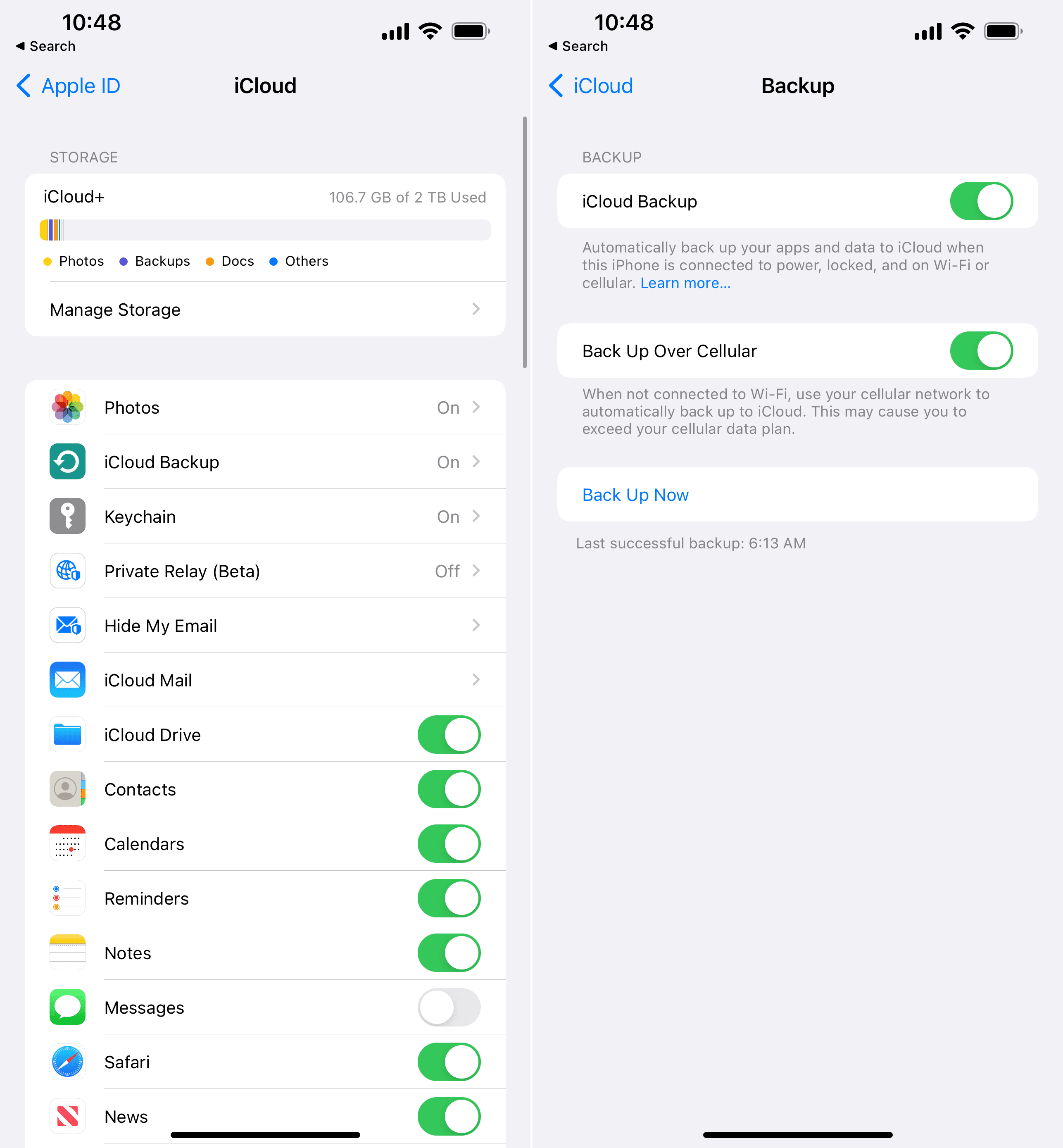
Tap iCloud.
Select iCloud Backup.
Tap the toggle next to iCloud Backup to turn the feature on.
You can also enable the ability to back up your iPhone to iCloud using cellular data
Tap the Back Up Now below the other options.
After the backup has been completed, all of your current information will be available when you go through the process of setting up a new iPhone. In the event that you don’t have enough iCloud storage, you’ll be notified through the backup process. From there, your iPhone will take you through the steps needed to add more iCloud storage to your account.
Andrew Myrick is a freelance writer based on the East Coast of the US. He enjoys everything to do with technology, including tablets, smartphones, and everything in between. Perhaps his favorite past-time is having a never-ending supply of different keyboards and gaming handhelds that end up collecting more dust than the consoles that are being emulated.










Write a Comment