When you connect your iPhone to your macOS device, you may sometimes get a message that says the Photos app is “Preparing to import from iPhone“. The message usually disappears after a few seconds. Unfortunately, your macOS device may occasionally get stuck on the “Preparing to import from iPhone” screen. If you already disconnected and restarted your devices but the issue persists, follow the troubleshooting steps below.
Photos App Got Stuck on “Preparing to Import From iPhone”
Trust the Computer
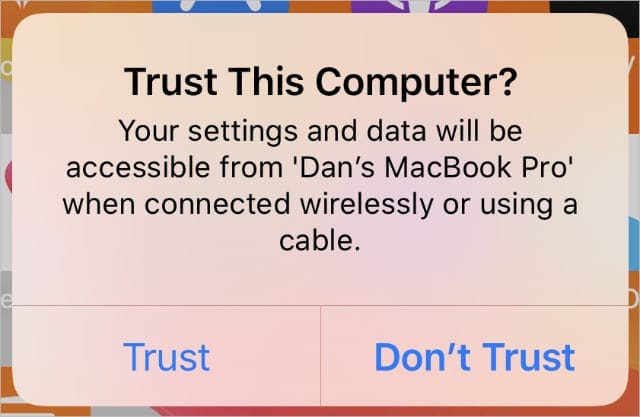
Check if your iPhone is asking you to trust the computer. Enter your passcode and confirm you trust the computer.
The Trust This Computer alert appears when you connect to a new computer.
If you rarely plug your iPhone into your Mac, your iOS device may prompt you to confirm you trust the computer. Should the issue persists, unplug your iPhone, restart your Mac, connect the two devices again, and check the results.
Delete Unedited Photos
Go to your iPhone’s gallery and delete some of your unedited photos. Many iOS users rely on Snapseed and other photo editing apps to edit their pictures, add various filters, and so on. Maybe the Photos app on your Mac is having trouble reading the HEIC files. If the issue persists, delete some of the pictures you edited, and check if you notice any improvements.
Enable Airplane Mode
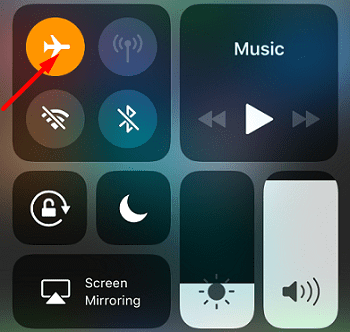
Put your iPhone into Airplane Mode, plug it into your MacBook, and check if you can import your photos. If the photo transfer process gets stuck, unplug your iPhone, and disable Airplane Mode. Wait for thirty seconds, and enable Airplane Mode again. Then connect the two devices and import the rest of the photos.
Remove Passcode and Face ID
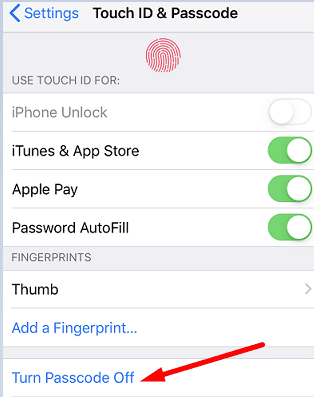
Try removing your passcode and Face ID, and check if the message disappears. Unplug your iPhone from your computer. Then go to Settings, and select Touch ID and Passcode. Turn Face ID and Passcode off. Connect your devices, and check if you can import your iPhone photos now.
Use Image Capture
Image Capture settings
If you can’t upload your iPhone images through Photos, use Image Capture to force the upload through this app. Launch Image Capture, and check if there’s a lock next to your phone. Click on it, and enter your passcode when prompted. Your photos should appear both within Image Capture and Photos.
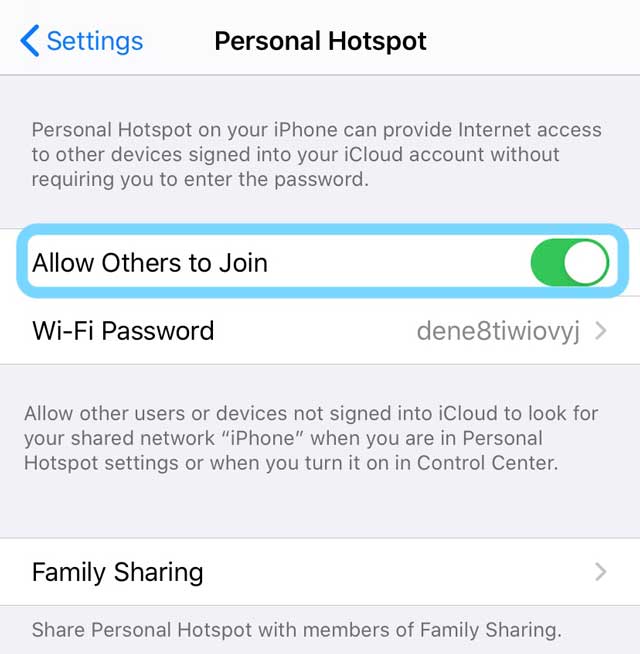
Disable Your Hotspot
Navigate to Personal Hotspot and toggle off the option that says Allow others to join.
It seems that having the hotspot on forces your iPhone to ask you to trust the computer. Surprisingly, when you turn off the hotspot, you’re no longer prompted to confirm you trust the computer.
The same goes for Image Capture. For example, if you launch Image Capture with your hotspot on, you’ll see a padlock next to your phone. But the padlock usually disappears if you disable the hotspot.
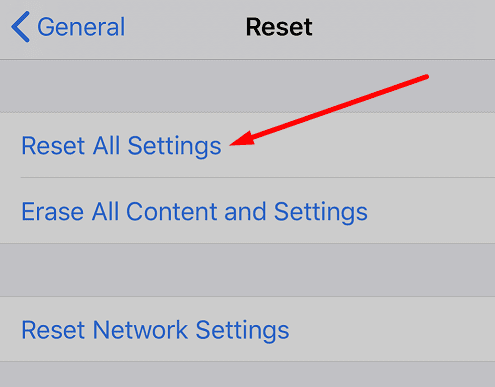
Reset Your iPhone Settings
If the issue persists, reset your iPhone settings. Navigate to Settings, and tap General. Then select Reset, and tap Reset All Settings.
Keep in mind that this option automatically clears all your settings, including touch ID, Apple Pay, wallpaper, lock screen settings, and so on.
Disable iCloud Photos
Disable iCloud photos on both your devices. On your iPhone, go to Settings, select Photos, and tap iCloud Photos. On your MacBook, navigate to Settings, click on Apple ID, and select Photos. Disable the option and check if the Photos app shows and imports all of your photos.
Conclusion
If the Photos app gets stuck on “Preparing to import from iPhone”, make sure to mark the computer as trusted. Additionally, delete unedited photos, enable Airplane Mode, and remove your passcode and Face ID. If the issue persists, check if you can import the photos using Image Capture. Then disable your hotspot, reset your iPhone settings, and disable iCloud Photos. Which of these solutions worked for you? Let us know in the comments below.
Madalina has been a Windows fan ever since she got her hands on her first Windows XP computer. She is interested in all things technology, especially emerging technologies — AI and DNA computing in particular.
I had to do the hokey pokey and turn myself around before it started working. I think I’m the first to report this. Thanks Apple for such a great user friendly product.
I have tried all of the above options. They did not fix the problem! I need to transfer all photos and videos! I am out of storage space on my iPhone. I need this problem resolved now. Please advise me of what I need to do. Thank you. I look forward to hearing from you SOON!
Disabled airplane mode worked, but you don’t explain why this happens or how to prevent it happening again. That might be helpful for others as well as me.
None of these fixes worked for me. My iPhoto library was syncing from iCloud and I ketp getting thi message when trying to connect my iphone directly. I suspect Apple wants you to do one or the other (preferably keep paying for iCloud).
When I stopped paying for iCloud backups I couldn´t sync from my iPhone directly (got te preparing to import message foreverlong). The only fix I could find was to create a new iPhoto library that solved the problem for me. Now the iPhone syncs istantly.
None of the above that I tried fixed the issue for me. I have tried with 2 different Macbook Pros. The one thing I didn’t try from the list is the reset iPhone settings as I didn’t want to lose my settings and felt discouraged nothing else worked and no one commented that resetting iPhone settings worked for them.
Resetting the settings didn’t work for me. Just made me have to reset everything back up. The only thing that did work was to enable airplane mode. Then I have to remember to disable it after I’m done.
Go to: Settings -> Photos, at the bottom of the options there is a section called “Transfer to Mac or PC”, it defaults to Automatic, I changed it Keep Originals and then only had to wait for about 5 mins on the preparing to import screen before all the 27,000 photos appeared.
none of these suggestions worked. When I click import all new – it switches to the import window and I see the progress circle for 1 second – then nothing.
Thank you so much for this article. I’m going to post it on Reddit, too. I went to Airplane mode but the real issue was Personal Hotspot – I disabled “all others to join” and now it’s working without Airplane Mode.
For me, it was Personal Hotspot. I unchecked “Allow Others to Join” and that did the trick.
But at first, I also used Airplane Mode – which disables the Hotspot. That’s why it worked.
The Hotspot option allowing others to join is causing some kind of contention. Apple should be handling it better but, here we are. If you have Personal Hotspot with “Allow Others to join” enabled, disable that and try.
Go to: Settings -> Photos, at the bottom of the options there is a section called “Transfer to Mac or PC”, it defaults to Automatic, I changed it Keep Originals and then only had to wait for about 5 mins on the preparing to import screen before all the 27,000 photos appeared.
This was very helpful – tried to solve this problem with Apple for a long time — they wanted me to erase my phone – but NO it was just turning off the hot spot!! THANK YOU!!! This is a wonderful work around.

 Connect your devices, and check if you can import your iPhone photos now.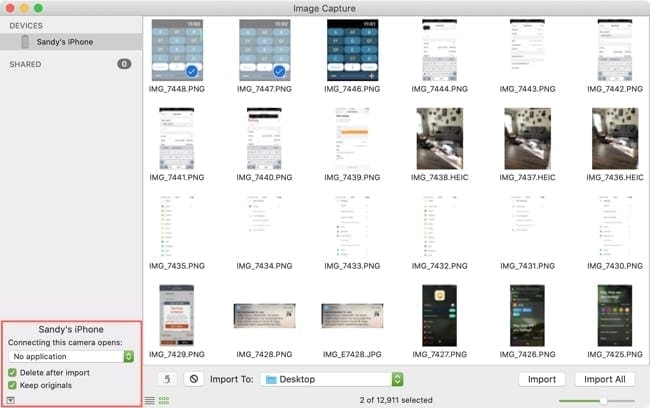











I had to do the hokey pokey and turn myself around before it started working. I think I’m the first to report this. Thanks Apple for such a great user friendly product.
I have tried all of the above options. They did not fix the problem! I need to transfer all photos and videos! I am out of storage space on my iPhone. I need this problem resolved now. Please advise me of what I need to do. Thank you. I look forward to hearing from you SOON!
Disabled airplane mode worked, but you don’t explain why this happens or how to prevent it happening again. That might be helpful for others as well as me.
It kicked in right after I disabled the hotspot!
Airplane mode, for the win!
Removing the passcode worked for me.
Weirdly airplane mode made it work through Image Capture (which did not work before airplane mode was on)
“Airplane mode worked” that was really helpful. thanks mate!
Airplane mode instantly worked. Thanks
None of these fixes worked for me. My iPhoto library was syncing from iCloud and I ketp getting thi message when trying to connect my iphone directly. I suspect Apple wants you to do one or the other (preferably keep paying for iCloud).
When I stopped paying for iCloud backups I couldn´t sync from my iPhone directly (got te preparing to import message foreverlong). The only fix I could find was to create a new iPhoto library that solved the problem for me. Now the iPhone syncs istantly.
None of the above that I tried fixed the issue for me. I have tried with 2 different Macbook Pros. The one thing I didn’t try from the list is the reset iPhone settings as I didn’t want to lose my settings and felt discouraged nothing else worked and no one commented that resetting iPhone settings worked for them.
Resetting the settings didn’t work for me. Just made me have to reset everything back up. The only thing that did work was to enable airplane mode. Then I have to remember to disable it after I’m done.
Airplane mode worked.
Thank you!
switch to originals as commented below fixed mine.
Yup this worked
Go to: Settings -> Photos, at the bottom of the options there is a section called “Transfer to Mac or PC”, it defaults to Automatic, I changed it Keep Originals and then only had to wait for about 5 mins on the preparing to import screen before all the 27,000 photos appeared.
Yes !!!! Thank you – this is what worked!
none of these suggestions worked. When I click import all new – it switches to the import window and I see the progress circle for 1 second – then nothing.
Thank you, disabling hot spot helped me.
Airplane mode fixed it right away! Thank you for the very thorough article but thankful it was only the easiest step required to fix!
Thank you! The Airplane mode trick fixed the issue for me.
Airplane mode worked. Apple’s products are getting as dumb as Google and Microsoft’s. : (
Switching to Airplane Mode did the trick to get my photos from my iPhone to my new MacBook Pro. Thank you
Enabling Airplane mode worked.
Airplane mode on fixed it for me.
Airplane mode did it for me. Thank you.
thanks this is so helpful, hotspot off fixed
Wow! This was thorn in my side for many days!
Thank you so much for this article. I’m going to post it on Reddit, too. I went to Airplane mode but the real issue was Personal Hotspot – I disabled “all others to join” and now it’s working without Airplane Mode.
OP – you’re a rockstar!
Airplane mode and I believe “Sleep” too.
Switching on Airplane mode fixed the problem straight away. Why?
For me, it was Personal Hotspot. I unchecked “Allow Others to Join” and that did the trick.
But at first, I also used Airplane Mode – which disables the Hotspot. That’s why it worked.
The Hotspot option allowing others to join is causing some kind of contention. Apple should be handling it better but, here we are. If you have Personal Hotspot with “Allow Others to join” enabled, disable that and try.
I had to turn on Airplane mode to download photos. But disabling the “Allow Others to join” allowed me to download without having Airplane mode on.
THANKS!!!
Enable Airplane Mode solved the problem. The moment I enabled things started happening. Thanks.
Go to: Settings -> Photos, at the bottom of the options there is a section called “Transfer to Mac or PC”, it defaults to Automatic, I changed it Keep Originals and then only had to wait for about 5 mins on the preparing to import screen before all the 27,000 photos appeared.
This was very helpful – tried to solve this problem with Apple for a long time — they wanted me to erase my phone – but NO it was just turning off the hot spot!! THANK YOU!!! This is a wonderful work around.