Texting is a great way to keep in touch with friends and family, and also to arrange important events. Predictive text is one way to make writing messages and notes more efficient, and many iPhone users loved that Apple announced that it would strive to enhance predictive text capabilities with iOS 17.
But unfortunately, some users need to deal with predictive text not working on their iPhones. If you’re in that category, keep reading; we’ll aim to help you solve the problem today.
Your predictive text might not be working properly for several reasons. For example, after updating to iOS 17, many users have found that their autocorrect hasn’t been as good. We can attribute much of this to the technology still being in its early days. The AI being used should become smarter over time, which should hopefully solve these teething problems.
Some iPhone users have found that their predictive text and correct functions suddenly disappear — or that spell check simply doesn’t work anymore. These largely attribute to software-related issues. However, you can still make steps to solve the iPhone predictive text not working problem — even if you’ve already taken the required steps to update your software.
If you haven’t yet updated your software, follow the steps in this guide before re-testing and commencing if needed:
Now that you have a bit of contextual information, let’s look at how to solve this problem. First, here are some quick tips you can try before moving on to the more complex steps:
Restart your iPhone
Force restart your iPhone if that does not work
Close and re-open your apps
Should none of these work, follow the tips in the following sections.
Disable and Re-Enable Predictive Text
Many of the problems you’re encountering with your iPhone’s predictive text not working can be solved by turning predictive text off and on again.
Here are the instructions you should follow:
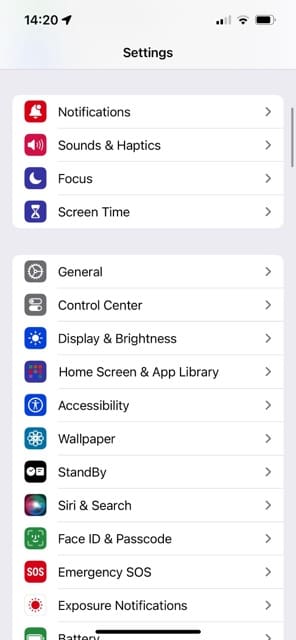
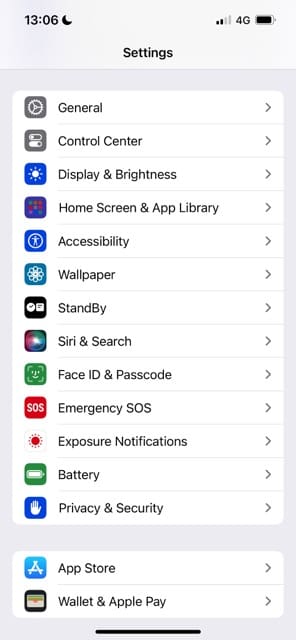
Go to Settings > General and select Keyboards.
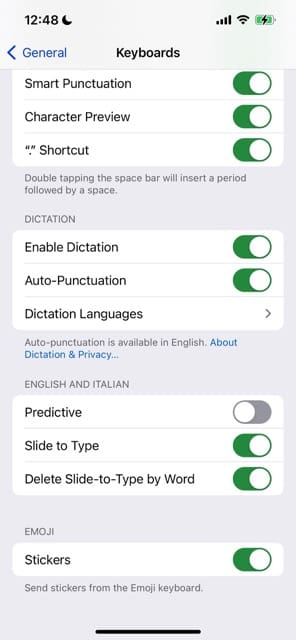
Scroll down until you see the Predictive feature. Toggle this off.
Wait a few seconds and then switch Predictive on again.
Disable and Re-Enable Other Keyboard Settings
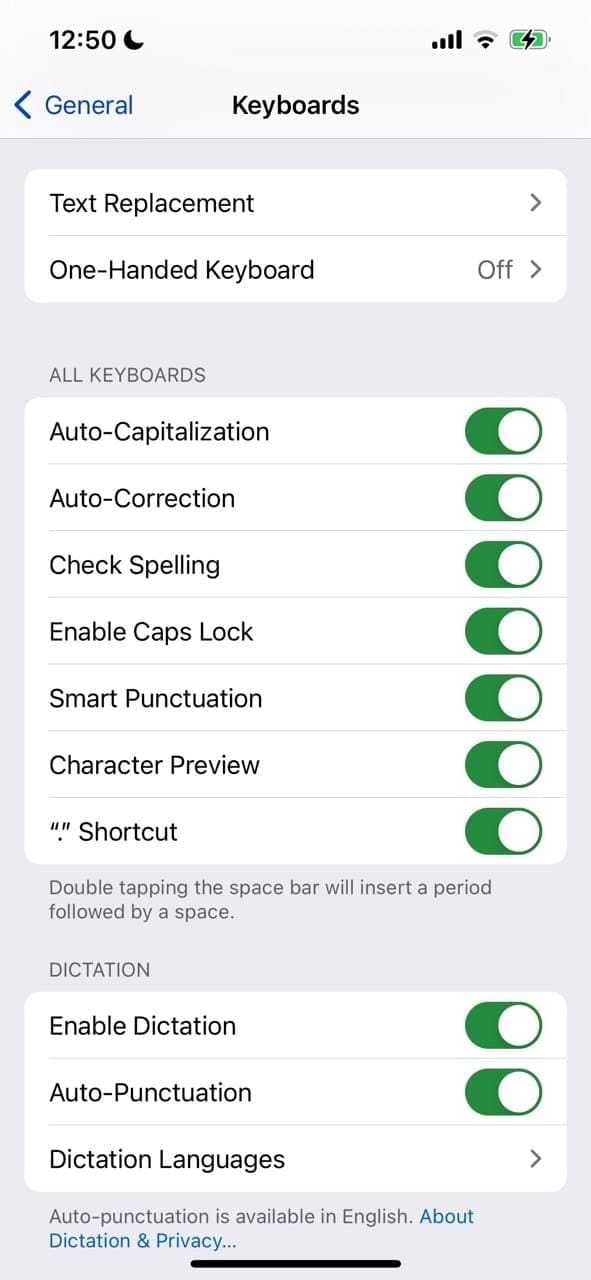
In addition to resetting your predictive text, you may find some use in toggling the following features off:
Auto-Correction
Auto-Capitalization
Check Spelling
Shortcuts
Character Preview
“.” Shortcut
You can find all of these in Settings > General > Keyboards.
Open any app where you can type, and see if your predictive text is working as expected. Messages, Notes, and Mail are the best to try for this.
If your problem was spell checker or auto-correction, verify these are working by intentionally misspelling words. See if your iPhone corrects these.
Reset Your Keyboard Dictionary
One of the easiest ways to control your iPhone’s or other iDevice’s learned misspellings is to reset your keyboard’s dictionary.
Here’s how to do it:
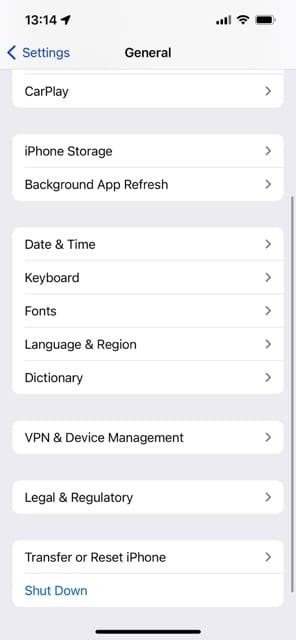
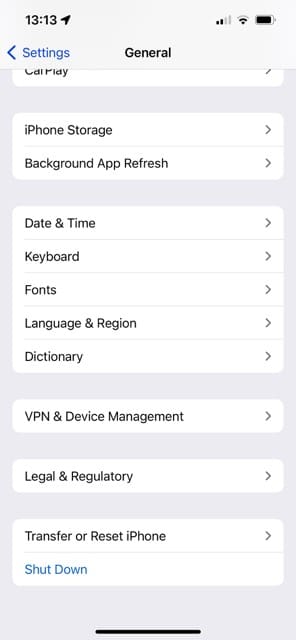
Go to Settings > General.
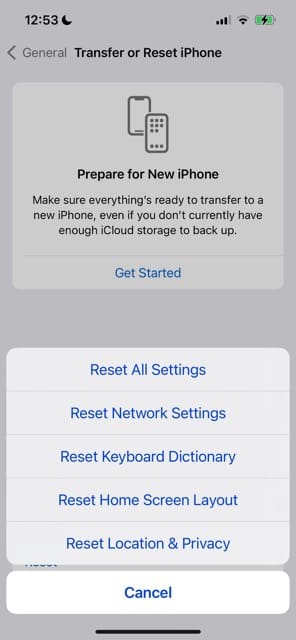
Select Transfer or Reset iPhone.
Choose Reset Keyboard Dictionary.
Be aware that when resetting your keyboard, you are removing any words you’ve added to your device’s user dictionary.
Has Your iPhone or iPad Learned Misspellings?
If your iPhone or other iDevice learned just a few of your frequently misspelled words, there is a quick way to get your iPhone to “forget” these.
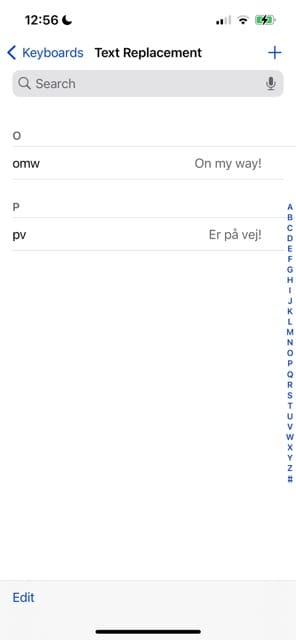
Go to Settings > General > Keyboard.
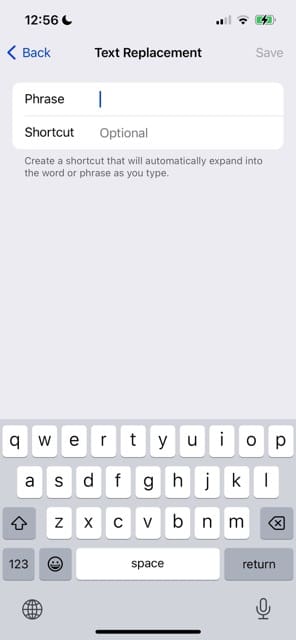
Choose Text Replacement.
Tap the “+” sign.
Add the misspelled word in the phrase field.
Add the correctly spelled word in the shortcut field.
You can also use Text Replacement to add common phrases you use. For example, if you regularly type “irl”, you can get that to change to “in real life” automatically.
My Emoji Keyboard Isn’t Working. What Should I Do?
If you’re having issues with your iPhone keyboards, please refer to these guides.
Wrapping It Up: How to Fix Predictive Text on Your iPhone
Texting nowadays is so much better than it used to be, with all kinds of animations and effects available. You can even use predictive text to cut out annoying errors that can make you misunderstood if they’re sent. Naturally, it’s quite irritating when our iPhone predictive text doesn’t work.
If you’ve recently updated your software to iOS 17, you might to wait need a bit of time before suggestions are up-to-scratch. For other types of predictive text issues, resetting a few simple settings should do the trick.
Hopefully, these tips get you back on track. If any of these worked for you (or anything else helped you get predictive text to work again), feel free to let us know in the comments!
Danny has been a professional writer since graduating from university in 2016, but he’s been writing online for over a decade. He has been intrigued by Apple products ever since getting an iPod Shuffle in 2008 and particularly enjoys writing about iPhones and iPads. Danny prides himself on making complex topics easy to understand. In his spare time, he’s a keen photographer.
Wow, I tried everything and nothing was working. I was about to give up and I read the last part about sending yourself a bunch of emojis. Guess what? It worked! You just saved me hours of scrolling on how to make it work. I spent 20 mins tops and I couldn’t be happier!! Thank you!!
Wow. Tried everything and reached a dead end since nothing worked. Followed the last tip and texted myself a bunch of emojis and wallaaaa my keyboard is back to predictive mode!
The “Weird Fix” worked perfectly on my newly reset iPhone 12 running iOS 14.7.1. Emoji keyboard was enabled and loaded. I tried the fixes one at a time and then the “Weird Fix” popped the gear into place. Thanks so much. Ive had the same issue with my MacBook Pro running Big Sur 11.5.2 for several months now. This fix did not work for messages on MacOS.
I appreciate your tips. Thanks to your instructions, I now know how to find the emojis using the latest ios. However, I don’t know why my predictive text is not calling forth my most frequently used words. I’ve tried your tips and even turned the phone off for a few minutes. Nothing. Essentially, it’s as though my phone has forgotten my personal lexicon. (Just bought an iphone se a few weeks ago.) Even with texting the same words day in and day out, predictive text is not functioning as it did on my old iphone 6s.
Brilliant! I think because predictive text and emojis were rarely used on the iPad that was having trouble (belonged to a person who could care less about things like that) the iPad forgot how to do this function.
I was able to bring it back by creating a new Note and typing a ton of emojis. Opened another new Note and and now it’s working great!
I could not get it to predict emojis next to the words above the keyboard. Deleted the emoji keyboard, restarted phone, etc. I then sent myself a text with a bunch of different emojis and now it works! Weird fix, but can confirm it works!
In the on-screen keyboard, press the globe or smiley face icon and hold down for a second or two (depending on the iPhone model, these icons might appear inside the keyboard or just below it). Wait for an on-screen pop-up menu to appear with all your keyboard options including emoji
Lol, thank you so much!! The bizarre suggestion to send myself a bunch of emoji was what actually helped the “predictive emoji” feature to start working! Thank you
Thank you for the tips on fixing the issue with auto correct. It was driving me crazy. After scrolling through page after page, I finally found yours and it made the most sense. I tried turning off the features you suggested, waiting & then switching them back on. Worked like a charm. Thank you so much.
Since the 13.1.2 update my keyboard is just adding random words. I will be done with a word , hit the space bar and before I hit another letter “NBC”, “BBC”, “bc” and BBC a few other random items. I have erased my phone and it came back. I have reset the keyboards. I have deleted keyboards. Tried everything. Has anyone else had this? It is driving me crazy.
Thank you.
Emojis were not showing up on my new iPhone 11. Tried all of the things above -nothing worked until I tried the send a bunch of emojis to yourself option – and BAM – now it works. THANK YOU. 🙂
I tried all of the fixes and none of them work until I just typed in all of the emojis and text it to myself which is one of the last suggestions and then at worked!
THIS ACTUALLY WORKED ON MY XR THANKS DO MUCH
“If your iPhone emoji keyboard continues not to show up
Okay, here’s a weird fix but our readers report it works. In Messages, switch to your emoji keyboard and send tons of emojis to yourself in a few messages.”
Can I thank you
I bought a new Xs and the predictive emoji would not work doing all the resets and things……so I tried sending loads of emojis in a text to myself and then it worked……. weird fix but it worked…… thank you thanks
The emoji’s still don’t come up on my text message keyboard, I tried the tricks you talked about and still no luck.
I restored my phone twice and still no luck, Apple told me I might need to take my phone in and get it to replace or when I downloaded the updated software 12.1.4 is might have messed with my settings.
I don’t know anymore I’m done dealing with it I hope there’s a fix for it soon.
If you are talking specifically about the new emojis–those emojis are being released with iOS 12.2.
We also suggest updating via iTunes vs. Over-The-Air using Settings > About > Software Update since iTunes installs a full and fresh version of iOS, not just the parts that changed.
Update iTunes first, back up your device and then update (if an update is available)
Check your network connections, toggle WiFi Off and On to force a refresh to your network and then restart your device
So I got it to work, I ran into a site that had some people with the same problem and what Apple had told them to do is go into your messages and go to your emojis and select a bunch of different emojis all in one text, doesn’t matter which ones you select.
Once you do that don’t send them just yet erase them all and do that something again select bunch of emojis doesn’t have to be the same ones and this time send them, I sent them to myself and once you send them type the word apple and it should show up on the text message keyboard.
Dude it worked!! The emojis wouldn’t show up whenever I typed then I did the (text yourself thing) and it worked right away!!! Thanks !! That’s awesome!
Hi yes can you plz help me so when I go on the Emoji icon it goes all black again nd gets me off whatever app I was on and I don’t know what to do plz help me
Please try a forced restart by pressing the home button and the power button at the same time. Keep holding these two buttons until you see the Apple logo on screen, then release.
”Okay, here’s a weird fix but our readers report it works. In Messages, switch to your emoji keyboard and send tons of emojis to yourself in a few messages. Then switch back to the English keyboard, and the predictive text starts working! Don’t know why this works but it does–go figure. If you have any insight, please let us know in the comments. Thanks!”
THIS SOLUTION WORKS!!! did all of them but nothing. THAT did! Thanks!!!
Thanks! This is really great and useful information. I have followed and tried from the first recipe guidance stated here until the end except type yourself a bunch of emoji icon, and until i read all comments, again one of the comments saying type yourself a bunch of emoji and i have tried. It finally okay.
So I’ve tried many thing but my PT still won’t turn on when I’m using google or safari. It’s on for texting. When I hold down the emoji, the predictive button is greyed out. This just started today. I also have no way to pull up the section with the tab about the “t”.
Any one know how to help??
The new emojis are not showing up for me. When my sister sends an iMessage some emojis are coming up as a question mark. I have the latest update and have reset my keyboards but still nothing
Sorry to learn about your problems with emojis! First thing is to verify that both your and your sister are on the latest iOS update of 10.1.1. If you both are running that, try deleting your emoji keyboard and then re-installing it. Go to Settings>General>Keyboard>Keyboards and select Edit in top right. Tap the red button and choose Delete. Now restart your iDevice by press power and sliding off. After restart, go back to Settings>General>Keyboard>Keyboards and add emoji keyboard back.
I hope this tips work for you!
Good Luck,
Thanks for the help Elizabeth. I tried your suggestions & various combinations of them without any luck. I think I’ll just have to accept that the blue highlight is a warning of a spelling mistake & I’ll use other means to correct it.
Or I might go with the majority & not give a toss about my spelling.
I can’t seem to get one commonly used feature to work on my iPhone 6S since upgrading to IOS10.
When I type a message, a misspelled word is still highlighted with an red underline but where as before I could tap the word & be shown alternative spellings, now the word just gets a blue highlight & nothing else.
I’ve tried restarts, reboots, resets, upgrade to IOS 10.1, delete & reinstall, all the relevant fixes listed above, but still no joy. I want to use the English (Australian) keyboard or even the English (UK) keyboard would be close enough. Oddly enough, if I use the English (US) spelling the function works, but since the US dictionary has so many misspelled words, this is useless to me.
It’s a small glitch but very annoying when I’ve grown accustomed to using it.
Sorry to learn about your iMessage woes. You might have already tried this one but I’m not sure based on your comment. So here it goes: First go to General>Keyboards and toggle ALL of the options OFF (from auto-caps through shortcut). Then delete all your keyboards (including emoji) except the default English (US). Then double click home and close all open apps and settings. After all apps are closed, perform a hard restart by pressing power and home until apple logo appears. After iPhone resets and you enter passcode, return to General>Keyboards and slide all the options you want back ON (from auto-caps through shortcut). After that, go ahead and add back your desired keyboards including emoji. Once keyboards are added, shut down the iPhone via power button and slide to power off. Wait a few moments (20-30 seconds) and then power back on. After entering passcode, check and see if iMessage works as you expect by intentionally misspelling words.
Hope this works for you. Let us know if you are still having troubles or if you found a different solution. And we’ll continue looking into things from our end–staff and readers too!
Hope spelling works for you!
Elizabeth
UNBELIEVABLE…after spending FAR too much time trying every rational way known to mankind, I tried your last trick of typing in a whole bunch of emojis and sure enough….it worked!!! You are brilliant…thank you!
Tried everything to get predictive emojis to work on my iPad, and nothing. Then I came across this article and tried the crazy “Text yourself a bunch of emojis”–and wouldn’t you know it, it finally started working!
Strange solution, for sure, but whatever works, right? 🙂
None of these solutions worked for me. But I was able to get it working. Try typing a bunch of random emojis into a text. Hit return to begin a new line, and type a word that you would expect predictive emojis for. Then it started working for me.
Was running into the issue of emojis not auto correcting as I type. Tried the fix of just typing a bunch of emojis to myself and worked immediately. Extremely strange. Unfortunately my dictionary with 3 years of knowing my typing patterns is gone! Small price I suppose.
When I text landscape / length wise my phone now capitalizes each word and puts it on a new line! So frustrating. I hate this new format – what can I do? I’ve tried to re-set all as recommended above, but no difference.
I assume you’ve already tried this one, as mentioned in article, but just in case cause it’s always better to start with the simplest fixes first : Settings > General > Reset > Reset All Settings and test again.
Some iFolks have tried the following with success: Open Settings> Privacy>Location Services and scroll down to System Services. Turn Compass Calibration OFF. Now Open Settings>Compass and Turn Use True North OFF. Reboot the phone. Open Settings>Compass and Turn Use True North ON. Follow this with Open Settings> Privacy>Location Services and scroll down to System Services. Turn Compass Calibration ON. And then open Settings>Privacy>Location Services>Compass and set to “While Using the App.” Now open the compass app (default folder is Extras) and swipe to the right and then back to the left. Finally open Messages and see if this worked for you.
A couple of other suggestions from readers if that doesn’t work:
1) Turn off Reduce Motion in Settings/General/Accessibility/Reduce Motion then Reboot
2) Turn off Reachability in Settings/General/Accessibility/Reachability then Reboot
3) Turn off Zoom in Settings/General/Accessibility/Zoom then Reboot
4) Turn off Raise to Listen in Settings>Message>Raise to Listen then…guess what, yup Reboot
I hope one of these suggestions works for you. Keep us posted.
Weil I tried the fix to get emoji’s on my phone messages by sending myself a bunch just like you said (see quick emoji keyboard tip) and it WORKED!!! I went to 4 Verizon stores and they had no clue. Thank you so much.











Sending myself a bunch of emojis was the only solution that worked for me. Thank you
Great tip with the messaging yourself emojis! Tried so many things and this actually worked (after the series of other steps and resets)
Hello I am a student and this is a great essay
Wow, I tried everything and nothing was working. I was about to give up and I read the last part about sending yourself a bunch of emojis. Guess what? It worked! You just saved me hours of scrolling on how to make it work. I spent 20 mins tops and I couldn’t be happier!! Thank you!!
Wow. Tried everything and reached a dead end since nothing worked. Followed the last tip and texted myself a bunch of emojis and wallaaaa my keyboard is back to predictive mode!
best tip ever… send yourself a bunch of emojis in several messages? bada bing bada bang! works!
Omg after an hour of going through all the fixes , it was the last one that actually worked!
The “Weird Fix” worked perfectly on my newly reset iPhone 12 running iOS 14.7.1. Emoji keyboard was enabled and loaded. I tried the fixes one at a time and then the “Weird Fix” popped the gear into place. Thanks so much. Ive had the same issue with my MacBook Pro running Big Sur 11.5.2 for several months now. This fix did not work for messages on MacOS.
oh my lord that is ridiculous. nothing worked to get the emojis as predictive until after i sent myself a bunch of emoji messages. whatever it takes.
I appreciate your tips. Thanks to your instructions, I now know how to find the emojis using the latest ios. However, I don’t know why my predictive text is not calling forth my most frequently used words. I’ve tried your tips and even turned the phone off for a few minutes. Nothing. Essentially, it’s as though my phone has forgotten my personal lexicon. (Just bought an iphone se a few weeks ago.) Even with texting the same words day in and day out, predictive text is not functioning as it did on my old iphone 6s.
Brilliant! I think because predictive text and emojis were rarely used on the iPad that was having trouble (belonged to a person who could care less about things like that) the iPad forgot how to do this function.
I was able to bring it back by creating a new Note and typing a ton of emojis. Opened another new Note and and now it’s working great!
It’s really weird…
I have tried all the option its doesn’t work, then I tried to send all emoji to myself and its working…
I could not get it to predict emojis next to the words above the keyboard. Deleted the emoji keyboard, restarted phone, etc. I then sent myself a text with a bunch of different emojis and now it works! Weird fix, but can confirm it works!
yep. very, very annoying.
The trick of sending an emoji-filled text to myself worked for me, too! Thanks!
ok, I have tried everything suggested to get the emoji keyboard back, but it is not even showing as a keyboard to add. Now what?
In the on-screen keyboard, press the globe or smiley face icon and hold down for a second or two (depending on the iPhone model, these icons might appear inside the keyboard or just below it). Wait for an on-screen pop-up menu to appear with all your keyboard options including emoji
Lol, thank you so much!! The bizarre suggestion to send myself a bunch of emoji was what actually helped the “predictive emoji” feature to start working! Thank you
Thank you for the tips on fixing the issue with auto correct. It was driving me crazy. After scrolling through page after page, I finally found yours and it made the most sense. I tried turning off the features you suggested, waiting & then switching them back on. Worked like a charm. Thank you so much.
Since the 13.1.2 update my keyboard is just adding random words. I will be done with a word , hit the space bar and before I hit another letter “NBC”, “BBC”, “bc” and BBC a few other random items. I have erased my phone and it came back. I have reset the keyboards. I have deleted keyboards. Tried everything. Has anyone else had this? It is driving me crazy.
Thank you.
Emojis were not showing up on my new iPhone 11. Tried all of the things above -nothing worked until I tried the send a bunch of emojis to yourself option – and BAM – now it works. THANK YOU. 🙂
I tried all of the fixes and none of them work until I just typed in all of the emojis and text it to myself which is one of the last suggestions and then at worked!
It Worked!!! Thank You sooo so much. Sending the emojis to myself worked!! LoL
Go figure…who knew… you are a gem!
Thanks so much.
Sending an iMessage to myself (didn’t know I could do that) seems to have fixed the problem of predictive emojis not appearing. Thanks!
The text yourself a bunch or emojis worked to get emojis back in my predictive text. Thanks for the tip. It was driving me crazy.
THIS ACTUALLY WORKED ON MY XR THANKS DO MUCH
“If your iPhone emoji keyboard continues not to show up
Okay, here’s a weird fix but our readers report it works. In Messages, switch to your emoji keyboard and send tons of emojis to yourself in a few messages.”
Can I thank you
I bought a new Xs and the predictive emoji would not work doing all the resets and things……so I tried sending loads of emojis in a text to myself and then it worked……. weird fix but it worked…… thank you thanks
The emoji’s still don’t come up on my text message keyboard, I tried the tricks you talked about and still no luck.
I restored my phone twice and still no luck, Apple told me I might need to take my phone in and get it to replace or when I downloaded the updated software 12.1.4 is might have messed with my settings.
I don’t know anymore I’m done dealing with it I hope there’s a fix for it soon.
Hi Daniel,
We have some tips also at this article for iOS iMessage problems specifically.
If you are talking specifically about the new emojis–those emojis are being released with iOS 12.2.
We also suggest updating via iTunes vs. Over-The-Air using Settings > About > Software Update since iTunes installs a full and fresh version of iOS, not just the parts that changed.
Update iTunes first, back up your device and then update (if an update is available)
Check your network connections, toggle WiFi Off and On to force a refresh to your network and then restart your device
Since you tried all the usual tricks, it is time to set-up an appointment with Apple and have them take a look at your device.
Keep us posted on this issue, if you can
Liz
So I got it to work, I ran into a site that had some people with the same problem and what Apple had told them to do is go into your messages and go to your emojis and select a bunch of different emojis all in one text, doesn’t matter which ones you select.
Once you do that don’t send them just yet erase them all and do that something again select bunch of emojis doesn’t have to be the same ones and this time send them, I sent them to myself and once you send them type the word apple and it should show up on the text message keyboard.
it worked for me thanks for your help
Thank you very much, Daniel! I have tried just about everything but nothing works. It works only after trying the trick you suggested! Thanks, again!
Sending a whole heap of emojis to myself also worked for me, before that they were not working when I typed
The fix for emojis not showing up when typing was listed here, thanks!
Fix was to send yourself a ton of random emojis and it magically started working.
Dude it worked!! The emojis wouldn’t show up whenever I typed then I did the (text yourself thing) and it worked right away!!! Thanks !! That’s awesome!
Sending loads of emojis to myself worked !
Hi yes can you plz help me so when I go on the Emoji icon it goes all black again nd gets me off whatever app I was on and I don’t know what to do plz help me
Hi Johana,
Please try a forced restart by pressing the home button and the power button at the same time. Keep holding these two buttons until you see the Apple logo on screen, then release.
Then try emojis again.
If problems persist, let us know.
Liz
”Okay, here’s a weird fix but our readers report it works. In Messages, switch to your emoji keyboard and send tons of emojis to yourself in a few messages. Then switch back to the English keyboard, and the predictive text starts working! Don’t know why this works but it does–go figure. If you have any insight, please let us know in the comments. Thanks!”
THIS SOLUTION WORKS!!! did all of them but nothing. THAT did! Thanks!!!
Crazy it worked! Thanks
I couldn’t get emojis to work so I sent myself a string of emojis and the predictive emoji function came right back on! Thank you.
Hi Grace,
That’s awesome. Thanks for letting us know this particular tip worked for you!
SK
This helped me get my emoji working. Thank you!
Thanks! This is really great and useful information. I have followed and tried from the first recipe guidance stated here until the end except type yourself a bunch of emoji icon, and until i read all comments, again one of the comments saying type yourself a bunch of emoji and i have tried. It finally okay.
So I’ve tried many thing but my PT still won’t turn on when I’m using google or safari. It’s on for texting. When I hold down the emoji, the predictive button is greyed out. This just started today. I also have no way to pull up the section with the tab about the “t”.
Any one know how to help??
The new emojis are not showing up for me. When my sister sends an iMessage some emojis are coming up as a question mark. I have the latest update and have reset my keyboards but still nothing
hi Tonisha,
Sorry to learn about your problems with emojis! First thing is to verify that both your and your sister are on the latest iOS update of 10.1.1. If you both are running that, try deleting your emoji keyboard and then re-installing it. Go to Settings>General>Keyboard>Keyboards and select Edit in top right. Tap the red button and choose Delete. Now restart your iDevice by press power and sliding off. After restart, go back to Settings>General>Keyboard>Keyboards and add emoji keyboard back.
I hope this tips work for you!
Good Luck,
Liz
Thanks for the help Elizabeth. I tried your suggestions & various combinations of them without any luck. I think I’ll just have to accept that the blue highlight is a warning of a spelling mistake & I’ll use other means to correct it.
Or I might go with the majority & not give a toss about my spelling.
I can’t seem to get one commonly used feature to work on my iPhone 6S since upgrading to IOS10.
When I type a message, a misspelled word is still highlighted with an red underline but where as before I could tap the word & be shown alternative spellings, now the word just gets a blue highlight & nothing else.
I’ve tried restarts, reboots, resets, upgrade to IOS 10.1, delete & reinstall, all the relevant fixes listed above, but still no joy. I want to use the English (Australian) keyboard or even the English (UK) keyboard would be close enough. Oddly enough, if I use the English (US) spelling the function works, but since the US dictionary has so many misspelled words, this is useless to me.
It’s a small glitch but very annoying when I’ve grown accustomed to using it.
Hi Robert,
Sorry to learn about your iMessage woes. You might have already tried this one but I’m not sure based on your comment. So here it goes: First go to General>Keyboards and toggle ALL of the options OFF (from auto-caps through shortcut). Then delete all your keyboards (including emoji) except the default English (US). Then double click home and close all open apps and settings. After all apps are closed, perform a hard restart by pressing power and home until apple logo appears. After iPhone resets and you enter passcode, return to General>Keyboards and slide all the options you want back ON (from auto-caps through shortcut). After that, go ahead and add back your desired keyboards including emoji. Once keyboards are added, shut down the iPhone via power button and slide to power off. Wait a few moments (20-30 seconds) and then power back on. After entering passcode, check and see if iMessage works as you expect by intentionally misspelling words.
Hope this works for you. Let us know if you are still having troubles or if you found a different solution. And we’ll continue looking into things from our end–staff and readers too!
Hope spelling works for you!
Elizabeth
UNBELIEVABLE…after spending FAR too much time trying every rational way known to mankind, I tried your last trick of typing in a whole bunch of emojis and sure enough….it worked!!! You are brilliant…thank you!
Tried everything to get predictive emojis to work on my iPad, and nothing. Then I came across this article and tried the crazy “Text yourself a bunch of emojis”–and wouldn’t you know it, it finally started working!
Strange solution, for sure, but whatever works, right? 🙂
None of these solutions worked for me. But I was able to get it working. Try typing a bunch of random emojis into a text. Hit return to begin a new line, and type a word that you would expect predictive emojis for. Then it started working for me.
Was running into the issue of emojis not auto correcting as I type. Tried the fix of just typing a bunch of emojis to myself and worked immediately. Extremely strange. Unfortunately my dictionary with 3 years of knowing my typing patterns is gone! Small price I suppose.
When I text landscape / length wise my phone now capitalizes each word and puts it on a new line! So frustrating. I hate this new format – what can I do? I’ve tried to re-set all as recommended above, but no difference.
Colleen,
I assume you’ve already tried this one, as mentioned in article, but just in case cause it’s always better to start with the simplest fixes first : Settings > General > Reset > Reset All Settings and test again.
Some iFolks have tried the following with success: Open Settings> Privacy>Location Services and scroll down to System Services. Turn Compass Calibration OFF. Now Open Settings>Compass and Turn Use True North OFF. Reboot the phone. Open Settings>Compass and Turn Use True North ON. Follow this with Open Settings> Privacy>Location Services and scroll down to System Services. Turn Compass Calibration ON. And then open Settings>Privacy>Location Services>Compass and set to “While Using the App.” Now open the compass app (default folder is Extras) and swipe to the right and then back to the left. Finally open Messages and see if this worked for you.
A couple of other suggestions from readers if that doesn’t work:
1) Turn off Reduce Motion in Settings/General/Accessibility/Reduce Motion then Reboot
2) Turn off Reachability in Settings/General/Accessibility/Reachability then Reboot
3) Turn off Zoom in Settings/General/Accessibility/Zoom then Reboot
4) Turn off Raise to Listen in Settings>Message>Raise to Listen then…guess what, yup Reboot
I hope one of these suggestions works for you. Keep us posted.
I’m having no luck disabling the predictive prompts in my calendar events and location (don’t want or need). Will try keyboard reset no again.
Weil I tried the fix to get emoji’s on my phone messages by sending myself a bunch just like you said (see quick emoji keyboard tip) and it WORKED!!! I went to 4 Verizon stores and they had no clue. Thank you so much.