• Skip to primary navigation
  • Skip to main content
  • Skip to primary sidebar
  • Skip to footer

AppleToolBox

Tools and Fixes for Mac, iPad, iPhone & iWatch

Search posts

  • About
  • Contact

CONNECT WITH US

CATEGORIES

  • iPhone
  • iPad
  • iPod
  • Apple Watch
  • Mac/MacBook
  • AirPods
  • Apple TV
  • News
  • Apple Services
  • HomePod
  • Reviews

SITE

  • Home
  • About Us
  • Contact
  • Advertise

Search posts

You are here: Home / Apple Help, Tips and Tricks – Support Index / iPhone Troubleshooting & Tips

iPhone Troubleshooting & Tips

The iPhone is an integral part of daily life for millions, serving as a communication hub, entertainment device, and productivity tool. However, like any sophisticated technology, it can encounter issues. This comprehensive guide provides troubleshooting steps and tips to help you resolve common iPhone problems and optimize your device’s performance.

Contents

    • iPhone Tips, Tricks, and Tutorials
    • iPhone Troubleshooting
    • What iPhones Does Apple Sell?
  • Basic Troubleshooting Steps
    • Restart Your iPhone
    • Update iOS
    • Check Network Connections
  • App Issues
    • Force Quit and Restart Apps
    • Update Apps
    • Reinstall Problematic Apps
  • Battery and Charging Issues
    • Check Charging Accessories
    • Optimize Battery Settings
    • Battery Calibration
  • Connectivity Problems
    • Toggle Airplane Mode
    • Reset Network Settings
  • Performance and Storage
    • Free Up Storage Space
    • Close Unused Apps
    • Factory Reset
  • Maximizing iPhone Lifespan
    • Battery Care
    • Regular Updates
    • Clean Your iPhone Properly
  • Managing and Backing Up Data
    • iCloud Backup
    • iTunes or Finder Backup
  • Optimizing iPhone Usage
    • Customize Settings
    • Explore Accessibility Features
    • Use Apple Ecosystem Features
  • Advanced Troubleshooting
    • Recovery Mode
    • Contact Apple Support
  • Protecting Your iPhone
    • Use Protective Accessories
    • Avoid Extreme Temperatures
  • Conclusion

iPhone Tips, Tricks, and Tutorials

  • Best iPhone 15 Tips and Tricks
  • What Kind of iPhone Do I Have?
  • How to Use the iPhone 15 Dynamic Island
  • How to Use Voice Isolation on the iPhone 15
  • How to Turn off iPhone 15
  • iOS 17.3: What Is Stolen Device Protection on iPhone?
  • How to AirDrop from iPhone to Windows PC
  • How to Set Multiple Timers on iPhone and iPad
  • How to Record Spatial Video on iPhone 15 Pro
  • 10 Handy Apple Shortcuts You Can Use Every Day
  • How To Extend Your iPhone Battery Life
  • How to Use StandBy Mode on iPhone With iOS 17
  • These Apps Have the Best iOS 17 Widgets

iPhone Troubleshooting

  • Dropped Your iPhone in Water? Here’s What You Need to Do!
  • My iPhone Will Not Turn On, How to Fix a Dead Device
  • iPhone Missing Battery Percentage? We’ve Found It!
  • Apple Music Missing, Blank, or Empty After iOS/iPadOS Update
  • How to Get Your iPhone Screen Rotation to Work Again
  • GPS Issues With iPhone After Latest iOS Update: How to Fix
  • Liquid Detected in iPhone Lightning Connector: How to Fix
  • iPhone Predictive Text Not Working: How to Fix
  • FaceTime Call Failed? Here’s How to Fix It
  • Unable to Sync iPhone or iPad with macOS? Check these tips
  • “Unable to Check for Update”: How to Fix on iOS/iPad
  • Emoji Not Working or Showing Up on iPhone, iPad or iPod?
  • iPhone Not Connecting to Cellular Network: How to Fix

What iPhones Does Apple Sell?

  • iPhone SE
    • 4.7-inch Retina HD Display
    • Apple A15 Bionic
    • 64GB / 128GB / 256GB Storage
    • 7MP Front Camera
    • 12MP Wide Rear Camera
    • IP67 Water and Dust Resistance
    • Lightning, Qi Wireless Charging
    • Touch ID in Home Button
    • Starts at $429
  • iPhone 13
    • 6.1-inch Super Retina XDR Display (OLED)
    • Apple A15 Bionic
    • 128GB / 256GB / 512GB Storage
    • 12MP TrueDepth Front Camera
    • 12MP Wide, 12MP Ultra Wide Rear Cameras
    • IP68 Water and Dust Resistance
    • Lightning, MagSafe/Qi Wireless Charging
    • Face ID
    • Starts at $599
  • iPhone 14
    • 6.1-inch Super Retina XDR Display (OLED)
    • Apple A15 Bionic
    • 128GB / 256GB / 512GB Storage
    • 12MP TrueDepth Front Camera
    • 12MP Wide, 12MP Ultra Wide Rear Cameras
    • IP68 Water and Dust Resistance
    • Lightning, MagSafe/Qi Wireless Charging
    • Face ID
    • Starts at $699
  • iPhone 14 Plus
    • 6.7-inch Super Retina XDR Display (OLED)
    • Apple A15 Bionic
    • 128GB / 256GB / 512GB Storage
    • 12MP TrueDepth Front Camera
    • 12MP Wide, 12MP Ultra Wide Rear Cameras
    • IP68 Water and Dust Resistance
    • USB-C, MagSafe/Qi Wireless Charging
    • Face ID
    • Starts at $799
  • iPhone 15
    • 6.1-inch Super Retina XDR Display (OLED)
    • Apple A16 Bionic
    • 128GB / 256GB / 512GB Storage
    • 12MP TrueDepth Front Camera
    • 48MP Wide, 12MP Ultra Wide Rear Cameras
    • IP68 Water and Dust Resistance
    • USB-C, MagSafe/Qi Wireless Charging
    • Face ID
    • Starts at $799
  • iPhone 15 Plus
    • 6.7-inch Super Retina XDR Display (OLED)
    • Apple A16 Bionic
    • 128GB / 256GB / 512GB Storage
    • 12MP TrueDepth Front Camera
    • 48MP Wide, 12MP Ultra Wide Rear Cameras
    • IP68 Water and Dust Resistance
    • USB-C, MagSafe/Qi Wireless Charging
    • Face ID
    • Starts at $899
  • iPhone 15 Pro
    • 6.1-inch Super Retina XDR Display
    • Apple A17 Pro
    • 128GB / 256GB / 512GB / 1TB Storage
    • 12MP TrueDepth Front Camera
    • 48MP Wide, 12MP Ultra Wide, 12MP (3x) Telephoto Rear Cameras
    • IP68 Water and Dust Resistance
    • USB-C, MagSafe/Qi Wireless Charging
    • Face ID
    • Starts at $999
  • iPhone 15 Pro Max
    • 6.7-inch Super Retina XDR Display
    • Apple A17 Pro
    • 256GB / 512GB / 1TB Storage
    • 12MP TrueDepth Front Camera
    • 48MP Wide, 12MP Ultra Wide, 12MP (5x) Telephoto Rear Cameras
    • IP68 Water and Dust Resistance
    • USB-C, MagSafe/Qi Wireless Charging
    • Face ID
    • Starts at $1199

Basic Troubleshooting Steps

Restart Your iPhone

How To Force Restart iPhone 13 - 1

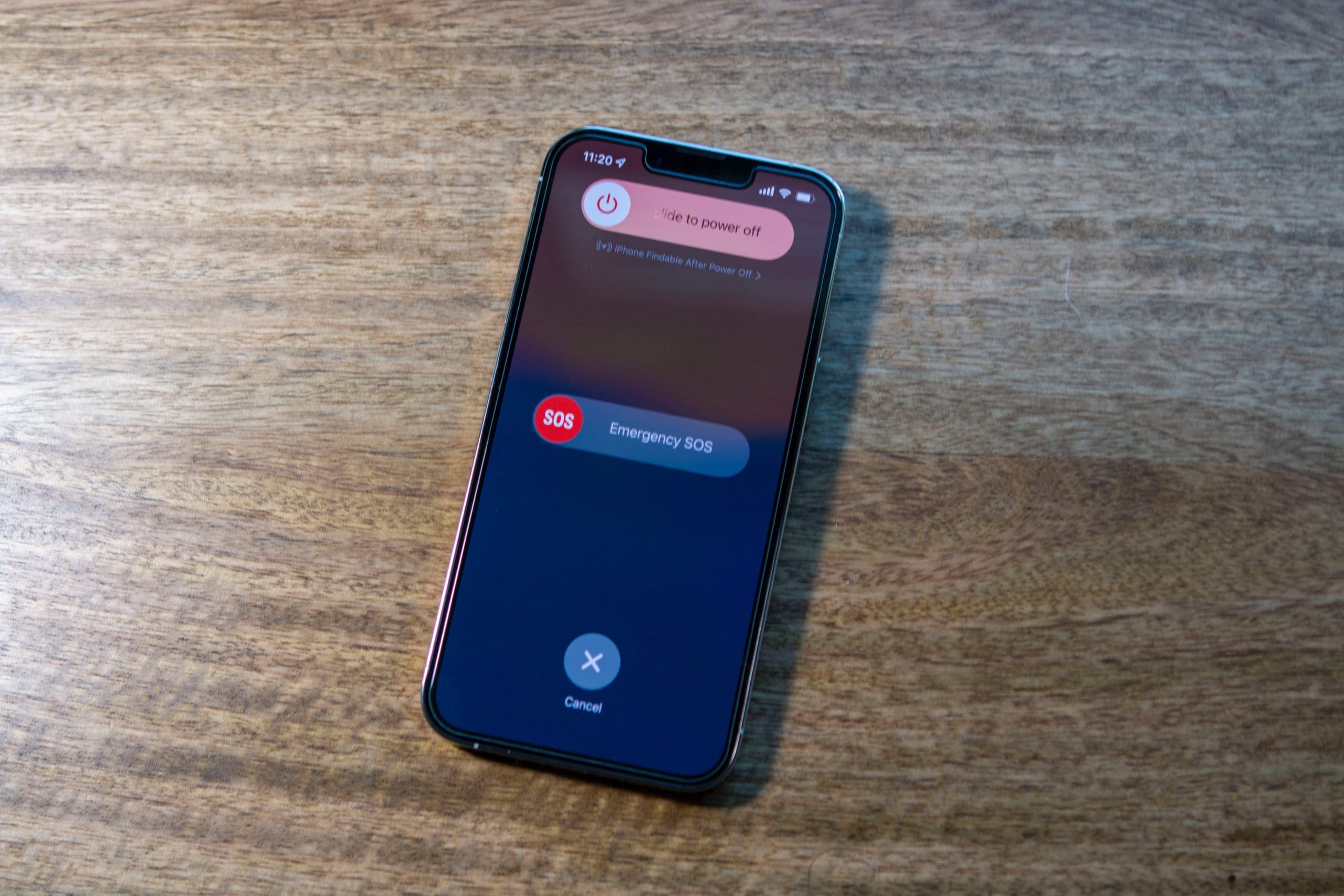
Many issues can be resolved by simply restarting your iPhone.

  • iPhone X and later: Press and hold the side button and either volume button until the power off slider appears.
  • iPhone 8 and earlier: Press and hold the top (or side) button until the power off slider appears. Slide to turn off, then press the side/top button to turn your iPhone back on.

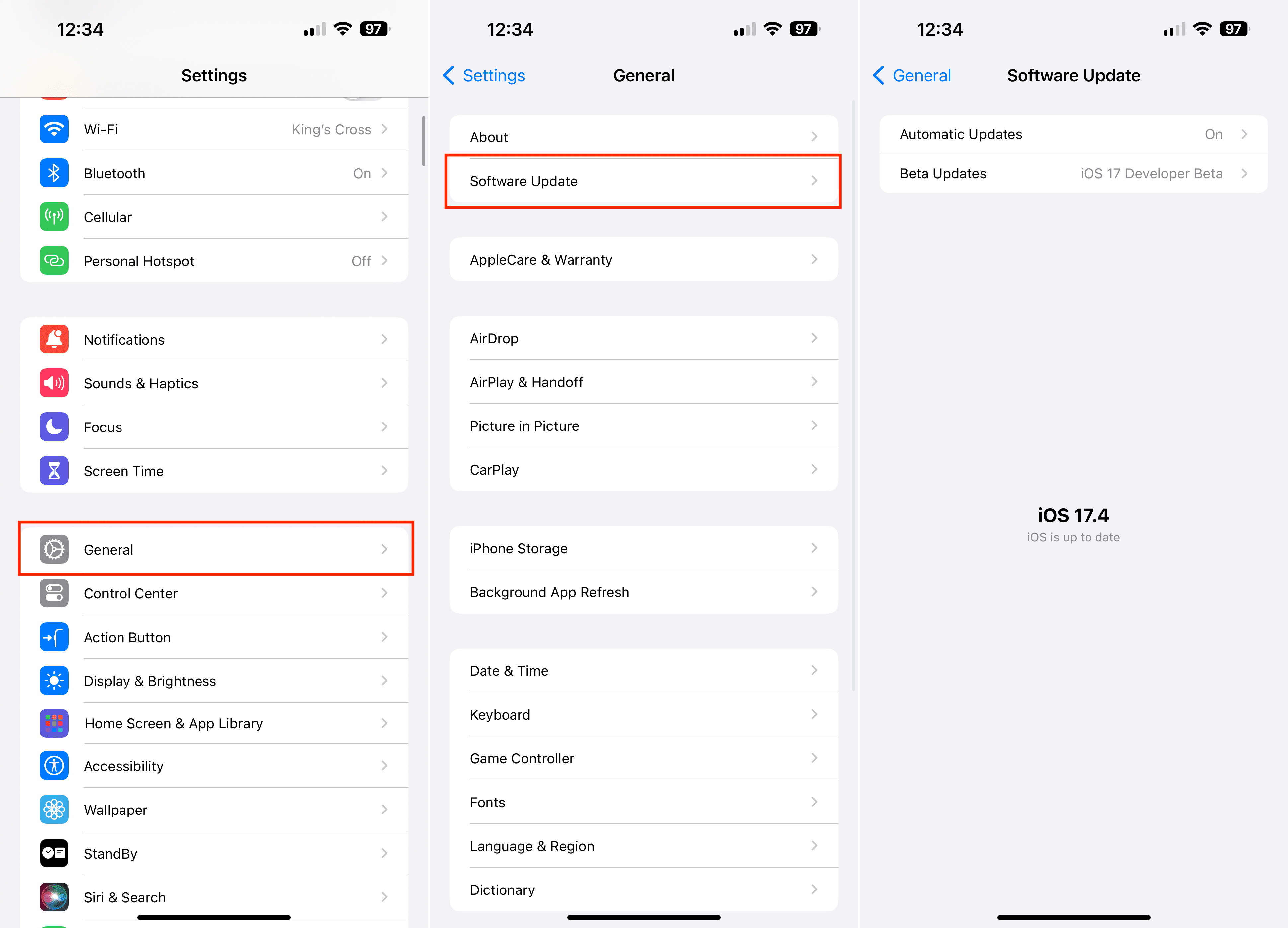
Update iOS

Ensure your iPhone is running the latest version of iOS. Updates often include bug fixes and performance improvements.

  • Go to Settings > General > Software Update. If an update is available, tap Download and Install.

Check Network Connections

Connectivity issues can often be resolved by checking your network settings.

  • For Wi-Fi issues, go to Settings > Wi-Fi and ensure you’re connected to the correct network.
  • For cellular data issues, go to Settings > Cellular and make sure Cellular Data is turned on.

App Issues

Force Quit and Restart Apps

If an app is unresponsive or malfunctioning, force quitting and reopening it may resolve the issue.

  • On iPhones with Face ID, swipe up from the bottom and pause. On iPhones with a Home button, double-click the Home button. Then swipe the app off the screen to close it.

Update Apps

Outdated apps can lead to performance issues. Ensure all apps are up to date.

  • Open the App Store, tap your profile icon, and scroll to see app updates. Tap Update next to an app, or Update All.

Reinstall Problematic Apps

If updating doesn’t resolve the issue, try deleting and reinstalling the app.

  • Press and hold the app icon, tap Remove App > Delete App, then reinstall from the App Store.

Battery and Charging Issues

Check Charging Accessories

Ensure your charging cable and adapter are not damaged and are properly connected. Try using different accessories to rule out hardware issues.

Optimize Battery Settings

  • Go to Settings > Battery to view battery health and which apps are using the most power. Consider enabling Low Power Mode to extend battery life.

Battery Calibration

Calibrating the battery can sometimes improve its performance and lifespan.

  • Drain the battery until your iPhone turns off, then charge it to 100% without interruption.

Connectivity Problems

Toggle Airplane Mode

Quickly turning Airplane Mode on and off can reset network connections.

  • Swipe down from the top-right corner (or up from the bottom on models with a Home button) to access Control Center and tap the airplane icon.

Reset Network Settings

If connectivity issues persist, resetting network settings can help.

  • Go to Settings > General > Reset > Reset Network Settings. This will erase all saved Wi-Fi networks and passwords, cellular settings, and VPN and APN settings.

Performance and Storage

iPhone Free Space

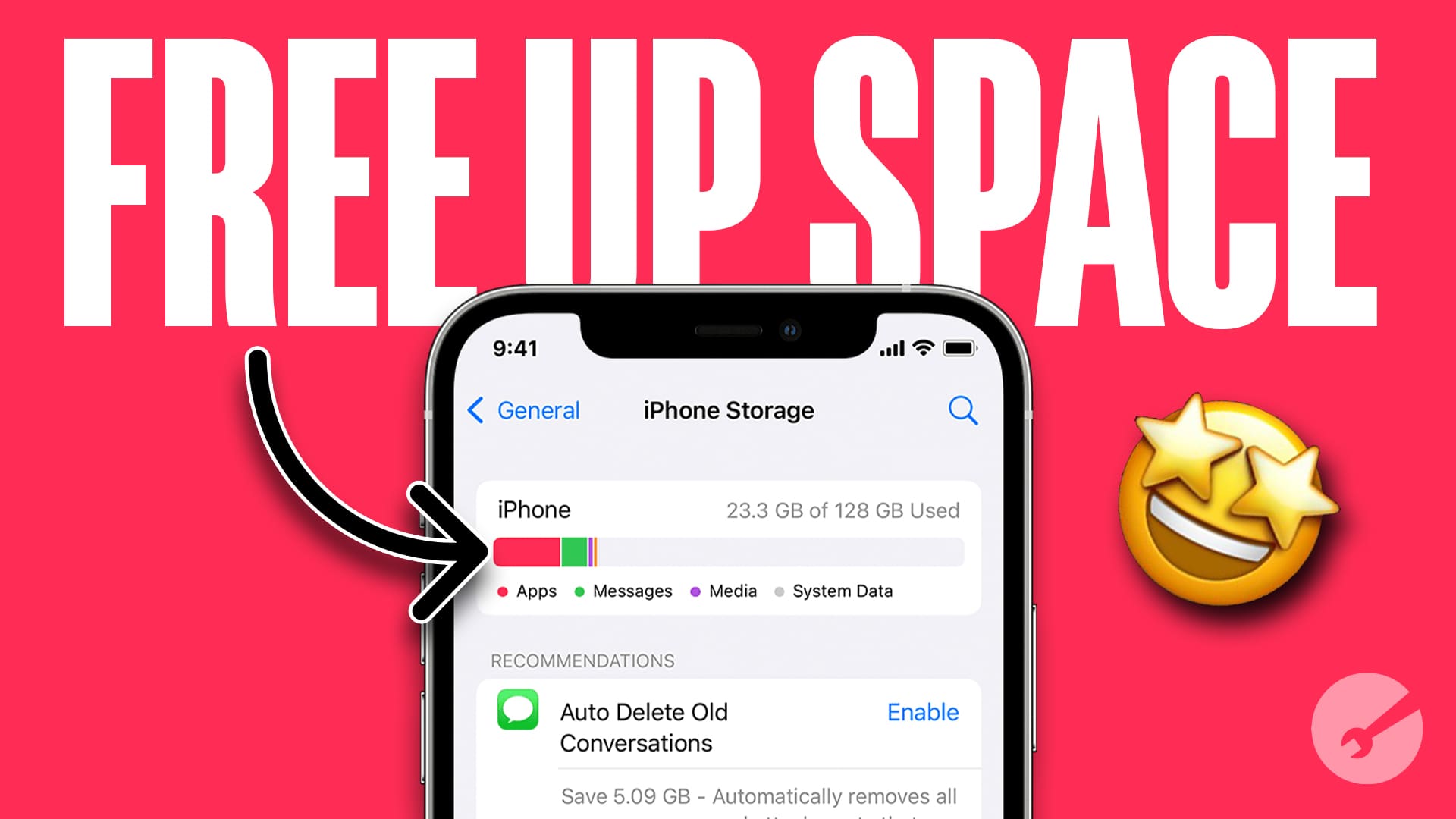
Free Up Storage Space

Lack of storage can affect iPhone performance.

  • Check storage at Settings > General > [Device] Storage. Uninstall unused apps, delete large files, or offload apps to free up space.

Close Unused Apps

Regularly close apps you’re not using to free up memory and improve performance.

Factory Reset

As a last resort for unresolved performance issues, consider a factory reset.

  • Back up your iPhone, then go to Settings > General > Reset > Erase All Content and Settings.

Maximizing iPhone Lifespan

Battery Care

To maximize battery lifespan, try to maintain your iPhone’s battery charge between 20% and 80%. Extreme full charge or discharge cycles can shorten battery life over time.

Regular Updates

Regularly update your iPhone to the latest version of iOS. These updates include important security patches, performance improvements, and new features that can enhance your device’s longevity.

Clean Your iPhone Properly

Keep your iPhone clean by gently wiping the exterior with a soft, slightly damp, lint-free cloth. Avoid getting moisture in openings and do not use window cleaners, household cleaners, compressed air, or aerosol sprays.

Managing and Backing Up Data

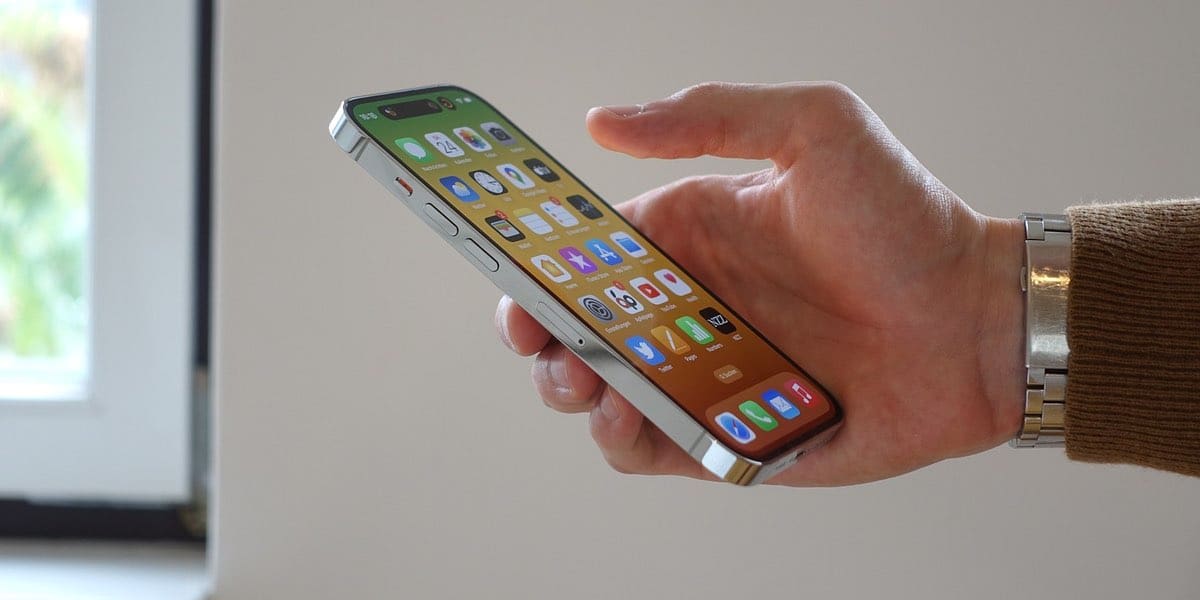
Person holding iPhone in their hand with Face ID

iCloud Backup

Use iCloud to back up your iPhone automatically. Go to Settings > [your name] > iCloud > iCloud Backup and ensure that iCloud Backup is turned on. Perform backups regularly to safeguard your data.

iTunes or Finder Backup

For a local backup option, use iTunes (on Windows or macOS Mojave and earlier) or Finder (on macOS Catalina and later). Connect your iPhone to your computer, open iTunes/Finder, and select your iPhone to back up.

Optimizing iPhone Usage

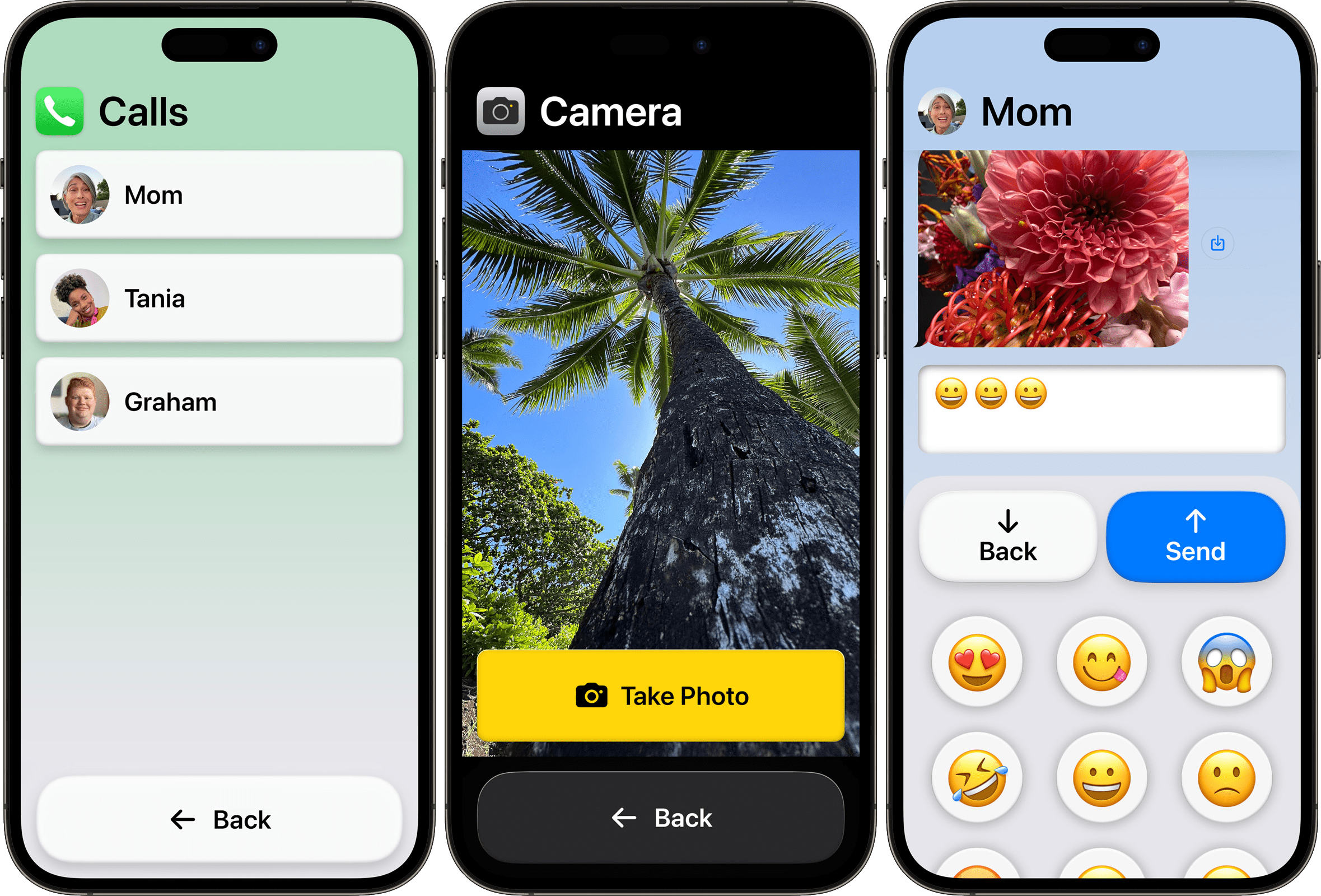
Assistive Access in iOS 17

Customize Settings

Personalize your iPhone by customizing settings to your liking. Adjust notifications, control center, sounds, and display settings to enhance your user experience.

Explore Accessibility Features

iOS offers a range of accessibility features designed to accommodate various needs, including Vision, Mobility, Hearing, and Cognitive. Explore these settings to customize your iPhone usage further.

Use Apple Ecosystem Features

Maximize your iPhone’s potential by utilizing features within the Apple ecosystem, such as Handoff, AirDrop, iCloud, and Family Sharing. These features enhance connectivity and productivity across your Apple devices.

Advanced Troubleshooting

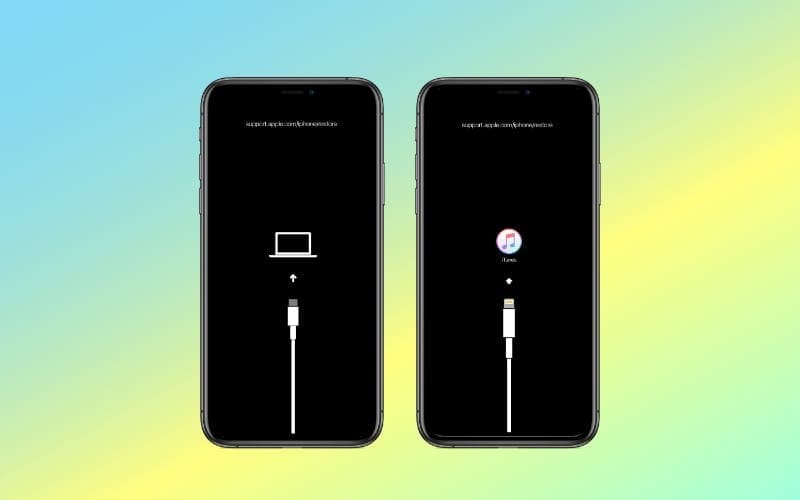
iPhone stuck in Recovery mode? Here are 4 steps to fix it

Recovery Mode

If your iPhone is unresponsive or encountering serious issues, putting it into recovery mode and restoring it via iTunes or Finder may be necessary.

  • Connect your iPhone to a computer, open iTunes/Finder, then perform a force restart on your iPhone but don’t release the buttons when the Apple logo appears. Instead, wait for the recovery mode screen.

Contact Apple Support

For issues that cannot be resolved through troubleshooting, contact Apple Support or visit an Apple Store or Authorized Service Provider for professional assistance.

Protecting Your iPhone

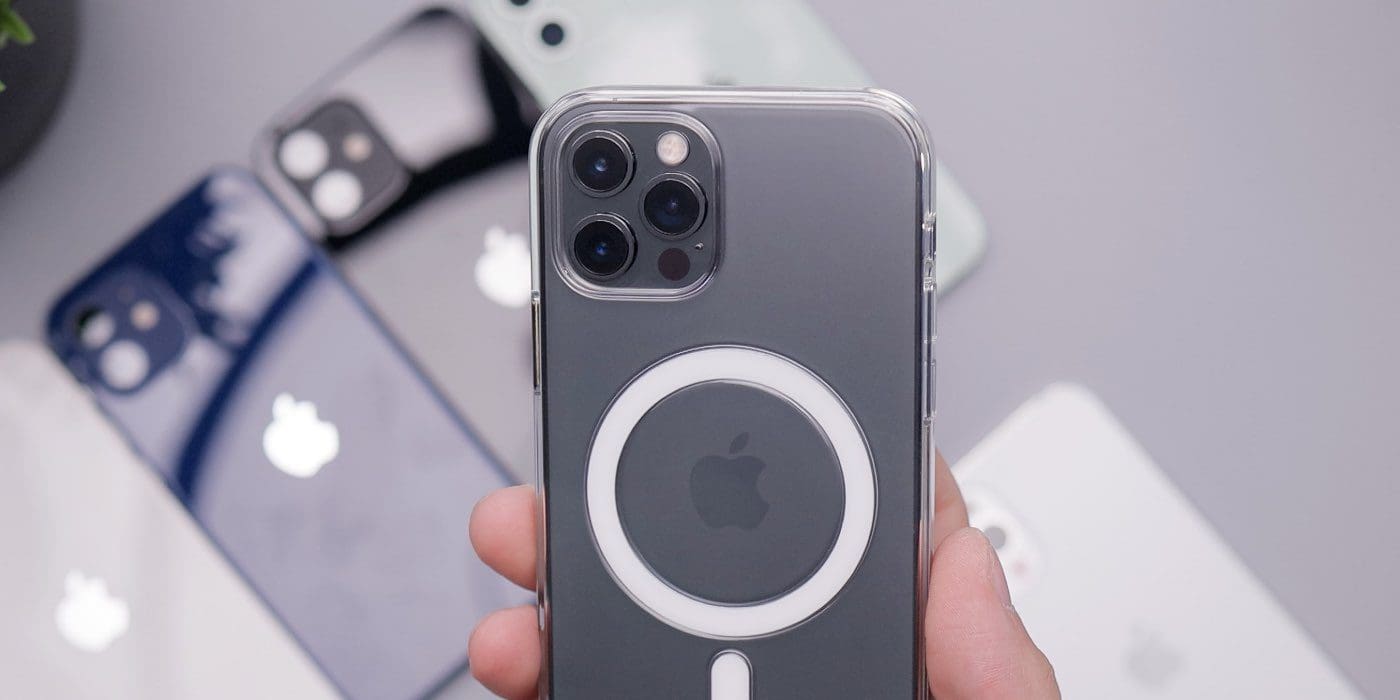
photo of a person holding an iphone with a case on it

Use Protective Accessories

Invest in a quality case and screen protector to safeguard your iPhone against drops, scratches, and daily wear and tear. These accessories can significantly extend the life and maintain the appearance of your device.

Avoid Extreme Temperatures

iPhones are designed to operate within a specific temperature range. Exposure to extremely hot or cold temperatures can damage the battery and internal components. Avoid leaving your iPhone in a hot car or in direct sunlight for extended periods, and try not to use it in freezing conditions.

Conclusion

Troubleshooting your iPhone and optimizing its usage can greatly enhance your experience and extend your device’s lifespan. By following the comprehensive steps outlined in this guide, you can address common issues, protect your iPhone, and make the most of its capabilities.

Regular maintenance, coupled with a cautious approach to security and privacy, will keep your iPhone running smoothly for years to come. For unresolved issues, always seek assistance from Apple Support to ensure professional and reliable solutions.
Related Posts:

  • Dynamic Island on iPhone 14 Pro Max
    Apps That Make Dynamic Island On iPhone 14 Pro Even Better
  • iPhone 15 Pro unboxing
    How To Extend Your iPhone Battery Life
  • iOS 16 Unsend Messages on Your On Your iPhone
    Best iPhone Apps For Live Activities
  • iPhone 13 Pro Max on Keyboard
    iPhone 13 Pro Max vs iPhone 14 Pro Max: Should You Upgrade
  • iPhone 15 Pro Max - 4
    Best iPhone Lock Screen Widgets for iOS 17
  • iPhone 15 event - iPhone 15 Pro and iPhone 15 Pro Max A17 Pro Video Recording Promo
    iPhone 14 vs. iPhone 15: Should You Upgrade?
  • iPhone in Outdoor Setting
    iOS 17.3: What Is Stolen Device Protection on iPhone?
  • MacBook Pro 2021 iPad Mini iPhone 13 Pro AirPods 3 Beats Fit Pro iPad Pro Best Apple Products - 1
    How to Turn on Apple's Advanced Data Protection for…
  • iPhone 15 event - iPhone 15 Colors
    Best iPhone 15 Tips and Tricks

Primary Sidebar

Recent Posts

  • How to Manage Your iPhone Call Log
  • Are Apple’s Safety Precautions Enough for AirTags?
  • How to Hide Username and Photo on the Mac Lock Screen
  • Microsoft Resume vs. Apple Handoff – Which Wins for Cross-Device Work?
  • How to Export iTunes Library to New Computer
  • What the Gemini Desktop App Will Bring to Mac

Connect with us

Footer

ABOUT

  • About Us
  • Contact us
  • Advertise
  • Privacy
  • Terms of Use

GUIDES

  • iOS & iPadOS
  • Apple ID
  • iCloud
  • App Store
  • iTunes
  • FaceTime
  • iMessage
  • Siri
  • Books and iBooks
  • Game Center
  • AirPlay

CONNECT

  • Facebook
  • Twitter
  • FeedBurner
  • YouTube

© Copyright 2010-2024 Guiding Tech Media · All Rights Reserved

This site and its content are in no way affiliated or endorsed by Apple, Inc. · Reproduction without explicit permission is prohibited